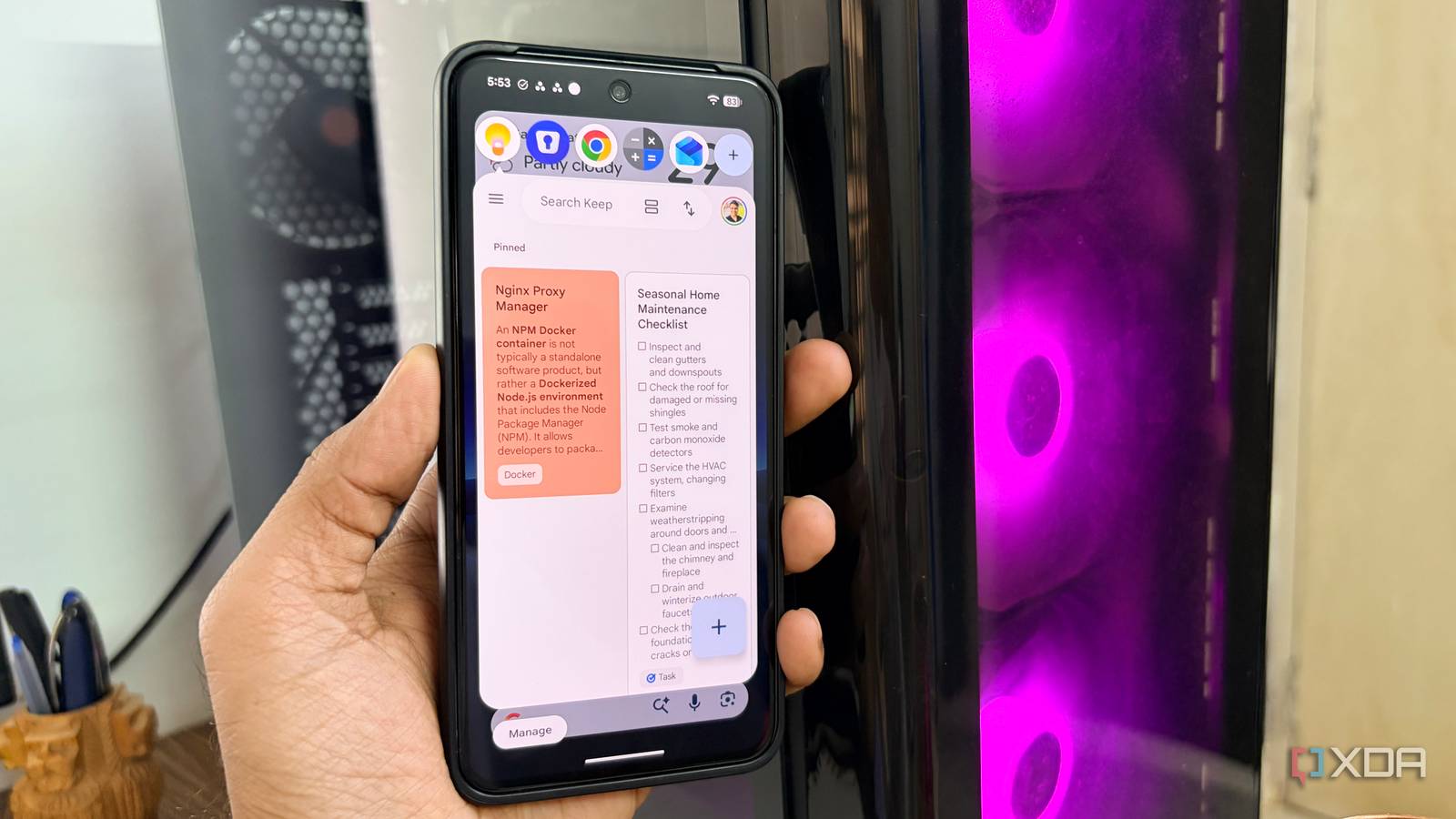
Published Aug 10, 2026, 1:30 PM EDT Parth, a seasoned tech writer, wields the keyboard (or pen) with finesse to unravel the intricacies of both Windows and Mac operating systems. He has covered evergreen content on mobile devices and computers for multiple publications over the last six years. You can find his work on AndroidPolice, GuidingTech and TechWiser. Whether it’s demystifying system updates, deciphering error codes, or exploring hidden features, Parth’s prose guides readers through the binary maze. When not immersed in tech jargon, you’ll find him sipping chai, pondering the next software review, and occasionally indulging in a friendly debate about mechanical keyboards. Multitasking on my Pixel 8 has always felt unnecessarily cramped. Its compact display is great for one-handed use, but the moment I tried to juggle two apps, the experience quickly became frustrating. Even simple tasks, such as replying to a message while browsing or checking a note without leaving another app, felt more cumbersome than they should. That’s when Android 17’s Pixel bubbles changed everything. Multitasking felt cramped on my Pixel 8 Split screen never solved the problem I have always liked the Pixel 8’s compact size. It is comfortable to hold, easy to use with one hand, and far more manageable than today’s oversized flagship phones. However, that smaller display quickly became a limitation whenever I tried to multitask. Even a simple task, such as checking a message while browsing, copying an address into Maps, or referring to a note while writing an email, forced me to switch between apps. The constant switching was not only slow, but it also broke my concentration. I would leave one app to check something quickly, get distracted by another notification, and then struggle to return to the exact page or section I was using. The Pixel worked brilliantly when I focused on a single app, but juggling multiple apps on its compact screen always felt awkward. Split screen seemed like the obvious solution, but I rarely found it useful on my Pixel 8. Dividing the display between two apps made both of them feel cramped. Text became hard to read, buttons were squeezed together, and the keyboard often consumed most of the remaining space. Instead of making multitasking easier, it usually made both apps more frustrating to use. It also felt excessive for quick actions. I did not need two apps permanently sharing the screen just to reply to a message, check a calculation, or copy a small piece of information. Enter Pixel Bubbles on Android 17 It’s effortless App Bubbles is Android 17’s new approach to floating-window multitasking. It builds on the conversation bubbles Android has offered for years, but it is no longer limited to messaging apps. I can now turn almost any app into a compact window that floats above whatever I am currently using. The main app remains open underneath, while the bubble app stays out of reach for quick interactions. Enabling it is simple, and I did not need to dig through settings or activate an experimental toggle. I only had to open my home screen or app drawer, long-press the icon of the app I wanted to use, and select Bubble from the pop-up menu. The app immediately opened inside a floating window. I could tap outside it to collapse it into a small icon, tap the icon again to reopen it, or drag it around the display so it did not obstruct important content. Android also groups multiple bubbled apps into a single stack, making it easy for me to switch between them without cluttering the screen. There is one major availability restriction, though. At the moment, I can use App Bubbles only on Pixel phones running Android 17. It works for more than conversations There are many use cases I initially assumed that App Bubbles would be most useful for messaging apps. After all, Android has associated bubbles with conversations for years. However, I quickly realized that the feature becomes far more powerful when I use it with regular apps. I can keep a calculator floating above a shopping app, open Google Keep while researching something in Chrome, or pull up my password manager (Enpass) without leaving a sign-in screen. I was also impressed by how smoothly everything performed. As a test, I opened four different apps as bubbles and kept them active throughout the day. When I checked my Pixel again the next day, the same four apps were still available in the bubble stack. I did not notice any unnecessary loading screens, interface glitches, or apps restarting when I reopened them. I do not see App Bubbles as a replacement for opening apps normally. Their real strength is handling temporary tasks that take only a few seconds. Replying to a message, checking a calculation, referring to a note, copying a password, or verifying a date rarely requires a full-screen app. It feels more natural than Samsung’s approach Google finally gave the Pixel proper multitasking Samsung has offered floating windows through Pop-up view for years, and its implementation is more powerful. I can resize windows, adjust transparency, minimize them into floating icons, and even run multiple apps at once. However, I have rarely used it consistently on my Samsung Galaxy S25 Ultra because it often feels like trying to run a desktop-style window manager on a small phone screen. There are more controls to manage, more resizing to do, and more visual clutter once several windows are open. Pixel Bubbles feels far more natural to me because it keeps the entire interaction simple. A smarter way to juggle apps Pixel Bubbles makes the limited space far easier to manage. Instead of constantly bouncing between apps or squeezing two cramped interfaces into split screen, I can keep my main app open and bring secondary apps into view only when I need them. The feature still has a few rough edges, but it has already fixed one of my biggest frustrations with multitasking on a compact Pixel. And if you are new to the Pixel world, make sure to explore these built-in apps to get the best out of it.
The new Pixel Bubbles feature turns any app into a floating window, and it fixed how I multitask
Full Article
Original Source
Read the full article at Xda-developers →KhanList aggregates and links to publicly available news content. We do not host full articles from third-party sources. Always verify important information with original sources.