
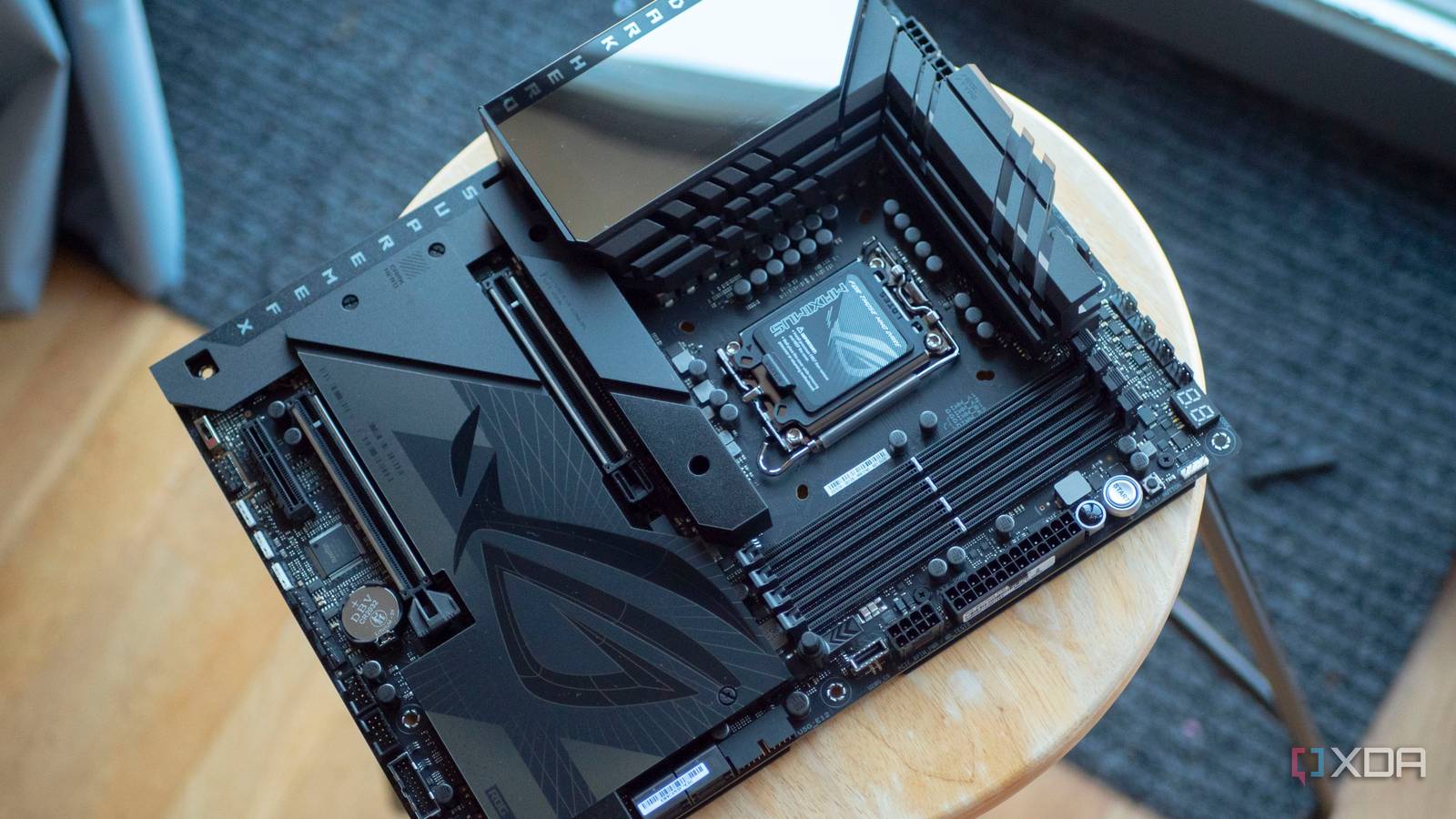
Published Aug 17, 2026, 7:00 PM EDT Abhinav pivoted from a career in banking to pursue his first love in writing. Even while working full-time, he continued contributing as an editor-at-large, a role he has held for more than 7 years. A lifelong tech enthusiast who has built three gaming and productivity powerhouse PCs since 2018, his passion for technology keeps him closely following the semiconductor industry, from NVIDIA and AMD to ARM. His MSc dissertation explored how artificial intelligence will reshape the future of work, reflecting his curiosity about the wider social impact of emerging technologies. Most ATX and micro-ATX motherboards come with more headers than the average builder has uses for. On average, even a really savvy builder will only ever use 6 to 7 headers out of the available 18–20, and that number goes down further if one doesn't care about RGB features or goes for an air cooling solution instead of an AIO. It's safe to assume that you're almost always spoiled for choice when it comes to internal motherboard connections, but out of so many options, it often happens that some genuinely useful headers go unoccupied when your PC hits the POST screen, and it stays that way for the entire lifespan of the PC. The biggest missed opportunity is the internal USB 2.0 header, which can add surprising functionality and also elevate your build's aesthetics. What is the internal USB 2.0 header, and what does it do? A one-stop solution for both power and data The USB 2.0 header is something that you can find in many different places depending on your board manufacturer, but most builders will see one or three of them along the bottom edge of the motherboard in a standard ATX or micro-ATX layout. It's a 9-pin connector comprising 5 pins in one row and 4 in the other, just so you don't accidentally plug a cable upside down. What most people don't realize by not using it is the fact that it delivers both 5V power and data at a max speed of 480 Mbps, so the peripherals you plug in can both be powered on and communicate with their respective software using it. This means that all the components rated for this specification don't need a separate connector going into the power supply. Those specifications sound modest, but there's a real use-case for these headers, which is why manufacturers are adding more of them, even on boards announced this year. The upcoming ROG Glacial X870E lineup of motherboards is going to feature three USB 2.0 headers instead of the usual two, and other lineups like The Dark Hero, TUF Gaming Neo and ROG Strix Neo will follow suit. AIO displays, RGB hubs, and more hubs if you need them If you have an AIO with a display, you're likely already using a USB 2.0 connector to feed its LCD with telemetry (and animations, if you've ever tried it). The very same applies to many RGB hubs and fan controllers from major manufacturers like Corsair, Lian Li, and NZXT, which I use myself. That use-case, however, barely scratches the surface of what's possible. USB 2.0 headers can be used for Bluetooth adapters, sensor panels, lighting controllers, and even USB expansion hubs that split a single header into two independent internal USB connections. They're particularly useful in small-form-factor (SFF) builds where you're constantly struggling to maintain a clutter-free environment inside the chassis against wires. You may have noticed that in these use-cases, bandwidth seldom becomes a limitation that's worth talking about. System telemetry, lighting profiles, fan curve management and small LCDs don't even come close to saturating the 480 Mbps ceiling, which makes for an ideal low-speed interface for peripherals that don't need all that throughput at all and can still function as expected. It powers my favorite component on my PC My favorite component inside my PC happens to be an 8.8-inch universal screen from Lian Li, which I initially purchased to monitor GPU and CPU temperatures without having to pop open an overlay every time I needed data. Although that's literally all I purchased it for, I realized that it can run a separate desktop away from my main screen and I can just drag and drop the tabs that took too much screen space on to it, such as YouTube videos running in the background or other media controls that I go to only when I'm switching a track. It would've been impossible to install this if I hadn't used the motherboard's internal USB 2.0 header, and the impact this tiny screen has had on the way I multitask has been nothing short of transformative. The way it works is rather simple. The USB 2.0 powers the screen (which takes about 3.8W) and feeds it data, and because the panel only runs at 1920x480, the 480 Mbps ceiling never becomes a bottleneck. Lian Li's L-Connect 3 driver registers the screen with Windows as a proper secondary display, which means I can extend my desktop onto it. It's quite simple, and really elegant, and happens to be one of the peripherals that opened my eyes to how useful this header can be. It's worth taking into account while shopping for peripherals It's not the fastest connector you can find on your motherboard, but that doesn't make the USB 2.0 header any less useful. It has a diversified number of use cases, which makes it highly versatile, being able to support a wide variety of peripherals. You can power your screens, manage the RGB lighting, or add niche connectors without needing to reach for the congested rear I/O panel port, and this header makes it easy to do.
The most useful port on your motherboard is the one you've never plugged anything into
Full Article
Original Source
Read the full article at Xda-developers →KhanList aggregates and links to publicly available news content. We do not host full articles from third-party sources. Always verify important information with original sources.