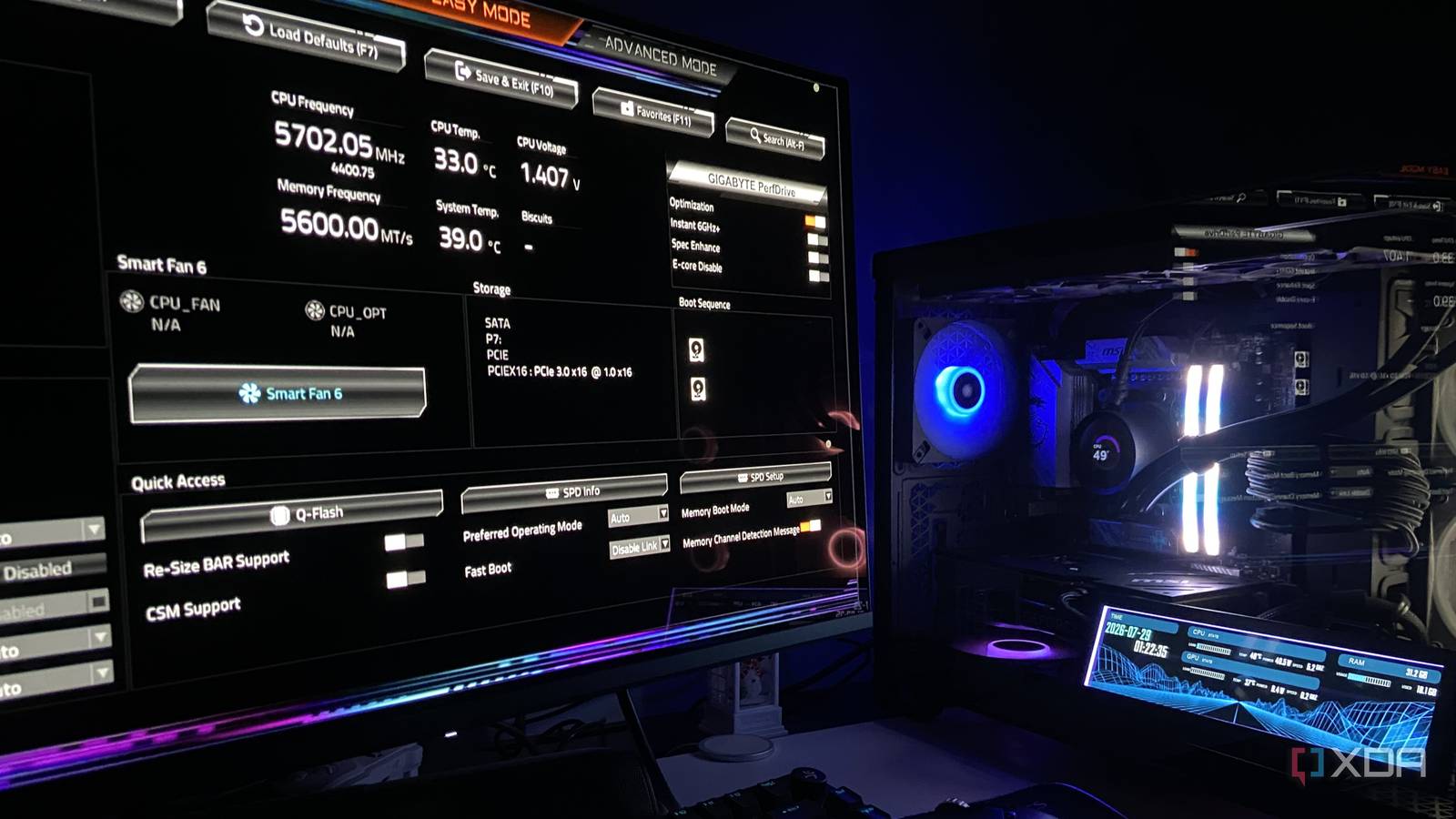
Published Jul 29, 2026, 7:00 PM EDT Abhinav pivoted from a career in banking to pursue his first love in writing. Even while working full-time, he continued contributing as an editor-at-large, a role he has held for more than 7 years. A lifelong tech enthusiast who has built three gaming and productivity powerhouse PCs since 2018, his passion for technology keeps him closely following the semiconductor industry, from NVIDIA and AMD to ARM. His MSc dissertation explored how artificial intelligence will reshape the future of work, reflecting his curiosity about the wider social impact of emerging technologies. Every time I set up a new PC, whether it's mine or one that I've put together for a friend in need, there's one thing I check before anything else, particularly if the performance numbers don't match the output I should be seeing for the hardware in the rig. I open Task Manager, click through to Memory, and look at the speed reading. More often than not, it's the RAM to be blamed for the inconsistent performance. I've lost count of how many times this thirty-second check has solved the mystery. Sometimes, it's because the "friend in need" has no idea that you don't get the advertised speeds right out of the box. The other times, a BIOS flashback or a CMOS reset would just revert the memory back to the JEDEC default. In any case, it's a simple problem to diagnose, and perhaps even simpler to fix. Misconfigured RAM costs more performance than any other setting It's the single most important toggle in the BIOS Any memory kit you buy from anywhere in the world, whether it's DDR4 or DDR5, you'll find that it ships with two different sets of instructions. The first, of course, is the JEDEC baseline, which is a conservative standard that guarantees the module will boot on any compatible board, with any compatible processor. The second profile is what every gamer, enthusiast, and even a casual user needs in order to justify the price. Intel calls this profile XMP, whereas AMD calls it EXPO, and both do the same job of instructing the motherboard to run higher frequencies, adhere to tighter timings and draw more voltage than the safe default. Your motherboard, of course, will use the JEDEC standard unless you pick either EXPO or XMP, and so, your DDR5-6000 kit will boot at 4800MT/s, and your DDR4 kit boasting up to 3200MT/s will most often boot at 2133MT/s. Your PC will run without issues on either JEDEC or EXPO/XMP profiles, so it's quite easy to miss this part of housekeeping in the BIOS. The performance loss could well be over 40% I ran the benchmarks, and confirmed the worst Source: Microsoft A forty percent performance delta isn't something PC gamers like to take lightly. Now, when I say that you stand losing up to 40% performance, I'd note that this doesn't necessarily translate to all workloads evenly, but regardless, in certain scenarios, it becomes significant enough to justify a visit to your system BIOS and make sure the settings are in order. One might wonder where I'm quoting these figures from. If you've been following my coverage, you'd know that curiosity often tends to get the better of me, and I frequently decide to test things no one else would want to bother with. About three weeks ago, I decided to benchmark my own system to see what leaving the memory at its JEDEC defaults actually costs. I went in expecting a modest 12–15% difference in graphically intensive, AAA studio games that gamers often raise hell about missing out on, but what I found instead was, to put lightly, eyebrow-raising. In CPU-intensive titles like Microsoft Flight Simulator 2024, I witnessed a gain of about 42% when running the same DDR5-6000 memory in EXPO versus on JEDEC. With the other GPU-bound titles, like Capcom's Pragmata and Xbox Game Studios' Forza Horizon 6, the gains were rather modest, ranging from 8–20%, but that's still not something anyone who cares about performance (or their money) would leave on the table. Your RAM should pay you back in performance Especially at these absurd prices right now For anyone looking for a quick diagnosis, the Task Manager is the fastest way to ascertain if things are okay with your memory kit, but if you're curious like I am, I'd recommend using CPU-Z or HWiNFO for the whole story. CPU-Z's SPD tab will tell you what your memory kit is rated for, and HWiNFO will report the speed that it's currently running. If the two numbers don't match, don't worry. The fix will take less time than going through this section. Every motherboard manufacturer calls the menu you're looking for to configure your RAM something different, but you're essentially looking for a memory profile labelled XMP, EXPO, or DOCP. Once you find it, you'd have to set EXPO or XMP to "Enabled", and then save, exit, and wait for the PC to reboot. On my MSI B650M motherboard, I found these settings under the "Overclocking" section, but it may vary by your motherboard manufacturer and in some cases, the SKU as well. Once you're back into your OS, that really is it. However, if you ever run into a memory training error or a similar POST-related issue that compels you to do a CMOS reset (that is, taking out the motherboard's CMOS battery or using a CMOS jumper), you'd have to go over and set the EXPO or XMP profile again. Likewise, if you've recently updated your motherboard's BIOS firmware, you'd have to enable the profiles again as well, since both of these tasks reset the memory profile back to the JEDEC standard where you're losing performance. Remember to configure the memory Pun heavily intended. If you've recently purchased DDR5 (or even DDR4) memory, chances are, your wallet is probably feeling lighter than it should. The very least your shiny new memory kits should do is deliver the performance on the box that you paid for. It's a single-step process that won't cost you more than two reboots, but your PC and your workload will be happier for it.
The first thing I check in every new PC's BIOS is a setting most people leave switched off by accident
Full Article
Original Source
Read the full article at Xda-developers →KhanList aggregates and links to publicly available news content. We do not host full articles from third-party sources. Always verify important information with original sources.