
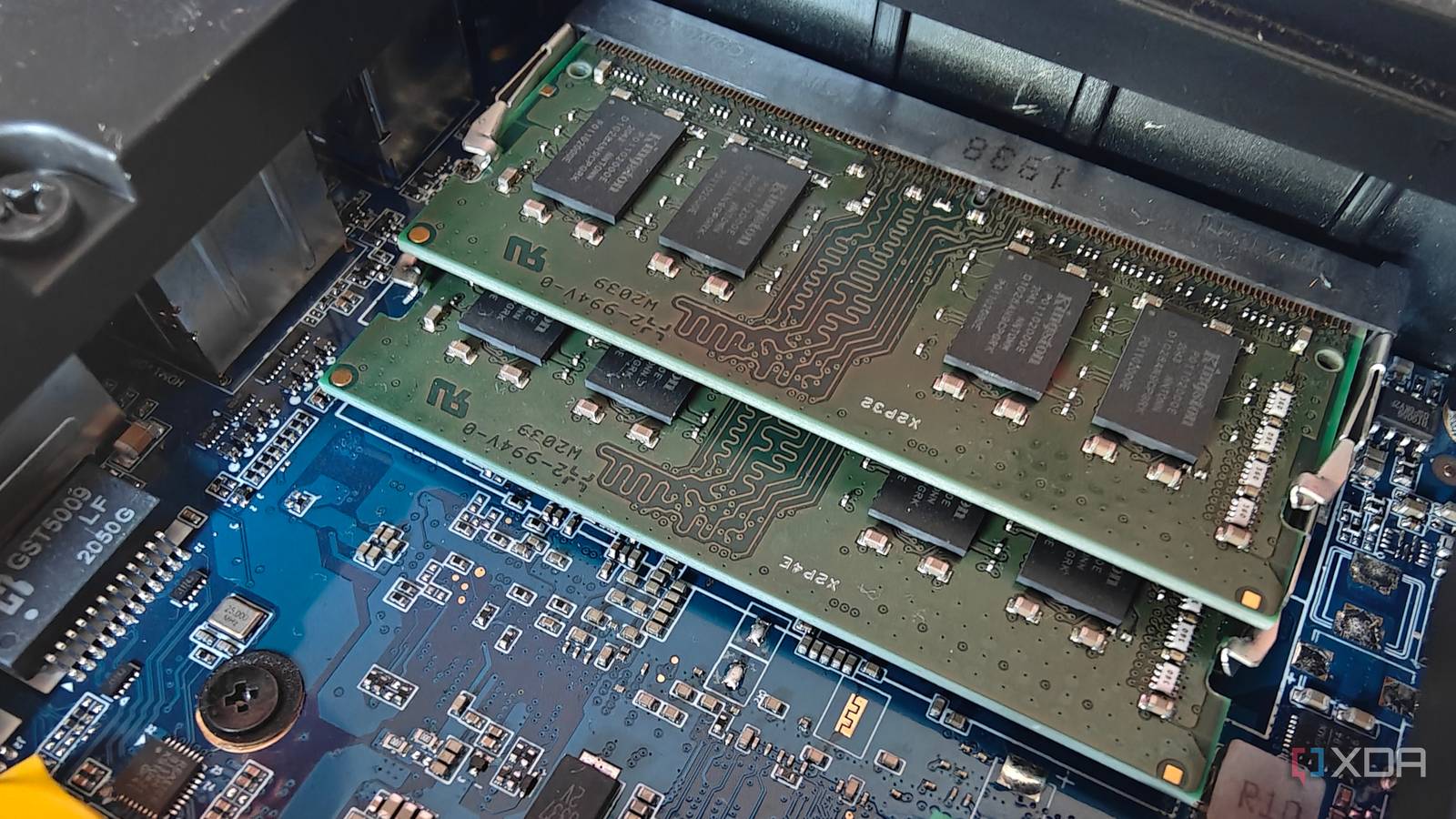
Published Nov 14, 2026, 7:00 AM EST Richard is the PC Hardware Lead at XDA and has been covering the technology industry for almost two decades. He's been building PCs since young, and when not creating content, you can often find him inside a chassis somewhere. Want more PC storage performance? Chances are you're considering the storage drive where software and games are stored. That's a good place to start, for sure, but in the home lab and working with Proxmox, there's a second option. Random access memory (RAM) is vital for running multiple virtualized instances. Whether you're running Plex or a game server, the Linux container (LXC) or virtual machine (VM) needs memory. For a server, this may be the fastest storage upgrade. My home server was already running fast drives A combination of speedy SSD storage with long-term HDD pools Credit: I repurposed old PC parts when putting together the home lab, which consisted of storage drives from older systems. These weren't bad SSDs and HDDs, but they simply weren't the right match for my primary desktop. Small NVMe SSDs could be used for Proxmox node OS boot drives, and SATA SSDs for running apps and storing some data, leaving HDDs to pick up the slack for long-term data storage for backups, media, security camera footage, and everything else we need to put aside. The resident network-attached storage (NAS) server is also kitted out with Seagate IronWolf drives, which are about as good as you can get for consumer-grade network storage. So the answer wasn't more space or faster access times. There's also no need for it. I wasn't hitting delays where the CPU was frequently waiting on storage to keep up. I wasn't running anything serious on one system. I had a small form factor (SFF) desktop acting as a network video recorder (NVR), the NAS, and a single Proxmox node. That NAS isn't doing anything but store and stream data. The more generic Proxmox node runs Home Assistant, Gitea, Jellyfin, Immich, and a few other containers. None of these needs fast storage. Jellyfin is the heaviest on accessing data, but even that has no trouble managing a link to the NAS with a 2.5Gb limited network. But there was one resource that Proxmox nodes desperately require a fair amount of when running numerous virtualized instances, and that's system memory. I needed more RAM. Proxmox can always use free RAM Caching is king Linux is king when it comes to running servers for a reason. The operating system manages system resources incredibly well. It's also why you can find distros working on just about anything, including devices that have no right running a full desktop OS. It may appear like a good move to only kit out the Proxmox server with enough RAM to run everything, but that doesn't really work out best. Linux loves to have plenty of spare RAM available for page caching. Similar to how one can install an NVMe SSD inside a NAS to use it for caching files, Linux can use free memory to store recently accessed file data, which would allow subsequent reads to be served directly from RAM. This avoids storage altogether, and even the fastest NVMe SSDs won't be able to keep up with RAM. This is particularly useful when running multiple services accessing the same files, which matches Proxmox and self-hosting perfectly. Tell XDB what you want the PC to do and how much you want to spend. We'll find parts that fit, with current prices. What will you use it for? Pick any Games or apps Optional Budget But Linux is a little smarter when it comes to running page cache and doesn't simply keep data in reserved memory constantly. Should a running app or service require more memory, the system will make way and provide as much as possible. It's why I'm never too fussed about seeing high RAM usage. In fact, I start to get slightly concerned if the servers aren't using too much RAM, as it'll show that something could be amiss somewhere down the chain. Instead of throwing a quicker drive into my server, I added more RAM, effectively doubling the capacity. The Intel Core i5-10210U now has 16GB of DDR4 to play with instead of 8GB. But there's more to RAM than caching Each container and VM requires a slice When firing up LXCs and VMs on a home server like mine, they will each require system resources. LXCs tend to be on the lighter side, with some containers only requiring a few hundred megabytes, but a VM running heavy software can demand a few gigabytes, which could cause some problems if you're not keeping tabs on supply and demand. Consider your Proxmox server as a memory chip producer and virtualized instances as AI data centres. Each one of the services I run on my home lab won't pull too much RAM alone, but running Home Assistant, Jellyfin, Immich, Gitea, and other services on the same node can collectively consume a considerable amount of RAM, especially when databases, background tasks, and additional processes are involved. Literally throwing RAM at Proxmox servers is a sure way to run a competent and trouble-free home lab. Then there's ZFS, which can use RAM to accelerate access to frequently accessed data. Similar to page caching, it also helps to reduce the need to retrieve data from slower storage. Upgrading a drive may not always be the answer Check to see what your server needs For my setup, the existing storage was already sufficiently fast for the jobs assigned to it. Media streaming wasn't saturating the available bandwidth, and lightweight services weren't demanding thousands of storage operations every second. After checking everything over, memory was the more sensible place to invest. Increasing the amount available to Proxmox provides flexibility to run additional services while leaving more headroom for caching and unexpected spikes in usage. It's an upgrade that can benefit the entire host rather than one particular storage device, but upgrading and expanding RAM isn't going to fix every Proxmox-related issue. If genuine storage saturation is taking place, physically replacing the affected drive is really the only answer. But after looking through system reporting and logs, memory was where I could see the most notable improvements. And with the price of everything right now, it's vital to make the right decision when spending hard-earned cash.
The fastest storage upgrade for my home server wasn't a faster drive; it was more RAM
Full Article
Original Source
Read the full article at Xda-developers →KhanList aggregates and links to publicly available news content. We do not host full articles from third-party sources. Always verify important information with original sources.