
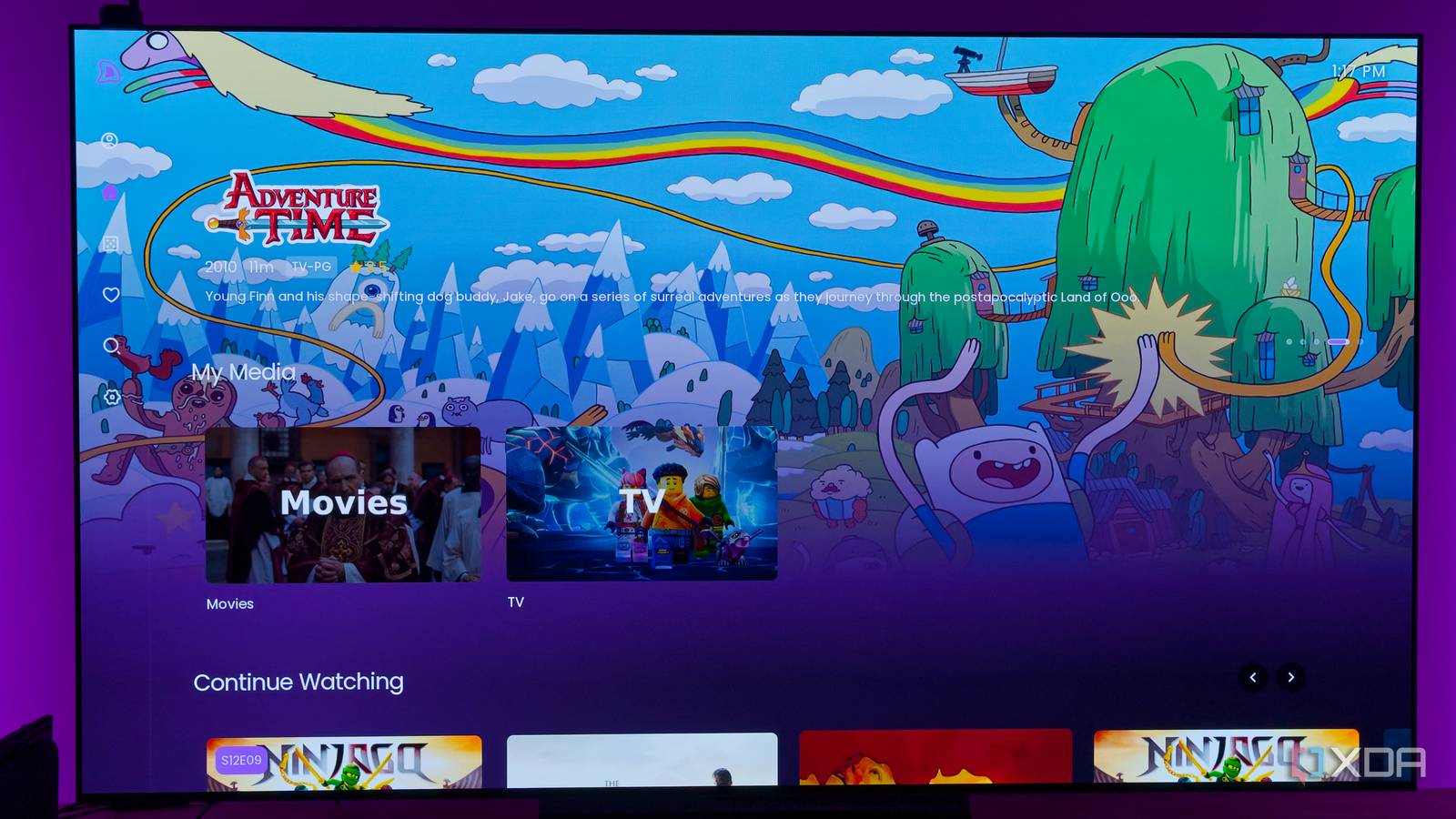
Published Sep 5, 2026, 3:00 PM EDT João has been covering the tech world for over 7 years, with a heavy focus on laptops and the Windows ecosystem. I also love all things tech and videogames, especially Nintendo, which he's always happy to talk about. Prior to joining XDA in 2021, he worked at Neowin: https://www.neowin.net/news/poster/jo%C3%A3o-carrasqueira/ Smart TVs are a blessing and a curse. They have a ton of built-in features that let you do things you couldn't before, but the software (and hardware) can get slow quickly, and the ecosystem of apps is somewhat limited in the official app stores. For example, only the official Jellyfin client is available in the LG Content Store. But if you have an LG webOS TV and you don't want to spend the extra money, there is a way to make it more useful: sideloading. Many apps can be sideloaded onto LG TVs, and in the case of Jellyfin, that includes the best one: Litefin. Litefin is one of the best Jellyfin clients Not just for LG TVs, but in general I've talked about Litefin before when I tested every Jellyfin app I could find on every platform I have. Litefin was the winner for the LG webOS platform, and it's for good reason. The only real competition was Moonfin, which felt noticeably slower and less useful. But that's not to say Litefin doesn't succeed on its own merits. It's a beautiful, fully featured app with rich information about cast members in the shows and movies in your library, a beautiful home page that isn't bloated with unnecessary recommendations, and a ton of customization options to make it look perfect for you. Seriously, there is so much customization here, not just in terms of looks, but settings for playback, the app's layout, and so much more. It supports Direct Play and transcoding; you can set maximum bitrates, and subtitles and audio tracks work as intended. It's such a robust app, especially considering it's under 5MB. I can't recommend it enough, and you can download it in one of four variants to support different LG TV models. Newer models of LG TVs use the Modern app, but on my aging living room TV I had to go with the Legacy version. It still works very well and looks almost exactly the same, so you're never sacrificing features. How to install Litefin Sideloading is possible The big problem with Litefin is that it's not available on LG's Content Store, so you can't just download it on your TV. And that's where sideloading comes in. Depending on your model, you can either root/jailbreak your TV, or you can go the more official route by enabling developer mode on your TV, which I recommend. Enabling Developer Mode isn't particularly hard, but it will take a few minutes. First, you'll need an LG account (which you may already be using to install apps on your TV), and you'll need to use your computer to go to LG's webOS developer website. Sign in with your account (or create one if you haven't) and follow the steps to activate your developer account. Once you're officially a developer, you can follow the steps below to install Litefin. You'll need a computer and your TV. On the TV, go to LG's Content Store, search for an app called Developer Mode, and install it. Launch the app, enable developer mode, and let the TV restart. Once it's back on, launch the Developer Mode app again and enable the Key Server toggle. On your computer, download the WebOS Dev Manager app from GitHub, along with the most suitable release of Litefin for your TV (linked below). Launch Devmode Manager and set up the connection to your TV. Enter the IP address shown on your TV into the respective field, along with the Passphrase. Once the TV is linked, click Install and select the IPK file for Litefin. The app will be pushed over the network onto the TV. Note: On the latest versions of webOS, the UI installer may fail to install packages due to a permission denied error. In this case, you may need to switch to the terminal tab and enter the commands shown here to install the Homebrew Channel. This allows you to install Litefin and other apps directly through the TV. This error may be fixed in a future release of webOS Dev Manager. Developer mode is timed on LG TVs, so it will reset every 1000 hours, and when it does, your apps are removed. However, you can use the Developer Mode app on your TV to refresh the timer whenever you want, so setting a reminder might be a good idea. Another thing to note is that Developer Mode can only be enabled for one account on one TV at a time, so if you have multiple TVs, that may be a limitation. Litefin There's even more you can do Litefin is just the beginning Litefin is the primary reason I enabled developer mode on my TVs, but it's just the beginning of what you can do. There's a dedicated LG WebOS Homebrew community website with many more apps listed, including, of course, Moonfin and Breezyfin if you want to try other Jellyfin clients. There are also clients for Kodi, as well as for streaming services like Crunchyroll and YouTube. But you can go in other directions. There's an app that's essentially the classic 3D Pinball Space Cadet board featured in Windows XP, apps for browsing your self-hosted Immich library or viewing it as a slideshow, a Moonlight client for streaming games in your home, and even the RetroArch emulation frontend. Some specific apps require fully rooting your TV, but most of these should work just fine with developer mode, and it's already a big step up from what you can find on the official app store. Sideloading comes highly recommended Whether you're in it for Jellyfin or the other apps created by the homebrew community, enabling developer mode or rooting your LG TV can definitely be worth it. Developer mode feels like the safest route, and it's the one I recommend doing, but some additional capabilities are possible with root enabled, so it's up to how comfortable you are with that process.
The best upgrade I made to my LG smart TV was sideloading an unofficial Jellyfin app
Full Article
Original Source
Read the full article at Xda-developers →KhanList aggregates and links to publicly available news content. We do not host full articles from third-party sources. Always verify important information with original sources.