
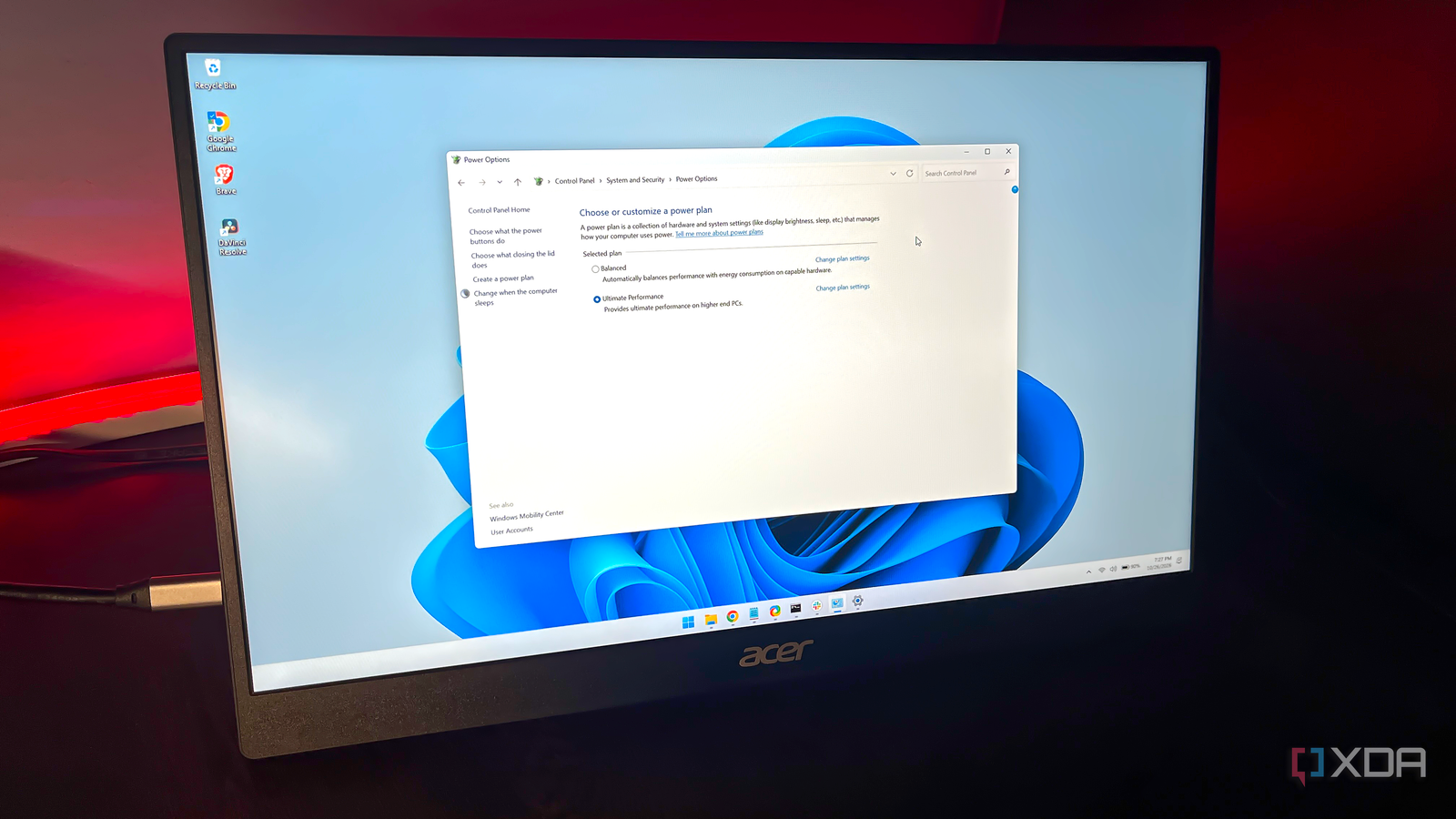
Published Oct 26, 2026, 12:30 PM EDT With over five years of experience in the tech industry, Kazim excels at simplifying complex topics, making them accessible to tech enthusiasts and general readers alike. He has extensively covered the Windows ecosystem, from Windows 7 to Windows 11. When he’s not writing, you’ll find Kazim planning weekend getaways or diving into tech verticals beyond his expertise. Your Windows PC comes with a couple of power plans to help you prioritize performance, battery life, or a balance of both. Laptops, by default, use the Balanced option, which, honestly, works fine for most users. But sometimes your system, whether it's a desktop or laptop, can feel underpowered, and that's where performance-oriented options make sense. But many users don't know that Windows hides its most performance-focused power plan. Called Ultimate Performance, the plan can be especially useful for resource-intensive tasks, since your computer runs at its maximum potential and no longer prioritizes battery life. The Ultimate Performance power plan has downsides too, but if peak performance matters more than anything, it's worth considering, or at least worth a try. The Ultimate Performance power plan It's precisely what the name suggests The Ultimate Performance power plan keeps your system active and on its toes at all times. That's the simple explanation. In slightly more technical terms, the power plan forces the CPU to run at maximum speed and disables power-saving features, regardless of the task at hand. This means that the CPU won't slow down during less resource-intensive tasks. This approach helps because it largely eliminates micro-latencies, the small delays that occur as your system readjusts performance based on the active workload. On most computers, the Ultimate Performance power plan should improve the gaming experience, though the extent of the improvement varies from one title to another. It also improves game loading times, since that's when the system has to adjust its performance. Similarly, video editing and rendering feel a lot more streamlined. I can vouch for the latter. Since I switched to Ultimate Performance, video editing has felt much smoother, and I no longer get those occasional lags. That said, the Ultimate Performance power plan is designed for high-end workstations, not everyday laptops. That's the reason it's not easily accessible on Windows laptops, but you can still enable the power plan. Enabling Ultimate Performance is easy It used to be even easier To unlock and enable the Ultimate Performance power plan on laptops, you need to run a couple of commands. I say "unlock" because the power plan isn't visible or accessible by default. Additionally, the steps used to be much easier: one command unlocked and applied the power plan on laptops, but now you need two, first to get the Power Scheme GUID and second to apply it. Moving to the steps for laptops, open Command Prompt with administrative privileges, and run this powercfg -duplicatescheme e9a42b02-d5df-448d-aa00-03f14749eb61 command. You will now see the Power Scheme GUID. Copy that, append it to the end of powercfg /setactive, and run the entire command. As soon as you do, Windows will switch to the Ultimate Performance power plan, which can be verified in the Control Panel. A couple of things to know when you switch to Ultimate Performance on a Windows 11 laptop. First, if you switch back to Balanced, the Ultimate Performance plan might disappear from Control Panel, and you will have to run the same commands again. This is much like the Local Group Policy Editor, which disappears after every major update on the Home edition of Windows since it's not natively supported. Second, with the power plan enabled, Windows greys out the Power Mode option within the Settings app. Ultimate Performance is not for everyone You lose out heavily on battery life Having run my laptop on the Ultimate Performance plan for over a month, I can confidently say it's not for everyone. First, not everyone needs the CPU and other critical components to run at peak performance all the time. For most workloads, the Balanced or Best Performance plans suffice. Second, it increases the likelihood of overheating, especially on laptops, and you might need a better cooling setup, say a cooling pad. Lastly, on laptops, the power plan significantly reduces battery life. On the Balanced plan, my laptop easily lasts 2–2.5 hours, but when I switch to Ultimate Performance, the battery life drops to around 40–45 minutes. So unless you have your laptop plugged in and charging the entire time, the plan makes little sense as the system will run out of battery much sooner. The power plan is worth a try If you ask me, I would suggest giving Ultimate Performance a try. I see no major short-term harm when you are running resource-intensive workloads. Besides, contrary to popular belief, it's unlikely to cause any damage because every computer has other checks and balances in place. In the long term, though, I would recommend sticking with the Balanced or Best Performance power plans. These are the best options for everyday users and are built into Windows.
The best power plan on Windows is hidden by default, but enabling it takes just a minute
Full Article
Original Source
Read the full article at Xda-developers →KhanList aggregates and links to publicly available news content. We do not host full articles from third-party sources. Always verify important information with original sources.