
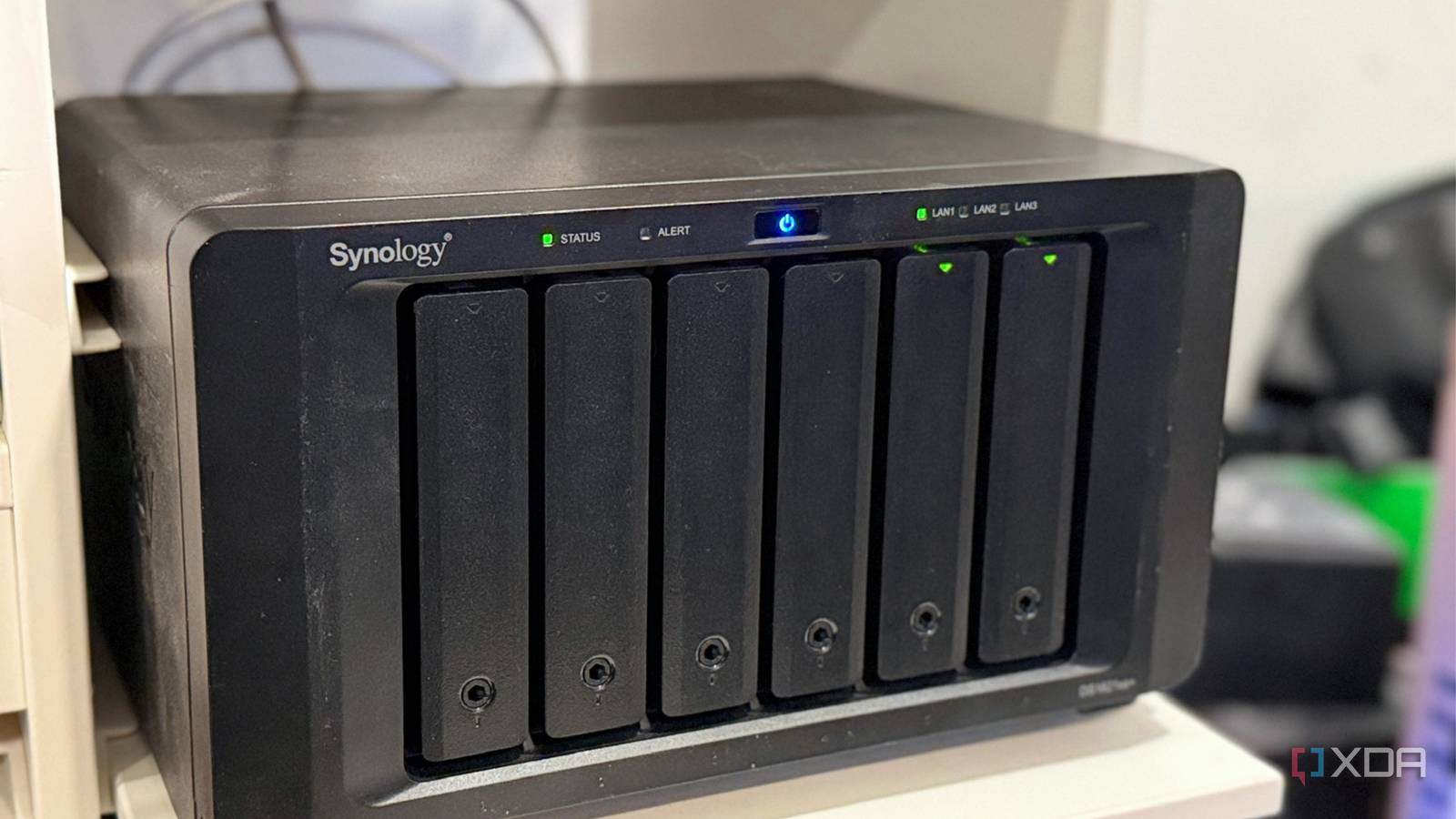
Published Oct 1, 2026, 10:00 AM EDT Maker, meme-r, and unabashed geek, Joe has been writing about technology since starting his career in 2018 at KnowTechie. He's covered everything from Apple to apps and crowdfunding and loves getting to the bottom of complicated topics. In that time, he's also written for SlashGear and numerous corporate clients before finding his home at XDA in the spring of 2023. He was the kid who took apart every toy to see how it worked, even if it didn't exactly go back together afterward. That's given him a solid background for explaining how complex systems work together, and he promises he's gotten better at the putting things back together stage since then. Picture this: your NAS has a couple of hard drives humming away in the bays, and somewhere inside there's an M.2 slot or two sitting empty. That was my Synology DS1621xs+ for years, because the spec sheet said those slots were for caching, and I'd read enough forum threads to decide installing SSD caching inside my NAS wasn't worth the bother. So I finally tested it, with the same drives in three setups. One of them did absolutely nothing for real workloads, despite a hit rate that looked great. Another made my database three times faster. And on its newest models, Synology still won't let you use third-party drives for SSD caching at all, which is a shame on some of the best NAS devices you can buy. Read-only and read-write caches are different animals And only one of them helps a typical home NAS A read-only cache copies blocks you read often onto the SSD, so the next read skips the hard drives. Synology's own SSD cache documentation says it only accelerates random I/O, not big sequential transfers like video streaming. It also only helps with data you've already read at least once, which is rarer at home than you'd think. A read-write cache also catches writes, confirming them as soon as they land on flash and flushing them to the hard drives later. That's where the real wins are, since databases and containers write constantly and wait for every write. The catch is that it needs two identical SSDs in a mirror, because data sitting in the cache hasn't reached your hard drives yet, and losing an unmirrored write cache can take that data with it. I tested both on my own Synology, and a 64% hit rate did nothing My DS1621xs+ runs a single RAID 1 mirror of two 20TB Seagate Exos drives on DSM 7.4.1, so every small read waits on spinning platters. I ran the same tests three times: on the bare hard drive pool, with a pair of 16GB Intel Optane M10 modules as a read-only cache, and with them rebuilt as a read-write cache. Optane has much lower latency than a typical NVMe drive, so treat these as best-case cache results. Test HDD only Read-only cache Read-write cache fio 4K random read, QD32, second pass (IOPS) 822 3,542 4,250 fio 4K random read, QD1 (average latency, ms) 5.97 0.23 0.18 fio 4K random write, QD32 (IOPS)* 27,643 33,918 33,879 Postgres container cold start (s) 33.1 35.1 7.2 pgbench, 8 clients (TPS) 109 110 366 Linux kernel source extract, 81,703 files (s) 17.9 19.0 19.1 Cold directory walk of those files (s) 2.1 5.2 1.2 *No, two hard drives can't really do 27,000 random writes per second. Btrfs is copy-on-write, so it turns scattered writes into mostly sequential ones, and DSM buffers the rest in RAM, which makes that row a file system party trick rather than a measure of the drives. The read-only cache looks brilliant in the synthetic tests, with read latency dropping from about 6ms to under a quarter of a millisecond. Storage Manager reported a 64% hit rate afterward, too. But every real workload ran the same or slower, because container starts, databases, and file extraction are mostly writes and first-time reads that a read-only cache never sees. The read-write cache is a different story. Postgres went from a 33-second cold start to 7 seconds, and database throughput more than tripled, from 109 to 366 transactions per second. Big sequential jobs like the kernel extract didn't budge, but anything that waits on small writes flew. The other option is a volume for your apps Which Synology really doesn't want you to have Instead of a cache, you can give the NVMe drive a job: make it its own volume and put Docker, VM disks, and databases on it, while media stays on the hard drives. You lose the automatic part, but you also lose the write-back risk, and a dead SSD doesn't take your main pool with it. It's how I run my Proxmox server, with containers on a dedicated NVMe pool. Synology makes this hard. DSM 7.4.1 happily built my cache from the Optane modules, only flagging them in orange with "This drive is not supported for SSD cache use." Storage pools are stricter. My DS1621xs+ launched with cache-only slots and gained M.2 storage pool support around DSM 7.2, but only with Synology-verified SSDs, and it refused the Optane outright: "This drive has not been tested or validated for M.2 SSD storage pools." The community Synology_HDD_db script gets around that by adding your drive to DSM's compatibility list, and it worked on 7.4.1 after a reboot and a few minutes' wait. Then DSM installed its own system and swap partitions on both modules, eating around 10GB from each, and left me a 3.2GB pool that was too small to hold a volume. With a 16GB drive, that's the end of the road, so a proper volume test with a 1TB drive will have to be a follow-up. Other NAS platforms are far less fussy Most of them expect you to do this Credit: Credit: UGREEN lets you pick a cache or a separate SSD pool right in the UGOS Pro storage wizard, with no compatibility gatekeeping. QNAP adds a third option with Qtier, which moves data between tiers by how often it's accessed, so the SSD counts toward your capacity instead of sitting in front of it. TrueNAS has the most choices and the sharpest edges. L2ARC is a read cache you can pull from anytime, but a special vdev holds your pool's metadata, and losing the special vdev means losing the entire pool. Unraid basically assumes you'll do this: appdata lives on a fast pool, and the Mover shifts everything else to the array. Before you buy a drive for it, make sure you buy two If you go the read-write route, use two drives, full stop. A volume on a single drive is survivable if you back it up to the hard drive pool, but snapshots on the same drive don't count as a backup. Pick drives with DRAM and a healthy endurance rating, and skip the cheapest DRAM-less QLC models for anything that takes writes. Don't overspend on speed, either. Running lspci over SSH shows each M.2 slot on my DS1621xs+ gets its own PCIe 3.0 x4 link, which Synology doesn't publish, and most appliance slots are Gen3 too. A Gen5 drive won't go any faster there, so put the money into endurance instead. That empty slot is the cheapest speed upgrade your NAS has If there's a spare NVMe drive in your drawer, the slot is a free upgrade, but what you put in it matters more than the drive itself. A read-only cache gave me impressive benchmark numbers and zero real-world gains, while a mirrored read-write cache more than tripled my database throughput and cut container start times by nearly 80%. Next up, I want to find out whether a dedicated app volume can beat that. UGREEN DXP4800 Pro $720 $800 Save $80 The Ugreen DXP4800 Pro is a powerful four bay NAS with an easy to use OS. Memory 8GB (expandable to 96GB)
That empty NVMe slot on your NAS isn't decoration — it's the upgrade nobody talks about
Full Article
Original Source
Read the full article at Xda-developers →KhanList aggregates and links to publicly available news content. We do not host full articles from third-party sources. Always verify important information with original sources.