
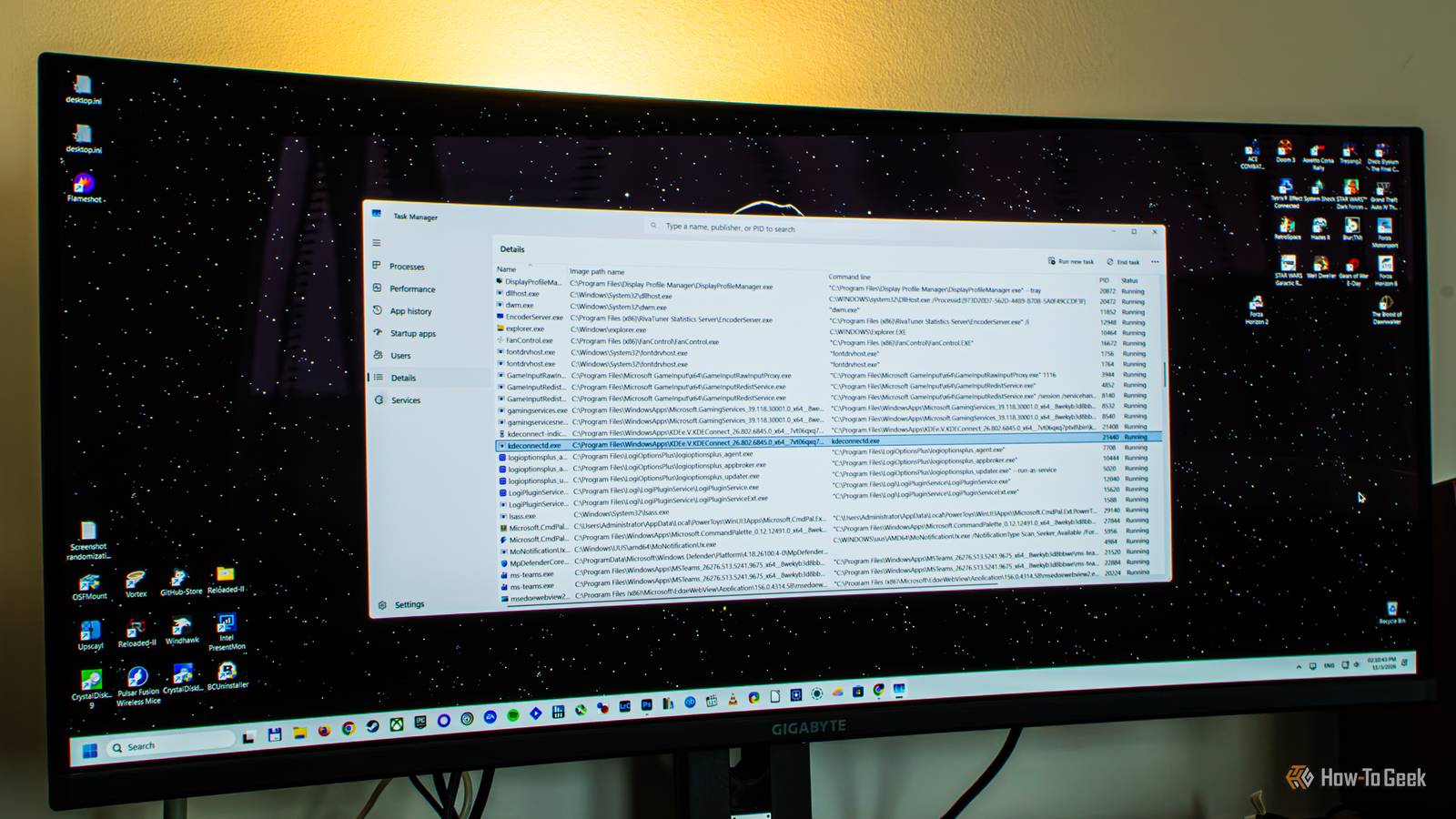
Published Nov 4, 2026, 12:30 PM EST Ever since he got his first smartphone, the legendary Nokia 6600, back in 2005, Goran became obsessed with technology. This obsession had only gotten worse after he received his first gaming PC a couple of months later. He fell in love with video games in the early '90s, shortly after embarking on his gaming journey with the Sega Master System II and SNES. Since then, he has built dozens of PCs, played thousands of games, and authored hundreds of articles about PC hardware, gaming hardware, and video games. He knows everything there is to know about the PC gaming and PC hardware space, and while his console gaming knowledge isn't as comprehensive, he considers himself a console veteran. Goran has almost a decade of experience writing about tech and video games for numerous web publications including TechSpot, TechPowerUp, and EsportsHeadlines. He has been writing for How-To Geek since December 2022. When he isn't gaming or deciding which component of his PC to upgrade next, you can find him strolling around Novi Sad while listening to music and contemplating what to play next. Task Manager is much more than just a tool for monitoring system performance and force-closing unresponsive apps or ones that are slowing down your Windows PC. It's actually a versatile utility you can use to track down, manage, and disable startup apps, monitor services running on your PC, and even check on suspicious Windows apps and services that may be doing some shady stuff behind your back. The catch is that the tools needed for sleuthing are tucked away, but enabling them is effortless. Luckily, enabling them is really simple Task Manager can give you tons of information about every process running on your Windows PC, but Microsoft hides most of those details for simplicity's sake. For example, the Processes tab has six columns shown by default (Name, Status, CPU, Memory, Disk, and Network), but it includes a whopping 15 columns in total; it's just that most of them are hidden. As you might have guessed, showing all 15 columns out of the box would likely overwhelm most users. The good news is that you can easily enable the columns you need in just a few clicks. For example, a few weeks ago, I launched Forza Horizon 6 and noticed that it would stutter every few minutes while driving around the game’s version of Japan. The performance overlay showed that CPU and memory usage weren't the culprits, but since the game constantly pegs the GPU at 100%, I couldn't rule out the GPU. So I limited the frame rate to 30FPS, which dropped GPU usage considerably, and noticed that the GPU was being maxed out every time the stuttering occurred. Suspecting a background app, I exited the game and opened Task Manager, only to find that the GPU column was hidden in the Processes tab by default. I quickly enabled it by right-clicking the Name column and selecting GPU (you can right-click any column to get the list of available columns), and then clicked the GPU column to sort processes by their GPU usage. After waiting a bit, I discovered that Wallpaper Engine, a popular custom wallpaper app for Windows, was maxing out the GPU for a few seconds every couple of minutes. Force-closing and relaunching the app fixed the issue, since it had likely bugged out from running non-stop for weeks on end (I keep my PC running 24/7). Aside from locating system hogs, you can also use Task Manager to track down suspicious apps and processes. Like the GPU column, the two columns needed for this are hidden too, but you can enable them in a similar way. Just note that the Details tab is generally better than the Processes tab for locating shady apps and processes, although the latter can also be useful. Combining the Command line and Image path name columns can reveal shady processes Malware often borrows the name of a regular Windows process, but its location can give it away Now, as I've said, the Processes tab, which Task Manager defaults to when you open it, can be useful for spotting suspicious processes. For instance, if you see a process that uses a ton of memory or utilizes a third of your CPU while your PC is idling, without any major apps running in the background, there's a chance said process is shady. If you spot such a process, you can enable the Command line column in the Processes tab (right-click any column and click Command line), which usually shows you the full path each process is started from. This can help you track down malware because it often uses the same names as everyday Windows processes, such as svchost.exe or explorer.exe, but in most cases its path won't be faked. So if you find a process named svchost.exe that hogs your memory or CPU, you can see the full path it started from in the Command line column. If it's something like C:\Users\YourName\Downloads\svchost.exe, it's likely malware. The catch is that, while the Command line column in the Processes tab can be handy, it doesn't paint the whole picture because some processes may only show their executable file name in it. As an example, a process called Sunshine is only shown as "Sunshine.exe" in the Command line column of my Task Manager's Processes tab, without its full path. While Sunshine here is a legit local game streaming host process, actual malware could also show up this way. This is why I recommend switching to the Details tab once you spot a suspicious process, because it not only has the Command line column, but also a column called Image path name. This column is useful because it will show you the location of a process's executable file even when the Command line column only shows the file name. You can quickly switch to the Details tab while keeping the same process in focus by right-clicking the process and then clicking Go to details. Once you're in the Details tab, right-click any column there, click Select columns, select the Command line and Image path name columns, and click OK. Image path name complements the Command line column, but it's only available in the Details tab. Now that I have access to the Image path name column, I can see the exact location of the Sunshine.exe file, which isn't shown in the Command line column. Its full path is C:\Program Files\Sunshine\Sunshine.exe. So, if you want to see the whole picture, enable both the Command line and Image path name columns in the Details tab, and then right-click any shady process you find in the Processes tab, click Go to details, and check out its true origins. Alternatively, you can head straight to the Details tab if you want to quickly audit every process running on your PC. Open file location isn't a replacement for the Image path name column But it can help you dig deeper into suspicious processes You might be wondering why you'd bother with the Image path name column when you can just right-click a process and select Open file location, which opens the folder containing its executable file in File Explorer. The thing is, Open file location only works for one process at a time, so you'd have to check each process individually, and you'd end up with a bunch of File Explorer windows open. The Image path name column, on the other hand, shows the location of every running process at a glance, so a fake svchost.exe running from your Downloads folder will stick out like a sore thumb next to the legit ones running from System32. That said, Open file location is still handy once you've found a suspicious process, since you can use it to check out the file and the folder it's in. If you aren't sure whether a specific process is malware or not, you can right-click it and select Search online, which will perform a web search in your default browser (though it always uses Bing) and can show you whether the process is legit. Task Manager is actually a very handy sleuthing tool As you can see, it only takes a few clicks to turn Task Manager into a powerful tool for discovering suspicious processes on your Windows PC. Enabling the Command line and Image path name columns in the Details tab is especially useful because it reveals where every active process is actually running from. Just note that some malware can run its code inside legit processes (like a real svchost.exe) that run from proper paths (for instance, C:\Windows\System32). If a piece of malware has admin rights, it can even drop its file into a genuine Windows folder such as System32, so this isn't a foolproof way of spotting suspicious processes. That said, it catches a lot of common malware and can quickly flag a suspicious process.
Task Manager's best security features are hidden by default, here's how to turn them on
Full Article
Original Source
Read the full article at Howtogeek →KhanList aggregates and links to publicly available news content. We do not host full articles from third-party sources. Always verify important information with original sources.