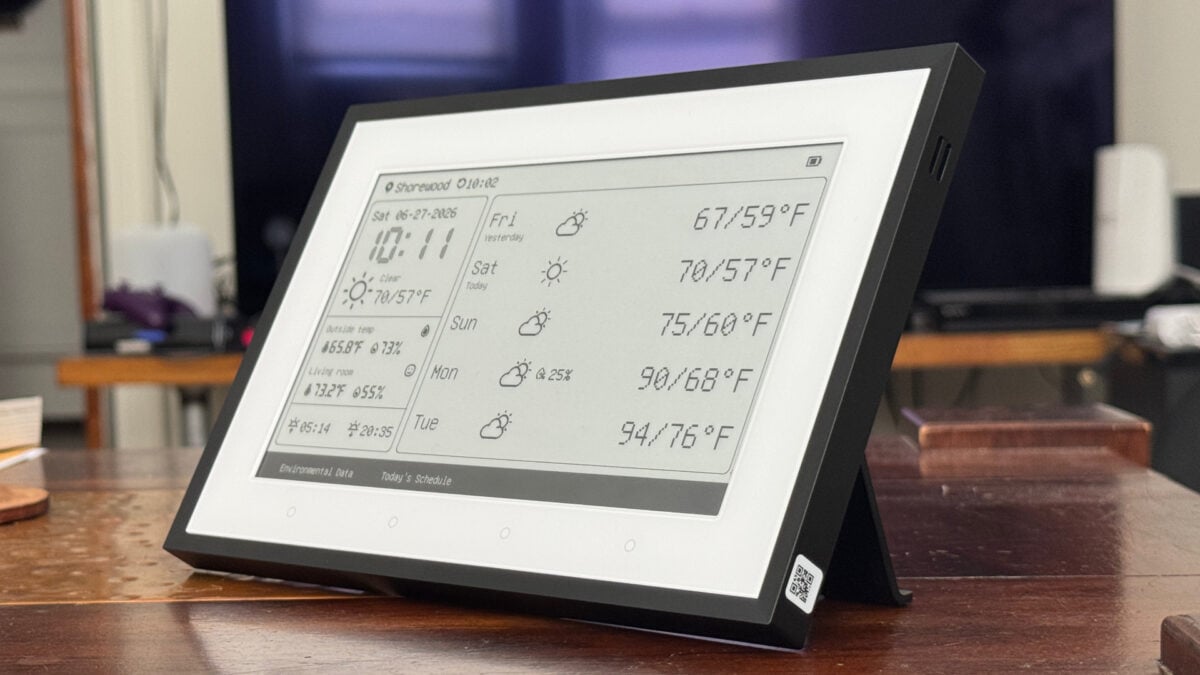
Before it launched in June, the SwitchBot E-Ink Home Dashboard—originally called the Weather Station—sounded like a really great smart display to have around. Simple to use and easy to place, with Matter integration and long battery life thanks to its E Ink display—what’s not to love? It turns out that the Home Dashboard is pretty nice for what it is. But its custom screen feature is very difficult to use for anything fun or useful. Was it nice to have simple, up-to-date weather info just a glance away on my wall? Sure! But for now, I won’t buy this $110 device unless SwitchBot makes a few improvements. SwitchBot Home Dashboard A clean weather and calendar terminal that could use better customizability. Long battery life Clean presentation E Ink is easy to see in good lighting Front-lit Matter-compatible Multiple mounting options Limited customizability Glossy, glare-prone display Slow as a Matter scene selector An easy-to-use E Ink display © Wes Davis / Gizmodo The Home Dashboard is a 7.5-inch, lightweight E Ink smart display that looks like a simple picture frame. On the back are two holes for sliding over the plastic nubs of its two-piece tabletop stand or adhesive-bearing plastic wall-mount strip. A recessed cavity also lets its USB-C port face downward so you can keep the device plugged in at all times, even if it’s wall-mounted, without kinking the cable. It has a 5,000mAh battery, too, which SwitchBot says can last up to a year under the right conditions. There’s a single button on top of the Home Dashboard to activate its edge lighting—a nice addition in the dark—and one on the back to put it in pairing mode during setup. I love the simple, paper-like look of E Ink displays, which are at their best in bright light. But for some reason, SwitchBot gave the screen a glossy, glare-prone finish. So when I affixed it to my dining room wall, I found it hard to read from certain angles because all I could see were the reflections of my windows. It’s a weird choice that somewhat limits where you can put it. © Wes Davis / Gizmodo Below the display are four touch-sensitive buttons. The first takes you to the weather info-filled home screen but also cycles through other views you may have added. That default page shows three columns of info, with the time and current weather conditions prominently displayed in the first, more detailed information like barometric pressure and wind speed in the second, and a six-day forecast in the last. The second button takes you to a schedule view that SwitchBot says it plans to expand. For now, this only shows one or three days’ worth of calendar events. You can connect Google, iCloud, Microsoft, and other calendars by entering an ICS calendar link in the SwitchBot app. You’ll cycle through them with one of the Home Dashboard’s touch buttons. It’s a nice way to quickly check what family members might be up to, but I really liked it for things I use but don’t want cluttering my phone, like an event calendar maintained by my city’s subreddit. The third and fourth buttons can serve as smart home triggers, allowing you to operate individual or multiple devices within the SwitchBot ecosystem. Better still, if you have a Matter-compatible SwitchBot hub, you can connect these buttons—as well as the Home Dashboard’s built-in temperature and humidity sensors—to another platform. This is nice and all, but the buttons are also pretty slow to respond. I found that after tapping one I hadn’t used in a while, I waited up to 10 seconds for anything to happen, or about 5 seconds if I tapped it repeatedly. It’s no replacement for a dedicated smart home switch, but it’s still a fine desktop accessory if you want to turn on the lights without using an app or, god forbid, standing up and walking a few feet to your light switch. See SwitchBot Home Dashboard at Amazon The glare is… pretty bad. © Wes Davis / Gizmodo My Hub 3 didn’t actually support bridging the Home Dashboard over Matter, and the company pushed an update when I asked about this after a few days of testing. A representative told me SwitchBot is rolling support out to Home Dashboard owners as they buy the device, so if you don’t have it right away, keep an eye on your hub’s settings for a firmware update. If one doesn’t show up, you might need to contact SwitchBot’s support team. There’s also an alarm function with a few tones to choose from. I tried this, and it turns out the Home Dashboard’s speaker is weirdly good. It’s no Harman Kardon, mind you, but it’s not the harsh, tinny affair I expected. I almost wish I could stream music through it. Not because that would necessarily be a nice experience, but because I like gadgets that do stupid stuff just for the fun of it. Customizing the Home Dashboard You’ll need to dive into the SwitchBot app to tweak what the Home Dashboard displays. There, you can do some basic things, like switch the default weather view to a simpler, easier-to-read format that removes the nerdy details while enlarging the forecast. I used that option during most of my testing because I wanted to see the information from a distance and didn’t care much about the finer details. Those who do want to dive into the nitty-gritty may want to tweak some things. By default, the Home Dashboard’s data is displayed in the metric system—kilometers of visibility, centimeters of precipitation, meters per second of wind speed—but Americans can change all of that to units like miles and inches. I also did that for the Home Dashboard’s temperature and time displays, which default to Celsius and 24-hour time, respectively. © Wes Davis / Gizmodo © Wes Davis / Gizmodo Other home screen views you can add include hourly weather forecasts and weekly and monthly calendars. One shows weather info for the day, along with a brief AI summary that includes recommendations for conditions such as rain or sunshine. Another displays a goofy, AI-written “daily verse” that proclaims weather-related stuff, like, “Occasional shadows drift across the grass at a walking pace, breaking the heat with a quiet, rhythmic breath.” Which makes me feel like I’m displaying one of those inoffensive, hand-painted, faux-rustic signs you’d find in a boutique furniture store for WASPs. A better use for AI, I think, would be to empower the speaker to read out the information on the Home Dashboard’s display. Not just because I’d like to be able to tap a button and hear about the weather while I’m doing something else, but also because it would be useful for people with low vision. © Screenshots by Wes Davis for Gizmodo The various built-in screen options are nice, but if you want more, well, therein lies the rub. None of them are particularly customizable, for one. The Home Dashboard has a “Custom” view section, but all you can do with this is enter text in the app to display on the panel. More is technically possible; SwitchBot said in a press release that it can import and display dynamic text, such as bus schedules, or integrate with AI agents that provide other information. But getting either up and running is complicated, and you’d really have to be a developer or scripting hobbyist to do it yourself. I’ve asked the manufacturer whether this is likely to change anytime soon and am waiting to hear back. The TRMNL, a similar e-paper display that I’ve coveted for months, handles this much more cleanly, offering a full marketplace of plugins and a dashboard for selecting them. The TRMNL’s other advantage is that its custom screens can show more than just text, resulting in a wide variety of sometimes very pretty layouts designed by its community of contributors. In other words, SwitchBot’s Home Dashboard has a lot of catching up to do. A handy info board I usually don’t like smart displays very much. Their software is often clunky, and, as a parent, I don’t like the temptation of YouTube on a device like the Google Nest Hub. Nor do I want an AI assistant potentially lying to my kid. Really, all I need is a simple information terminal, which the SwitchBot Home Dashboard nails, in its own way. I like the Home Dashboard’s weather and calendar screens, as well as the ability to operate my Apple Home devices via Matter integration. And I love its E Ink display, even if I’m grumpy about that glossy cover glass. Its front light and long battery life are clutch, too. I just wish I didn’t have to be a developer to do more with it. In a real way, using it has only intensified my lust for the deeply customizable TRMNL, whose base model costs just $30 more than the Home Dashboard. But not everyone needs the TRMNL’s fancier features, and for those who don’t, the cheaper SwitchBot Home Dashboard might be enough. If all you’re after is weather and calendar info, it’s a great option. See SwitchBot Home Dashboard at Amazon
SwitchBot Home Dashboard Review: An E Ink Smart Display for the Weather-Obsessed
Full Article
📰 Original Source
Read full article at Gizmodo →KhanList aggregates and links to publicly available news content. We do not host full articles from third-party sources. Always verify important information with original sources.