
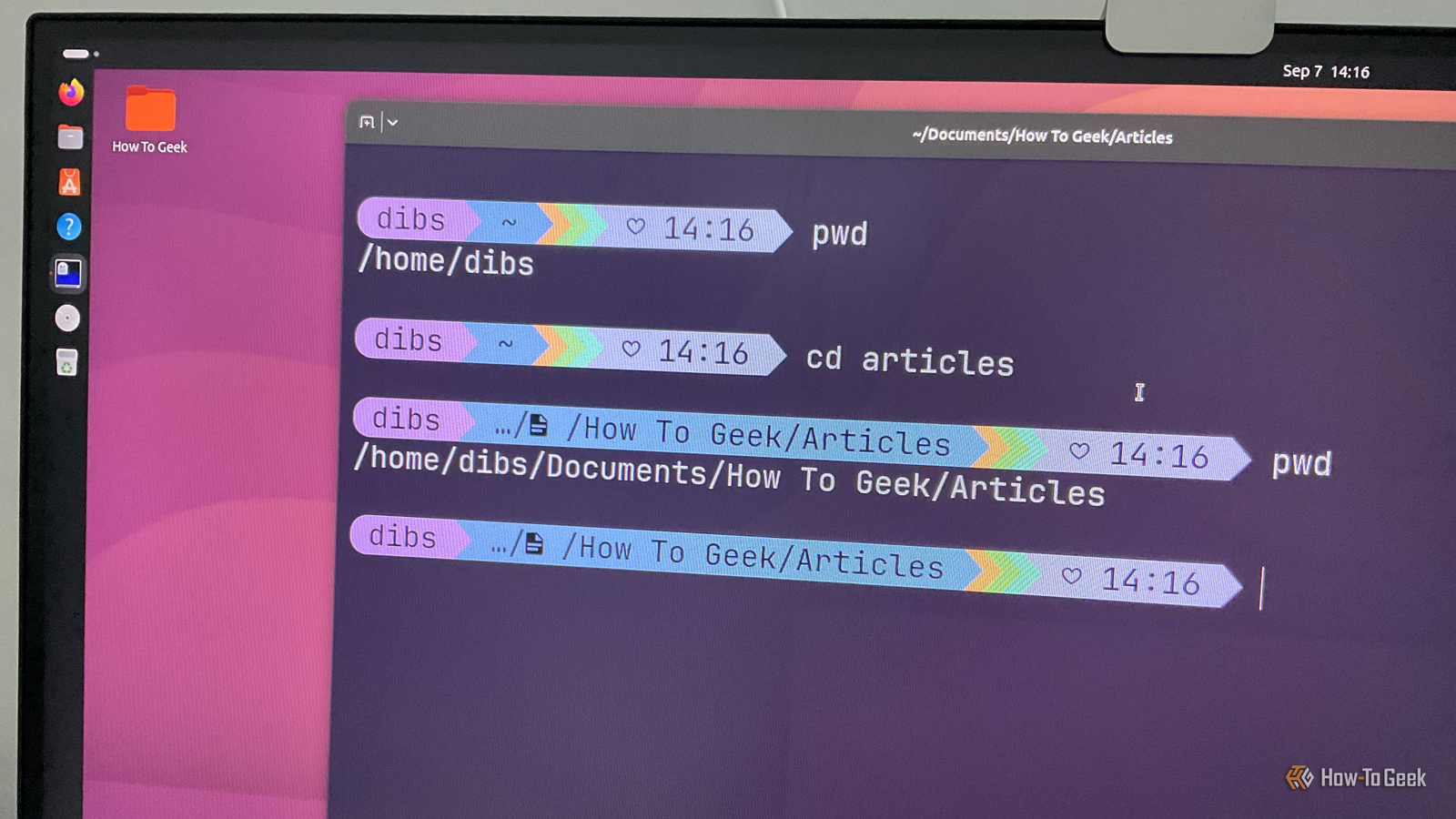
Published Sep 7, 2026, 1:00 PM EDT Dibakar Ghosh is a tech journalist at How-To Geek, where he focuses on Linux, Windows, and productivity tools. His goal is simple—help readers at every skill level get more done with the tech they use every day. He began his writing career in 2016 with WordPress tutorials, later moving into digital marketing, where he spent years reviewing complex tools for marketers. His work has also appeared on Authority Hacker, where he’s shared in-depth guides on digital workflows and online productivity. That experience now shapes his journalism, blending analytical depth with practical, real-world advice. When he’s not writing or testing software, Dibakar is usually watching movies or playing video games. He’s a huge Christopher Nolan fan and a strong proponent of the theater experience. In gaming, he has sunk hundreds of hours into Insomniac’s Spider-Man series, Returnal, Prototype, Darksiders, and Final Fantasy titles. The cd command, short for “change directory,” is one of the most fundamental commands on Linux. It’s how you navigate the Linux terminal — moving between different working directories. That said, cd is an old-school way to navigate the Linux file system, and several modern alternatives have emerged that make the process faster and easier. Here’s a modern cd replacement that can help you navigate your file system with less typing and less guesswork. The problem with the cd command Navigating your filesystem shouldn’t require you to memorize it The cd command is not a “search and find” tool. It doesn’t search for the specific directory you have in mind. Instead, it expects you to provide an absolute or relative path to the directory you want to navigate to. For example, the absolute path to the directory where I keep my How-To Geek articles is: /home/dibs/Documents/How to Geek/Articles Now, let’s say I have my terminal open inside the Documents directory. To navigate to the Articles directory using cd, I would need to enter the relative path: cd "How to Geek/Articles" Alternatively, if I were in the Pictures directory, I would need to enter the absolute path: cd "$HOME/Documents/How to Geek/Articles" Of course, I could use Tab completion instead of writing out the entire path — but either way, I still need to know enough about where the destination is in the file system to navigate to it. If I forget how a specific directory is nested, I’d need to use cd along with other commands, such as ls and tree, to figure out where it is. Now, this is how we’ve been navigating the Linux terminal for decades — but just think about how clunky the entire workflow actually is. When you want to open a directory, you usually think about which directory you want, not its entire path. Imagine a world where you could simply type cd articles and the terminal was intelligent enough to figure out which directory you meant and take you there. Well, that’s actually possible, and here’s how to do it. How this modern command solves this problem Just enter the destination — no need to remember the direction The modern Linux command in question is zoxide — a Rust-based alternative to the cd command that keeps track of the directories you visit and uses that information to help you jump back to them later. This way, instead of remembering a directory’s full path, you can just enter the destination directory, and zoxide will take you there. For example, instead of entering: cd "/home/dibs/Documents/How To Geek/Articles" You can simply use: z articles Notice how I used “articles” instead of “Articles.” That’s because zoxide is case-insensitive. The way this works is actually very interesting. Once installed, zoxide maintains a database of directories you’ve visited and ranks them using frecency — a combination of frequency and recency. So, every time you visit a directory, it gets logged in the zoxide database and bumped up in the rankings the more you visit it. This allows zoxide to favor the directories you actually use most often rather than simply choosing the first matching path. This becomes particularly useful when you have multiple directories with the same name. Imagine I have two different Articles directories: ~/Documents/"How to Geek"/Articles ~/Documents/Forbes/Articles Now, if I work in the How to Geek subdirectory more often, the command z articles will resolve to ~/Documents/"How to Geek"/Articles instead of the Forbes one. That said, I can easily navigate to the Forbes directory just by narrowing down the search: z forbes articles Here, zoxide will search for both terms in its collection of stored paths and resolve to the one with the higher frecency score. However, the order of the terms matters because zoxide expects the matching terms to appear in the same order within the path. So, if I were to enter z articles forbes, for example, it wouldn’t resolve to the Forbes directory unless “articles” appeared before “forbes” in the matching path. That said, you can skip zoxide’s automatic resolution for a specific search query and choose the directory manually instead. Just install fzf and enter: zi articles This opens an interactive selection box showing all the saved zoxide directories with “articles” somewhere in their path. How to install and setup zoxide Shouldn’t take more than two minutes All major distros have zoxide in their official repositories, and you can install it with a single command: sudo pacman -S zoxide # for users on Arch and its derivatives sudo apt install zoxide # for users on Ubuntu, Debian, and their derivatives sudo dnf install zoxide # for users on Fedora and its derivatives Alternatively, you can use the official installation script: curl -sSfL | sh Once installed, you also need to initialize zoxide. If you’re using the Bash shell, enter the following commands one after the other: echo 'eval "(zoxide init bash)"' >> ~/.bashrc # adds eval "(zoxide init bash)" to your ~/.bashrc file source ~/.bashrc # reloads the Bash configuration And that’s it — zoxide is installed and running on your system. If you’re using Zsh or Fish instead of Bash, open your ~/.zshrc or ~/.config/fish/config.fish file, respectively, and add eval "$(zoxide init zsh)" or zoxide init fish | source. I should also mention that you can use the cd command to invoke zoxide’s directory-jumping functionality. This is useful if, like me, you probably have decades of muscle memory that forces you to type cd instead of z. To do this, enter the following command: echo 'eval "(zoxide init bash --cmd cd)"' >> ~/.bashrc # adds eval "(zoxide init bash --cmd cd)" to your ~/.bashrc file The best way to transition from cd to zoxide Skip the learning curve The zoxide command won’t be immediately useful as soon as you install it. It first needs to learn which directories you visit so it can build its database, and that’ll take some time. However, you can speed up the process by directly adding the directories you know you visit frequently using the zoxide add command: zoxide add ~/Documents/"How to Geek"/Articles zoxide add ~/Documents/Forbes/Articles zoxide add ~/Projects ~/Documents ~/Downloads # add multiple directories Now, if you’re having trouble remembering which directories you visit frequently, you can reference your Bash history with this command: history | grep -E '(^|[[:space:]])cd[[:space:]]' This will show you the directories you recently visited using the cd command, which you can then add to zoxide’s database. You can even assign an initial score with the --score option, allowing you to give particularly important directories a head start: zoxide add --score 100 ~/Documents/"How to Geek" Alternatively, you can use the zoxide edit command. It opens a TUI (Terminal User Interface) showing all the directories in the zoxide database. From here, you can delete unwanted directory entries or increase or decrease their rankings.
Stop using the cd command — this Linux command is faster, smarter, and easier
Full Article
Original Source
Read the full article at Howtogeek →KhanList aggregates and links to publicly available news content. We do not host full articles from third-party sources. Always verify important information with original sources.