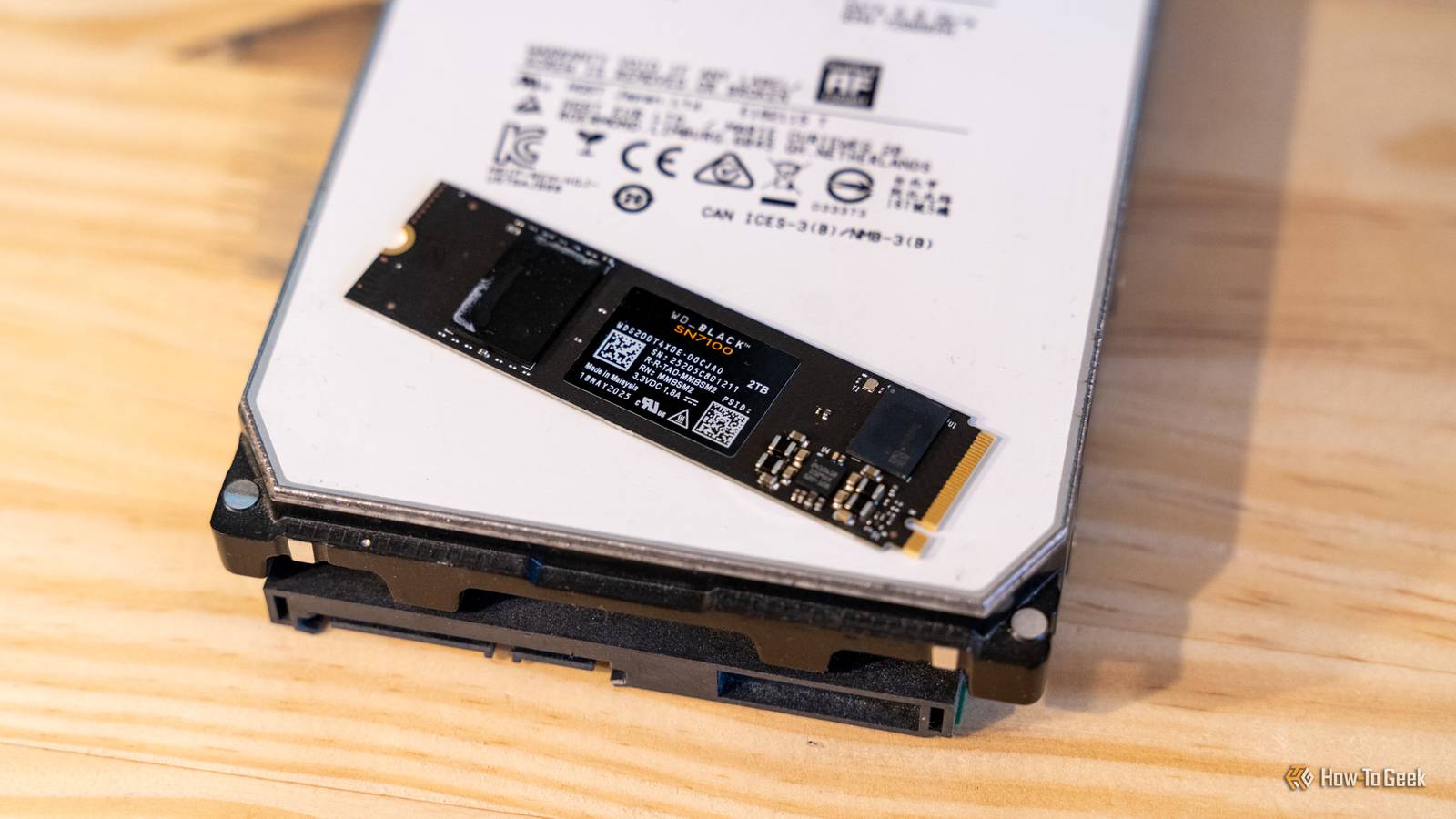
Published Aug 12, 2026, 1:15 PM EDT Arol is a tech journalist who currently works as a contributor at How-To Geek since 2022. He first began writing online for the short-lived portal of Spanish-language gaming forum Emudesc in 2013. Years later, in 2017, he got his true start in tech journalism working for a small Google-focused site called Pixel Spot. He transitioned to a news and feature writer role at XDA Developers that same year, where he worked until 2021 before making the jump to other websites. Arol brings nearly a decade of writing experience, and the occasional hot take, to his writings. While he's a technology lover at heart, he holds computer hardware and smartphones particularly close to heart. You'll normally find him covering news, although he has also written the occasional deal, buyer's guide, how-to post, and round-up. He's also written for Android Police and MakeUseOf. He's also a Political Science student. When he's not writing, you'll probably find him hitting the gym, trying to ace a new hobby, reading his textbooks, or traveling. You can reach him at me@arolwright.com. Not all of your storage is the same, and you shouldn't treat it as such. There are many advantages to tiering, and organizing said tiering, over just dumping everything on your storage in no particular order. Understanding the difference between hot, warm, and cold storage might actually make a difference in your everyday workflow, so let's dive in. The disadvantages of flat storage Some files are worth more than others Credit: Patrick Campanale / How-To Geek Before explaining storage tiers and the difference between them, we need to understand why flat storage is not a good idea. In a flat storage environment, every piece of data is treated with equal importance, regardless of its actual value or frequency of access. This means that a mission-critical database file required for real-time transactions resides on the same high-performance, expensive hardware as a five-year-old email archive that may never be opened again. If you happen to have, say, a hard drive and a high-speed SSD, and you don't do proper tiering, you're going to end up with a bunch of unnecessary files cluttering up your SSD or important files on your slow drive. This can result over time in performance issues as well as organizational issues. Flat storage creates a significant management headache and increases the risk of data loss. When a primary drive is filled to capacity with a mix of essential system files and forgotten downloads, the computer’s operating system often struggles to perform basic tasks, leading to sluggish behavior, crashing apps, and prolonged startup times. Furthermore, backing up a single, massive repository of data is cumbersome and time-consuming. If a user relies on a comprehensive system backup, the process must scan and process terabytes of unchanged personal videos and old photos every time it runs. This often discourages users from backing up as frequently as they should. If that single primary drive fails—a common occurrence with aging hardware—the user loses everything instantly. By keeping all digital eggs in one basket, the consumer maximizes their exposure to hardware failure while simultaneously paying top dollar for the privilege of storing files they haven't opened in a decade. What's hot, warm, and cold storage? Keep important data safe without making everyday files inconvenient There are three different tiers for storage. Hot storage refers to the data that is accessed daily or is currently essential for the computer's operation. This is the operating system, the applications, the raw video files currently being edited, or the latest games requiring fast load times. In a consumer context, hot storage is physically located on the internal NVMe SSD drive of the laptop or desktop. It is the fastest, most responsive storage available to the user, but it is also the most expensive and limited in capacity. The goal is to keep this tier lean, ensuring the computer remains snappy and responsive. Warm storage acts as the overflow space for data that is still relevant but not needed urgently. This includes the photo library from the last few years, finished projects that might need a quick revision, or media collections that are accessed a few times a month. Accessing this data might require a few extra seconds—perhaps plugging in a portable external hard drive or waiting for a file to download from a standard cloud service like Google Drive or Dropbox. The hardware used here is typically cheaper per gigabyte than the internal drive. It balances convenience with cost; it is not lightning fast, but it is readily available without a complex retrieval process. Finally, cold storage is the digital equivalent of a self-storage unit or a dusty attic. This tier is for data that must be kept for sentimental or legal reasons but is almost never looked at. This encompasses high-resolution baby photos from ten years ago, old university assignments, or complete system backups of previous computers. This might take the form of a large, bulky desktop hard drive that sits in a closet, high-capacity Blu-ray discs, or specific "archive" tiers of cloud storage where retrieving a file can take several hours but costs pennies per month. Quiz8 Questions · Test Your KnowledgeData backups and the 3-2-1 ruleTrivia challengeThink you know how to keep your data safe? Test your knowledge of backup strategies, rules, and best practices.Backup RulesStorageStrategyRecoverySecurityBeginWhat does the '3' in the 3-2-1 backup rule refer to?A3 different cloud storage providersB3 total copies of your dataC3 separate backup schedulesD3 different file formats for each backupThat's right! The '3' means you should maintain 3 total copies of your data — the original plus two backups. Having multiple copies dramatically reduces the risk of total data loss from any single failure.Not quite. The '3' refers to keeping 3 total copies of your data, including the original. This redundancy ensures that even if one or two copies are lost or corrupted, you still have a surviving copy to restore from.ContinueIn the 3-2-1 backup rule, what does the '2' stand for?A2 full backups and 1 incremental backupBBacking up data at least twice per weekCStoring copies on 2 different types of storage mediaDKeeping 2 offsite copies at all timesExactly! The '2' means your copies should be stored on at least 2 different types of media — for example, an external hard drive and a cloud service. This protects you from media-specific failures like a hard drive manufacturer defect.Not quite. The '2' in the 3-2-1 rule refers to using 2 different types of storage media, such as a local NAS drive and a cloud service. Diversifying your media types guards against failure modes that might affect one type but not another.ContinueWhat does the '1' in the 3-2-1 backup rule specify?AAt least 1 backup should be encryptedBAt least 1 copy should be stored offsiteCAt least 1 backup should be tested monthlyDAt least 1 copy should be kept on physical mediaCorrect! The '1' means at least one copy must be stored offsite — away from your primary location. This protects your data from local disasters like fires, floods, or theft that could destroy everything stored in one place.Not quite. The '1' requires that at least one copy be stored offsite, such as in a cloud service or at a separate physical location. Local disasters like fires or floods can wipe out everything in a single building, so offsite storage is a critical safeguard.ContinueThe 3-2-1-1-0 backup strategy adds two extra elements to the original 3-2-1 rule. What does the second '1' represent?A1 backup stored in a write-once, read-many (WORM) or air-gapped formatB1 backup verified by a third-party serviceC1 backup stored exclusively on tape mediaD1 dedicated backup administrator responsible for the processSpot on! The second '1' means one copy should be offline, air-gapped, or immutable — such as a WORM drive or tape that ransomware cannot reach and overwrite. This is a critical defense against modern ransomware attacks that specifically target connected backups.Not quite. The extra '1' in 3-2-1-1-0 stands for one copy that is offline, air-gapped, or stored in an immutable format like WORM media. This prevents ransomware or malicious actors from encrypting or deleting all your backup copies simultaneously.ContinueIn the 3-2-1-1-0 rule, what does the '0' at the end signify?AZero backups should be stored in a public cloudBZero unverified backups — all backups should be tested for errorsCZero days between each backup sessionDZero physical media copies allowed in the strategyExactly right! The '0' means zero backup errors — all backups should be verified and tested to ensure they can actually be restored. A backup you've never tested is not a reliable backup, as corrupt or incomplete backups offer false security.Not quite. The '0' stands for zero errors, meaning every backup should be verified and confirmed restorable. It's a common but dangerous mistake to assume backups work without testing them — many organizations have discovered corrupted backups only when they desperately needed them.ContinueWhich of the following backup types only saves data that has changed since the last FULL backup, regardless of any incremental backups in between?AIncremental backupBDifferential backupCMirror backupDSnapshot backupWell done! A differential backup saves all changes made since the last full backup, growing larger over time until the next full backup is performed. Compared to incremental backups, restoring from a differential backup is faster because you only need two sets: the last full backup and the latest differential.Not quite. That's a differential backup. Unlike incremental backups (which only save changes since the last backup of any type), differential backups capture everything changed since the last full backup. This makes them faster to restore but they consume more storage space over time.ContinueWhat is the term for the maximum amount of data loss a business or individual is willing to accept, measured in time, when a data loss event occurs?ARecovery Time Objective (RTO)BMean Time Between Failures (MTBF)CRecovery Point Objective (RPO)DData Loss Threshold (DLT)Correct! Recovery Point Objective (RPO) defines how much data you can afford to lose, measured in time — for example, an RPO of 4 hours means you back up every 4 hours and can tolerate losing up to that much work. It directly determines how frequently you need to perform backups.Not quite. The correct term is Recovery Point Objective (RPO), which defines the maximum acceptable age of the files you need to recover after a failure. RPO is different from RTO (Recovery Time Objective), which measures how quickly you need to be back up and running after an incident.ContinueWhy is it generally recommended that at least one backup copy be kept 'air-gapped' in a modern backup strategy?AAir-gapped backups compress data more efficiently than connected storageBRegulatory compliance in most countries legally requires an air-gapped copyCAir-gapped backups are immune to ransomware and remote attacks since they have no network connectionDAir-gapped storage reads and writes data faster than cloud alternativesExactly! An air-gapped backup is physically isolated from any network, meaning ransomware and remote attackers cannot reach it to encrypt or delete it. As ransomware increasingly targets connected backup systems, an air-gapped copy serves as the last line of defense for guaranteed recovery.Not quite. The key benefit of an air-gapped backup is that it has no network connection, making it completely unreachable by ransomware, hackers, or remote attacks. Modern ransomware strains are specifically designed to find and encrypt connected backup drives, so an offline copy is your most reliable safety net.See My ScoreChallenge CompleteYour Score/ 8Thanks for playing!Try Again Why should you know the difference? Disaster avoidance Credit: Corbin Davenport / How-To Geek Understanding the distinction between storage tiers is the single most effective way for consumers to stop hemorrhaging money on monthly subscriptions and overpriced hardware upgrades. When a user realizes that only 10% of their data actually needs to be on their expensive internal drive, they can opt for a laptop with 512GB of storage rather than paying a premium for 2TB. By manually or automatically moving old files to an external hard drive or a cheaper cloud archive, the primary computer remains fast and uncluttered. This knowledge allows consumers to "right-size" their technology purchases, allocating their budget toward processing power and screen quality rather than paying for digital warehousing on a high-performance chip. Moreover, adopting a tiered mindset drastically improves personal data security and organization. When users separate their cold archives from their hot working data, they effectively insulate their most precious memories from daily accidents. If a laptop is stolen or infected with ransomware, the cold storage archive—perhaps an external drive disconnected from the network—remains safe and untouched. It also simplifies the mental load of digital organization. Instead of scrolling through thousands of irrelevant files to find a current document, the active workspace remains clean. Stop putting your files in jeopardy Knowing the difference between hot, warm, and cold storage empowers consumers to take control of their digital footprint. So, if you aren't doing it already, it's time to start using specific tools for specific jobs—fast SSDs for speed, cloud services for convenience, and cheap archives for longevity—rather than hoping one expensive hard drive will solve every problem.
Stop storing everything on your main SSD: A guide to Hot vs. Cold data
Full Article
Original Source
Read the full article at Howtogeek →KhanList aggregates and links to publicly available news content. We do not host full articles from third-party sources. Always verify important information with original sources.