
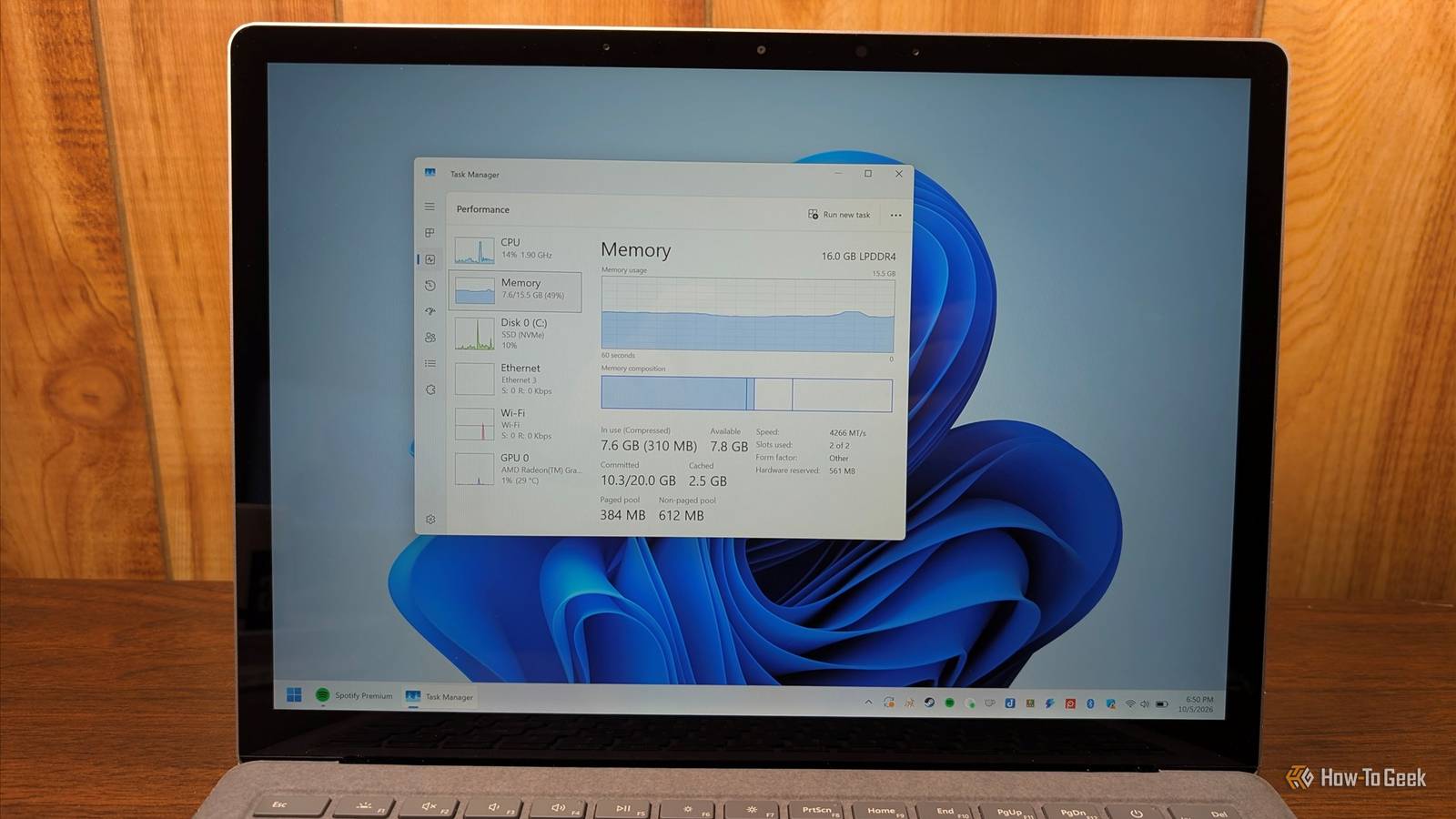
Published Oct 27, 2026, 12:30 PM EDT Sydney Butler is a technology writer with over 20 years of experience as a freelance PC technician and system builder and over a decade as a professional writer. He's worked for more than a decade in user education. On How-To Geek, he writes commerce content, guides, opinions, and specializes in editing hardware and cutting edge technology articles. Sydney started working as a freelance computer technician around the age of 13, before which he was in charge of running the computer center for his school. (He also ran LAN gaming tournaments when the teachers weren't looking!) His interests include VR, PC, Mac, gaming, 3D printing, consumer electronics, the web, and privacy. He holds a Master of Arts degree in Research Psychology with a minor in media and technology studies. His masters dissertation examined the potential for social media to spread misinformation. Outside of How-To Geek, he hosts the Online Tech Tips YouTube Channel, and writes for Online Tech Tips, Switching to Mac, and Helpdesk Geek. Sydney also writes for Expert Reviews UK. He also has bylines at 9to5Mac, 9to5Google, 9to5Toys, Tom's Hardware, MakeTechEasier, and Laptop Mag. I'm the last person to defend Windows. There's no doubt in my mind that it's a bloated, slow, and unreliable mess of an operating system. The only thing I use Windows for anymore is as a dedicated gaming PC that never has a single mission-critical job. I switched over to macOS as my daily work OS seven years ago and haven't looked back, but some people need to do everything on Windows. Which means that, one way or another, they have to deal with whatever the AI vibe coders in Redmond throw at them. Which brings us to the practice of "debloating" Windows. It is a common recommendation in the comments whenever I point out that Windows is an awful mess of an OS. "Just run this debloating script," they say, as if requiring extensive software surgery from your customers to make your product usable is no big deal. But, that's the problem. You shouldn't just start chopping away at Windows willy-nilly. If you're going to debloat, you need to take it one step at a time. Decide what “slow” actually means It's got to be more than a feeling Credit: PerfectWave/Shuttertstock.com Do you want to debloat your computer because it's not as fast as you like? Is "bloat" actually the cause? The problem is that, unlike frame rate meters, it's hard to quantify how general desktop performance feels. It's better to ask yourself when, where, and how Windows feels sluggish. Does the whole PC feel slower? Was it faster before? Do you notice slowdown or latency only when doing some things? The exact type and severity of the sluggishness will steer you towards a specific solution. Maybe it has nothing to do with Windows at all. Catch your PC in the act with Task Manager Who watches the watcher? A lot of people blame "bloat" on Windows for their performance issues, but there's so much to unpack here. Firstly, what sort of "bloat" would affect how snappy a computer is? Just being present on your system drive isn't enough. It has to be a program that's resident in memory and taking up CPU cycles. While, technically, an overfull SSD can be slower than usual for some types of file operations, by and large merely taking up space is performance neutral. So, open up Task Manager and see what programs are running. If you see apps that you don't need or want, you can target them specifically and uninstall them. This is also where you can check if your CPU or RAM is overworked. If you're running out of memory while doing the things you want to do on Windows, you'll experience major slowdowns as memory swapping kicks in. The answer is either reducing how much memory is being used, or taking a loan from the bank and buying more RAM. Follow the activity instead of guessing from the process name Don't cause a case of mistaken identity Task Manager can show you what processes are running, how much memory and CPU time they are using at that moment, and show you the overall CPU and RAM usage of your system, plus a few minutes of history on the graph. However, that doesn't always tell you what the process is, and what it's been up to. In Resource Monitor, you can click the check mark next to the process in question, and it will filter the displayed info to show you the location of the process' origin. Which should tell you exactly what it is and whether you'd want to get rid of it. Test startup apps before uninstalling half of Windows It's just five minutes of your life If there are processes slowing your computer down, closing the relevant app or killing the process will help in the short term. However, on reboot it might just load up again. So open Task Manager and have a look at the Startup tab. Here you can see what apps are set to start up with Windows, and if the process you've caught dragging your computer down is in there, you can disable it and prevent it from running every time you restart or turn on your PC. If you really can't figure out what a resource-hogging process is, search for it online. It's also worth running a deep malware scan, since some malware uses process names of real, trusted software to hide in plain sight while slowing your computer down. A scalpel, not a chainsaw It should be clear at this point that what most people think 'bloat' is and what real performance issues are doesn't necessarily line up with common understanding. There is no one-size-fits-all solution when it comes to Windows and your specific PC and use cases, so just throwing debloating scripts at your computer can be counterproductive at best and actively damaging at worst. If you work to fix the actual problems you're experiencing, you make it less likely that things will go wrong, and you also have a clear path to reverse what you've done. Something that's not really possible if you change dozens of things at the same time.
Stop debloating Windows blindly: find out what’s actually slowing your PC down
Full Article
Original Source
Read the full article at Howtogeek →KhanList aggregates and links to publicly available news content. We do not host full articles from third-party sources. Always verify important information with original sources.