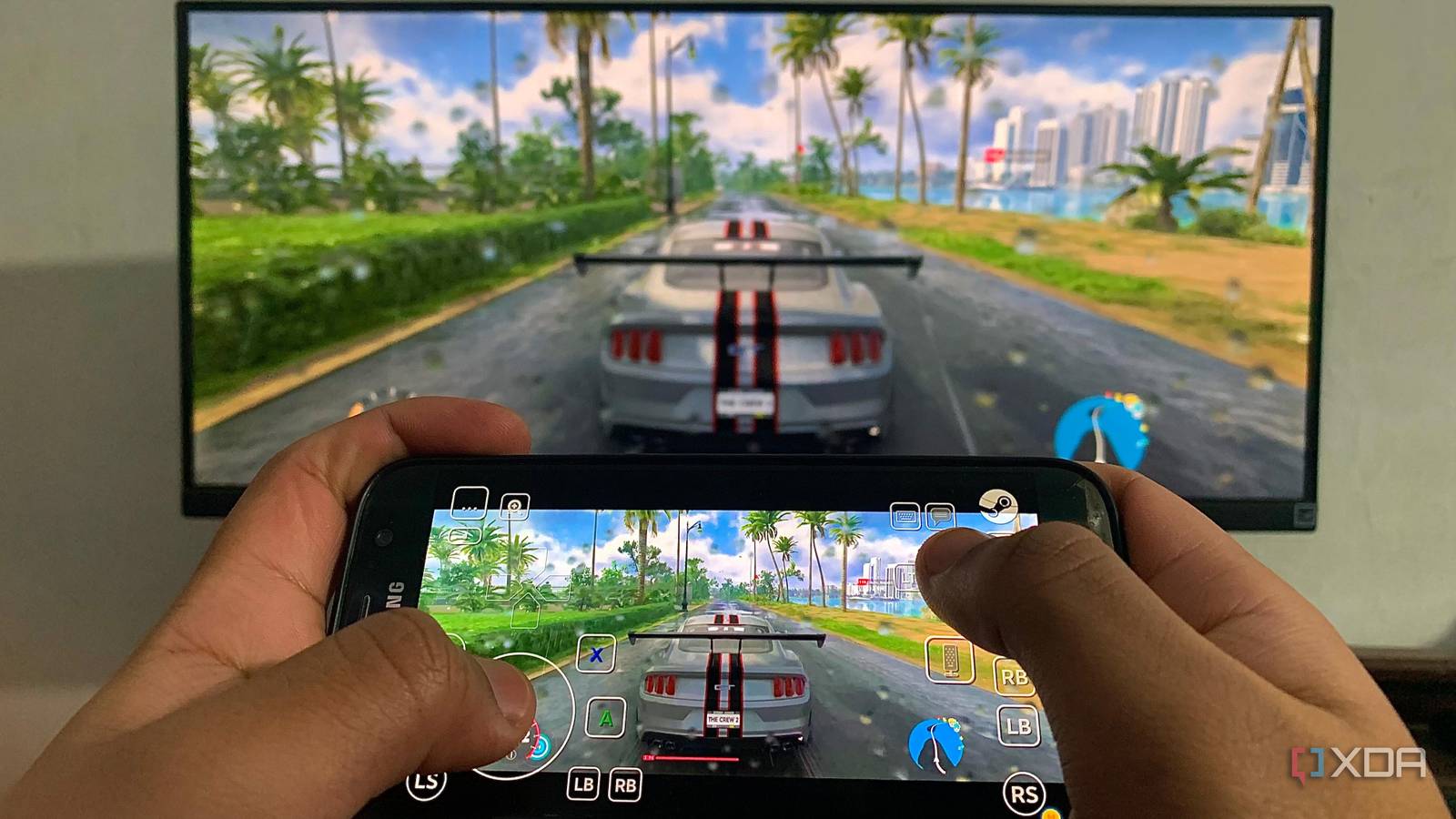
Published Jul 21, 2026, 9:00 AM EDT Maker, meme-r, and unabashed geek, Joe has been writing about technology since starting his career in 2018 at KnowTechie. He's covered everything from Apple to apps and crowdfunding and loves getting to the bottom of complicated topics. In that time, he's also written for SlashGear and numerous corporate clients before finding his home at XDA in the spring of 2023. He was the kid who took apart every toy to see how it worked, even if it didn't exactly go back together afterward. That's given him a solid background for explaining how complex systems work together, and he promises he's gotten better at the putting things back together stage since then. I've been wanting to turn my Strix Halo box into a game streaming server for months, and the only thing stopping me was the dread of VFIO GPU passthrough. It's a pain: block the driver, wrangle IOMMU groups, dedicate the entire GPU to one VM, and pray that the next kernel update doesn't break everything. My homelab already runs half a dozen services on Proxmox, and giving up the only GPU in the machine to a single VM just feels wasteful. The thing is, you don't need passthrough at all. An LXC container shares the host kernel, so it can also share the GPU. The host keeps it, the container borrows it when needed, and nothing needs blocking. One evening of tinkering later, I have Steam running headless in a container, streaming to everything in the house via Remote Play and Sunshine. The Radeon 8060S is doing all the rendering, the same chip that I'm also using for local AI work. I'm not going to say it was smooth sailing, because it wasn't, but you don't have to make the same mistakes I did. Why an LXC beats a VM for this The GPU stays shared and that's the whole point VFIO passthrough hands the entire GPU to one VM, full stop. Until that VM shuts down, nothing else can touch it — no transcoding for Jellyfin, no host console, nothing. On a machine with one GPU, that's a rough trade. LXC containers work differently: they share the host kernel, so "passing through" the GPU is really just binding a couple of device nodes (/dev/dri/cardX and /dev/dri/renderD12X) into the container. The amdgpu driver lives on the host, the container gets Mesa userspace, and both can use the silicon at once. There's a bonus specifically for AMD owners: no driver version matching. Nvidia in an LXC means installing the exact same driver version inside the container as the host runs, and redoing it every time the host updates. Mesa doesn't care. It talks to whatever kernel driver is there, and it just works. Sure, an unprivileged container throws up a few permission walls, but compared to babysitting VFIO, it's a cinch. And Strix Halo makes a surprisingly good host for this. Mine has 128GB of unified memory with half of it carved out as VRAM in the BIOS, so the 8060S has more video memory than most desktop GPUs, and Proxmox still sees 64GB for everything else. Installing Steam-Headless in a container Docker inside LXC sounds cursed, but it's the easy route Rather than hand-rolling Xorg configs, I used the Steam-Headless Docker image running inside the LXC — the same Docker-in-LXC pattern I use for most of my home lab services. It brings its own virtual display (no HDMI dummy plug needed), a noVNC web desktop for setup, Steam preconfigured with Proton, and Sunshine baked in. Yes, that's Docker inside a container inside a hypervisor. No, my brain doesn't love it either, but it works. The broad strokes, all from the Proxmox host shell: Create an unprivileged Debian 12 LXC with --features nesting=1,keyctl=1 (Docker needs both), a chunky rootfs, and DHCP on your LAN bridge. Bind the GPU and uinput into the container. Proxmox 8.2+ makes this painless — no more cgroup incantations: pct set 120 --dev0 /dev/dri/card1,gid=44,mode=0666 \ --dev1 /dev/dri/renderD129,gid=104,mode=0666 \ --dev2 /dev/uinput,mode=0666 Install Docker inside with the usual get.docker.com script. Deploy Steam-Headless with docker-compose, with three settings that matter more than all the others: network_mode: host, privileged: true, and /dev/dri:/dev/dri under devices. That network_mode: host line is load-bearing. Steam decides whether you're on the same network by subnet, and if the Docker container hides behind its own bridge, Steam assumes you're remote and routes your "local" stream through Valve's relay servers on the internet. Give the container the LXC's LAN IP, and Remote Play stays direct. Then it's the fun part: open http://:8083/web/, log into the Xfce desktop, install Steam, sign in, and enable Remote Play. Once everything worked, I snapshotted the container and cloned it into a Proxmox template, so I can spin up a fresh gaming container faster than Steam can install a game. Steam Headless Lessons learned along the way while installing Steam Headless AKA "Three ways a container can gaslight you" I learned a lot about LXC on Proxmox along the way, and a little bit more about Docker that I didn't want to but was critical in getting this running. One thing that's essential is that logs don't always tell the full story, and "stalled" sometimes means "waiting for you to click a button." My install sat at what looked like a frozen Steam install for ten minutes, no network traffic, CPU idle, and me reading logs to troubleshoot. The reason? Debian's Steam installer had popped up a Zenity dialog inside the container, and it was sitting minimized on the taskbar of a container I wasn't logged into. I also learned that hardware detection lies inside nested containers. Steam-Headless detects your GPU with lspci, and lspci comes back empty inside Docker-in-LXC. The image cheerfully reported "No AMD device found" and skipped installing the Vulkan drivers — so Sunshine's encoder worked (it uses VA-API through /dev/dri directly), while games would have rendered on the CPU. The fix is a script in the container's persistent ~/init.d/ directory that force-installs mesa-vulkan-drivers (plus the i386 versions for Proton) at every boot. vulkaninfo finally showing "AMD Radeon Graphics (RADV GFX1151)" was the best thing I saw all evening. Steam works on Linux thanks to Proton, and that needs an unmasked /proc. Steam's pressure-vessel sandbox uses bubblewrap, which needs to mount /proc inside its own namespace — and Docker masks /proc paths by default, which an unprivileged LXC turns into a hard "Operation not permitted." I lost a solid half hour to Docker rejecting every syntax variation of systempaths=unmasked before giving up and setting privileged: true on the Docker container. That sounds scarier than it is: the whole stack still lives inside an unprivileged LXC's user namespace, so "privileged" here is privileged against a container that has no real privileges. Streaming with Remote Play, with Sunshine waiting in the wings One protocol for convenience and another for quality Steam Remote Play is the low-effort option, and on AMD it's actually decent, because Valve's Linux host supports VA-API hardware encoding on Radeon — the same pipeline is broken on Nvidia, where it silently falls back to software x264. If you were wondering why I picked the AMD GPU over the Nvidia card for this build, that's the reason, and it's not even close. Enable hardware encoding under Remote Play's advanced host options, turn on hardware decoding client-side, and check if the stream overlay says "Direct connection." Anything with a Steam client or a Steam Link app just works, controllers included. But Steam-Headless ships with Sunshine already running, and pairing it with Moonlight clients gets you the better protocol: HEVC and AV1 encoding (the 8060S does both in hardware), lower latency, higher bitrates, and clients on basically everything with a screen. Point a browser at https://:47990, set credentials, pair a client, and it streams the same Big Picture session. My setup now: Remote Play for the lazy sofa sessions on devices that already have Steam, Moonlight when I care about image quality. Having both from one container means I never have to choose in advance. The GPU I never passed through is the best passthrough I've done The whole setup runs inside a container that I can snapshot, clone, and template like any other LXC, and I don't have to worry about VFIO configs or mismatched drivers. Even better, Proxmox still has access to the GPU for anything it needs. It took me an evening of setup, but half of that was troubleshooting errors (or the lack of errors or progress), and that's much faster than building a VM passthrough. I've even got a second container up so that guests can stream games without touching my save files.
Steam streaming on Proxmox doesn't require GPU passthrough, and my LXC setup proves it
Full Article
Original Source
Read the full article at Xda-developers →KhanList aggregates and links to publicly available news content. We do not host full articles from third-party sources. Always verify important information with original sources.