
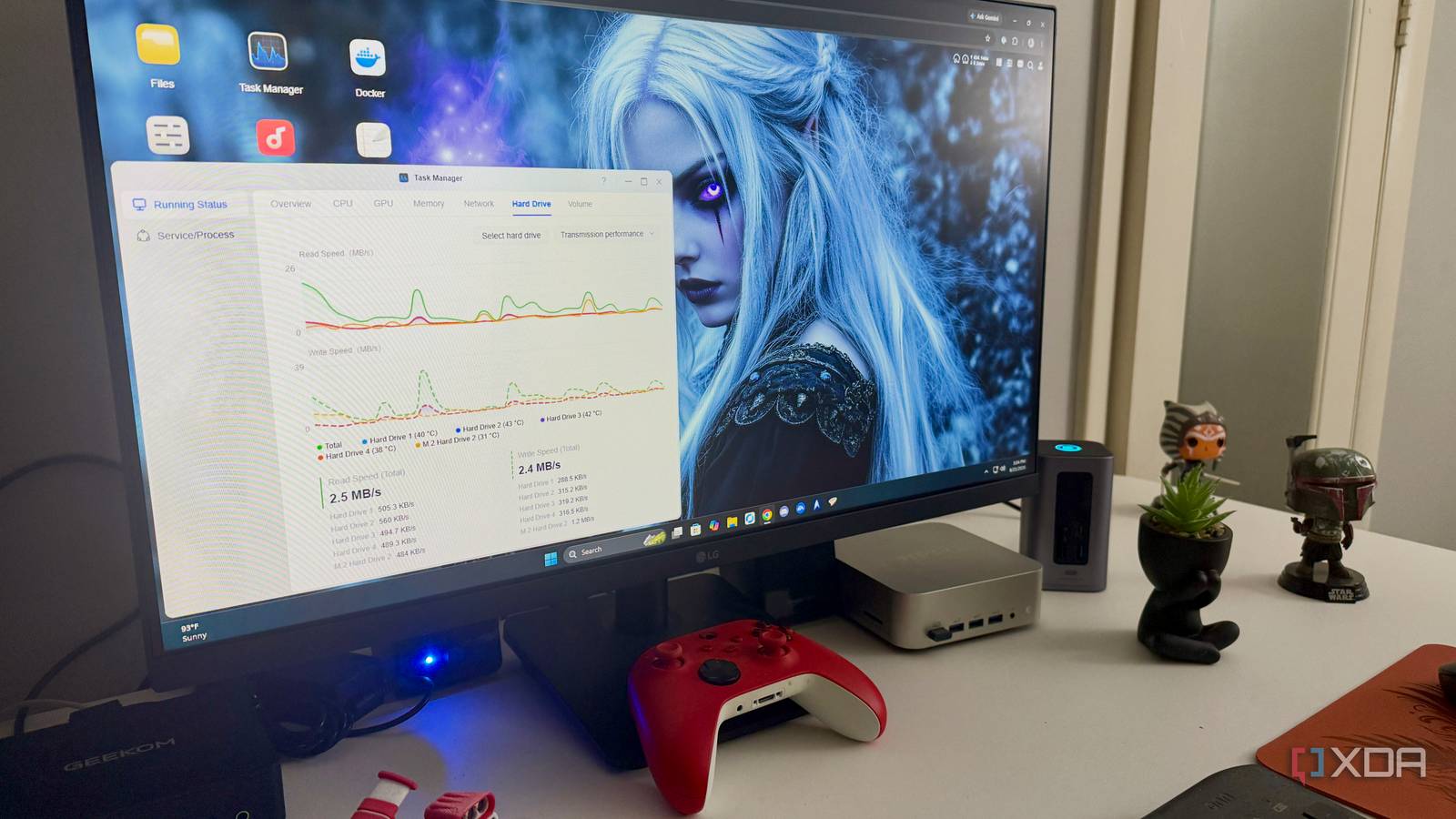
Published Aug 22, 2026, 8:00 AM EDT Jeff's been involved in the IT industry since before the Internet and spent more than 20 years working in technical support, system administration, network administration, and consulting roles. He holds an undergraduate degree in English, a Master's degree in English with a focus on professional writing and editing, and another Master's degree in Computing & Information Systems. After teaching university English and computer science for a few years, Jeff launched his writing career. He's written for Macworld, Tom's Hardware, groovyPost, The Mac Observer, and more before beginning here at XDA. Adding an SSD cache to a storage array sounds like one of those upgrades that should be immediately obvious. Put flash storage in front of a bunch of mechanical drives, flip the right settings, and the whole thing should feel faster. That was more or less what I expected, and I spent too much time at first looking for a dramatic before-and-after result. What I got instead was narrower, but also more useful once I stopped judging the cache by the wrong workloads: it helped with the small, repetitive storage tasks that made the array feel slow, while leaving plenty of other things almost completely unchanged. The cache helped most where hard drives feel slow Small, repeated reads finally stopped feeling quite so sluggish The first thing that changed wasn’t some giant file transfer dropping from minutes to seconds. It was the little stuff I normally don’t think about until it gets annoying. Opening directories, returning to data I’d already touched, and revisiting the same files felt a little snappier once the cache had something useful to draw on. None of that had been unbearably slow before, which is probably why I initially overlooked the improvement. That started to make more sense once I stopped treating “hard drive performance” as a single thing. Large sequential reads are actually one of the friendlier workloads for spinning disks, especially when several drives in an array can contribute. Lots of smaller reads are where the mechanical part of mechanical storage starts to show. If the system keeps asking for little pieces of data from all over the place, an SSD has a much easier time keeping up. There was another wrinkle I didn’t fully account for at first: the cache has to learn what’s worth caching. The first time I touched something, the request could still go straight to the slower storage underneath. It was repeated access that started to feel better, assuming the caching layer decided to keep that data around. That also means a quick test right after enabling the cache can be almost useless if I’m trying to decide whether the upgrade helped. Big file transfers barely cared that the SSD existed Sequential workloads still belonged to the spinning disks underneath This was the part that disappointed me at first. I had an SSD in the loop now, so I expected large transfers to be one of the easiest ways to prove the upgrade was doing something. Instead, copying large files mostly reminded me that the array was, in fact, still an array of hard drives. Once a transfer settled into sustained throughput, the underlying disks were still doing the heavy lifting. That sounds obvious written out, but it’s easy to overlook when thinking about “SSD cache” as a performance upgrade. If I copy a large media file I’ve never accessed before, a read cache doesn’t have that data waiting for me. Even with write caching available in some setups, that doesn’t mean an enormous transfer lives permanently on the SSD. At some point, the data still needs to be written to the actual storage array. SSD cache is most effective for frequently accessed data and for smaller, repeated operations. It won’t magically increase the sustained speed of the hard drives underneath your array, so large sequential transfers may look almost unchanged. I also realized that my favorite quick-and-dirty storage test was a pretty bad way to judge caching. Watching a single large file copy gives me a useful look at network throughput and sustained disk speed, but not much else. When those numbers didn’t jump, I initially felt like the SSD wasn’t doing much of anything. The problem wasn’t really the cache. I was asking it to prove itself with a workload that mostly bypassed the thing it was good at. The biggest improvement was responsiveness, not headline throughput Background activity stopped making ordinary tasks feel unnecessarily heavy The cache got more interesting once I stopped isolating storage tasks and just used the array normally. Storage rarely has the luxury of doing one neat thing at a time, especially on a NAS or server where other services are already accessing the disks. Something can run in the background while I’m browsing directories or opening files elsewhere. That’s when hard drives can start feeling busy long before I’m anywhere near their maximum sequential throughput. Adding another storage layer just because there’s an empty M.2 slot doesn’t guarantee a useful result. With the cache in place, some of that friction eased. Frequently requested data didn’t always have to compete with everything else the disks were already doing, which made ordinary interactions feel more consistent. I wouldn’t call the difference dramatic, and I definitely wouldn’t claim the whole array suddenly felt SSD-fast. It just stopped reminding me quite as often that there were spinning disks underneath it. That’s also why the benefit is hard to reduce to one satisfying benchmark number. A throughput test can tell me exactly how many megabytes per second I’m getting. Still, it doesn’t tell me much about whether opening a directory hesitates while something else is hammering the storage. The improvement showed up more in those annoying little pauses and less in the kind of graph I could point to and call a victory. I had to live with the cache for a bit before I even trusted that I was noticing a real pattern. There is a strong case for skipping cache entirely After figuring out what the cache was actually helping with, I also understood why many people don’t bother with one. If an array mostly stores large media files, backups, archives, or other data that is written once and read occasionally, there may not be much a cache can improve. Those are exactly the kinds of workloads hard drives already handle reasonably well. Adding another storage layer just because there’s an empty M.2 slot doesn’t guarantee a useful result. There’s also more complexity involved than the phrase “add an SSD cache” suggests. Now there’s another device to keep an eye on, another bit of configuration to understand, and another part of the storage stack that can behave differently depending on how the system implements caching. Write caching deserves even more attention because data protection matters far more than shaving a little latency off a workload. It’s one of those features where checking the box is the easy part. And then there’s the question of whether the SSD could be doing something better. The same drive might make more sense as dedicated storage for applications, containers, virtual machines, or other workloads that can sit directly on flash all the time. In that setup, I wouldn’t be relying on a caching algorithm to decide what deserves the faster tier. If I were buying a brand-new SSD specifically for this job rather than using one I already had, I’d be much pickier about whether cache was really the best place for it. That modest payoff is exactly why I still like it Caching solved small annoyances without changing my storage strategy I’m still keeping the cache because, once I stopped expecting a miracle, I liked what it did. The mistake was assuming it would fundamentally change the array’s nature. It didn’t turn the hard drives into SSDs, nor did it erase the limits of the disks, the RAID layout, or the network in front of them. It just made some of the array’s weakest day-to-day behaviors less noticeable. That matters because I never wanted to rebuild the whole storage setup around flash in the first place. Mechanical drives still make sense for capacity-heavy jobs, and replacing an entire array to make directory browsing feel a bit better would be ridiculous. Caching lets hard drives keep doing the work they’re good at while frequently accessed data can live somewhere faster. That’s a much more realistic benefit than the one I had in my head when I started. I also appreciate not having to micromanage where everything lives. I could manually move active data to dedicated SSD storage, and there are workloads where I’d absolutely rather do that. But then I’d be deciding what belongs on which tier, moving things around, and maintaining that split myself. The cache is less precise, but it’s also mostly hands-off, which suits this particular job better. SSD cache makes sense when expectations stay realistic An SSD cache turned out to be one of those upgrades where expectations are louder than the results. My big transfers didn’t suddenly become exciting, and copying huge files still made it clear what kind of drives were underneath the array. The real improvements showed up in smaller reads, repeated access, and the storage’s overall responsiveness when several things were happening at once. Once I stopped chasing a single impressive throughput number, I had a much better sense of what the SSD was actually buying me. I still wouldn’t tell everyone with a hard-drive array to buy an SSD just for caching. The payoff depends too heavily on workload, and dedicated SSD storage may be a better use of the same hardware in many setups. But if there’s already a spare drive available and the system supports caching properly, it can be worth trying precisely because the improvement is modest and practical. Mine didn’t make the array magically fast. It just made mechanical storage get in my way less often. Ugreen DXP4800GT Brand Ugreen CPU Ryzen Embedded R2514 Memory 8GB DDR4 Drive Bays 4 Expansion 2x M.2, 2x DDR4 Ports USB-C, USB-A, HDMI, 2x 10GbE The DXP4800 GT supports SSD caching, but it won't be useful for all workloads.
SSD cache won't fix your storage array's biggest problem, and that's actually the point
Full Article
Original Source
Read the full article at Xda-developers →KhanList aggregates and links to publicly available news content. We do not host full articles from third-party sources. Always verify important information with original sources.