
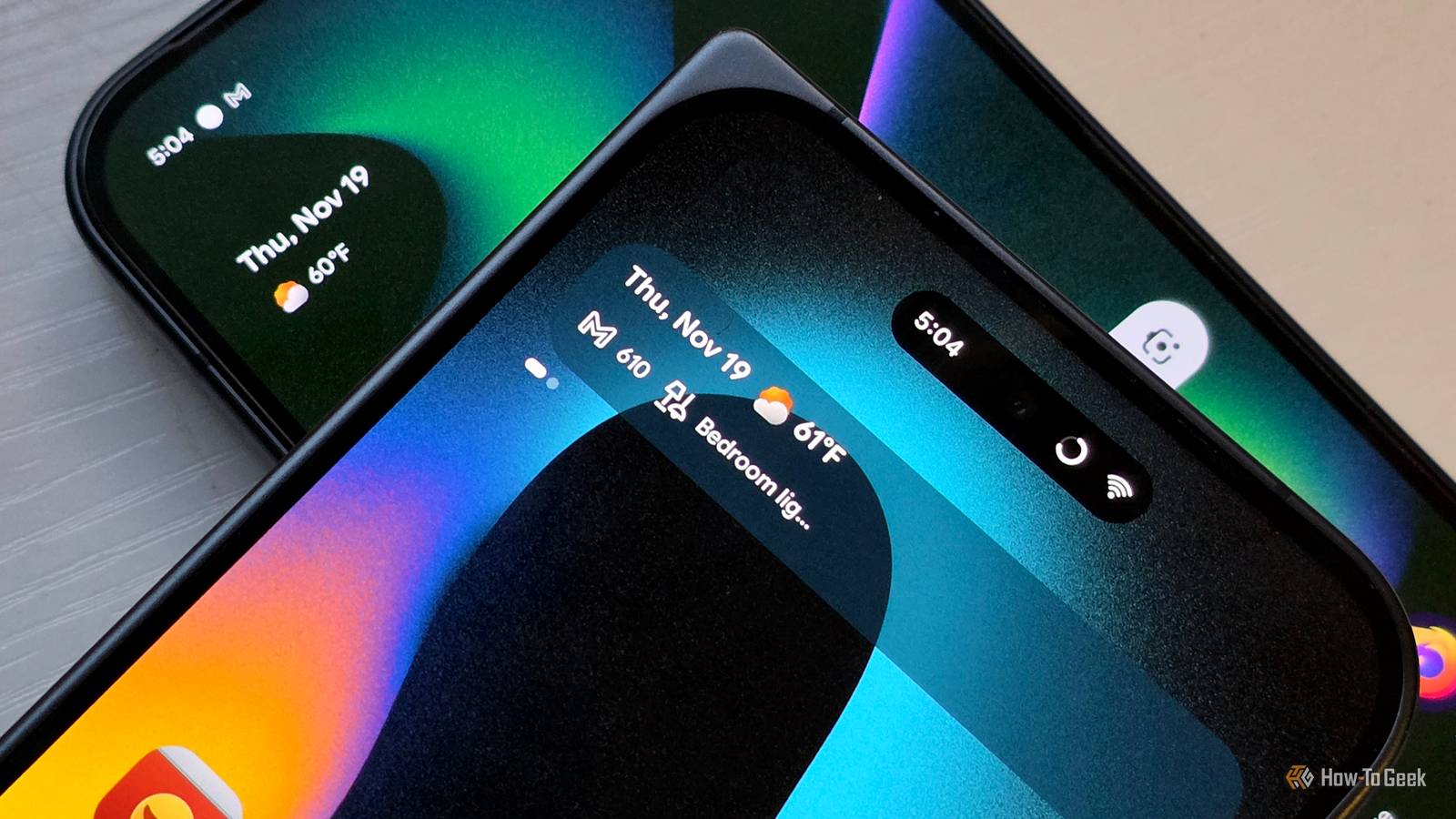
Published Nov 20, 2026, 3:00 PM EST Joe Fedewa has been writing about technology for over a decade. Android and the rest of the Google ecosystem have been a focus for years, as well as reviewing devices, hosting podcasts, filming videos, and writing tutorials. Joe loves all things technology and is also an avid DIYer and food blogger. He has written thousands of articles, hundreds of tutorials, and dozens of reviews. Before joining How-To Geek, Joe worked at XDA-Developers as Managing Editor and covered news from the Google ecosystem. He got his start in the industry covering Windows Phone on a small blog, and later moved to Phandroid where he covered Android news, reviewed devices, wrote tutorials, created YouTube videos, and hosted a podcast. From smartphones to Bluetooth earbuds to Z-Wave switches, Joe is interested in all kinds of technology. After several years of jailbreaking and heavily modifying an iPod Touch, he moved on to his first smartphone, the HTC DROID Eris. He's been hooked ever since. When Google introduced Pixel phones a decade ago, it decided to stick a permanent widget on the home screen. After years of complaints, Google finally allowed it to be removed last year, but you’ll want to keep it around after trying an app called “Smartspacer.” The idea behind the “At a Glance” widget is to intelligently change throughout the day, putting the most pertinent information in front of you when you need it. The concept sounds great, and Google even makes a version available for non-Pixel phones, but it’s just kinda underwhelming. That’s where Smartspacer comes in. Severely lacking in options Credit: Justin Duino / How-To Geek The stock At a Glance experience is, unsurprisingly, fairly limited. You essentially get a long list of topics to toggle on or off, and not much else. These topics include things like weather, sports scores, finance updates, air quality, Google Wallet passes, calendar events, commute time, and more. It’s a comprehensive list, but you don’t have any control over when the things appear. That’s not the most limiting thing about At a Glance, though. More importantly, it can’t be moved or resized. The information that appears on the widget is mostly text-based — no rich details or images. You also can’t pin certain topics or give higher priority when more than one is relevant at a time. And as limited as it is, At a Glance is even more restricted on non-Pixel Android phones. Let’s fix that. The customization an Android widget deserves First and foremost, there are two ways to use Smartspacer. If you own a Pixel phone, Smartspacer can modify the built-in At a Glance widget on the home screen and lock screen. Smartspacer can also be added to the home screen like any other widget on Samsung Galaxy phones and other non-Pixel devices. There are three main components of Smartspacer to know: Targets are “pages” of information that typically consist of a title, subtitle, and icon. They can also show more detailed information, such as lists and even images. Google’s standard At a Glance experience can be included in Smartspacer as a Target. Complications are extra little bits of information that appear alongside Targets. These are usually things like a weather icon and the temperature, or an unread count for emails. Requirements can be used to determine when Targets and Complications appear, giving you the control that Google has. Think of them like “if this, then that” automations for things to appear in the widget. Now, to add Targets and Complications to Smartspacer, you can download Plugins in the app. This is where it becomes much more powerful than At a Glance. There are plugins for weather, Google Home, Google Keep, device information, Google Wallet, Duolingo, Home Assistant, Tasker, and much more. The next big thing to know is that some features require Shizuku, which is an excellent tool that allows for doing things that would have required root in the past. If you want to hijack the stock At a Glance widget, you’ll need this. Check out our full explainer on Shizuku to get started. How I’m using Smartspacer And a few tips and tricks Full disclosure, I think Smartspacer is a bit confusing at first. Don’t skip through the onboarding screens. It helps to think of Targets as the things you want to be big and take top priority. Complications can be scattered around the Targets, filling in the empty spaces. Anyway, I’ll share how I’m currently using Smartspacer, and maybe it will serve as inspiration. I have some Pixel-dependent plugins. The plugins available to you will depend on your phone. For Targets, I’ve got Pixel Weather Forecast, Daily Forecast, and Google Keep. The Pixel Weather Forecast only appears in the morning and at night, so I have it in the top spot to make sure I see it when it arrives. The Google Keep Target is more special. I’ve added a location requirement that makes it appear when I’m at the store for the list I’ve selected. Google removed location-based reminders from Keep, which makes this extra useful. Next, I only have one complication: Google Home. It can show favorites from the app, or you can select specific devices and routines to appear in Smartspacer. I’ve opted to use this as a Complication rather than a Target because it’s easy to swipe over and tap a toggle. Since I have a Pixel phone, I have it set up as “Native Smartspace.” This allows it to take over At a Glance on both the home screen and lock screen. However, if you don’t have a Pixel phone, you can simply add the Smartspacer widget to the home screen. There’s also a “Lock Screen Notification” option that puts a limited version of Smartspacer on the lock screen as a notification. It’s a decent workaround for non-Pixel owners. Extend the functionality of your Pixel phone As I mentioned, the key to Smartspacer is unlocking the full potential with Shizuku. Once you’ve done that, I highly recommend checking out the “Essentials” app as well. These are great tools for taking full control of your phone, especially if it’s a Pixel.
Smartspacer is the 'At a Glance' widget Google should have made
Full Article
Original Source
Read the full article at Howtogeek →KhanList aggregates and links to publicly available news content. We do not host full articles from third-party sources. Always verify important information with original sources.