
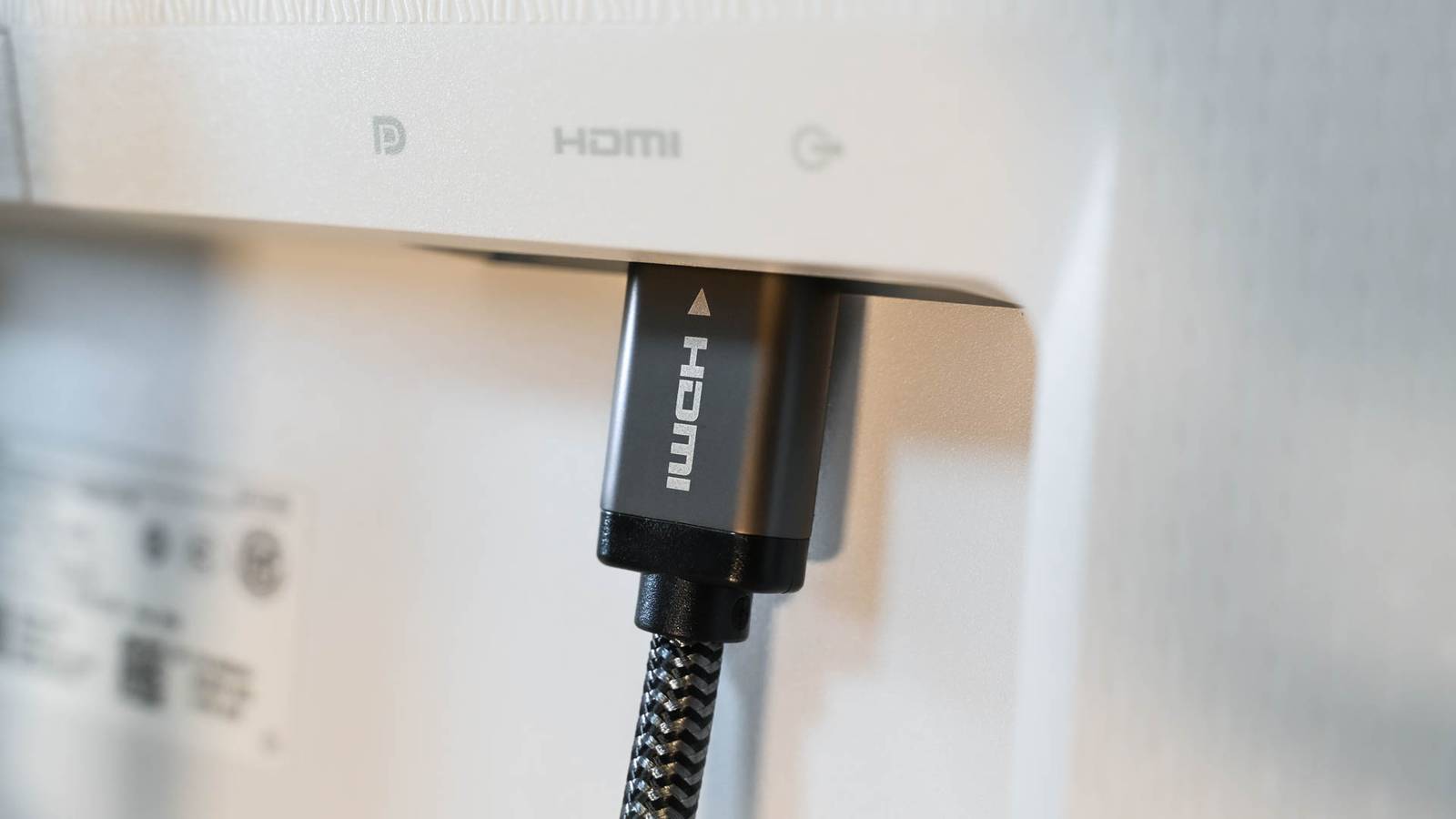
Published Aug 25, 2026, 1:15 PM EDT Tim has been covering technology for almost 20 years, in that time spanning a broad range of topics from security to product reviews. He is especially focused on the Apple ecosystem, productivity, and consumer advice. Over the years Tim has written thousands of articles, reviews, and round-ups in addition to producing video content and original photography. A graduate of journalism, he found his footing as a freelancer with a laptop and loves how he is able to work from practically anywhere. Now a Senior Editor for iPhone, Mac, and Smart Home at How-To Geek, Tim still loves to write. He can also be found crafting round-ups and productivity posts for the Zapier blog. Earlier in his career Tim spent nearly a decade as a writer and eventually Apple section editor for MakeUseOf. Tim currently lives in Brisbane, Australia. Outside of work he loves to hike and work out, play video games, and spend quality time with his wonderful partner and two cats Inka and Roger. If you've bought a new 4K monitor recently, you might have been puzzled by the array of ports on the back. HDMI, DisplayPort, USB-C, and Thunderbolt are all commonplace now, but which is the best, and why? HDMI 2.1: The all-rounder If it ain't broke, don't fix it Credit: Hannah Stryker / How-To Geek High Definition Multimedia Interface, or HDMI, is the most common display interface today. It's used in televisions to connect game consoles and Blu-ray players, and many computer monitors and graphics cards also use it. It provides a stable digital signal that can be hot-swapped (unplugged and plugged in without turning devices off) at will. HDMI 2.1 is the current standard adopted by device manufacturers, supporting a throughput of 48Gbps. That's enough to drive a 10K display at 60 frames per second in full 10-bit color. Because we're talking about 4K displays, HDMI 2.1 is more than adequate. HDMI 2.1 has a few extra tricks up its sleeve, including limited power delivery (uncommon) and the ability to act as an Ethernet adapter (with the right cable). It can also use FreeSync or HDMI-VRR (known as VESA AdaptiveSync) to enable variable refresh rate support, which locks the refresh rate of the monitor to the frame rate of the output device to eliminate screen tearing. HDMI cables are cheap, but older HDMI 2.0 or 1.4 cables won't work if you want to use HDMI 2.1 features like 4K output at 120 frames per second. While HDMI 2.1 is very capable, many older monitors only support the HDMI 2.0b standard. This would mean limiting the output to 4K resolution at 60 frames per second in 8-bit color. You'll also be limited to 44.1 kHz and 16-bit pass-through audio with only two uncompressed audio channels (5.1 audio channels are compressed). For gamers, HDMI 2.0 supports AMD FreeSync, but it lacks the native HDMI-VRR protocol introduced with HDMI 2.1. HDR content is limited to static metadata (the HDR 10 standard) compared to 2.1, which supports dynamic metadata (including HDR10+ and Dolby Vision). Older HDMI 2.0 4K monitors will save you some money, but you'll also lose out on some features. If you're shopping for a monitor and it appears unusually cheap, it's possible that the lack of HDMI 2.1 support is why. If you're rocking a 4K monitor with HDMI 2.1, you're unlikely to hit any serious bottlenecks at this stage. If your monitor only supports HDMI 2.0, DisplayPort could provide a better experience in terms of overall features, especially if you want to daisy-chain several displays over a single connection. Just remember that HDMI 2.1 will need to be supported on both the output device and the monitor receiving the signal. While HDMI 2.1 is the current standard, HDMI 2.2 was announced at CES 2025 and is expected to launch in 2027. The new standard doubles the available bandwidth from 48Gbps to 96Gbps. This bandwidth can be used to achieve refresh rates of up to 480Hz in 4K, 240Hz in 8K, and 120Hz in 10K. DisplayPort: A connection for PCs and monitors This is generally the best choice if you're using a graphics card DisplayPort is a connection type that's most common on computer graphics cards (GPU), though its popularity in the consumer market has waned over recent years. While HDMI 2.1 caps out at 48Gbps, the DisplayPort 2.1 can handle 80Gbps. Prior to the arrival of the NVIDIA RTX 50 series in early 2025, the world's most popular graphics card manufacturer was using the DisplayPort 1.4a standard. This capped out at 32.4 Gbps, enough for 8K resolution at 60 frames in true 10-bit color, but only with display stream compression. Uncompressed performance was similar to HDMI 2.1 with support for 4K/120/8-bit, though 10-bit performance caps out at 4K at 90Hz. Thankfully, the DisplayPort 2.1b standard finally made its way to consumers, offering support for 320Hz at 4K resolution in 8-bit color or 240Hz at 4K in 10-bit color. With DisplayPort, you can connect multiple displays via Multi-Stream Transport (MST) daisy-chaining, provided your monitors support it. You can also make use of NVIDIA's G-SYNC and AMD's FreeSync VRR technology, depending on which GPU you are using. Silkland 16K DisplayPort Cable $10 $12 Save $2 This 6.6-foot DisplayPort cable is capable of running displays up to 16K and is VESA-certified. DisplayPort 1.4a onwards supports dynamic metadata for HDR content, which means Dolby Vision and HDR10+ support for wider brightness and color gamut. Your monitor's capabilities will be the limiting factor here, though, not DisplayPort. Unlike HDMI, DisplayPort lacks any kind of Ethernet support. This is primarily because DisplayPort is mostly used for computer-to-monitor connections. HDMI, on the other hand, has broader applications, including connecting AV receivers, TVs, and other consumer electronic devices. DisplayPort offers some good advantages over HDMI, with the biggest being the ability to daisy-chain two monitors together. Since DisplayPort is limited to computers and monitors, it isn't used for television connections. The limiting factor here will be whether you have a GPU and monitor that supports the DisplayPort standard you want to use. USB-C: Ideal for laptop owners Especially if your monitor has a built-in USB hub USB-C has a broad range of uses. The ability to carry a display signal over USB-C relies on a technology called USB-C DisplayPort Alt Mode. In essence, this is just DisplayPort via a USB-C plug. The raw throughput and supported resolutions depend on the DisplayPort standard being used (which will vary, but most devices in the wild are still using the 1.4a standard). This means that all the technical aspects of USB-C DisplayPort Alt Mode mirror those of regular DisplayPort 1.4. With display stream compression, it's theoretically possible to get an 8K signal at 60 frames with 10-bit color, or an uncompressed 4K 8-bit signal at 120Hz. One of the main reasons to choose USB-C is ease of use since USB-C ports are commonplace on modern laptops. However, you'll need to make sure your laptop supports display output over USB-C Alt Mode. This will likely be included in the technical specifications or on the manufacturer's website. Generally speaking, USB-C DP Alt Mode will be accompanied by USB Power Delivery (USB-PD). If your laptop supports USB-PD (and many do), you can charge your laptop and output to a monitor with a single cable. You will also need a USB-C cable that supports DisplayPort mode. You'll need to do your research first to make sure your monitor provides the right power output for your laptop. For example, the BenQ PD2706U offers USB-C connectivity, with 90 W of USB-PD. That's more than enough to charge a MacBook Air or a Dell XPS 13 laptop. However, it falls slightly short of the 96 W "required" by a 16-inch MacBook Pro (although the machine rarely sucks up that much power). BenQ PD2706UA The BenQ PD2706UA offers a robust package for Mac owners with its sharp 4K resolution, excellent color accuracy, solid ergonomics, and USB-C support. USB-C is a great choice if your laptop is compatible with it, particularly if you move around the house or workplace a lot. USB-PD means you won't have to bring a charger with you to plug into a monitor. You'll also get all the benefits of whichever DisplayPort iteration is at work under the hood (which is still a highly capable standard). There's some contention over whether daisy-chaining multiple 4K monitors is possible over USB-C, though. If that's important to you, you're better off going with DisplayPort or opting for a Thunderbolt monitor, instead. Thunderbolt: Great for daisy-chaining and Macs The "prosumer" option Credit: Patrick Campanale / How-To Geek Thunderbolt also uses the USB-C port and is common on Apple computers but also PCs. Though we're focusing on displays here, Thunderbolt is also a solid choice for data transfer on account of its high speeds. Thunderbolt 5 is the latest iteration, offering up to 80Gbps symmetric throughput via the use of a Thunderbolt 5 cable. Thunderbolt 3 and 4 offered a maximum throughput of half this, with Thunderbolt 4 having a few benefits over the previous iteration like support for more monitors and more ports per accessory. The biggest limitation for Thunderbolt will be device compatibility. Despite being an established standard, the number of Thunderbolt monitors out there is limited. You may also find that these are limited to older technologies like Thunderbolt 3 or 4, however, as the TB5 standard is still relatively uncommon (and, in any case, a TB3 monitor is good enough for most people). This hits upon another big drawback that many Thunderbolt accessories encounter: price (the active cables required to drive them aren't cheap, either). The technology's biggest advantage is the ability to daisy-chain not only other displays, but other devices like external storage arrays, docks, or even external GPU enclosures. Thunderbolt 5 is set to reignite the eGPU market, thanks to its big leaps in bandwidth and its ability to fulfill the demands of AI developers. Apple Studio Display Apple's Studio Display is a beautiful and well-rounded 5K monitor for your Mac. It offers superb color accuracy and has excellent brightness uniformity. Like USB-C, Thunderbolt can also provide power to charge your laptop. If you've already got the capability, Thunderbolt is definitely worth it—especially if you want to daisy-chain multiple 4K, 5K, or 6K monitors. Just be aware that whatever iteraton of Thunderbolt used by your Mac or PC will be the determining factor. Which Is Right for You? Which option you should choose ultimately depends on what you're hoping to achieve, and which technologies are available to you. Since HDMI 2.1 is already on the market, provides enough throughput for 8K at 60Hz, and the cables are cheap and plentiful. DisplayPort 2.1 is a solid choice if you have the hardware and want a daisy-chaining solution. DisplayPort 1.4 is also still preferable to HDMI 2.0 due to its superior throughput, but if you aren't running multiple monitors, the two are fairly evenly matched. USB-C ultimately depends on whether your laptop supports USB-C Alt Mode with DisplayPort, and whether the monitor delivers enough power to charge your laptop. If your laptop has both of those capabilities, USB-C is a convenient choice. Thunderbolt is the fastest connection available on many computers, and it provides power for charging. For daisy-chaining two 4K monitors or connecting a 5K display, it's pretty much unbeatable. You can connect other devices, too, which is neat. However, you'll need support on both the monitor and computer side and a pricey cable or two.
Should you use HDMI, DisplayPort, or USB-C for a 4K monitor?
Full Article
Original Source
Read the full article at Howtogeek →KhanList aggregates and links to publicly available news content. We do not host full articles from third-party sources. Always verify important information with original sources.