
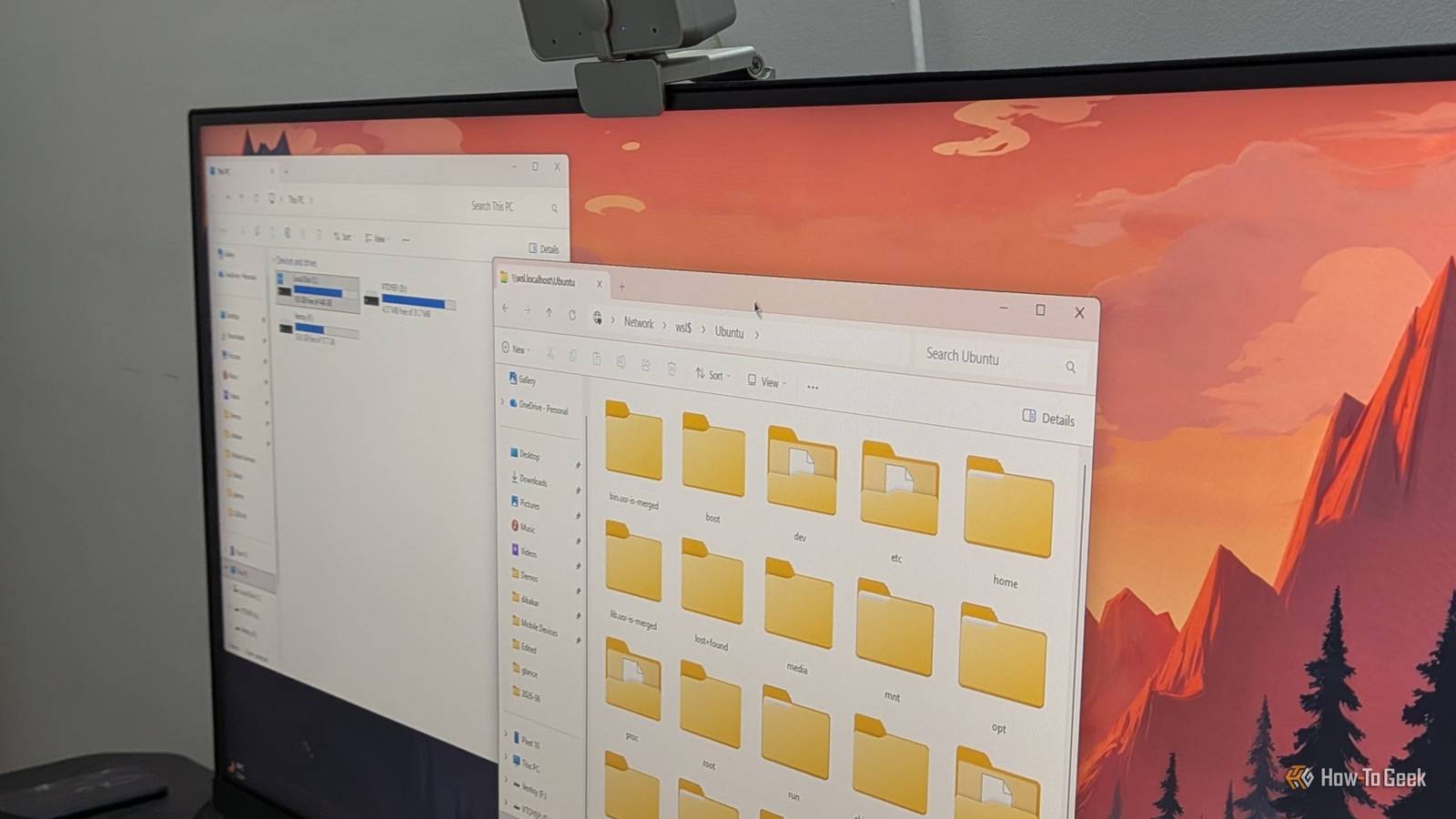
Published Nov 3, 2026, 8:00 AM EST Dibakar Ghosh is a tech journalist at How-To Geek with over a decade of experience using and writing about open-source software, Linux, Android, AI, and personal productivity. He writes about software, operating systems, and tools that help people get more from the technology they already use. If you have a Windows-Linux dual-boot PC, you're probably familiar with the troubles that come with sharing files between the two partitions. You'd expect two operating systems with direct access to the same CPU, RAM, and storage to also be able to access each other's files. But unfortunately, that's not always the case. On Linux, you might've noticed that your Windows files are editable one day but locked in read-only mode or unmountable the next. Fortunately, all of these issues are relatively easy to resolve, and the whole process barely takes an hour. The problems with sharing files between Linux and Windows Two roommates who refuse to touch each other’s stuff Credit: Lucas Gouveia/How-To Geek | Ico Maker/Shutterstock Say you boot into Linux and want to grab a file from your Windows partition. You can usually see the Windows drive in your Linux file manager and even browse through the C: drive. The problem arises when you try to edit, move, or delete files, or save something new. Linux might throw an error saying you don't have the necessary permissions or that the drive is in an unsafe state. This generally happens because of a Windows feature called Fast Startup. It’s typically enabled by default and prevents Windows from fully shutting down. Instead, when you shut down your PC, Windows hibernates the kernel session and device driver state to a file called hiberfil.sys on your drive. This allows Windows to boot faster the next time because it doesn't have to initialize everything from scratch. Granted, how much faster it actually boots is debatable, but that’s beside the point. Anyhow, with Fast Startup enabled, when you shut down Windows and boot into Linux, the Windows partition is left in a hibernated or otherwise inconsistent state. Linux can detect this and will either mount the partition as read-only or refuse to mount it altogether to avoid potentially corrupting your data. It's also worth noting that this problem isn't necessarily limited to your Windows system partition. Other NTFS drives connected to Windows, including secondary internal drives and external hard drives, can also be affected. For instance, if you plug a USB drive into Windows, move a file into it, and then shut down your Windows system with Fast Startup enabled, you’ll find that Linux won't let you write to that USB drive either. Now, coming to accessing your Linux files from Windows — here the problem is a bit more straightforward. Unlike Linux, which has built-in support for Windows file systems like NTFS and exFAT, Windows doesn't natively support common Linux file systems such as ext4, Btrfs, or ZFS. As a result, even though you can see the Linux partition's disk space in Windows Disk Management, you won't be able to browse or access its files through File Explorer — at least not by default. How to access your Windows files from Linux The fix is a lot smaller than the problem makes it look Since Windows Fast Startup is what's causing the main issue, disabling it is the simplest fix. And don't worry about Windows booting slower because of it. If you're running Windows off an SSD, as most people are, you'll barely notice a difference. That said, the easiest way to disable Fast Startup is to right-click the Start button, select "Terminal (Admin)," and enter this command: powercfg /h off This will completely disable hibernation as a feature, not just Fast Startup. If you only want to disable Fast Startup while keeping hibernation available, you can follow this detailed guide. Alternatively, you could also skip shutting down your Windows PC and simply restart it instead. Fast Startup's hibernation feature only kicks in when you shut down Windows — not when you restart it. This means you can technically restart your PC and then boot into Linux, completely bypassing the issue. How to access your Linux files from Windows Windows can learn to read Linux — with a little help For the longest time, the only fix for accessing your Linux files from your Windows system was installing special third-party file managers. There are both free and paid options available, and while they do work, I've found them somewhat lackluster and a little buggy. As such, my recommended way to solve this problem is to use WSL (Windows Subsystem for Linux). It runs a real Linux kernel inside Windows, allowing it to natively understand ext4, Btrfs, and other Linux file systems. This means you can use the wsl --mount command to attach the drive containing your Linux installation, mount it, and access your Linux files through Windows File Explorer just like any other folder. Here's a detailed guide on how it works and how to set it up. The wsl --mount command attaches an entire physical drive to WSL, not just a single partition. As such, this method only works if Linux isn't sharing a physical drive with Windows and is installed on a separate physical drive. The default state is a mess, but the fixes are relatively simple If this is your first time setting up a dual-boot system, you might be frustrated by how reluctant the two operating systems are to share files with each other. However, as you can see, the issues are generally minor, and the fixes are relatively simple. You'd hardly need more than an hour on a weekend afternoon to get everything resolved.
Sharing files between Windows and Linux is a mess — here’s what actually works
Full Article
Original Source
Read the full article at Howtogeek →KhanList aggregates and links to publicly available news content. We do not host full articles from third-party sources. Always verify important information with original sources.