
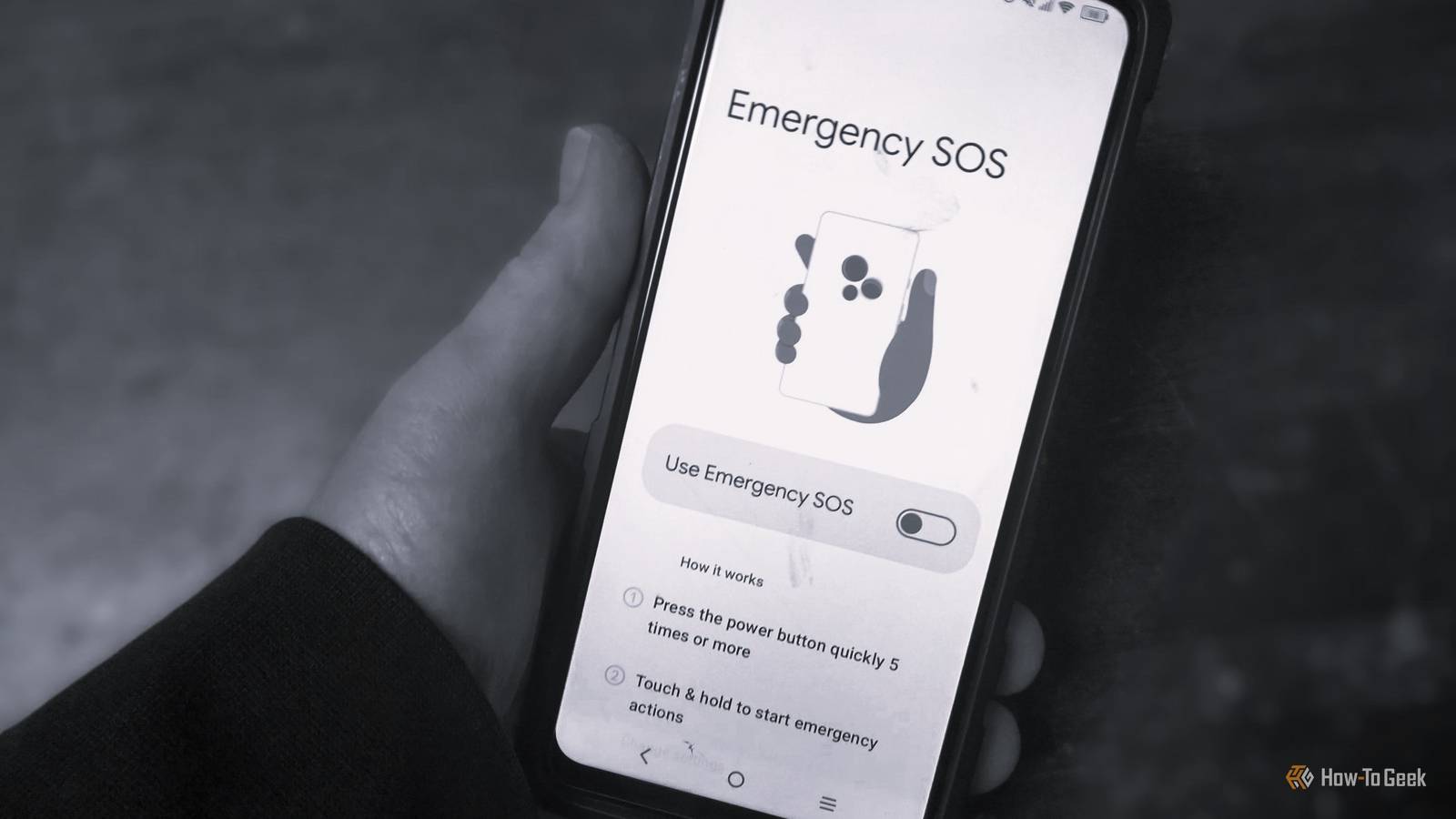
Published Nov 21, 2026, 7:00 PM EST Steve has been editing and writing content for almost two decades, including product reviews, tech news, how-to guides, and even lifestyle and health topics. He’s served as chief editor for publications like Tech Junkie and Alphr, and has written and edited content for many other tech-related sites. His expertise in Windows, Android, iOS, Mac, and Linux simplifies the gadget and computer world for others, enabling them to shop, connect, learn, tweak, and optimize devices and software to suit their needs. When he’s not writing or editing content, he enjoys repairing and optimizing devices (and game consoles), watching movies, golfing, and spending time with the family. When it comes to being prepared, many people keep a medical card in their wallet or purse, but what if you don’t have it when you need it? Almost everyone has their mobile phone with them at all times, and Android has several built-in emergency and safety features to help keep you safe. In an emergency, responders will look for medical information, and if your phone is readily available, they’ll check it to see if it contains any. You may also need emergency settings so you can call 911 if you encounter danger. Storing medical information digitally is one of the best things you can do because you never know what could happen to a paper card, and your phone can do things a card cannot. By setting up these four emergency settings on your phone, you’ll be safer when a medical or other urgent situation occurs. Your lock screen can save your life by displaying medical information Knowing health history and conditions can prevent dangerous medical reactions The first thing you should do is add medical information to your phone and set it to appear even when your phone is locked. You can also include contact information (relatives) to make the process more efficient for responders and medical personnel. They won’t have to unlock your phone to view your health details or to call a listed relative. To set up your emergency information on a Samsung phone, go to Settings -> Safety and emergency -> Medical info. For Pixel, head to Settings -> Safety & Emergency -> Medical information. On other phones, it's most likely in Settings -> About phone -> Emergency information. Fill in your full name at the top, then select ‘Add information’ to include your medical details and conditions. It has sections for blood type, allergies, medications, organ donor status, and medical notes. When done, tap the back arrow and select ‘Add contact’ to choose a family member, then add more if desired. It’s always a good idea to include several close contacts in your emergency information, in case responders cannot reach the first one. Now, responders can easily swipe up on your lock screen, select ‘Emergency,’ and choose ‘Emergency information.’ Set up emergency location services You want to be easily found in any emergency situation No matter the emergency, you should always have your phone's location readily available to 911 and dispatchers. Setting this up speeds up arrival times and could even save your life in certain situations. To set this feature up on Pixel phones, go to Settings -> Safety & emergency -> Emergency Location Service. Samsung models are the same, except the "&" is "and," so you'll navigate to Settings -> Safety and emergency -> Emergency Location Service. On other phones, you’ll find it in Settings -> Location -> Advanced -> Emergency Location Service. You don't need any other location options turned on for Emergency Location Service to work. If it’s on, it will send location details to the responders on the call. Set up crash detection if you have a Pixel phone Works on Pixel 4a and above While Android has plenty of useful features, crash detection is exclusive to Pixel phones, including any Pixel Fold and Pixel 4a or newer phone. To activate this feature, first add at least one emergency contact under Settings -> Safety & emergency -> Emergency contacts, then turn on the emergency location option found at Safety & emergency -> Emergency Location Service. Google says Crash Detection will still operate with Location Service off, but it is best to leave it on. Once that’s ticked off the list, return to ‘Safety & emergency’ and turn on ‘Car crash detection.’ Optionally, scroll down and turn on ‘Emergency Sharing.’ Don’t worry, you still get the 60-second option to turn it off when crash detection is activated, whether by a false alarm or by a harmless incident. Enable Emergency SOS on Android 12 or above Don’t worry because accidental activation is cancelable Emergency SOS is a cool feature designed to simplify signaling that you need help, no matter the situation. All you have to do to activate it is go to Settings -> Safety & emergency -> Emergency SOS on Pixel or Settings -> Safety and emergency -> Emergency SOS on Samsung or any other phone with Android 12 or later. The next step is to tap on ‘Start setup.’ Now, select ‘Start’ and choose your SOS options, including setting the local emergency number, sharing location information with the added contacts, calling emergency services, and recording video. After every option, press ‘Next’ to continue. Your setup process may differ depending on phone make and model. When you set up the Emergency SOS feature, it will start with a step-by-step process if it's your first time accessing the option. Otherwise, you'll get the same options in various settings within the same menu. One last thing to confirm is how you want your phone to respond when you activate the SOS action. This is the last option after pressing ‘Next.’ You can choose to ‘Use touch and hold to start actions’ or select ‘Start actions immediately after countdown.’ The countdown is five seconds. You can also choose to turn on the alarm sound, and it will trigger the sound along with the other instructions you selected. The last button, after pressing ‘Next’ numerous times, is to tap ‘Done.’ Yes, there are a lot of detailed options in the emergency SOS feature, but it is worth going through the entire process. You can activate emergency SOS when you need it by pressing the ‘power button’ five or more times, then pressing and holding the button on the screen to activate it, or letting it start automatically after five seconds. It will take it from there and do what you requested based on the settings you turned on. Digital resources can potentially be a lifesaver in any emergency situation While there are many ways to protect you and your phone’s privacy, there are also ways to protect you in emergencies. Having your medical history and information on paper is great, but you may not always have it with you, or it could get lost or damaged by theft, drinks, fire, water, or even snow. That’s why having digital emergency information is essential, as most responders are trained to look for phones, IDs, and medical information. By having your medical details and emergency location services on your phone (without needing to unlock it), responders have a better chance of finding you and treating you safely and successfully. It’s also important to set up your phone’s emergency features, such as crash detection (Pixel only) and the emergency SOS option. With five simple taps on the power/standby button, you’re not only calling 911, but you’re also providing location details, messaging emergency contacts, recording video, and taking pictures. It’s the perfect safety companion, as long as you have it set up and ready to go!
Set up these 4 Android emergency settings before your life depends on it
Full Article
Original Source
Read the full article at Howtogeek →KhanList aggregates and links to publicly available news content. We do not host full articles from third-party sources. Always verify important information with original sources.