
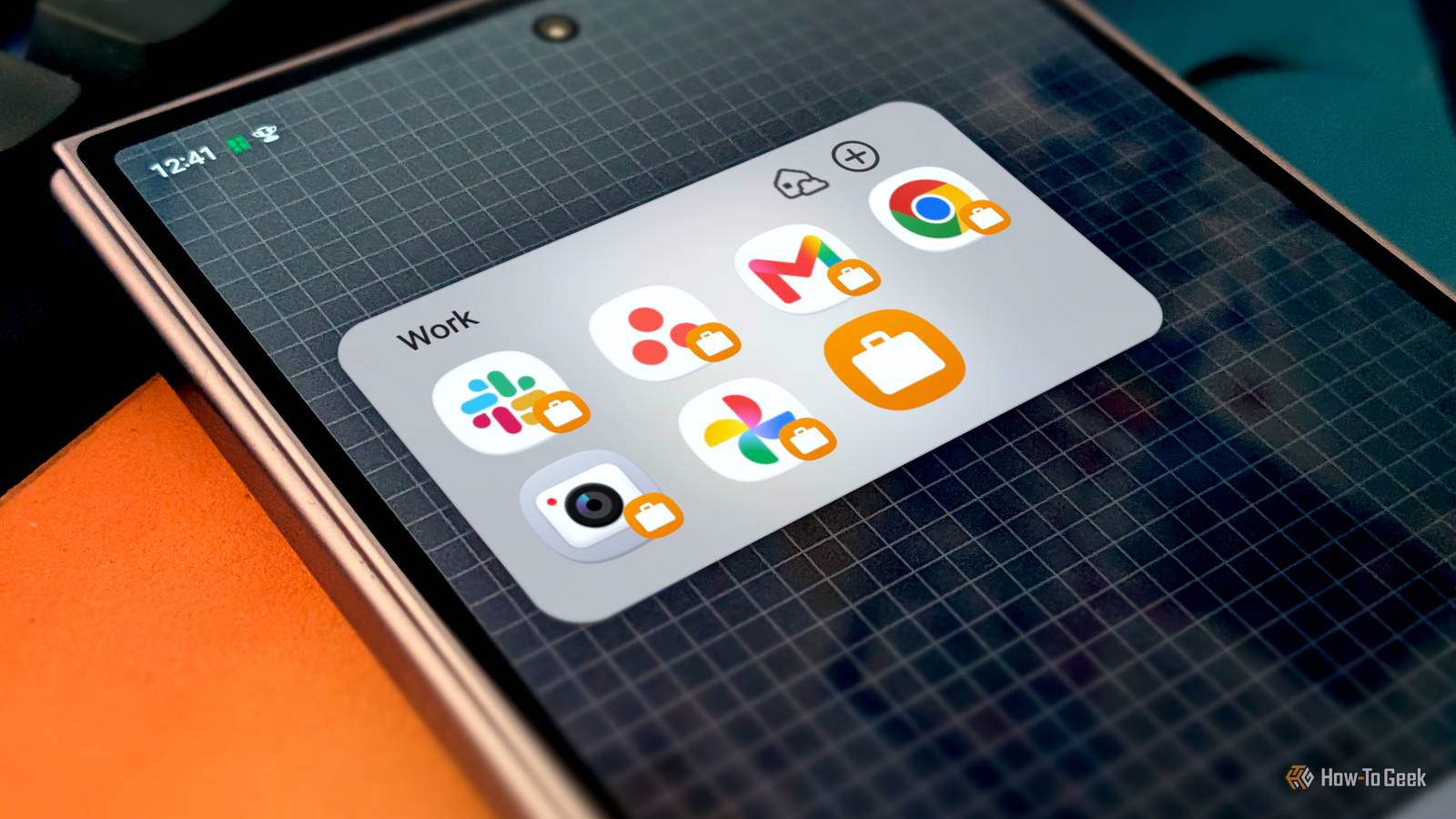
Published Sep 24, 2026, 6:30 AM EDT Joe Fedewa has been writing about technology for over a decade. Android and the rest of the Google ecosystem have been a focus for years, as well as reviewing devices, hosting podcasts, filming videos, and writing tutorials. Joe loves all things technology and is also an avid DIYer and food blogger. He has written thousands of articles, hundreds of tutorials, and dozens of reviews. Before joining How-To Geek, Joe worked at XDA-Developers as Managing Editor and covered news from the Google ecosystem. He got his start in the industry covering Windows Phone on a small blog, and later moved to Phandroid where he covered Android news, reviewed devices, wrote tutorials, created YouTube videos, and hosted a podcast. From smartphones to Bluetooth earbuds to Z-Wave switches, Joe is interested in all kinds of technology. After several years of jailbreaking and heavily modifying an iPod Touch, he moved on to his first smartphone, the HTC DROID Eris. He's been hooked ever since. My phone is full of apps with various accounts for email, social media, messaging, banking, work, etc. I don't mind most of these apps being together on the same device, but there are some I'd like to keep separate. Thankfully, my Samsung Galaxy allows me to do that without needing a second phone. Many people have secondary phones provided by their employer for this very reason. However, it's entirely possible to do the same thing with just one Galaxy device — a "phone within your phone." I'll show you how I use it, and how you can set it up for yourself. A powerful, poorly named feature "Secure Folder" is so much more than a folder Credit: Joe Fedewa / How-To Geek The Samsung feature that enables this phone-ception is called "Secure Folder," and it's easy to overlook. You wouldn't be alone in assuming it's simply a password-protected folder for apps. What it actually does is enable a fully sandboxed, separate environment on your Galaxy phone with some hardcore privacy and security safeguards. In simple terms, the Secure Folder is indeed a password-protected folder for apps, but not in the way you might think. It's not for the apps that are already installed on your phone. When you set it up (Settings > Security and privacy > More security settings > Secure Folder), you have the option to sign in with a secondary Google or Samsung account. This creates new instances of the Play Store and Galaxy Store within the Secure Folder. That's why "folder" is a very simplistic way to describe the feature — it's more like a secondary profile. I use it to keep my work-related apps and accounts separate from my personal apps and accounts, but it's not only for apps. The Secure Folder also contains its own file system for media and documents. If you download a photo from an app within the Secure Folder, that photo is not available to the rest of your phone. What about security? "Secure" is in the name, after all Credit: Samsung Personally, I use Secure Folder more out of convenience than a need to protect my work accounts. However, you should know it does have some impressive privacy and security features. The Secure Folder can be protected with a unique PIN, password, or pattern lock, as well as biometric security. It has its own lock screen that operates independently from your phone's main lock screen. Many Samsung Galaxy phones include a special Knox hardware chip, and that's where those lock screen credentials and biometric profiles are stored. When you power on your phone and unlock it, the Secure Folder is still locked. You have to manually unlock it, and it can choose to auto-lock every time you turn off the screen. To take things further, opting out of being able to reset the lock with a Samsung account means nothing gets backed up for recovery. How I use Secure Folder on my Galaxy phone A better way to manage multiple accounts I'm not a secret agent, so I've never had any issues with keeping my work-related apps and accounts on my personal phone. However, it's not an ideal setup. Most Google apps make it easy to switch between accounts on the fly (swipe down on your profile icon), but not all of them do. I was tired of seeing my work events mixed in with my personal events in Google Calendar. This is what made me finally start using Secure Folder. The first step was removing my work Google account from my device and uninstalling all of my work-related apps. From there, it was just a matter of setting up the Secure Folder with my work Google account credentials, then installing the apps I needed from the Play Store within the folder. It was easy to get everything up and running since, in that environment, there's only one Google account to use for signing into apps. The great thing about Secure Folder is that there are many different ways to use it. As I said, I'm most interested in having a divider between work and personal life. I probably have Secure Folder set up in the least secure way you can. It has the same lock as my phone, doesn't auto-lock unless my phone is restarted, shows full notification content, and isn't hidden in any way. The other benefit to using Secure Folder in this way is being able to silence a bunch of apps in one fell swoop. I can manually lock the folder whenever I want, and as long as "Allow background activity while locked" is disabled, all the apps inside are blocked from running and sending notifications. All in all, Secure Folder is a nice little quality-of-life improvement if you manage work and personal life on one device. I highly recommend giving it — or its Pixel equivalent — a try.
Samsung's Secure Folder is basically a second phone hiding inside your Galaxy
Full Article
Original Source
Read the full article at Howtogeek →KhanList aggregates and links to publicly available news content. We do not host full articles from third-party sources. Always verify important information with original sources.