
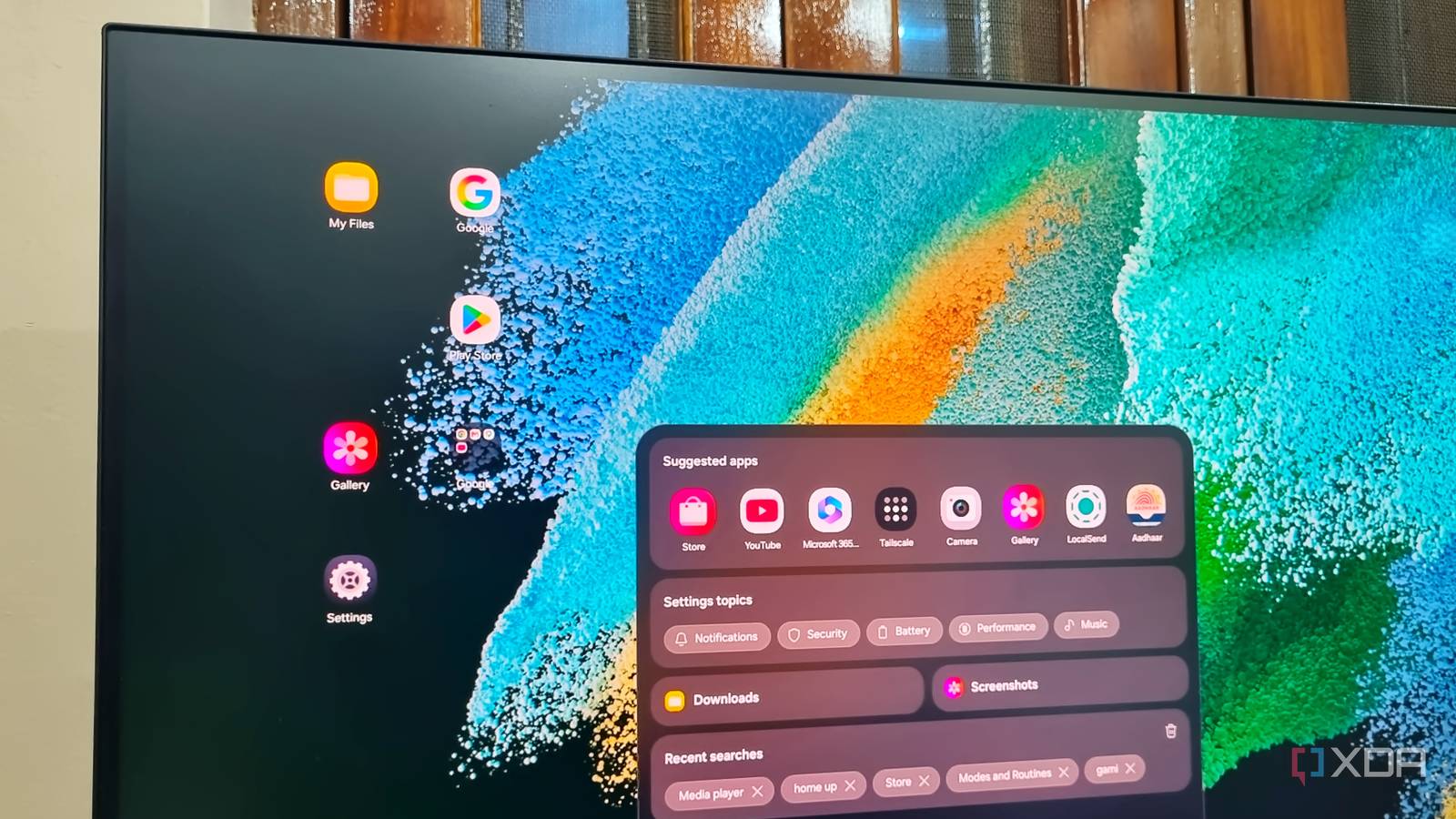
Published Nov 15, 2026, 8:00 PM EST Abhishek is an author at XDA who covers computing. He has loved computers since he got the Lenovo G570 in 2012. Abhishek holds a master's degree in computer applications and began his writing career in 2018. He loves writing how-to articles, listicles, and informational posts on popular operating systems and web services. He closely follows the Windows Insider program and tests new Insider builds to discover upcoming experimental features and upgrades. His past work includes long-term collaborations with reputed publications like Tom's Hardware, and Windows Latest. When not writing anything, he is busy watching new episodes of One Piece or searching for something binge-worthy. Smartphones seldom try to step into PC territory. An OEM is focused on packaging the best possible hardware, the biggest display, and the biggest battery rather than making the phone work like a PC. There's a small, niche audience who will actually appreciate such a feature. But Samsung doesn't think so and has been working on a desktop mode for many years. It debuted with the Samsung Galaxy S8 series and works on many phone models released after that. The feature started as a means to use the phone on a bigger display like a TV or monitor. My honest opinion a few years back would have been “meh,” but the current DeX version is actually the opposite. I have been using it for some time, and it is the closest thing that you can get to an actual desktop mode. Sadly, most Samsung Galaxy users never venture into this territory. If you are one of those, let's discuss why you should give it a try. DeX mode is not a half-baked product It delivers a standard desktop experience A phone OS can't perfectly replicate a standard desktop experience like Windows or Linux. But DeX tries to come as close as it can, and you'll notice the difference when you power it up for the first time. There are no major changes that will confuse you, and the UI is designed to feel like a desktop. You can change the background wallpaper, among other useful customization options. DeX mode tries to recreate a traditional desktop layout. The bottom right corner houses the quick settings for time, network, and other stats. You can access the notification panel from here. The center portion is reserved for the app launcher and search, while the left corner has recent apps, back, and home buttons. But that’s nothing special, right? Agreed. Bundling a desktop design and positioning elements is easy. However, if apps don’t conform to the desktop experience, then it's not useful. In DeX mode, you can launch supported apps in normal and full-screen mode. Some apps adapt well to the full-screen mode and don’t look obnoxiously stretched out. Chrome is a great example of this, and web browsing feels quite smooth in DeX mode. A browser alone can manage most of your needs, but I need a few more apps, like Google Docs and Gmail. Both of these apps completely utilize the extended screen space, and in Gmail, I can browse emails in one part of the screen while replying or sending new ones in the second half. Google Docs is my primary tool for jotting down outlines, drafts, and saving ideas, and it also has a similar experience. More popular apps, including collaboration tools, Microsoft Office, and a few more, run nicely in DeX mode. Your regional apps might not get the same treatment, but that’s not a major letdown. You can open dual app windows on the screen, which is a major step up for multitasking. DeX mode doesn’t need a major investment A few peripherals are enough Samsung DeX works both wirelessly and in wired mode. Since we're talking about connecting your phone to a monitor, the wired mode is applicable here. But your Samsung phone doesn’t have an HDMI port, so how will it send display signals to the monitor? The answer is a USB Type-C to HDMI hub with a couple of additional ports. I bought one such adapter for $10, and it's the only major investment you’ll need to use DeX. The additional ports on the adapter solve two more pressing issues. Since the phone needs constant power for longer sessions, you need to connect a power bank or wall adapter to it. The hub has a USB-C Power Delivery (PD) pass-through port, so I can use either power solution with it. My adapter has a USB Type-A port, and I connected a USB hub to it. I need an additional free port because both the keyboard and the mouse are wired. There are other compact solutions, like Samsung’s official DeX Pad and DeX Station. These docks can make your setup cleaner and introduce a few more ports and connectivity options. But these are old, expensive, and not compatible with the latest phone models. I don’t suggest investing in them unless you are building a fixed DeX mode setup. DeX has multiple use cases Running a quick work session or a compact PC setup Even if you find the feature interesting, you might wonder about its real-world application. DeX is useful if you need to handle something urgent or work-related while you are away from your PC. You can access websites, check and respond to emails, conduct group calls on a bigger screen, and make minor edits. The other use case is to use an old Galaxy smartphone as a lightweight PC. You can use it to surf the web, run YouTube and other streaming apps, and even play local media files on a bigger display. High-end Samsung Galaxy phones can even run some PC games using third-party apps like GameNative, which works well for lightweight titles. Or, you can create this setup as a spare PC for your kids or parents. You don't need to invest in a new computer and can use DeX as a stepping stone. My niece doesn't find the UI intimidating at all and loves playing Android games and watching YouTube on the DeX setup. Give the DeX mode a try If you've never used DeX mode, I urge you to try it once. It's not a janky, unpolished UI that you'll close in an instant. You can stack two windows side-by-side, and popular apps load nicely in full-screen view. Building the whole setup requires a few peripherals and a modest budget. Samsung Galaxy S26 SoC Snapdragon 8 Elite Gen 5 Display 6.3-inch Dynamic AMOLED 2x The latest flagship series phone with new AI features and improved camera. RAM 12 GB Storage 256 or 512 GB Battery 4,300 mAh
Samsung DeX is the best thing a Galaxy phone can do, and most owners have never plugged theirs into a monitor
Full Article
Original Source
Read the full article at Xda-developers →KhanList aggregates and links to publicly available news content. We do not host full articles from third-party sources. Always verify important information with original sources.