
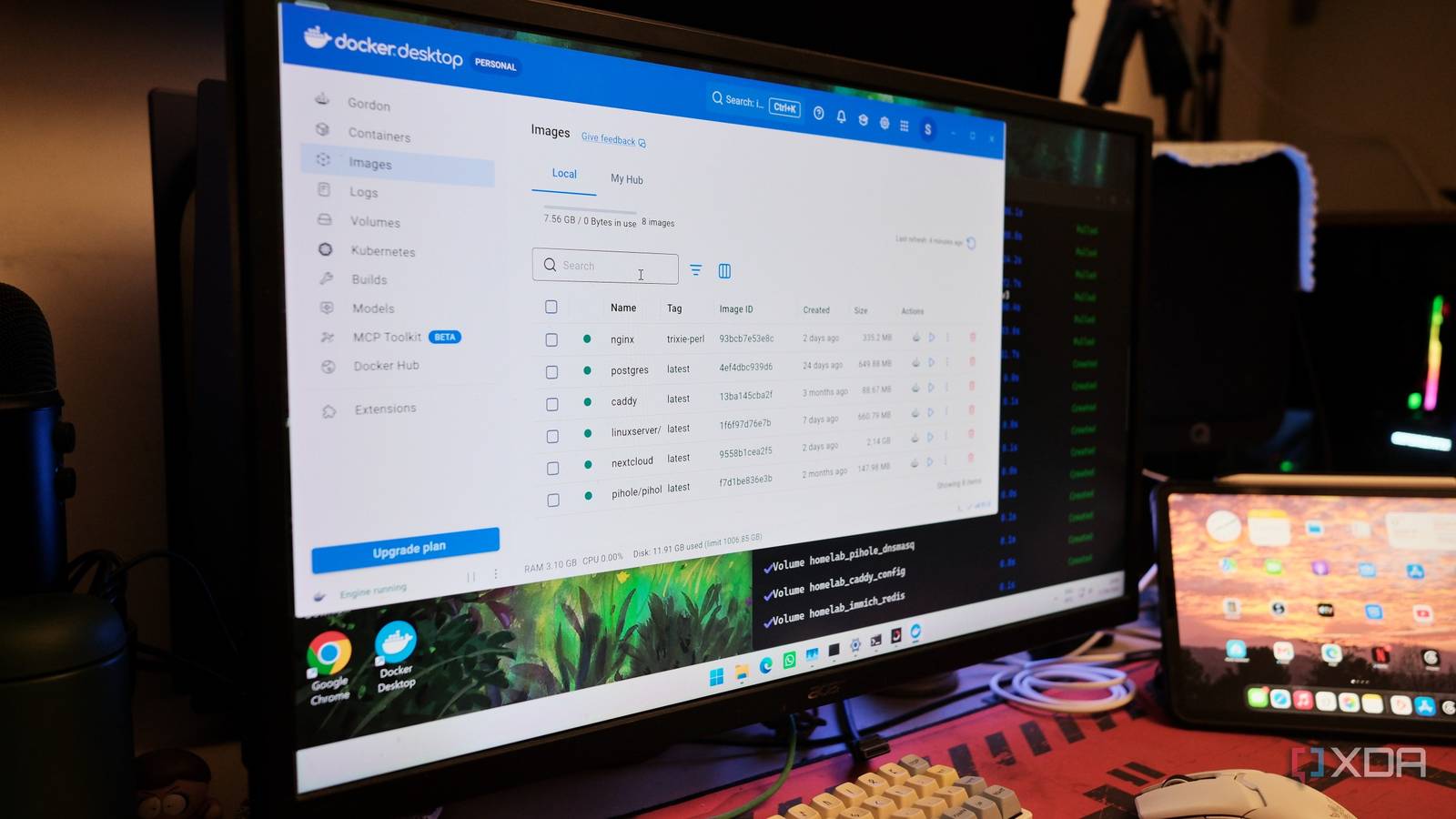
Published Sep 17, 2026, 7:00 PM EDT Samir Makwana is a technology journalist and editor from India since past 18 years and his work appears on MakeUseOf, HowToGeek, GSMArena, BGR, GuidingTech, The Inquisitr, TechInAsia, TechWiser, and others. He has written news, features, and gadget reviews for national technology media publications. His passion is to help people with their technology problems and gadget purchases. For that, he has worked for some of the biggest international technology publications, covering news, explainers, how-to guides, listicles, and product-buying guides. He has worked as an editor and managed teams since 2015. His expertise broadly covers computers, smartphones, game consoles, headphones, smart home products, browsers, and apps. Using Docker Desktop meant never having to open a terminal or command prompt on Windows 11. I enjoyed that convenience until I opened the Task Manager to check something and learned that the app’s helper processes were using over a GB of memory on my desktop. And I wasn’t even building or serving anything. I had assumed that stopping a container released the resources. That’s not how things work on Windows 11. The operating system runs a virtualization layer that Linux never needs, and Docker Desktop stacks another on top of that, especially since I had started using WSL2 for most tasks. I wanted to know how much overhead Docker Desktop actually needed. So I removed it from my desktop and ran the same container stack through WSL2. Docker Desktop kept working in the background Running two virtualization layers for a single container I assumed Docker Desktop was like any other app, but the moment I opened the Task Manager, it turned out to be more than a tray icon. I found several backend engine processes, a networking helper called vpnkit, and a credential manager on that list. The surprising part was that those things were running even when there was no active container. Resource Saver trims some of this when nothing’s running, but it doesn’t make everything vanish. All those processes pop back the moment I open the dashboard or build a new container. This happens because Docker Desktop sets up its own Linux distributions when I install it and uses them every time I open the app. One hosts the actual engine, the other stores images, containers, and volumes. Checking my list of WSL distros confirmed it: docker-desktop and docker-desktop-data sat right alongside Ubuntu, the distro I actually use. Meanwhile, Windows already runs a lightweight VM to make WSL2 work, and Docker Desktop runs a second one inside that VM to host its engine. So I am running two virtualization layers to do what a single shared kernel would handle as a few isolated processes on real Linux. Well, that’s the deal I signed up for when I installed it. I didn’t realize how much it was costing me until I checked. Running containers directly through WSL2 changed everything Noticeably lighter on resources for the same workload I switched my approach to see whether that overhead was actually necessary. I installed Docker’s engine directly in my Ubuntu WSL and skipped the Docker Desktop installer entirely. I ran Docker's official installation script to deploy it inside my WSL distro. After that, I deployed my usual stack of containers like Jellyfin, a Caddy proxy, Postgres, and Syncthing. Then I let those containers run for a couple of hours before checking memory usage in Task Manager. The difference wasn’t subtle, since Docker Desktop already used over a GB of memory before I started a single container. In contrast, the same stack running in a plain WSL distro added only a few hundred MB on top of an idle installation. Docker Desktop’s background processes kept waking up the CPU even when nothing needed them to. The WSL2 setup stayed silent unless a container was actively running a task. Cutting out the second virtualization layer meant the WSL2 VM only had to do the work once instead of twice. Speed was never the real problem Idle overhead matters more than boot time Because of everything the GUI does behind the scenes, it’s easy to assume that Docker Desktop is slower. Even with the native WSL setup, the container tooling still showed similar startup times. Some containers loaded faster, but that didn’t change how I work with them. I was more concerned about the overhead that piles up after running containers all day than about the extra second or two of boot time. Once my container boots and isn’t used actively, it sits idle for hours. That idle time is what actually costs you resources, not the boot itself. I hadn’t measured that before, and it turned out to matter more than anything else. Dropping Docker Desktop still has some trade-offs Choosing the terminal over the dashboard comes at a price Removing Docker Desktop isn’t a clean win because I miss the dashboard view of every container, image, and volume at a glance. Docker Desktop lets me start or stop containers with a single click. Meanwhile, I now manage that stack through the terminal. That’s not a big deal if you’re already familiar with the command line. But a GUI helps if you want friendlier options. One inconvenience I face is setting up file sharing. Using Docker Desktop on Windows 11 makes it easy to set up the target folders from the app’s settings. I need to point to the folders. In contrast, I need to manually reference paths across Windows and WSL since it doesn’t pick that up automatically. It got a little irksome that I could no longer run Docker commands from any terminal, something Windows integration used to handle automatically. Docker Desktop wired that up in the background so that I could use PowerShell or Command Prompt. On one hand, I save resources, but on the other, I’m limited to manually configuring things for a specific terminal. Is Docker Desktop still worth keeping around? Yes, I’ve decided to keep it around. Most of my containers run continuously on a machine that’s rarely doing anything else. The difference between one virtualization layer and two adds up daily. If your workflow involves active development sessions, then it’s worth keeping Docker Desktop around. The dashboard’s convenience is worth the extra memory Docker Desktop uses. I keep Docker Desktop installed for the one project that needs its GUI. Everything else that runs long-term lives inside a plain WSL2 distro. Docker Docker Desktop is a one-click-install application for your Mac, Linux, or Windows environment that lets you build, share, and run containerized applications and microservices. It provides a straightforward GUI (Graphical User Interface) that lets you manage your containers, applications, and images directly from your machine. Docker Desktop reduces the time spent on complex setups so you can focus on writing code. It takes care of port mappings, file system concerns, and other default settings, and is regularly updated with bug fixes and security updates.
Running Docker through WSL instead of Docker Desktop cut my resource usage in half, but there's a catch
Full Article
Original Source
Read the full article at Xda-developers →KhanList aggregates and links to publicly available news content. We do not host full articles from third-party sources. Always verify important information with original sources.