
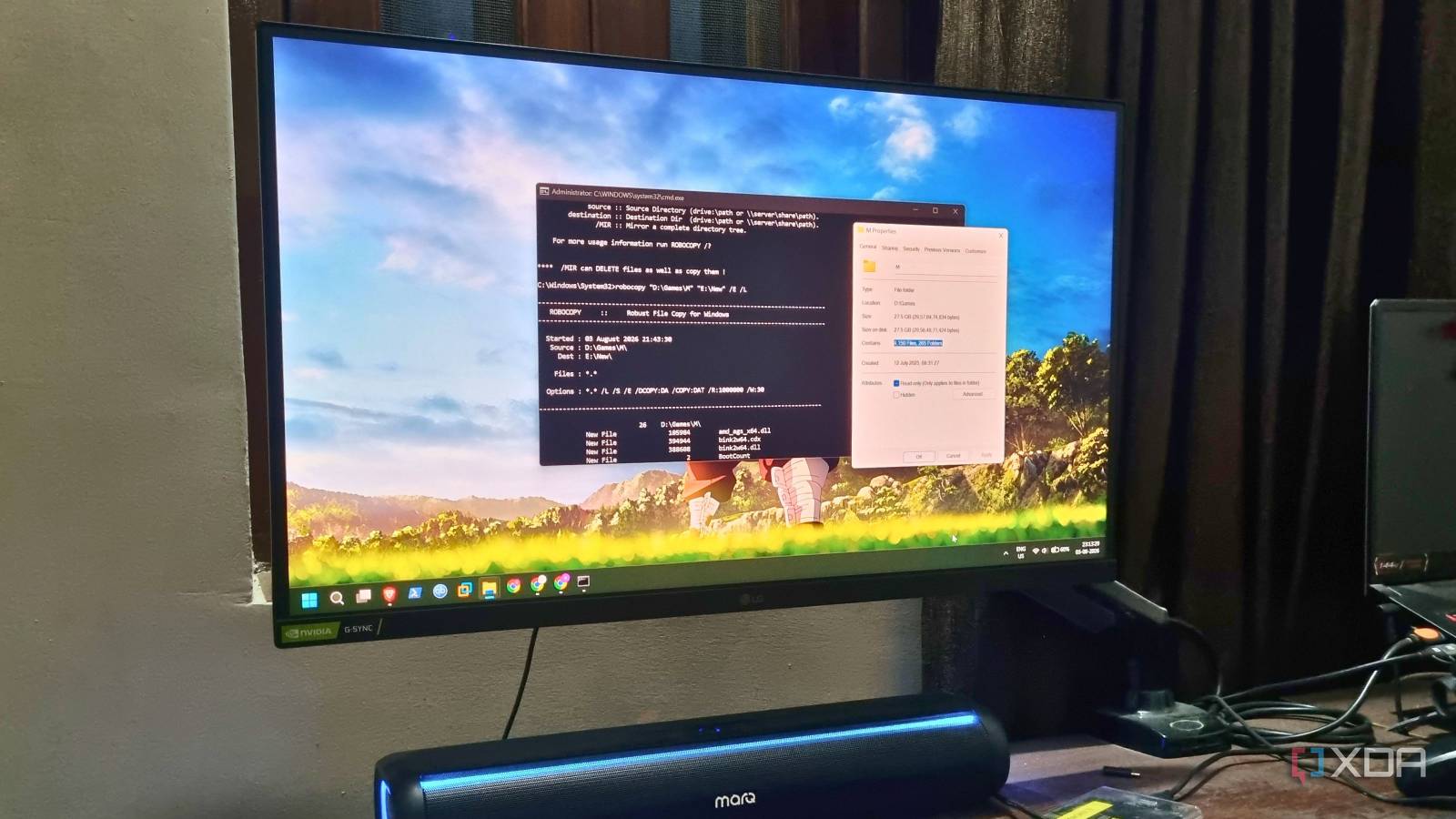
Published Aug 7, 2026, 7:30 AM EDT Abhishek is an author at XDA who covers computing. He has loved computers since he got the Lenovo G570 in 2012. Abhishek holds a master's degree in computer applications and began his writing career in 2018. He loves writing how-to articles, listicles, and informational posts on popular operating systems and web services. He closely follows the Windows Insider program and tests new Insider builds to discover upcoming experimental features and upgrades. His past work includes long-term collaborations with reputed publications like Tom's Hardware, and Windows Latest. When not writing anything, he is busy watching new episodes of One Piece or searching for something binge-worthy. Windows is a bundle of both CLI and GUI tools. We use the GUI ones more because they serve a broader use case and are convenient to use. For file copying and moving, I hadn't ventured much outside the usual Ctrl + C and V, and the on-screen copy and paste options in the context menu. The options work fine for multiple files and large files, and with the new dialog boxes and graphical representation of copying speed, it's hard to complain. But the usual copy feature in Windows tends to show its limits when you throw thousands of files at it. I've noticed these problems, especially while copying game files and moving phone data. The latter has smaller file sizes, but the native copy feature still sometimes glitches and fails. Robocopy is a dedicated file-copying utility on Windows that can solve most of these problems and has been lying unnoticed on my PC for decades. Don't sacrifice performance over convenience Robocopy is a CLI tool, which means you need to invoke and run it from a terminal. You need to specify all the little details, including locations, switches, and more. Yes, it sounds like a chore, but once you start using it, you'll get accustomed to having better control over your large copy sessions. The first reason is the most obvious: when you choose a file copy tool instead of the native one in File Explorer, you want faster copy speed. Microsoft's CLI tool works well in this area because it uses a different technique for copying files. You might have noticed that when you try to copy a folder with numerous files, the copy dialog appears to be stuck for a while. It's because Windows first counts the total number of files, scans the folder, prepares the transfer, and then begins the copy operations, which causes a small delay. Robocopy begins copying immediately when you execute the command and doesn't count files. But it would be unfair to make speed claims without actual tests. I keep a manual folder backup of my primary phone's files, and while it's only 14GB, it contains over 8,000 files. Robocopy and standard copy have a noticeable difference: the CLI tool completes the job in 1 minute 5 seconds, while the latter takes 1 minute 25 seconds. Similarly, I tested a 27.5GB game installation folder with 4150 files and 265 folders. The File Explorer’s copy feature took 4 minutes and 44 seconds to do the job, while Robocopy did it in merely 3 minutes and 39 seconds. Imagine doing so with multiple installed games, software, or media files stored on a single drive on your PC and still experiencing slow copy speeds for no reason. There’s even a multithreaded option in Robocopy to copy multiple files simultaneously. You can add the /MT flag to the copy command to enable the feature; it works better on SSDs. Better control over copy sessions No more second-guessing Robocopy is useful because it does everything quickly and offers greater control. It's just one of the many traits of this legacy copying tool that make it better than the default copy option. When a standard copy operation fails, there’s no option to restart it. You need to check the properties of both the source and destination folders, compare sizes, and check what wasn't copied. There's no sense of responsibility, and the only option is to try again after deleting the half-copied folders. However, I don't have to deal with the same problems while using Robocopy. I can use the /Z flag to force Robocopy to enable restartable mode. It tries to resume the copy job of the partially copied file when it encounters an interruption. The tool has a default retry limit of 1 million times when such an incident occurs. But it’s best to use modest values so that it doesn’t enter an endless loop. Other useful flags include /MIR, which mirrors a directory to the destination and then deletes the sources. It’s best if you want to permanently move files to an external drive and don’t need copies. You can use /E and /DAT together to direct the tool to copy everything, including the subfolders, while retaining data, attributes, and timestamps of all the items. Apt for large file transfers and backups One command to do it all Having an alternative file copy tool doesn’t mean you have to use it for every single copy job. Robocopy is suitable for large file transfers with deeply nested subfolders. So, it’s best to use it for heavy file-copying sessions, which might not occur daily. There’s also a second use case of Robocopy that I personally love. You can combine one or multiple commands into a batch file and then use it for incremental backups. Rather than using a freemium tool, you can craft a Robocopy command, paste and save it as a batch file, and then run it directly. For even better automation, you can use Task Scheduler to create a new task, define its triggers and start time (daily or anything else), and then map the batch file to it. After that, you don’t even need to run the batch file manually, because Task Scheduler will diligently do it at the specified time. It’s a small, one-time effort to personalize a command with appropriate flags in a batch file and never type it in the terminal again. Robocopy is old yet better I prefer Robocopy over any freemium copy tool bundled with ads and a restricted feature set. The sense of greater control over file copy jobs and the possibility to create backups with it make every other tool irrelevant. It’s not meant for standard, small copy jobs, and you’ll need to learn and practice using the flags correctly. However, it’s always possible to run a test with the /L flag, and I urge you to use it before enabling flags like /MIR. Windows 11 Pro A USB installation drive and license key for Windows 11 Pro, with additional features like Hyper-V and Windows Sandbox support.
Robocopy is still the fastest way to copy thousands of files on Windows, and I wasted years not using it
Full Article
Original Source
Read the full article at Xda-developers →KhanList aggregates and links to publicly available news content. We do not host full articles from third-party sources. Always verify important information with original sources.