
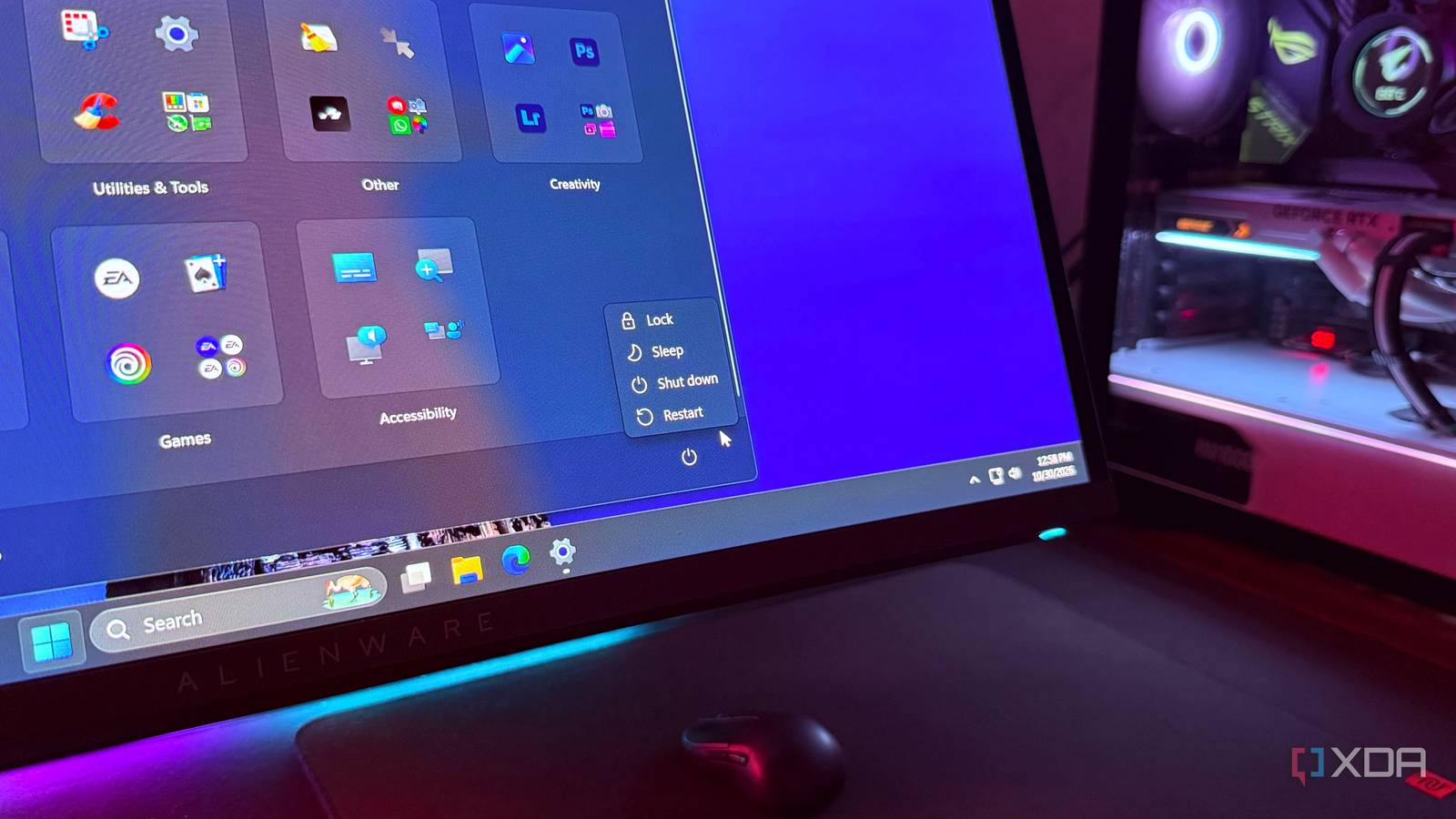
Published Nov 1, 2026, 3:30 PM EST Hamlin has been in the tech field for over nine years. Since 2017, his work has appeared on MakeUseOf, Android Police, OSXDaily, Beebom, and more. He served as the Senior Editor at Valnet's MakeUseOf for over two years before joining XDA. He uses a high-end gaming rig for desktop use and a MacBook for traveling, but dislikes some of the quirks of macOS. You're more likely to catch him at the gym or on a flight than anywhere else. When you shut down your PC at night and turn it back on the next day, you expect it to start from scratch. After all, that's pretty much what the term "Shut down" implies. And you'd expect "Restart" to do the same thing without making you press the power button again. But what if I told you restarting your PC is actually a more thorough reset than shutting it down? I know this sounds a bit counterintuitive, but this behavior is mainly due to a feature called Fast Startup, which has been around since Windows 8. Fast Startup, as the name suggests, helps your PC boot faster after a shutdown, but it does that by saving part of Windows' system state instead of starting everything from scratch. The result? You get to shave a few seconds off your boot times at the cost of shutdown not being the clean slate you expect. This might not seem like a big deal, but it explains why some Windows issues persist even after you shut down your PC and turn it back on. In fact, I've lost count of how many times I've faced this while troubleshooting my PC over the years. With Fast Startup enabled, shutdown works more like hibernation All to make your next boot just a little faster Since Fast Startup is generally enabled by default, there's a good chance you've been using it for years without realizing it. When you click Shut down from the Start menu, Windows closes all your applications and signs you out, just like you'd expect. But behind the scenes, Windows saves the kernel session and associated driver state to a hibernation file called hiberfil.sys. The next time you power on your PC, Windows restores that saved state rather than going through a completely fresh boot. This isn't picking up where you left off because, unlike regular hibernation, your open apps and user session aren't saved. You'll still have to launch your programs like it's a fresh boot. It's just the underlying system state that carries over. That's why a problem with a hardware driver might persist even after you shut down your PC and turn it back on. If you're curious, open Task Manager, go to Performance -> CPU, and look at the Up time counter at the bottom. This number can keep climbing across multiple shutdowns, even if your PC has been powered off for hours. That's because Windows is resuming the saved kernel session instead of starting a new one. That's why restarting is better while troubleshooting No saving or restoring the previous kernel state Now that you know how Fast Startup works, it should make sense why restarting your PC is almost always the better option. When you're trying to fix a driver-related issue, the last thing you want is for Windows to reload the same kernel state and potentially carry over the same problems. Since Restart bypasses Fast Startup and takes Windows through a full boot cycle, it's more likely to resolve temporary glitches that might persist after a normal shutdown. You may have already seen how some Windows updates require a full restart to finish installing. That's because those updates need Windows to replace system files or drivers that are currently in use, which isn't always possible without restarting. And while Windows does give you an Update and shut down option, a normal shutdown with Fast Startup enabled isn't necessarily going to complete an update that's waiting for a restart. That's why I don't even bother shutting down my PC when something isn't working right anymore. I just restart it like those prompts have been telling me to do all these years. You won't miss Fast Startup if you disable it But it's not like you can't get a full shutdown with Fast Startup enabled Microsoft introduced Fast Startup at a time when most of us were still using mechanical hard drives in our PCs. Back then, we were used to waiting close to a minute for our PCs to boot up. So, the fact that Fast Startup could significantly cut down that time was a big deal. Fast-forward to today, though, and many of us are already using NVMe drives, let alone SATA SSDs, which have become pretty much the bare minimum. Windows already boots pretty quickly on SSDs, and Fast Startup further improving boot times by a few seconds doesn't have the same impact as it did over a decade ago. You can turn off Fast Startup from Control Panel -> Hardware and Sound -> Change what the power buttons do (under Power Options) or use the command powercfg -h off, which also disables hibernation. But you don't really need to do this if all you need is a proper shutdown. You can simply hold Shift while selecting Shut down or run the command shutdown /s /t 0 to bypass Fast Startup for that shutdown. This way, you can still take advantage of slightly faster boot times when everything's working normally and perform a proper shutdown if you really need to. Now you know why Windows keeps telling you to restart I've lost count of how many times my PC has prompted me to restart, usually after an update or uninstalling a program. And for the longest time, I never really questioned why shutting down and turning it back on wasn't enough. If it wasn't for Fast Startup, these two options would work pretty much the same way when it comes to starting Windows from scratch. I don't know why Windows still enables this feature by default, especially when SSDs have made boot times a non-issue. But until Microsoft changes that, I'll just keep it disabled because those few seconds I'd save aren't going to make much of a difference since I rarely shut down in the first place.
Restarting Windows and shutting it down aren't the same thing, and Fast Startup is why
Full Article
Original Source
Read the full article at Xda-developers →KhanList aggregates and links to publicly available news content. We do not host full articles from third-party sources. Always verify important information with original sources.