
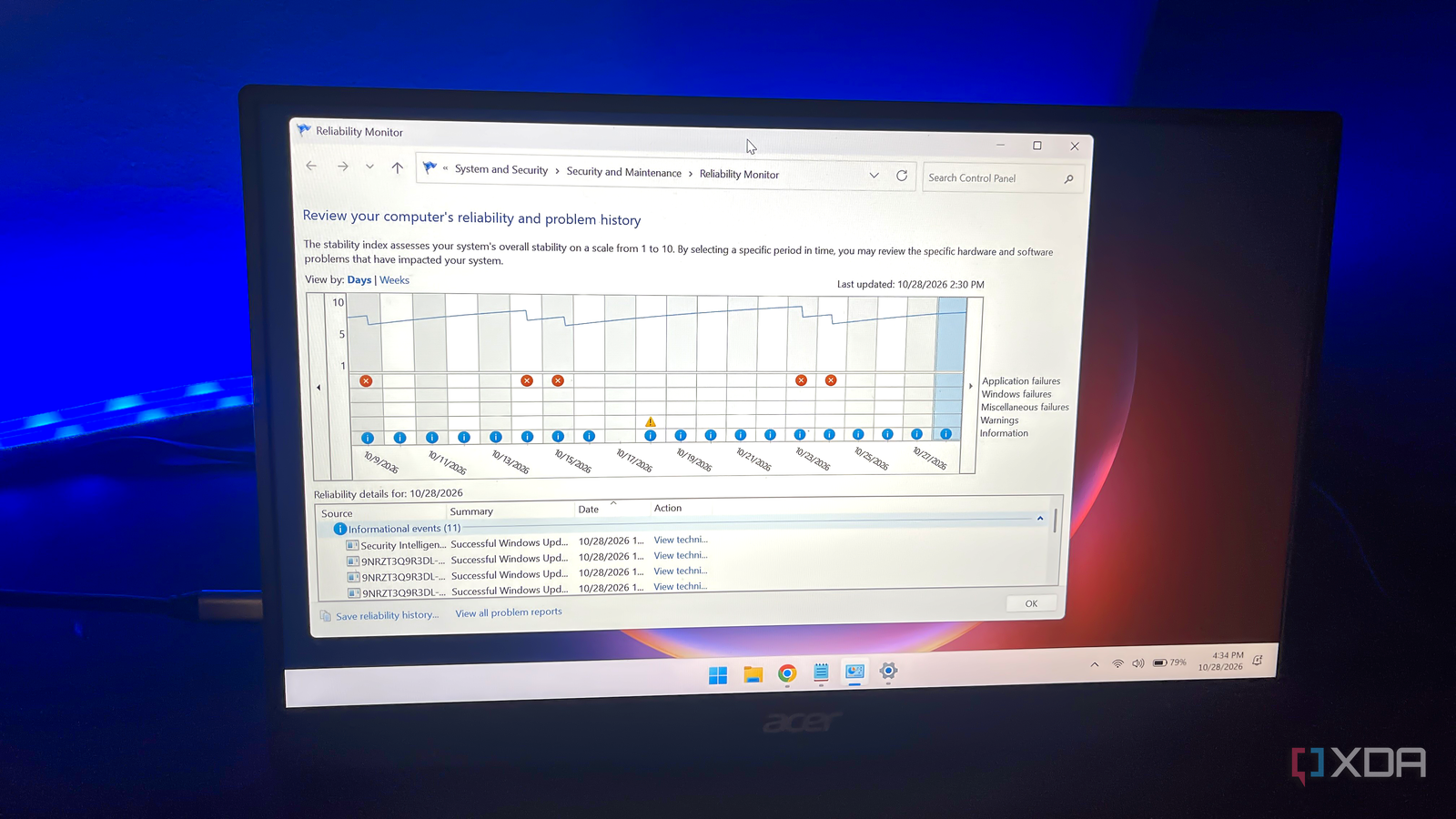
Published Oct 28, 2026, 4:01 PM EDT With over five years of experience in the tech industry, Kazim excels at simplifying complex topics, making them accessible to tech enthusiasts and general readers alike. He has extensively covered the Windows ecosystem, from Windows 7 to Windows 11. When he’s not writing, you’ll find Kazim planning weekend getaways or diving into tech verticals beyond his expertise. I have been a Windows user for a long time, and I find the operating system incredibly convenient. Microsoft may have gone wrong with Windows on several occasions, but the overall experience still remains streamlined, at least it has for me. And one reason is that newer Windows iterations still include some of my favorite tools from the days of Vista and XP, even though few people use them. It may come as a surprise, but I haven't used the Event Viewer to troubleshoot my computer in ages. It's not even the first tool I launch. I used it for a couple of years, until I came across Reliability Monitor. Initially shipped with Windows Vista, the tool has been a part of the Windows ecosystem ever since. Honestly, it has saved me countless hours that I would otherwise have spent digging through Event Viewer logs. Those logs, let's face it, can be pretty confusing for the average user. Reliability Monitor's appeal lies in its simplicity Quickly check your system's Stability Index Imagine your system becoming incredibly slow, acting weird, or throwing errors. Unless you know what caused it, there's no point trying random fixes or applying age-old Windows advice. That's where the Reliability Monitor comes into the picture. It provides you with a simple, visual timeline of the important events. When you launch the utility, it will take a few seconds to generate a reliability report. Once the interface loads, you will see all the important system events from the recent past. This includes installed and failed Windows updates, app crashes, service failures, and everything else that might be critical to your system. The best part is that the Reliability Monitor presents this information in a structured manner. You see a timeline where all the important events are highlighted. Critical events (those that generally require attention) are marked with red crosses; warnings or slightly non-critical problems are marked with the danger sign; and general events are marked with blue information icons. By default, the timeline shows you the day-by-day activity over the past 20 days, but you can switch to the Weeks view to check system activity over the past 20 weeks. Personally, all this pales in comparison to what I like most about the Reliability Monitor: the Stability Index. The tool assigns your system a score on a scale of 1 to 10 based on its stability. The lower the score, the less stable your system is. Simply put, there were more hardware or software issues that particular day. So, you don't necessarily need to go through every event the Reliability Monitor registered. Just focus on days when the Stability Index dropped, and you will know what's wrong with the system or what's triggering those errors or slowdowns. It's a good starting point You don't have to dig through countless logs When it comes to troubleshooting, I check Reliability Monitor first, whether it's a program or the system as a whole. That's because it helps you identify the problem rather than forcing you to investigate, which alone saves a lot of time. You don't have to sift through hundreds of logs or filter them by importance. Everything that's important is right there in front of you, clearly highlighted and marked. For more details about an event, double-click its entry in Reliability Monitor, and the tool will tell you what happened and, sometimes, the underlying cause too, like Event Viewer, but without all the extra information you don't need for basic troubleshooting. I find Reliability Monitor particularly helpful because it provides a clear timeline of important events that helps you connect the dots. When you know the sequence of events, it's much easier to connect the problem to a hardware or software change. Let me give you an example. Recently, one of the applications that's critical to my workflow started crashing out of the blue. So I opened Reliability Monitor, reviewed how the crashes played out over the past week or so, and found they were linked to a particular DLL file. I know you could do the same using Event Viewer, but Reliability Monitor, frankly, makes troubleshooting a little fun. Sometimes, Event Viewer is the better choice It gives you more details All that said, Event Viewer is sometimes the better choice, or even the only choice. While Reliability Monitor is good at a lot of things, some issues require you to get technical, and that's where Event Viewer shines. I agree. It's not one of the easiest tools to work with, especially for the average, everyday Windows user. But when it comes to digging deep into the events and generated logs, Event Viewer is my first choice. Personally, I first check the Reliability Monitor, track my system's stability over the past week or since the problem appeared, and try to gather as much information as possible to identify the underlying cause. And if none of that helps, I turn to Event Viewer for detailed logs. A piece of advice: when using Event Viewer, always filter the logs, because the sheer volume can overwhelm the average user. Reliability Monitor should get more attention I am not entirely sure why the Reliability Monitor doesn't get as much attention, but it's certainly one of those forgotten Windows tools you should use more often. You can open the Reliability Monitor by searching for "View reliability history" or entering "perfmon /rel" in the Run command. The tool isn't just for troubleshooting the system. A quick check every few weeks will tell you how stable your system is and whether you missed any problems. It may not be the perfect solution or fix the problem for you, but it explains crashes better than Event Viewer ever has.
Reliability Monitor has been in Windows since Vista, and it explains crashes better than Event Viewer ever will
Full Article
Original Source
Read the full article at Xda-developers →KhanList aggregates and links to publicly available news content. We do not host full articles from third-party sources. Always verify important information with original sources.