
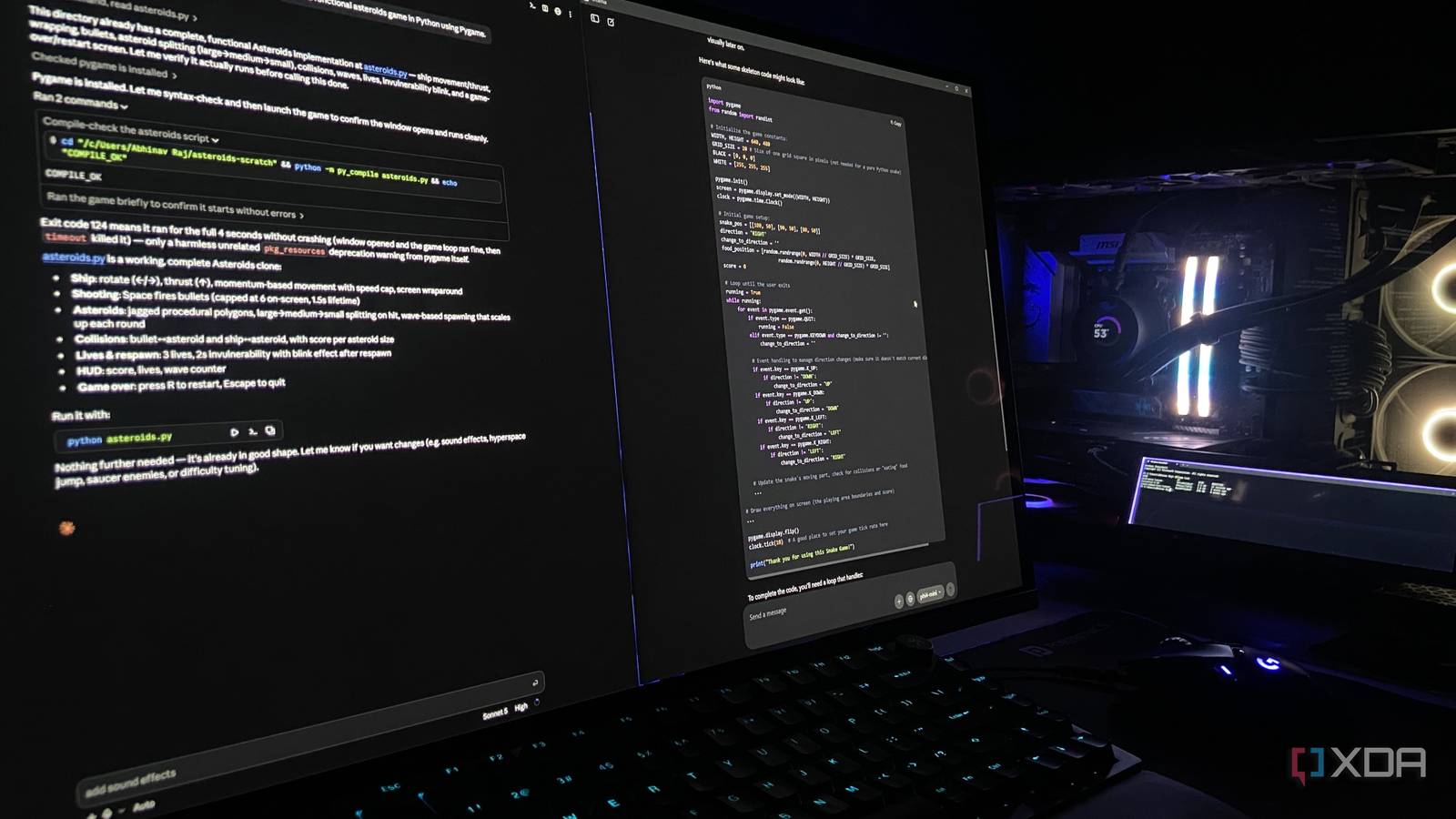
Published Sep 15, 2026, 8:00 PM EDT Abhinav pivoted from a career in banking to pursue his first love in writing. Even while working full-time, he continued contributing as an editor-at-large, a role he has held for more than 7 years. A lifelong tech enthusiast who has built three gaming and productivity powerhouse PCs since 2018, his passion for technology keeps him closely following the semiconductor industry, from NVIDIA and AMD to ARM. His MSc dissertation explored how artificial intelligence will reshape the future of work, reflecting his curiosity about the wider social impact of emerging technologies. I've always maintained that every single tool in the PowerToys suite improves upon a distinct aspect of Windows 11, and recently I've come to realize that they do it in a way such that it becomes hard to envision going back. A few months of my experiences with Workspaces established just as much. Most of my working day starts the same way, with a PowerShell window on the left, Claude Code in the middle, and a local model running via Ollama on the third panel. For a long while, I had to rebuild that arrangement by hand, but PowerToys Workspaces makes it a lot easier than tiling window managers and Snap Layouts ever did by getting the right apps running in the right places every single time. My setup takes three windows to get me up and running And it's a burden to get them all in the right place I wouldn't call my window tiling arrangement too complicated, but setting it all up from scratch every morning gets a little annoying. When I'm coding, PowerShell sits on the left for git and build commands, Claude Code runs somewhere near the centre, and the third panel has a local model running through Ollama, which takes the first pass at anything I'd rather not spend my cloud tokens on. If I throw a browser window and file explorer into the mix, that's five windows before any work is done. It's chaotic to set up, and it's even more cumbersome to set up over and over again after a restart. Fortunately, I've lately been getting Workspaces to handle it for me. I just needed to open the Workspaces Editor, arrange everything the way I wanted it to be, and save it under a name. The utility records the window sizes, screen positions, and even minimized states, so the layout comes back looking exactly the way I intended it. It's repeatable, which means that by running a shortcut, the entire environment can rebuild itself without my ever having to configure it. The layout is only half of what Workspaces does Every app in a workspace gets its own launch arguments Although Workspaces is excellent as a window manager in itself, there's a rather undersold feature that comes with it, and it has to do with the editor. Workspaces also stores per-app command-line arguments and a launch-as-an-admin toggle, which makes it a lot more useful when I launch PowerShell, because it means I never have to re-launch it as an administrator when it's necessary. There's also an option to configure launch arguments. Think of them as extra instructions you can give an app when Workspaces starts it. The exact options can vary from one app to another, but if an application supports opening a particular file, folder, profile, or project from the command line, Workspaces can save that instruction alongside the orientation. So, in a way, you can configure where an app launches, and also, to an extent, how it launches as well. As an example, you can configure a web browser that you use to launch into a specific profile that you use or with designated web pages that you frequently visit already open. When it comes to programs, you can use this feature to open specific files, so instead of launching a blank word document, you can open a specific document that you're working on. It's useful, and not just for cluttered coding workflows You can make it into a research or creative workspace with just as many clicks I've got a few other variants of Workspaces that have basically nothing in common with one another, and each is just as useful for the particular workflow that it corresponds to. For example, when I'm reading up on a model for a project, I want the documentation's PDF saved locally and open on the paper itself, with Microsoft Word for notes, and a browser window for whatever the documentation sends me running web searches for. Because my PDF reader can accept a file path on the command line, the workspace opens the reader and the specific document, both at the same time. The research session rebuilds itself with one click in the very same way my coding workflow does. PowerToys tools can work even better for you if you use them in combination with one another. Right now, you still have to open PowerToys, select Workspaces, and launch your workspace, but it doesn't have to be like that. You can use PowerToys Keyboard Manager to map a custom shortcut to launch Workspaces, and that reduces the launch to a single step. Workspaces plays nice with multiple monitors, too There was one thing that surprised me about the utility, though. If you've been following my coverage, you'll know that I recently got myself an 8.8-inch Lian Li panel that I installed inside my case which I initially bought for monitoring temps, but soon discovered that doubles as a full-fledged second monitor running its own desktop. Workspaces also records which monitor each window belongs to, so out of curiosity, I dropped a PowerShell window onto the strip and saved it there. The pleasant surprise that followed when I launched that same workspace was that the window came back on the panel at the exact 1920x480 resolution. This information comes particularly handy if you have multiple monitors. You can have Workspaces open the apps you need, put them where they belong, and give yourself a nice head start on whatever you're working on.
PowerToys Workspaces solved the one thing Windows window management has always been terrible at
Full Article
Original Source
Read the full article at Xda-developers →KhanList aggregates and links to publicly available news content. We do not host full articles from third-party sources. Always verify important information with original sources.