
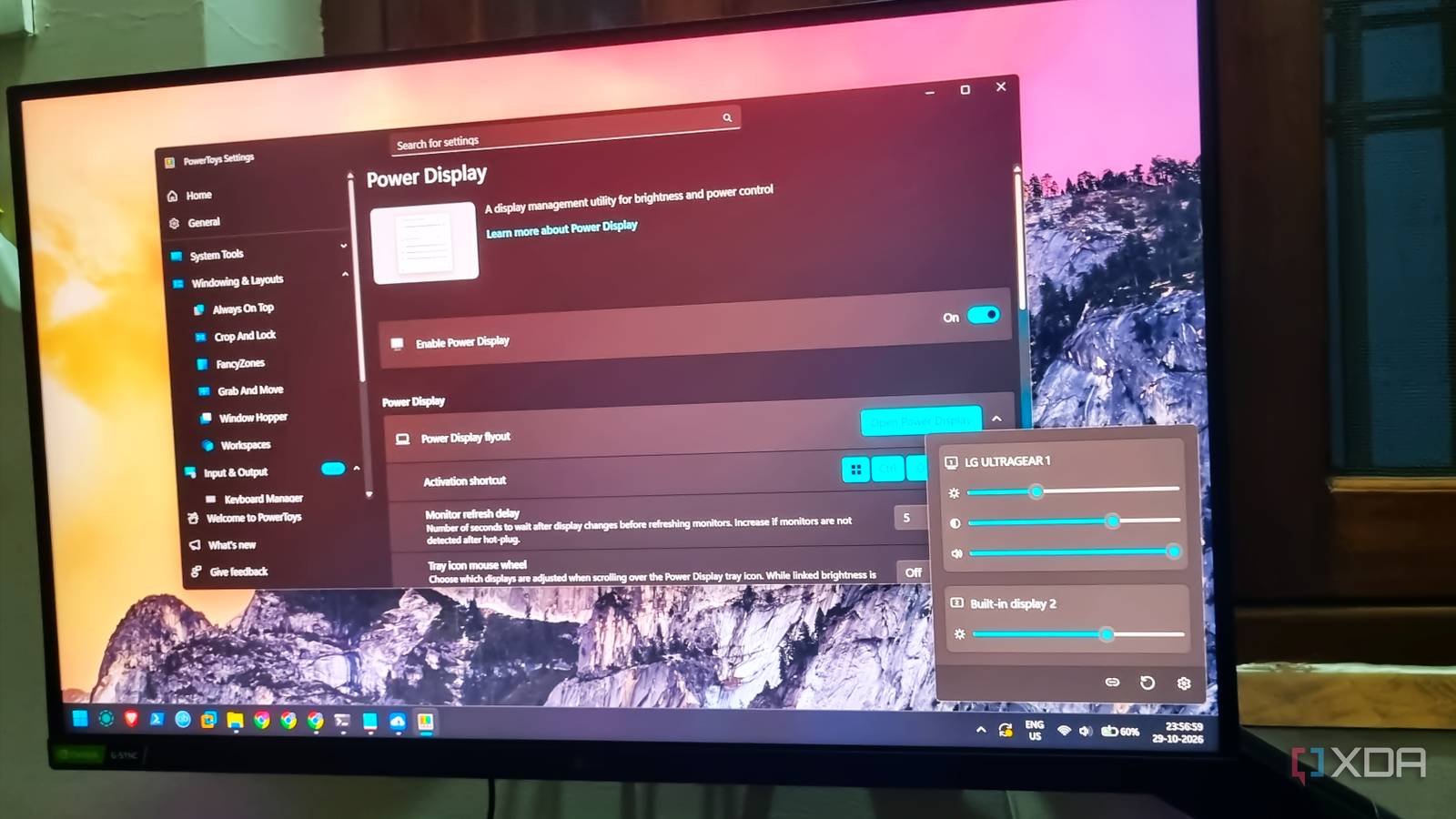
Published Nov 1, 2026, 2:30 PM EST Abhishek is an author at XDA who covers computing. He has loved computers since he got the Lenovo G570 in 2012. Abhishek holds a master's degree in computer applications and began his writing career in 2018. He loves writing how-to articles, listicles, and informational posts on popular operating systems and web services. He closely follows the Windows Insider program and tests new Insider builds to discover upcoming experimental features and upgrades. His past work includes long-term collaborations with reputed publications like Tom's Hardware, and Windows Latest. When not writing anything, he is busy watching new episodes of One Piece or searching for something binge-worthy. PowerToys is the one Microsoft app that I can totally vouch for. It’s been around for a while now, and the company seems pretty serious about developing it. I’m always excited about new tools, and PowerToys always adds a few more every year. It’s fair to say it’s the best app for Windows users that fixes a lot of the OS's inadequacies. Sadly, many users just use it for FancyZones and never check out the others. PowerToys offers a lot, from unlocking files and editing registry entries to sharing a mouse between two Windows PCs and using a keyboard-driven launcher to boost productivity. Let’s explore the other noteworthy tools in the app’s suite that deserve your attention. Command Palette is a great launcher Boost your productivity Command Palette is one of the best tools you get with the PowerToys suite. It's a launcher tool that can help you ditch the Start menu and do multiple actions with just the keyboard. Be it launching apps, browsing files, URLs, or using PowerToys tools, Command Palette can do it all. If you've ever used a launcher app on Windows, you can relate to my enthusiasm about Command Palette. The launcher is exceptionally fast and doesn't feel sluggish like the Start menu search. You have to learn to use the exact codes to invoke the tools inside the Command Palette. I hate the Windows search experience and have been using Everything for a long time. But having two separate apps for search doesn't make sense. PowerToys solved it by extending Command Palette extension support, and I've integrated Everything into its search feature with the Everything for CmdPal extension. There's an extension store to find more such useful ones. Command Palette includes a few by default, like Winget, calculator, etc. I love the idea of Winget integration because Command Palette can run shell commands. So, I can install any new app or manage existing ones without ever leaving the Command Palette’s floating bar. Recently, the Command Palette included a dock that works like a Taskbar. It's slightly different from what you expect from a normal taskbar and supports position changes as well. There's an option to display system stats in one corner. You can customize the dock beyond the usual accent color and icon size tweaks. It's weird how the native taskbar doesn't have any such customization options. Mouse Without Borders solves peripheral sharing No need for dual mouse and keyboard setups Modern mice support Bluetooth, have a dedicated dongle, and wired support for working with a variety of devices. However, you cannot interact with multiple systems with one mouse. You'll have to switch the connection mode to swap between two systems. I have an old laptop and a new one and do all kinds of fun OS experiments on the latter. It also acts as an alternative downloading device. Earlier, I had to use the dongle connection with the main laptop and switch to Bluetooth for the old one. But the Mouse Without Borders tool in PowerToys fixed this problem. I had to set up the mouse and PC connections one time, and it helps me easily use the mouse on both systems. Dragging the mouse from one corner of the screen to another system feels smooth, despite working over a network connection. I find the tool’s name a bit deceptive because it can share both keyboard and mouse. My best guess is that Microsoft wanted to keep the original name of the tool and didn’t change it. So, the tool can actually share the keyboard, mouse, and clipboard as well. The last one is necessary because usually I do the research on the main one before typing or saving scripts and commands on the second one. Mouse Without Borders can work with four computers simultaneously and keeps your desk tidy with just one keyboard and mouse combo. I used to deploy Chrome Remote Desktop for this experience, but this PowerToys tool includes everything, without needing me to use Chrome or any other remote desktop app. Power Display should have been a native feature Monitor management like never before Monitor management has always been the weakest part of Windows. It didn't have a brightness adjustment slider for decades for external displays. I had to use a physical button or tools like Monitorian to adjust a simple but very essential setting like brightness. Monitorian worked fine for brightness adjustment, but Power Display takes it a bit further. You get the usual brightness slider per connected display, along with contrast, and even a volume slider. However, very few users would actually pick the built-in monitor speakers over an external one. This is just the default set, and you can add more for adjusting rotation, power state, color temperature, and even input source. There are some well-thought-out features as well, like the ability to save profiles, add or remove control sliders, and adjust mouse wheel increment. You can even link up the monitor brightness if you use the same one, or one with matching display technology and features. It's not helpful for me as I have a laptop with an external display, and their screens are very different. So, this single PowerToys utility reduces the need to install an OEM display management app or use the physical controls. I can use one app to control a setup with multiple monitor brands and don't need to tinker with physical controls. Things like input switching and power modes are all configurable within the tool. PowerToys has an arsenal of useful tools It wouldn't be wrong to say that PowerToys holds a well-curated set of tools that benefit both power and basic users. Tools like Power Display should be natively included rather than built into an additional app like PowerToys. I use Mouse Without Borders and Command Palette extensively, and you should give them a try. Power Display is a relatively new addition, and some users have reported BSODs while using it. I haven't seen such errors, so I would still recommend trying it. Microsoft PowerToys is a collection of free, open-source tools that can improve Windows productivity.
PowerToys has quietly turned into the best free app on Windows, and most people still only use it for FancyZones
Full Article
Original Source
Read the full article at Xda-developers →KhanList aggregates and links to publicly available news content. We do not host full articles from third-party sources. Always verify important information with original sources.