
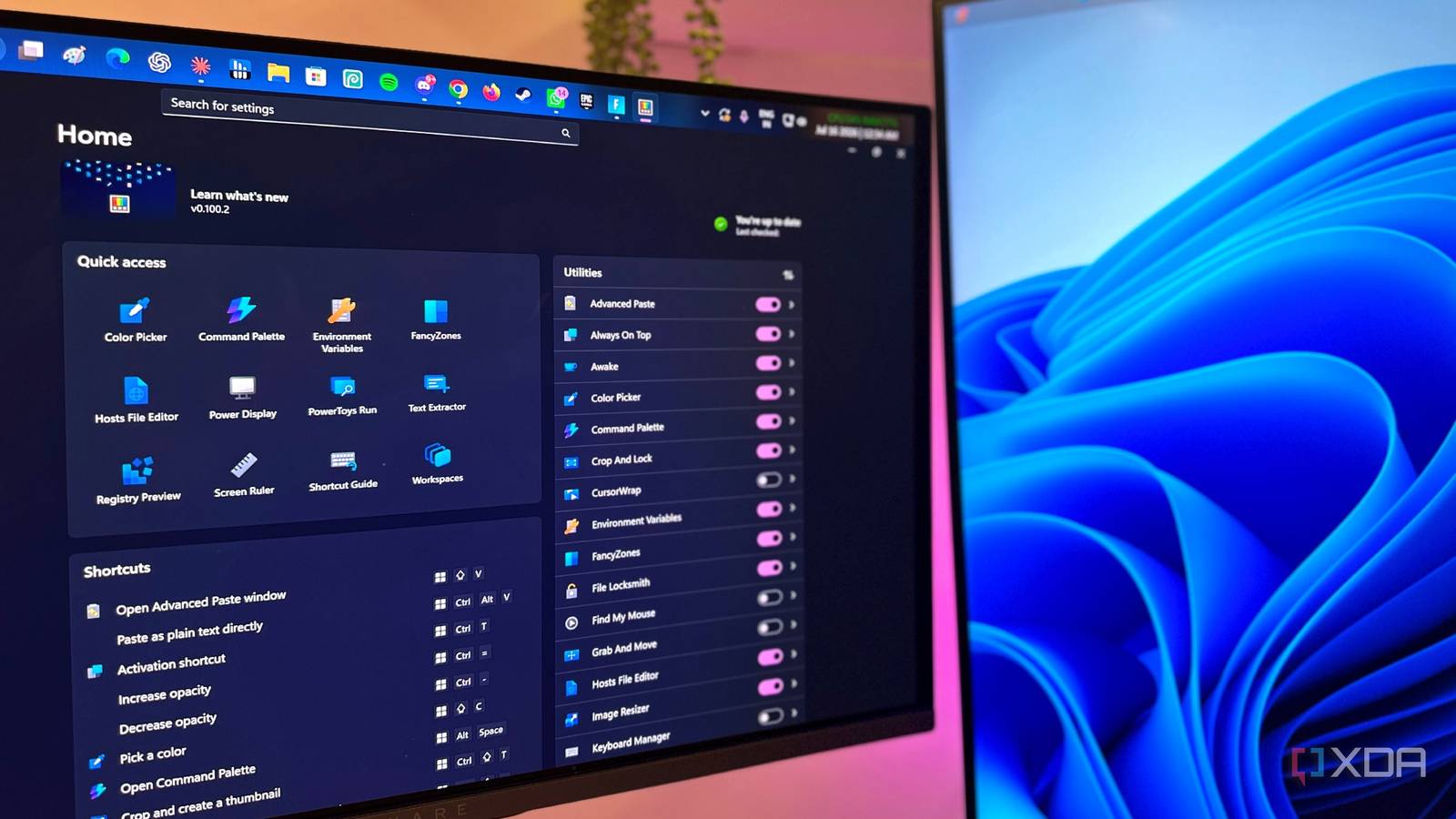
Published Aug 3, 2026, 7:00 AM EDT Based in rural Minnesota, Brian Burgess worked in IT for 10 years before finding his passion for writing about consumer technology. Brian earned his degree in computer and network technology in 2000. He held various IT positions, including help desk support, router installations for IBM, database administration, and other associate network administration roles. He's been a personal technology journalist for 18 years and has written thousands of articles about Microsoft products and services, Android, iOS, streaming, and more. He has written for notable tech sites including XDA, InformationWeek, How-To Geek, Byte, groovyPost, and others. When he is away from the keyboard, you will hear him playing guitar, working outdoors, and watching Star Trek. Windows has felt like an operating system that dictates the features you can use and actions you can perform for many years now. Each time I get a new PC or have to do a non-custom new install, it takes many hours to get past its stock behavior with locked taskbars, Copilot integration, and telemetry-driven settings I don't want. Luckily, there is PowerToys — Microsoft's own, and ironically open-source, toolkit that contains more than 25 utilities that put control of the OS in users' hands. Also, with more utilities being added or updated in PowerToys, having ownership of Windows starts to mean something. Locked in chains with stock Windows PowerToys breaks me free Windows has never been the most open OS for users, but in recent iterations, Microsoft has been nailing down the foundation even more. The company has been introducing more default apps and services and adding "features" that users never asked for. There are more default behaviors that need to be changed, tweaked, or disabled than ever before. When purchasing a new PC, it seems like everything is locked down so much that you are only renting the product and don't actually own it, as compared to Linux, where you can tweak virtually every line of code to work with your system how you want it. For instance, the Snap Layouts feature feels limited compared to FancyZones, which lets me create custom zones (not presets) on the screen for app windows and automatically resize to fit the layout I select. Or I can turn to Mouse without Borders to control more than one PC without a third-party software solution. Another tool I constantly rely on is Awake, which lets me bypass the PC's power settings with a click on the taskbar. In fact, I use most of the tools in the PowerToys suite to make Windows better. PowerToys for a more productive workflow PowerToys unlocks user chains Some of the most impressive PowerToys utilities I've used help automate my workflow. One of the most helpful in that regard, which Windows doesn't do well natively, is Workspaces. It's a desktop manager that lets me set up a specific workflow, down to window sizes and app positions, and restore it exactly as it was with a click. It saves me from the repetitive act of relaunching apps all the time, and it lets me switch between workspaces with ease. Other helpful tools I use for productivity include resizing images in bulk with the aptly named Image Resizer or Keyboard Manager to remap keyboard shortcuts for easier working sessions. Text Extractor is helpful when I need to grab text from images and don't want to open the Snipping Tool for its OCR. Change how Windows behaves There's a power toy for that There are features that fall short of expectations on Windows and things on other OSes that I wish would behave similarly. PowerToys gives me tools to change the way the UI behaves. The often-overlooked virtual desktops feature promised to improve productivity by allowing me to create different spaces. While it does fine, the Workspaces utility is far better by letting me create various sessions and switch between them. One of the features I really appreciate on macOS is Quick Look, which lets me select a file, hit the space bar, and get a preview — helpful for multiple photos. Windows doesn't include that natively, but with the Peek PowerToy I can hit Ctrl + Space (or the keyboard combo I set) to preview files. I almost install PowerToys exclusively for FancyZones for better window behavior. The Always on Top tool is also useful for pinning a window on top of others with ease. Windows improves with PowerToys A better end-user experience PowerToys provides an overall improvement to Windows compared to using it straight out of the box. The Start menu seems archaic compared to the noticeably faster PowerToys Run, which works like a Mac Spotlight-style search for discovering files, folders, and apps. While I am a fan of third-party and open-source apps that improve my Windows workflow, having PowerToys at the ready means I don't have to install anything extra right away. Whether it's a Windows behavior, being more productive, or something the OS doesn't offer, there is usually a PowerToy in the suite of utilities that I can rely on for the job. PowerToys make me feel invested in the operating system without having to find alternative solutions to trouble spots throughout Windows. PowerToys lets me finally own Windows I use many tools in the PowerToys package daily, and I would like to see them included by default. The toolkit makes me feel more in control of Windows while trying to get things done. Of course, it only takes a second to install the suite and turn what I use on or off. On the other hand, developers keep adding new tools because they aren't explicitly part of Windows. There is more room for experimentation, and when a new tool comes, it generates excitement in the community.
PowerToys finally made Windows feel like an OS I could actually own, not just rent
Full Article
Original Source
Read the full article at Xda-developers →KhanList aggregates and links to publicly available news content. We do not host full articles from third-party sources. Always verify important information with original sources.