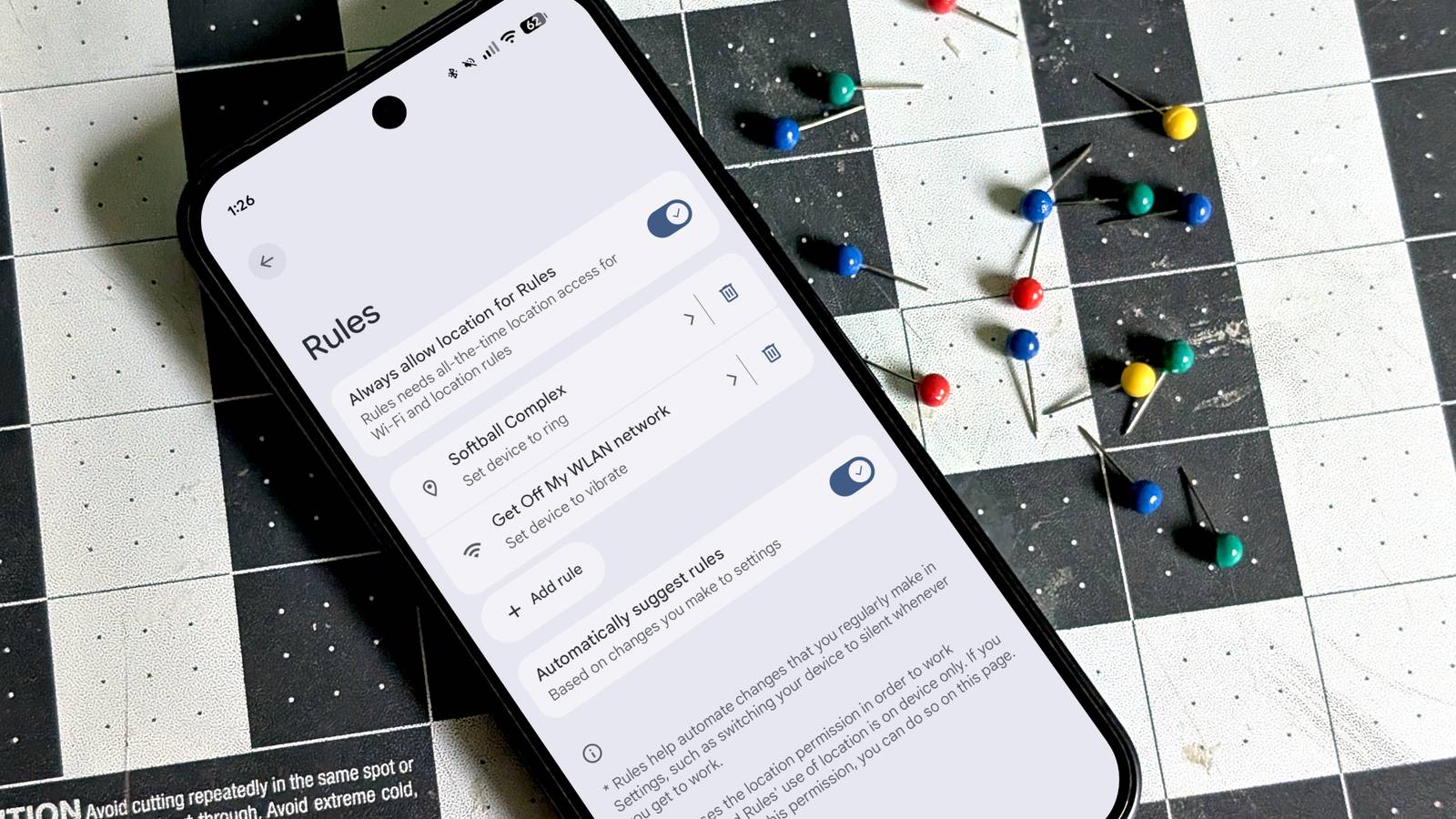
Published Jul 31, 2026, 2:45 PM EDT Joe Fedewa has been writing about technology for over a decade. Android and the rest of the Google ecosystem have been a focus for years, as well as reviewing devices, hosting podcasts, filming videos, and writing tutorials. Joe loves all things technology and is also an avid DIYer and food blogger. He has written thousands of articles, hundreds of tutorials, and dozens of reviews. Before joining How-To Geek, Joe worked at XDA-Developers as Managing Editor and covered news from the Google ecosystem. He got his start in the industry covering Windows Phone on a small blog, and later moved to Phandroid where he covered Android news, reviewed devices, wrote tutorials, created YouTube videos, and hosted a podcast. From smartphones to Bluetooth earbuds to Z-Wave switches, Joe is interested in all kinds of technology. After several years of jailbreaking and heavily modifying an iPod Touch, he moved on to his first smartphone, the HTC DROID Eris. He's been hooked ever since. Google Pixel phones have plenty of cool features, but when it comes to automations, they’re a bit lacking. Still, even with the limited options, I’m able to make my Pixel automatically change certain settings based on my location. I won’t lie—“a bit lacking” is an understatement when you compare Google’s automation options to a Samsung Galaxy phone. However, not every situation requires complex macros, and that’s where Pixel “Rules” come in. Playing by the Pixel rules Google’s humble automation tool Credit: Joe Fedewa / How-To Geek Tucked away in the “System” section of the Settings, “Rules” is the lone entry under “Automation & Intelligence.” Pixel phones are often praised for their simplicity, and that’s certainly the case when it comes to Rules. In Google’s defense, it doesn’t over-promise—here’s the description: Rules help automate changes that you regularly make in the Settings, such as switching your device to silent whenever you get to work. Rules are set up in the same way as many automation apps, with a trigger and an action. I’ve already mentioned location, but there’s also a Wi-Fi network option. These are the only two triggers to choose from. On the actions side of the equation, there are four options that can be paired with the triggers: Turn on Do Not Disturb Set device to silent Set device to vibrate Set device to ring Lastly, you have the option to get a notification when a Rule takes effect. That’s the basics. How I use Pixel Rules in my daily life Change settings based on my location I’m on record as being pretty jealous of Samsung’s Modes and Routines, but not enough to use a Galaxy phone full-time. Pixel Rules are what I have to work with, so that’s what I use. Here are a couple of ways I use them. I play in a softball league every summer, and I bring my son along to the park. He’s old enough that I don’t need to be constantly watching him on the playground, but he can text or call me from his Fitbit Ace LTE if he needs something. Since I wear a Pixel Watch when I’m not playing sports, my phone is usually on silent. I set up a rule to “Set device to ring” whenever I’m at the softball fields. When I hang out with a friend, I tend to get swept up in the sporting event we’re watching or the game we’re playing. Even with a smartwatch on my wrist, I’ll pull out my phone for the first time in a couple of hours and realize I missed a text from my wife. To double down, I set up a rule for my friend’s Wi-Fi network to “Set device to vibrate.” These are just a couple of simple examples. I work from home, but for most people, using a work location or Wi-Fi network is an obvious choice for Rules. In my experience, the Wi-Fi network option is a little more reliable, so I try to use that if possible. Google Pixel 10 Pro $749 $999 Save $250 The Pixel 10 Pro offers an upgrade over the base model with the powerful Google Tensor G5 chip, more RAM, and more storage (if you need it). Google could do a lot more with automations As I said, Pixel Rules are very simple. I’m not doing anything mind-blowing here. It’s just nice to have these basic options available without a third-party app. That being said, Google is leaving tons of functionality off the table. Pixel phones have three features that are somewhat related to automation: Rules, Modes, and Focus. Modes are essentially custom Do Not Disturb modes for various situations, like driving, work, gaming, etc. Focus is a Digital Wellbeing tool that allows you to temporarily block distracting apps. These three features aren’t allowed to work with each other. As you may have noticed, it’s not possible to turn on situation-specific modes with Rules. And since you can’t use location to start a mode, it’s impossible to do something as simple as enable work mode when you’re at the office. It’s also not possible to turn on Focus with Rules. So, while I appreciate having the bare essentials of device automation, I would absolutely love to see Google do more. It doesn’t need to go to the full lengths of Samsung’s Mode and Routines, but Pixel devices are supposed to be smart—this is one area where they could be much smarter.
Pixel Rules let me automate my phone's settings by location—and I wish Google gave me more options
Full Article
Original Source
Read the full article at Howtogeek →KhanList aggregates and links to publicly available news content. We do not host full articles from third-party sources. Always verify important information with original sources.