
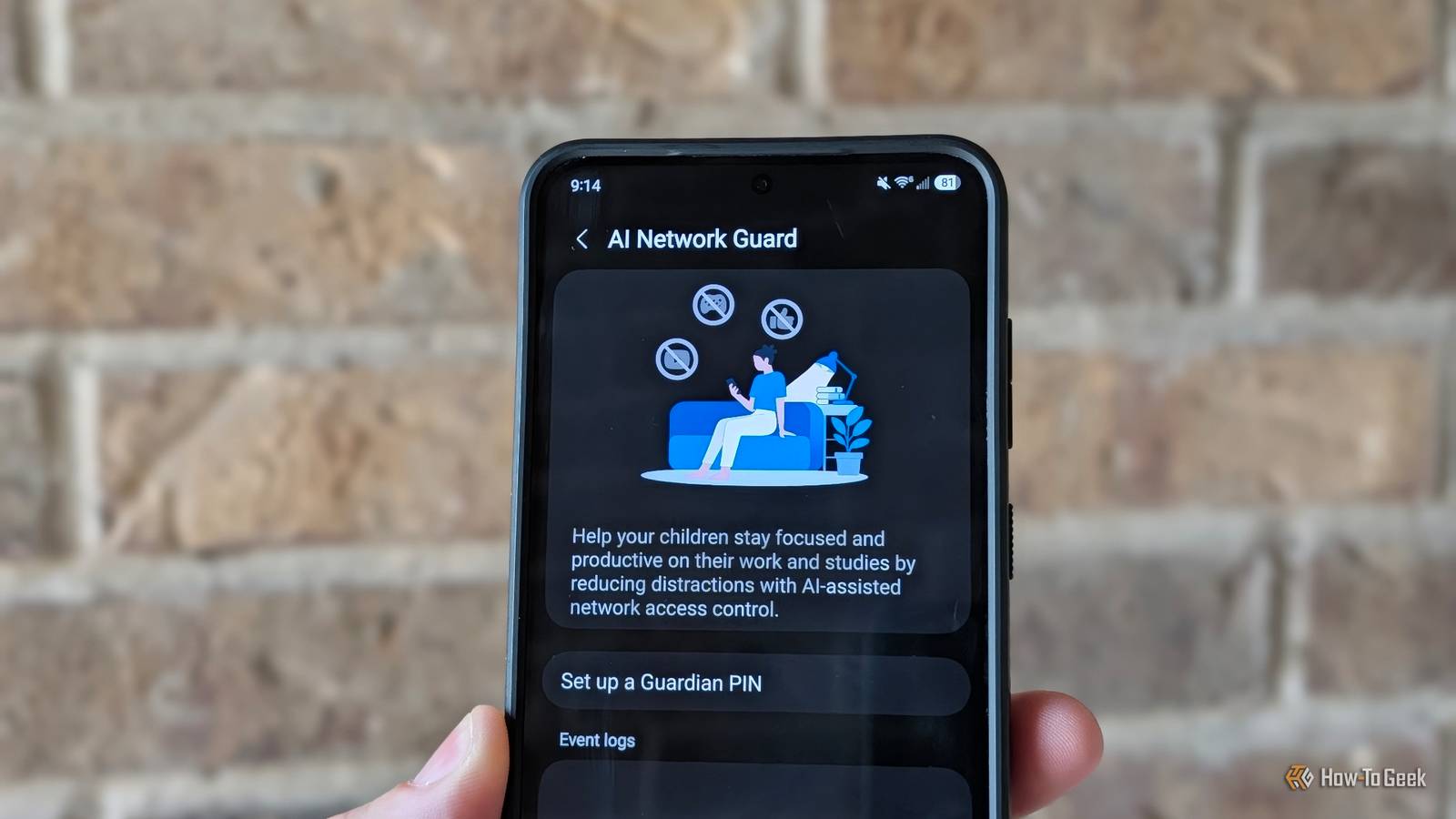
Published Nov 2, 2026, 1:00 PM EST A Computer Engineer turned tech-savvy. Sanya is part of the How to Geek team, and she covers Android, Samsung, Google, apps, and everyday technology, combining hands-on experience with thorough research. She helps readers understand technology without getting lost in technical jargon. I have a bad habit of opening certain apps whenever I pick up my phone — even when I have no real reason to check them. I’ve tried ignoring notifications and setting app timers, but neither has stopped me from going back for another scroll. I’ve scrolled straight through lunchtime without even realizing it. One UI 9 has plenty of features worth exploring, from the redesigned Quick Settings panel to My FanCam and the new Now Brief cards. But my favorite addition is the ability to block internet access for individual apps. Instead of uninstalling apps or constantly reminding myself to stay away, I can simply cut off their internet access when I need some peace. One UI 9 finally gives me control over app distractions I can block internet access without uninstalling apps Credit: Cory Gunther / How-To Geek Instagram is probably the app I open the most on my phone, and I often end up scrolling longer than I planned. Before One UI 9, I tried using app timers and even installed a third-party app to limit my screen time. I’d set restrictions, ignore the warnings, and go right back to scrolling. I wasn’t comfortable giving another third-party app the access it needed to monitor my screen time. One UI 9 gives me a simpler way to deal with this. The feature is called AI Network Guard. I can block internet access for individual apps instead of relying on reminders to stop scrolling. I also don’t want every app on my phone to have unrestricted internet access. The more apps I allow to connect in the background, the more I have to think about what data they might be accessing or sharing. Restricting internet access gives me another layer of control over that. What I like most is that I get to decide which apps stay connected. If I need Instagram or Amazon, I can restore its internet access. But when I’m trying to finish an article before my deadline, I’d rather not have those endless feeds just a tap away. Finding it takes digging, but setting it up is easy AI Network Guard isn’t an app you’ll find in your app launcher or a feature Samsung puts front and center in Settings. It’s tucked away inside Connectivity Labs, so finding it takes a little digging. Once I knew where to look, though, adding my apps was pretty easy. I open Settings > Connections > Wi-Fi, tap the three-dot menu on your right, and select Intelligent Wi-Fi. Here’s the slightly unusual part: I tapped Intelligent Wi-Fi repeatedly, seven times, to unlock Connectivity Labs. I then open it, scroll down to AI Network Guard, and tap Set up a Guardian PIN to create a six-digit PIN. After that, I open Manage restrictions and select the apps I want to keep offline. I can restore internet access anytime using the master toggle or by removing the apps from the Currently Restricted list. The Downtime option under Advanced settings is another handy addition, as it automatically applies restrictions during the hours I choose. Finally, the Guardian PIN makes it harder to undo my restrictions on a whim when I’m tempted to open Instagram. This is how I use it I use it for more than just cutting down on distractions Apps on restricted internet Instagram was the first app I restricted because it’s the one I open the most. I also added Reddit because I can spend far too long jumping between discussions, Pinterest because browsing ideas often turns into an endless scroll, and Amazon because I don’t need another excuse to browse products I wasn’t planning to buy. Cutting off their internet access means I can’t keep refreshing feeds or loading new content whenever I’m bored. I also use AI Network Guard on my kid’s phone. My kid keeps wondering where to turn Instagram’s internet access back on, but I’m not giving away that little secret just yet. Since the feature is hidden inside Connectivity Labs, it’s not something she’ll stumble upon easily. I’m a strict parent when it comes to phone usage, and the Guardian PIN makes it harder to undo the restrictions. An unexpected bonus is that blocking internet access can also stop online ads from loading inside certain apps. I find it useful when I’m running low on mobile data, too. It can also limit background network activity, which may help reduce some battery drain. I didn’t expect one feature to be useful for so many different reasons. Sometimes, the best digital detox starts with a toggle We all need a break from our screens now and then, but completely giving up apps we enjoy isn’t realistic. I like having control over when I use them instead of constantly deleting and reinstalling them. AI Network Guard gives me that flexibility without making me change how I use my phone entirely. It’s a small addition to One UI 9, but one that has earned a permanent place in my Samsung setup.
One UI’s new 'Network Guard' feature is more useful than I thought
Full Article
Original Source
Read the full article at Howtogeek →KhanList aggregates and links to publicly available news content. We do not host full articles from third-party sources. Always verify important information with original sources.