
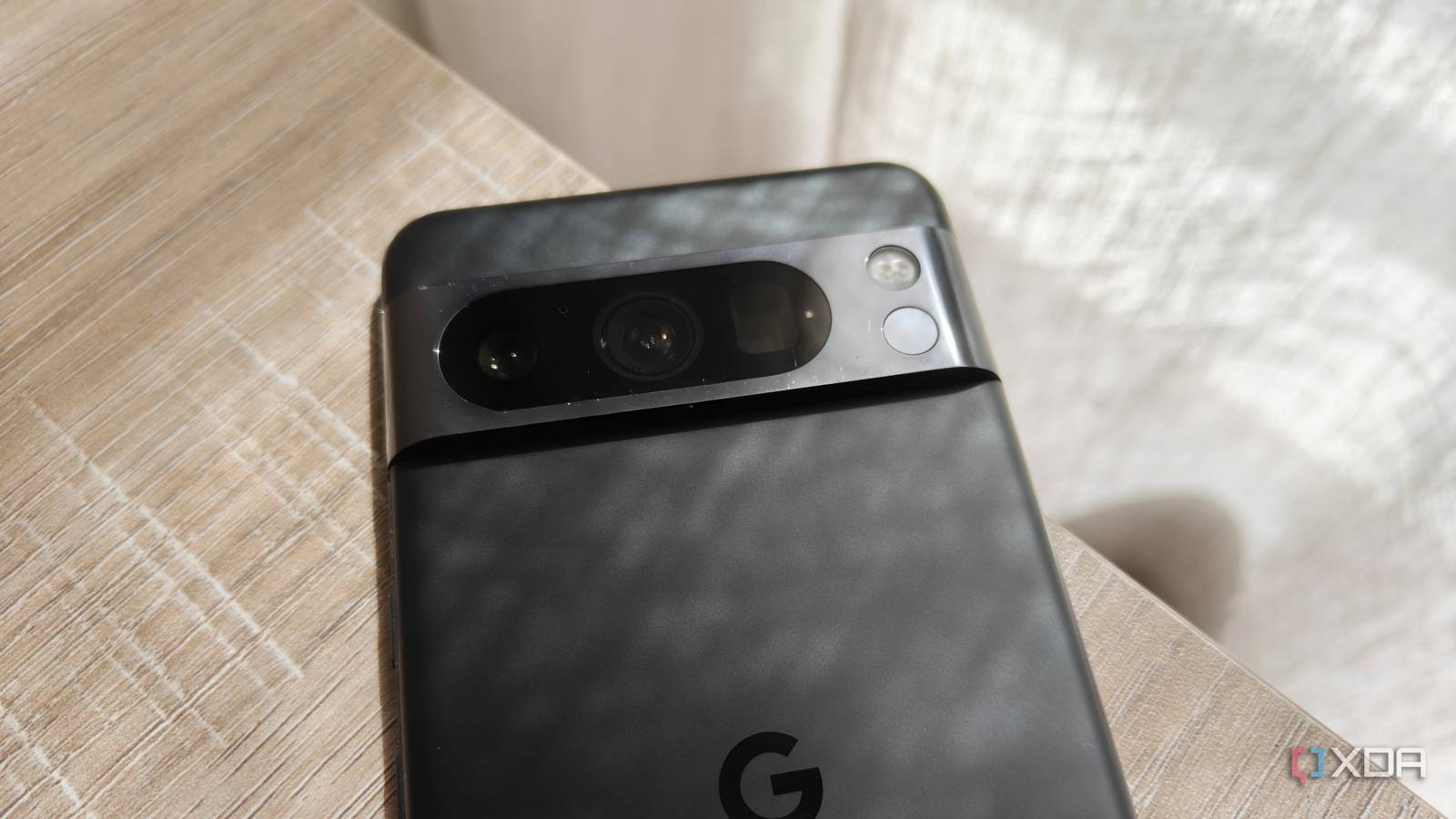
Published Nov 8, 2026, 4:30 PM EST Megan is a Software Writer at XDA Developers who has been writing about consumer technology since 2016. With a postgraduate degree in New Media journalism, she has always been passionate about diving deep into topics and writing about them in a way that makes them easier to understand for everyday consumers. She runs her own blog called Tech Valkyrie and has contributed to Tom's Guide and Android Authority. She also worked at MakeUseOf as a Lead Editor. In her spare time she plays video games and geeks out about the latest tech. Improving the performance of your Pixel smartphone takes consistent organization and tweaks to keep your device in the best condition. Managing your Pixel's battery also requires you to know which settings make the most impact, since not all of them are as obvious as you'd think. But when it comes to making your device feel faster when switching between apps and different menus, there's a hidden trick that works immediately and consistently: reducing or disabling UI animations. Switching off animations made my device feel snappier No additional performance tweaks needed You don't need the most powerful processor or the latest Pixel device for this trick to work — I tried it on my Pixel 8 Pro. While I wondered how much of an impact it would have, I noticed the effects immediately. That's because when you switch off UI animations, the transition between windows, menus, and apps becomes instant — without there being a filler animation in the middle. By default, animations are set to 1x, but you can reduce them to 0.5x or completely switch them off. There are three animation settings you can tweak: window animations, transition animations, and animator duration. Window animation scale affects the speed of pop-ups and dialog boxes — essentially, window-level transitions. Transition animation scale affects navigating through menus, such as moving through tabs in your settings menu. Meanwhile, animator duration scale affects general system animations, such as exiting apps and returning to your home screen, unlocking your device, pulling down the notification shade, and opening apps. While animator duration scale has the broadest effect, disabling or reducing the animation scale for all of the items makes your device feel snappier across different parts of your experience. But before you can access these settings, there's one thing you need to enable. First, you need to enable developer mode It's a simple process If you haven't enabled developer mode on your Pixel before, the process is pretty easy once you know how to do it, or if you've done this on another Android device before. You'll also be familiar with the process if you sideload apps on your phone. Once you enable developer mode, developer settings will appear within your system settings. You only need to complete this process once. To enable developer mode on your Pixel: Open your Settings and go to About phone. Scroll down and tap the number under Build number seven times. Enter your device's PIN, pattern, or password when prompted. A message stating "You are now a developer" will pop up when the mode is enabled. You will then be able to access these settings in your general Settings menu under System -> Developer options. How to adjust UI transitions on your Pixel Change up the speed of animations Once you have developer mode enabled on your Pixel, changing your animation scale settings is easy. Access the developer options menu under your System settings. Then, scroll down to the Drawing section. Here you'll see Window animation scale, Transition animation scale, and Animator duration scale. When you select each option, a pop-up menu will show different scale options. You'll want to select either 0.5x or Animation off. I recommend trying both settings to see which you prefer. Change the default for all three animation options so that the new speed applies consistently across different types of transitions. Otherwise, you risk transitions being instantaneous in one area but slower in other aspects. If you want to see exactly what a scale setting affects, turn up the scale to the highest setting and the transition will appear much slower on your system. When you change your animation speeds, you'll immediately notice the difference. If you've switched animations off, menus and windows will switch to the next item immediately without a filler transition. If you've selected 0.5x, you'll still get a transition, but it will be significantly quicker. If you want to make your device seem smoother overall too, I also recommend enabling the Smooth Display setting. This will increase the refresh rate of your phone's display, which makes scrolling feel much smoother. However, it does affect battery life. The benefit of animation scale adjustments is that they don't come at the cost of your battery's performance. However, if you have motion sensitivity, just keep in mind that adjusting the perceived speed of animations may affect you. If you want to reduce animations due to sensitivity rather than a desire to make your device snappier, you can disable animations using your phone's accessibility settings instead. This disables animations across your device without requiring you to use developer settings. Tweak your animation settings to get a snappier Pixel experience If you're looking for a simple way to make your device feel more responsive with immediate results, then speeding up or turning off transition animations is a quick way to do this. When I did this on my Pixel 8 Pro, my device immediately felt faster. If your device's overall performance is slow, however, you may want to look at ways to fix a slow Pixel phone. Animation speed won't fix sluggish apps or overburdened storage on your device.
One hidden Android setting made my Pixel feel snappier the moment I changed it
Full Article
Original Source
Read the full article at Xda-developers →KhanList aggregates and links to publicly available news content. We do not host full articles from third-party sources. Always verify important information with original sources.