
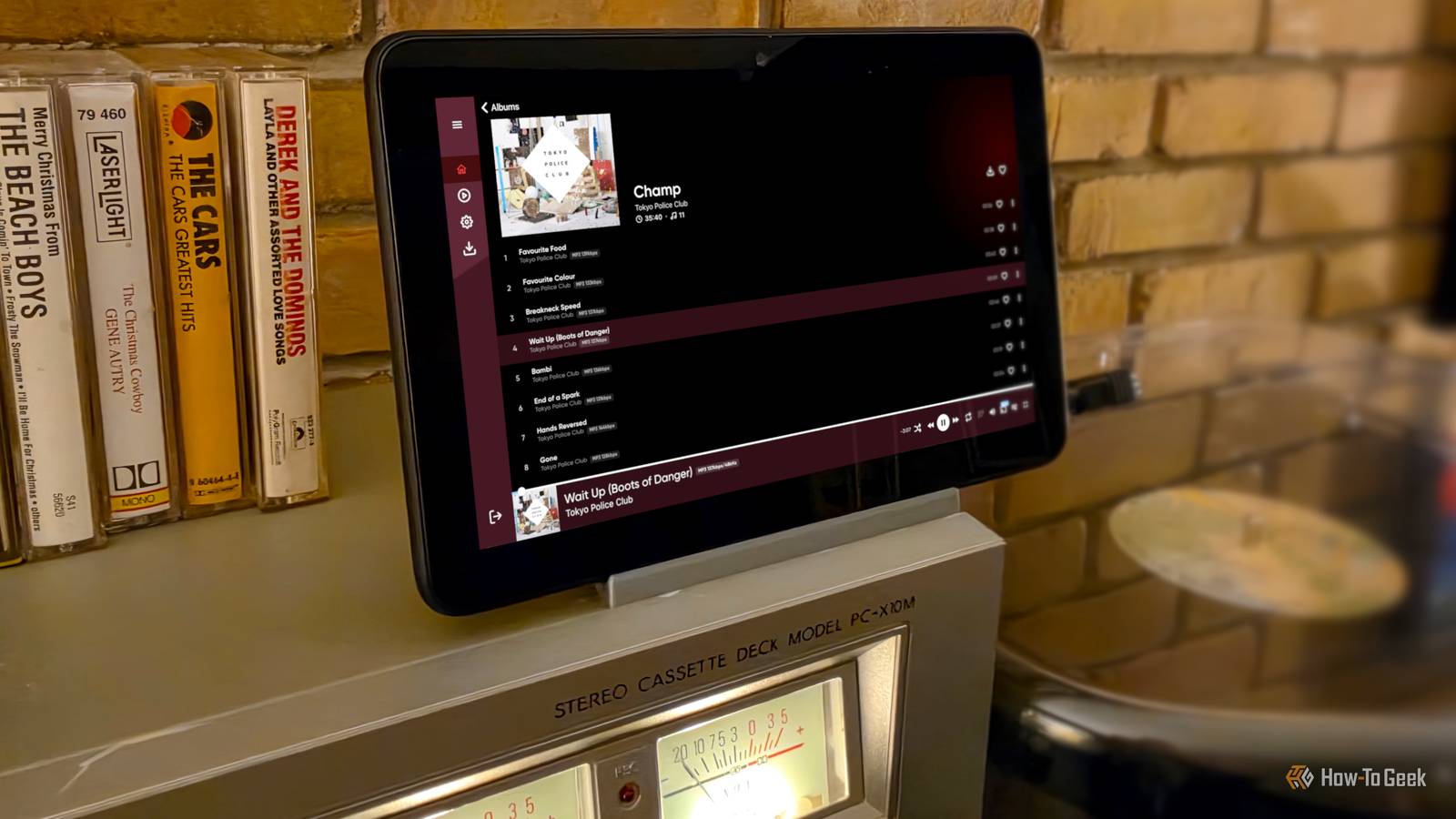
Published Oct 30, 2026, 2:30 PM EDT Joe Fedewa has been writing about technology for over a decade. Android and the rest of the Google ecosystem have been a focus for years, as well as reviewing devices, hosting podcasts, filming videos, and writing tutorials. Joe loves all things technology and is also an avid DIYer and food blogger. He has written thousands of articles, hundreds of tutorials, and dozens of reviews. Before joining How-To Geek, Joe worked at XDA-Developers as Managing Editor and covered news from the Google ecosystem. He got his start in the industry covering Windows Phone on a small blog, and later moved to Phandroid where he covered Android news, reviewed devices, wrote tutorials, created YouTube videos, and hosted a podcast. From smartphones to Bluetooth earbuds to Z-Wave switches, Joe is interested in all kinds of technology. After several years of jailbreaking and heavily modifying an iPod Touch, he moved on to his first smartphone, the HTC DROID Eris. He's been hooked ever since. Amazon Fire tablets are primarily known for one thing: being cheap. Plenty of sacrifices have been made to hit the low price points, and performance is often where it's most noticeable. That's why the best way to repurpose one is to make it a unitasker. Fans of Alton Brown's Good Eats show may shun the idea of a unitasker, but it makes sense for an old Fire tablet. When a device has performance limitations, the last thing you should do is throw a bunch of different tasks at it. However, the fact that these tablets are so affordable means many of us have them lying around. I'm no different. A deliberately simple music player One of my most recent projects was using a Fire 7 tablet as a music terminal in my den. I already had a turntable, cassette deck, and speakers set up there, and I wanted to bring my digital music collection into the room without losing the intentionality of physical media. Sure, I could have just connected my phone to the stereo receiver over Bluetooth, but that makes it way too easy to skip songs and abandon albums. Getting up to change a record makes me more patient with music, and I wanted a little of that friction for my digital library, too. The key for these "unitasker" projects is to strip off as much Amazon junk and superfluous apps as possible. After that, I installed the Emby app (my music lives on an Emby server), and connected the tablet to the sound system with the 3.5mm headphone jack (thankfully, it still has one). The Fire 7's display is the perfect size for a dedicated music station, and it sits right next to the turntable and cassette deck as it belongs there. If you're interested in doing this, there are a couple of extras worth picking up. You'll probably need a 3.5mm to RCA/USB-C to RCA cable, and an RCA switcher box is a huge quality-of-life upgrade if you're sharing speakers with other players. Mine was only $17, and it's something I should have bought a long time ago. The only downside to using a Fire tablet for this is it runs on battery. I may upgrade to a small monitor or portable TV some day, but for now, it works fine. Upgrading my old car with an old tablet BYO infotainment display Fire tablets aren't the only old things I own. My vehicle is a very low-tech 2009 Chevy Silverado, and it doesn't have an Android Auto display. But that's the thing — Android Auto lives on your phone, not the display. So, you just need a display that can accept the Android Auto projection, and that's where my old Fire HD 8 came in handy. Setting this up is surprisingly easy. First, I downloaded Open Headunit from the GitHub page and sideloaded it on my Fire tablet. The app has a handy "Quick Setup" that asks about display size and orientation. Then, in the Settings, I chose "WiFi" for the Connection Mode and "Wireless Helper" for the Wireless Mode. Lastly, expand the "Advanced" settings and choose "WiFi Direct" for the Helper Connection Strategy. Next, I installed "WiFi Helper" from the Play Store on my phone. Open the app and select "Wi-Fi Direct" for Connection Mode. Also, make sure the device name matches what's at the top of the tablet's screen. Tap the "WiFi" button on the tablet, then tap "Start Android Auto" on the phone. After a few seconds, the interface should pop up on the big screen. I've found the easiest way to automate the connection process is to enable "Auto-Connect Last Session" in Open Headunit and use WiFi Helper's "Start Searching" shortcut on my phone. For audio, I use the 3.5mm headphone jack and my truck's aux port. It's definitely not as seamless as a vehicle with an Android Auto display and built-in Bluetooth, but it works. Tablets aren't built for the extreme heat or cold conditions of a parked car. It can wreck the battery and even cause a fire. Not to mention the risk of theft. Don't leave the tablet in there all the time. There's more where that came from These are just two of the most interesting ways I've used an old Fire tablet. There are plenty of other single-purpose tasks to choose from. You could use the tablet as a dedicated security camera live feed, real-time weather station, dashboard for smart home controls, a kitchen cooking companion, and more. Again, the key is to pick a task and strip everything else away.
Old Fire tablets work better when you give them just one job. Here's what I'm doing with mine
Full Article
Original Source
Read the full article at Howtogeek →KhanList aggregates and links to publicly available news content. We do not host full articles from third-party sources. Always verify important information with original sources.