
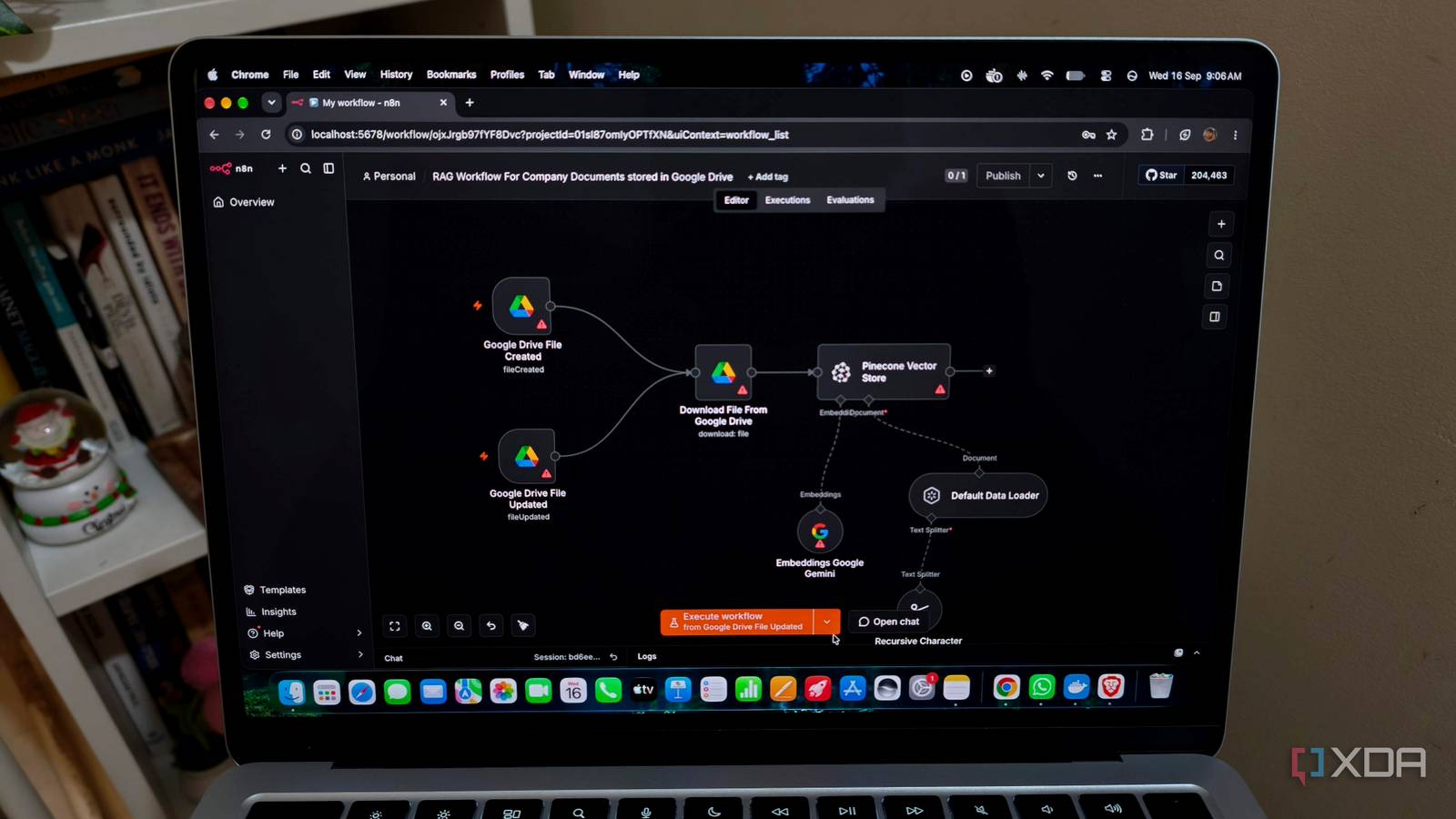
Published Sep 16, 2026, 7:00 PM EDT Anurag is an experienced journalist and author who’s been covering tech for the past 5 years, with a focus on Windows, Android, and Apple. He’s written for sites like Android Police, Neowin, Dexerto, and MakeTechEasier. Anurag’s always pumped about tech and loves getting his hands on the latest gadgets. When he's not procrastinating, you’ll probably find him catching the newest movies in theaters or scrolling through Twitter from his bed. Most of my automations used to live in a folder of scripts triggered by cron. Cron ran them on schedule, but the folder didn’t give me an easy way to understand how everything fit together. When one of these jobs stopped working, finding the point of failure became the difficult part. I’m not the most skilled person with code, so debugging a collection of separate scripts isn't exactly easy. n8n represents an automation as a visual workflow made from connected nodes. You can follow those connections to see the order in which each action runs, and the execution view shows where a workflow fails. After moving my cron jobs into n8n, I can understand an automation by looking at its canvas and go straight to the failed node when something breaks. That’s also much easier for me to maintain than a folder full of code. Cron doesn’t easily tell me what's failing Even though it gets the job done almost always Cron is excellent at running a command at a specific time or interval. However, I’m not particularly skilled with code, and my cron jobs do more than launch a couple of basic maintenance commands. One of them runs my personal AI assistant every day. The assistant goes through my emails, bills, files, and documents to keep track of information I might need. Another version runs every Sunday and prepares a quick digest of the week ahead. I also have a bunch of other cron jobs running at different times for unrelated tasks. The cron entries don’t give me an easy way to see what happens after each script starts. If a job fails, I first have to identify the right cron entry, find the script it launches, and work through the code to figure out what went wrong. Sometimes I also have to determine whether cron started the script at all or whether the failure happened somewhere in the middle. That process is manageable when you write the script yourself and understand every part of it. I sometimes rely on Claude Code to help me write code, so I don’t always have that level of familiarity. The number of jobs makes this worse. Each automation has its own script, schedule, and purpose, and I have to remember how those pieces connect whenever something breaks. n8n turns schedules into complete workflows It lets you build automations by connecting nodes on a visual canvas n8n is a workflow automation platform that lets you build automations by connecting nodes on a visual canvas. If you have ever used Zapier, you will find n8n to be similar. You can use a node to retrieve data from a service, transform that data, apply a condition, or send the result somewhere else. Every n8n workflow begins with a trigger. A trigger can respond to an event, receive a webhook, or run on a schedule. Its Schedule Trigger supports regular intervals as well as custom cron expressions, which means you can move many existing cron jobs into n8n without giving up their original schedules. n8n includes built-in nodes for most apps and services, along with core nodes for handling data, making API requests, and adding logic. You can use IF and Switch nodes to send information down different paths, loop over multiple items, wait for a particular time, and combine data again later. If n8n doesn’t have a dedicated integration for a service, the HTTP Request node can connect to its API directly. I love n8n because of this flexibility. It can replace more than a basic cron entry. For example, a cron job knows when to launch a command, while an n8n workflow also contains the schedule and the actions that follow it. You can see where the data comes from, what happens to it, and which service receives the result. The best part is you can self-host n8n on your own machine. It shows exactly where a workflow failed I can quickly fix what's breaking n8n records every workflow run as an execution. In the Executions tab, I can quickly see which runs succeeded, failed, are still running, or are waiting for another step. You can also filter by status or workflow, which is useful once you’ve got several automations running on different schedules. When a workflow fails, you can open that execution on the same canvas you use to build it. n8n shows how far the data got before things broke. You can click the failed node, see what data it received, and check the error it returned. That makes troubleshooting much easier. There’s also a Debug in editor feature that lets you load data from a failed execution back into the editor. You can change the workflow and test it again with the same data that caused the problem. You can also retry a failed execution using either the currently saved workflow or the original version. n8n lets you set more elaborate automations n8n also makes it easier to build more elaborate automations. I can connect multiple apps and services, pass data between them, and edit the workflow without rewriting a large script. Because everything is laid out visually, I can review the workflow, run it, and understand what each step does. I can also add AI into the same workflow for tasks like summarizing, classifying, or generating content.
n8n replaced my cron job chaos, and now I actually know when things break
Full Article
Original Source
Read the full article at Xda-developers →KhanList aggregates and links to publicly available news content. We do not host full articles from third-party sources. Always verify important information with original sources.