
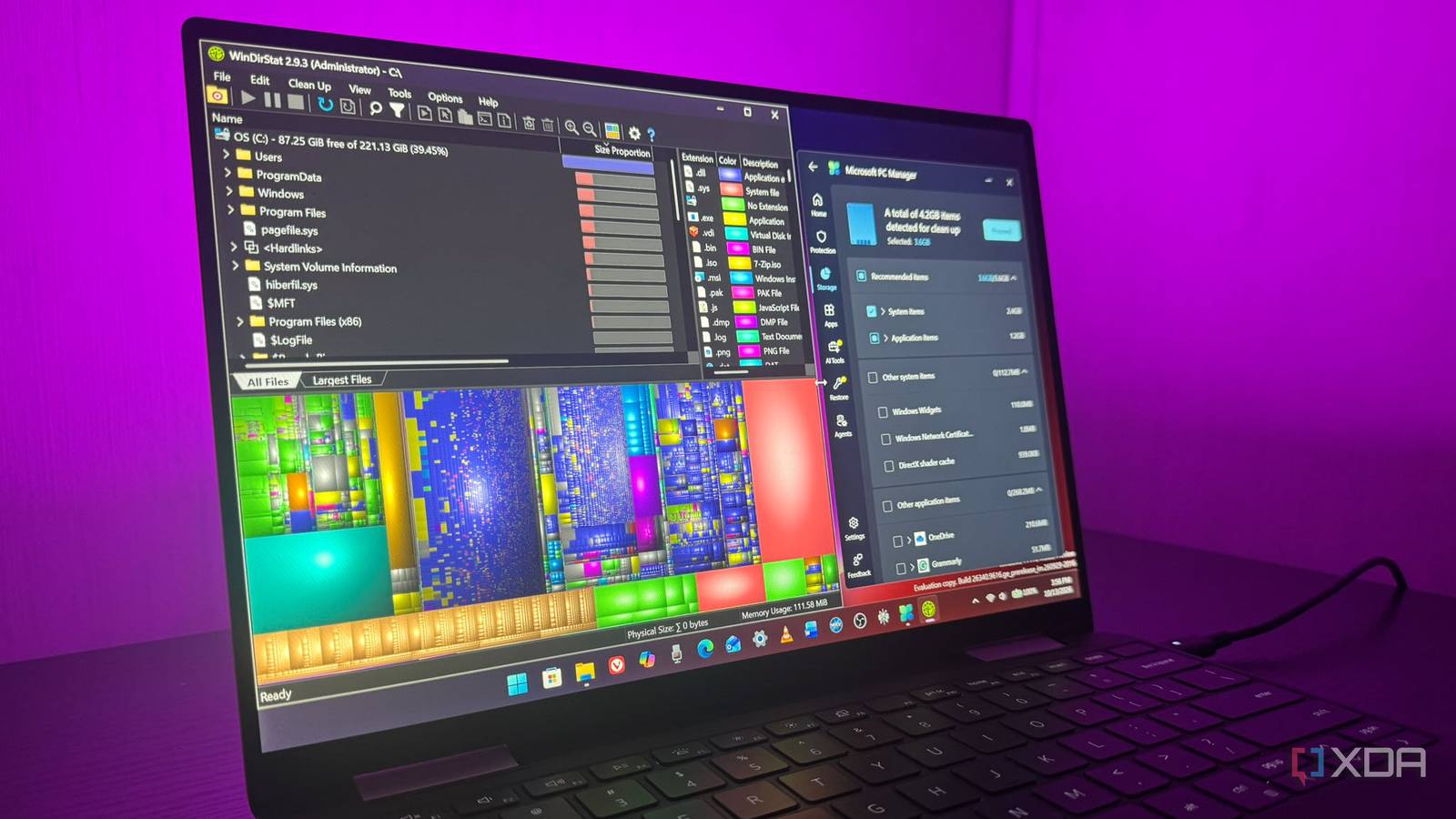
Published Oct 15, 2026, 6:00 AM EDT Based in rural Minnesota, Brian Burgess worked in IT for 10 years before finding his passion for writing about consumer technology. Brian earned his degree in computer and network technology in 2000. He held various IT positions, including help desk support, router installations for IBM, database administration, and other associate network administration roles. He's been a personal technology journalist for 18 years and has written thousands of articles about Microsoft products and services, Android, iOS, streaming, and more. He has written for notable tech sites including XDA, InformationWeek, How-To Geek, Byte, groovyPost, and others. When he is away from the keyboard, you will hear him playing guitar, working outdoors, and watching Star Trek. I have been running Windows 11 on this same machine for the past 10 years, and I haven't had to wipe and reformat once. I haven't felt the need to reformat because I use it primarily for writing. I keep the system light, and my regular maintenance keeps it running like new. Some added Microsoft features have helped, but my steady system-management routine does the best job of keeping it running smoothly. If I stay diligent with file organization, avoid installing too many apps, and clean up after heavy jobs, my systems tend to last a while without reinstalling Windows. I handle tasks myself or use free, lightweight utilities to keep my PC in shape. Avoiding a messy local drive I treat my system drive as a workspace, not a dumping ground I treat my local system drive as a place to get work done, not a place to leave apps and files scattered about. I try to keep the drive as clean and lean as possible. I keep things light and use my PC for writing, screenshot work, and some browsing. Besides Windows, I run Office, a browser, and a few lightweight open-source utilities. I use other machines for more complicated work, like photo and image editing, OBS, media management, and gaming. My secondary drives are a different story. I have an external drive that is so messy that if it were my home and relatives came over, I'd be embarrassed. I use it as a dumping ground for browser history and cache, downloads, old files, and other items I move off the system drive to keep it tidy. I also run several portable app versions from a secondary internal drive when I can, so they don't clog my C:\ volume. Clearing storage space I run a weekly check on everything I can delete Relying on Storage Sense alone isn't enough to keep your drive clean. I clear storage space on my local drive every week to make sure there isn't garbage lying around. I can't always remember to manually delete items I no longer need, so I use WinDirStat to show me, graphically, which files are taking up space. While I try to remain clutter-free, old installers, temp files, and leftovers from completed projects are easy to forget. A cleaner drive improves system performance, so Windows and other apps have room to manage data effectively. That's why I move unnecessary files and app installs to other drives I use as a dumping ground. It's a useful utility that lets me select a file and shows its path. I can delete it directly from the app, or if I want to investigate further, which is usually the case, I go to the location in File Explorer. Other times, if Windows Search is too slow in File Explorer, I use VoidTools' Everything search utility to get to a path quickly. It's also great for searching connected drives for data I may need. WinDirStat is a great tool for pinpointing large files I can delete to free up space on my local drive. Then I use other tools for general cleanup, like Microsoft's PC Manager. It makes it easy to clear temp files and shows which apps take up space, so I can uninstall the ones I no longer use. WinDirStat WinDirStat is one of the best ways to visualize what's using your storage on a Windows PC. Updates are essential I keep Windows, hardware, and apps updated An essential part of keeping a well-maintained PC is keeping everything up to date. Windows will tell you when an update is ready, but my PC isn't set to restart automatically. There is a case to be made for holding off on Windows updates, but I usually pause them for a while and keep an eye on the news for major catastrophes they cause. If everything sounds good, I install the updates, and by then there's usually a hotfix I can use if something goes awry. Apps generally update in the background, but it never hurts to check if one isn't running correctly. I also check my GPU drivers and other hardware components weekly. If an app like my favorite screenshot app includes an internal option to check for updates, I use it. I also mark my calendar to check for BIOS/UEFI updates every four months. I research them before applying the update in case it breaks something, as other updates do. I am not as quick to pull the trigger on new BIOS/UEFI updates as I am on software, unless my PC is noticeably struggling. Keeping good maintenance habits for Windows Most Windows users know the maintenance tasks they should be doing; it's just a matter of doing them. I've found the easiest way is to start with a clean system drive and keep it clutter-free. I'd also be remiss if I didn't mention managing your startup apps. If you run tasks only once in a while, they take longer, and your PC reaches a point where the only choice is to format and reinstall. But running regular maintenance tasks will keep it running for years.
My Windows install is ten years old, and a handful of maintenance habits are why it still runs like new
Full Article
Original Source
Read the full article at Xda-developers →KhanList aggregates and links to publicly available news content. We do not host full articles from third-party sources. Always verify important information with original sources.