
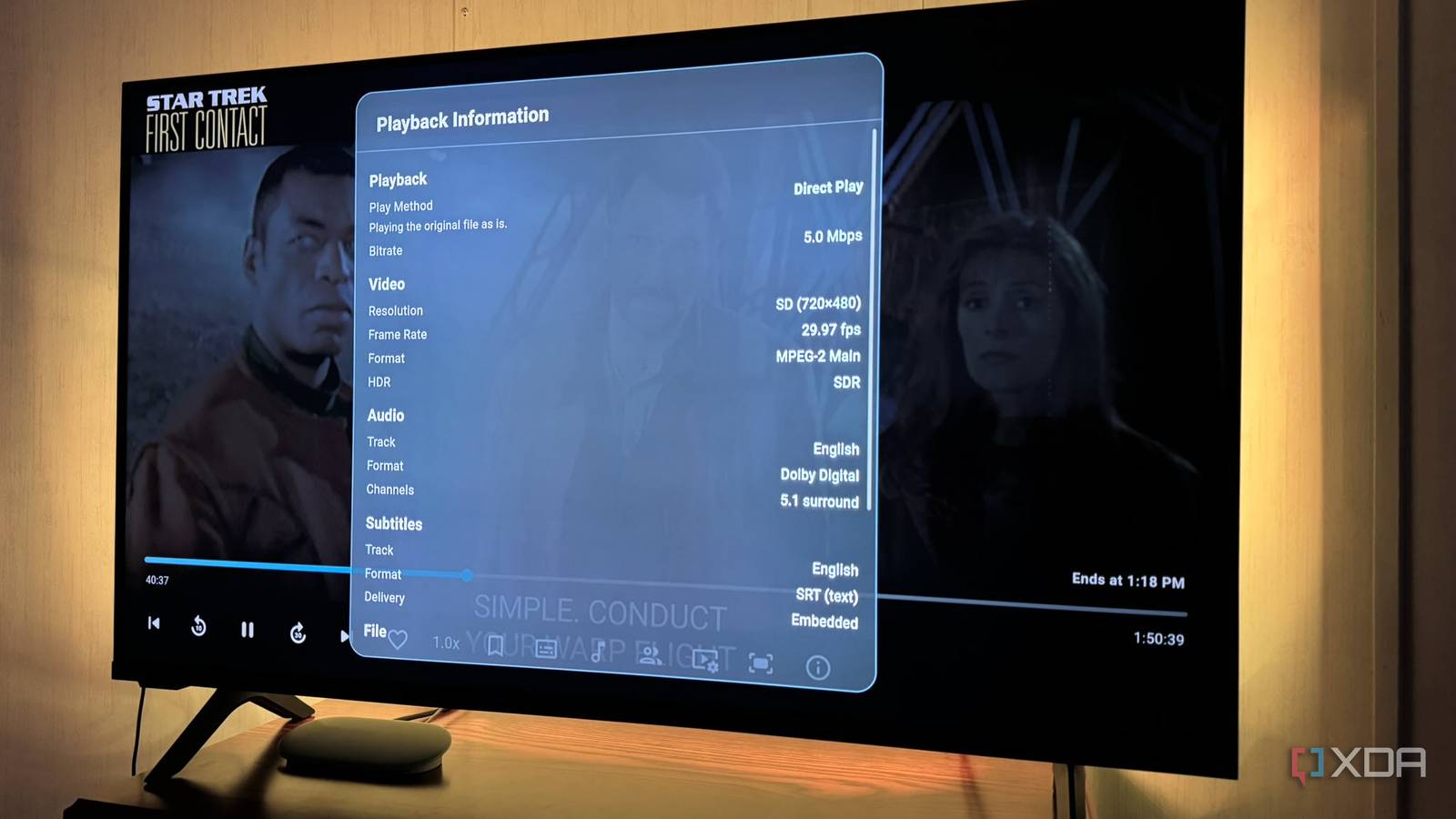
Published Nov 15, 2026, 6:00 PM EST Based in rural Minnesota, Brian Burgess worked in IT for 10 years before finding his passion for writing about consumer technology. Brian earned his degree in computer and network technology in 2000. He held various IT positions, including help desk support, router installations for IBM, database administration, and other associate network administration roles. He's been a personal technology journalist for 18 years and has written thousands of articles about Microsoft products and services, Android, iOS, streaming, and more. He has written for notable tech sites including XDA, InformationWeek, How-To Geek, Byte, groovyPost, and others. When he is away from the keyboard, you will hear him playing guitar, working outdoors, and watching Star Trek. These days, we want our movies and shows to look spectacular on the big screen. In particular, when investing in quality OLED and other high-resolution 4K TVs. But that doesn't mean streaming boxes should force high dynamic range (HDR) on all content, especially standard dynamic range (SDR) media. Forcing HDR-to-SDR conversion doesn't guarantee a better picture and can do the opposite. HDR conversion on lower-quality videos, like a DVD rip, can make them look less natural and over-processed. Many streaming devices distribute HDR output equally. The solution isn't giving up HDR or adjusting every picture. A single setting lets the device respect the original video format. The problem isn't HDR, but how streaming devices use it Dynamic-range matching needs adjustment To stop streaming devices from outputting HDR on everything, I needed to let them switch between SDR and HDR to match the movie or show. Every device calls the setting something different. But it's common to enable Match content or Match Dynamic Range, or to change the Always HDR option to Adaptive. Changing the setting doesn't turn off HDR entirely; it keeps it off for SDR and on for actual HDR content you want to see in the best possible picture. Some boxes and sticks keep the 4K HDR quality setting enabled even if you are watching standard dynamic range video, like a DVD rip. Enabling the dynamic-range matching setting tells the device to match the output to the video's content instead of oversaturating it. It may not be as dramatic as a Shield TV Pro's AI upscaling, which can get carried away and look bad for certain content. But it can convert grain and noise contained in an SDR video, so it's more noticeable on a 4K screen. Stop the HDR-everywhere setting on streaming devices Each device varies, but you'll know what to look for Changing the match dynamic range and match frame rate settings on boxes is one of the first things I do when I get a new streaming device. Forcing HDR onto SDR content can be like turning up the Nvidia Shield’s AI upscaling for a DVD rip, and the extra processing can make the picture look too sharp and over-processed. Tweaking that single setting differs between each streaming device, but I've done it on several of mine. I've done it on most major platforms, and this should give you an idea of what to look out for. For instance, on Android/Google TV boxes, like the Google TV Streamer, Chromecast with Google TV, or Onn's budget 2026 Google 4K Streamer. I go to All Settings > Display & Sound and toggle on the Match content dynamic range switch. While a Shield's streaming is powered by Android TV, its settings are different from those of other devices. Go to Settings > Device Preferences > Display & Sound > Advanced display settings, then toggle on Match Content Color Space. This lets the Shield TV Pro switch between the Rec.709 color space used for SDR content and the Rec.2020 color space for HDR video. On the Apple TV 4K, look in Settings > Video and Audio > Match Content > Match Dynamic Range and turn the options on. Apple notes this matches the output of original SDR videos. On Fire TV devices, head to Settings > Display & Sounds > Display > Dynamic Range Settings and change the option to Adaptive. On an HDR-compatible Roku, go to advanced display settings and turn HDR Always Off. Dynamic range matching helps older content look natural Your TV and eyes will thank you Enabling the dynamic range matching setting on your streaming box or stick can make older content look better on your modern 4K smart TV. An SDR video played through your device is still low-resolution, but if the box forces HDR output to the TV, the video's brightness, colors, and textures may look exaggerated rather than improved. I prefer to keep my older content in its original form so it doesn't look fake, unless it's properly remastered and converted to 1080p or higher. Thinking that applying HDR to a ripped library of old DVDs will magically turn it into a 4K remaster isn't realistic. It won't clean up grain or compression artifacts, and will likely amplify those features of SDR content. But it's not always true that HDR added to older content will make it look worse. It depends on the conversion, source video, and display. A good combination can create a brighter and more detailed experience. It's best to experiment with the range-matching setting with different devices, displays, and source video. Stop high dynamic range from ruining SDR content from your box If you're watching a DVD rip from your self-hosted media library, you may want to preserve the SDR output and avoid the streaming stick or box forcing an HDR conversion. The picture can end up looking awkward and unnatural. This isn't true for every video, but you can experiment with the setting to find what looks best. I enable matching, but sometimes I turn it off for testing on different devices.
My streaming box was forcing HDR onto everything, and one setting made my TV's picture look better
Full Article
Original Source
Read the full article at Xda-developers →KhanList aggregates and links to publicly available news content. We do not host full articles from third-party sources. Always verify important information with original sources.