
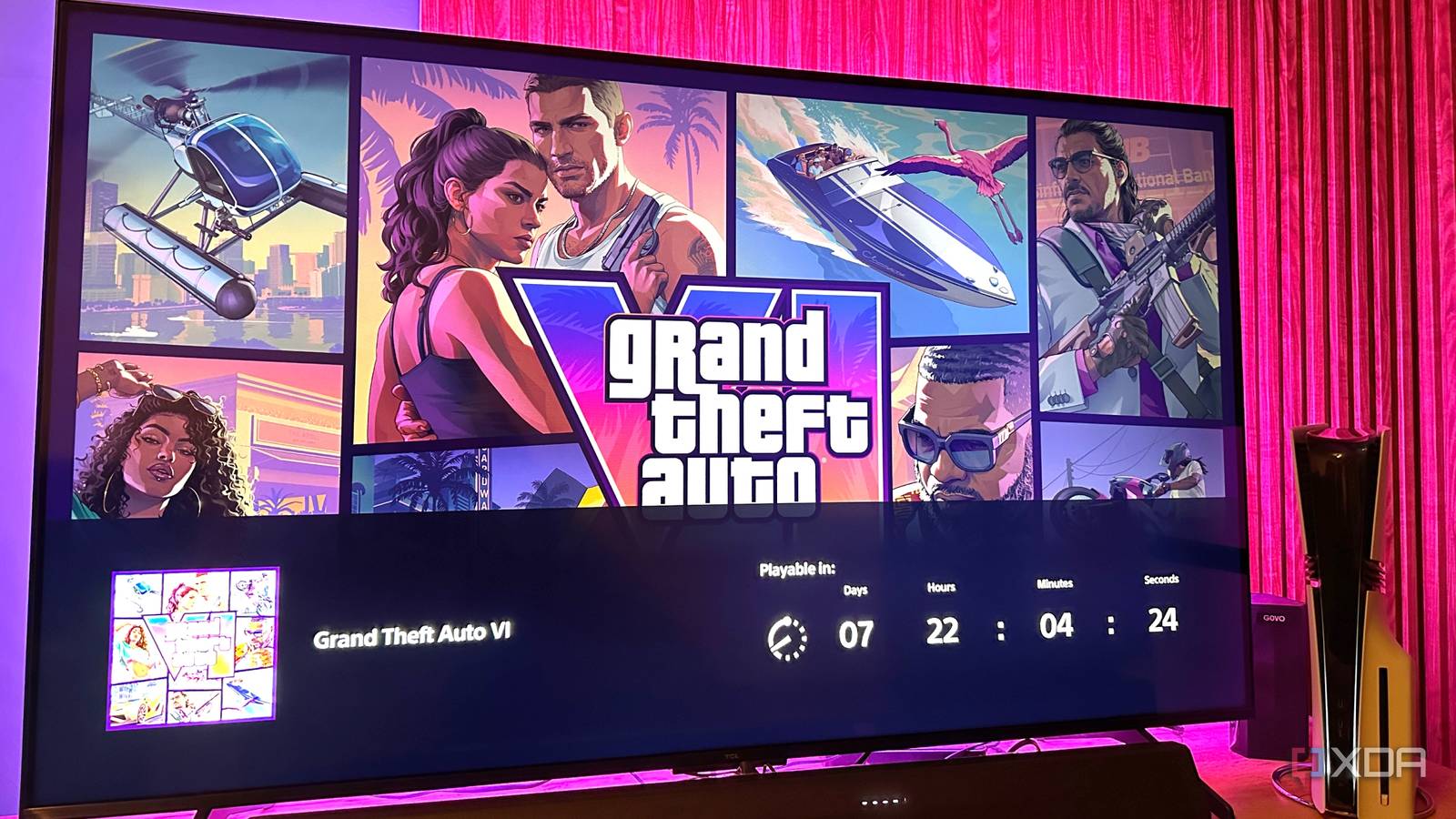
Published Nov 11, 2026, 6:00 PM EST Gaming has been Samarveer’s greatest passion, and the Literature graduate in him takes immense joy in dissecting games for their themes, messages, and impact. Samarveer holds a deep appreciation of gaming, and considers the platform to be the most immersive and impactful across all media. He can be found engaging with gaming communities online, always ready to debate the finer points of ray tracing or itching to write an 8-page collegiate thesis on any game that impacts him emotionally. We're in the endgame now — Grand Theft Auto 6 is just days away, and my PlayStation 5 Pro has pre-downloaded over 200GB of the GTA 6 Ultimate Edition. Unless you've been living under a rock, the internet right now is full of people frantically buying VRR-friendly TVs and PS5 Pro consoles to best enjoy GTA 6. Among the millions of day-one players, though, you'd be surprised by how many have fantastic TVs and consoles but won't get the best possible experience — they never took the time to optimize both their consoles and displays. And with the game's preload now available, there's even more reason to do it. Whether you're on a PS5 Pro or want your console and TV working their best, a handful of settings are worth checking right now. Some take seconds to change, others are buried in menus, but none require you to be a home-theater nerd. Get your PS5 talking to your TV properly You can't optimize what the console isn't outputting Before touching a single picture setting on the TV, make sure your console is actually sending it everything your display can handle. Head into Settings > Screen and Video, and you'll see multiple settings best left on Automatic — Resolution, 120Hz Output, HDR, VRR, ALLM, Deep Color Output, and RGB Range. This lets the console negotiate the appropriate signal instead of forcing settings that may create more problems than they solve. The 120 Hz Output option here is particularly important, folks. Even a base PS5 has this option, so it's best to keep it turned on or set to Automatic. Regardless of whether a game gets near 120fps, a 120Hz signal gives compatible games access to high-refresh modes while also enabling 40fps modes. On a regular 60Hz display, 40 FPS modes result in horrible frame-pacing compromises, since only a 120Hz panel divides cleanly into a 40 FPS output, keeping each frame onscreen for three refreshes. Leave VRR enabled, too; the PlayStation 5 (and Pro) will use it when a game supports it, and you don't gain anything by manually babysitting the setting. Lastly, check the actual physical connection between the TV and the PlayStation. Your console should be connected directly to a full-bandwidth HDMI 2.1 port on your TV. Some TVs have only one or two ports capable of 4K at 120Hz, so plugging the console into the wrong socket can turn your expensive setup into a very expensive 60Hz machine. Oh, and all this only works if you're using an Ultra High Speed HDMI cable. Stop your TV from fighting your PS5 Pro Your TV has no business "helping" you this much Once you've configured your console properly, it's time to stop the TV from undoing all that work. Start by enabling Game Mode or the equivalent of that feature on your TV. Samsung, LG, Sony, Hisense, and TCL all call it something slightly different, but the goal is the same— it cuts out unnecessary processing and keeps input latency as low as possible. If your TV supports Auto Low Latency Mode (ALLM), then your PS5, PS5 Pro, or Xbox Series X/S will automatically switch into this mode. Next, turn off the stuff that exists primarily to make television broadcasts look less terrible. TVs love forcibly turning on settings like motion smoothing, noise reduction, MPEG noise reduction, artificial sharpness, dynamic contrast, and AI picture enhancements, which can introduce processing games don't need. I'd also disable the TV's Eco Mode, Energy Saving, and ambient-light compensation features. These dynamically alter the TV's brightness, which is particularly irritating in HDR games where you want explosions, headlights, and neon signs in Leonida to look consistent and attractive. However, if you have a mini-LED, QLED, or LCD TV (anything with a backlight, really), make sure you never turn off Local Dimming. It's imperative to keep it enabled and generally set it to High. If it gets too dark, try tweaking the settings to find the right spot without making the picture too washed out or too bright. Local dimming, after all, is one of the reasons you bought the expensive TV in the first place. On an OLED, though, there's no backlight, so there are no local-dimming zones to babysit. GTA 6 data-mining has revealed some interesting details Even the PS5 Pro isn't getting a higher-FPS mode The GTA 6 preload went live on November 10, and data miners have already picked it apart, pored over it, and analyzed it a thousand different ways. Even though Rockstar has confirmed a 30 FPS target framerate for GTA 6, files found in the PS5 build point to a 120Hz High framerate mode. No, this doesn't mean what one might think — GTA 6 will not run at 120 FPS. 120Hz is just the display refresh rate, and not the game's own rendering rate. For now, I'd make sure 120Hz Output is enabled on the PlayStation 5, the PS5 Pro, and your Xbox Series X/S console, if you have one. This will ensure that you're ready for whatever Rockstar actually ships. The 120Hz Output support is a very interesting new addition to GTA 6-related news. A 120Hz display can show a perfectly paced 40 FPS signal, with each frame displayed for three refreshes. That gives you a 25ms frame time instead of the 33.3ms of 30 FPS, without demanding anywhere near the rendering power required for 60 FPS. Sadly, Rockstar has confirmed that GTA 6 will be locked to 30 FPS even on a PlayStation 5 Pro. Regardless, it's always worth keeping 120Hz Output enabled on your console. The preload reportedly doesn't point to VRR support either, but I'd still leave VRR enabled on the PS5 Pro. It remains useful in your other games, and there's no reason to keep toggling it manually. If GTA 6 doesn't use it, the console simply won't engage VRR for that game. The useful part is having the display ready for whatever high-refresh mode Rockstar has prepared — and not discovering on launch day that your $2,000 television has been sitting at 60Hz the entire time. The PlayStation 5 Pro still has some tricks up its sleeve, though GTA 6 isn't chasing 60 FPS, but the Pro isn't just pushing pixels The preload data also points to a newer PSSR implementation, with a version value of 13.60 compared with the 13.00-series version seen in existing PS5 Pro games. We don't yet know how much better it is, but Rockstar has now confirmed that PS5 Pro gets improved clarity through PSSR. There is also a High CPU Frequency Mode flag in the files, which suggests that Rockstar will be squeezing out all the additional CPU performance from the Pro. The more interesting Pro-exclusive discovery is additional ray-tracing data, which lines up rather nicely with Rockstar's official confirmation of ray-traced shadows exclusive to PS5 Pro. With GTA 6 targeting 30 FPS on both the PlayStation 5 and PS5 Pro, the Pro's job is therefore to make those 30 frames look better instead of magically manufacturing another 30 of them. There are also early references to multiplayer activity and session-launch functions buried in the PS5 data, hinting that GTA Online is lurking somewhere behind the curtain. That's not something Rockstar has officially detailed yet, so I'm not changing any settings around it. For now, though, the to-do list is rather simple — configure your display for the best possible 30 FPS experience, because that's what Rockstar is promising. Let the Pro spend its extra hardware making those frames count. Ten minutes now is better than regret on launch day It would be ridiculous to spend a small fortune on a PS5 Pro and a gorgeous television, only to leave both running on their default settings and never question whether you're actually getting what you paid for. I've done enough tinkering with displays to know the difference between a good setup and a great one often comes down to knowing where the darn switches are. Give yourself ten minutes, make the changes once, and forget about them. When Rockstar finally drops us into Leonida, I'd much rather worry about which car to steal first than wonder why my TV looks weird.
My PS5 Pro and TV are ready for GTA 6, and the tweaks took less than 10 minutes
Full Article
Original Source
Read the full article at Xda-developers →KhanList aggregates and links to publicly available news content. We do not host full articles from third-party sources. Always verify important information with original sources.