
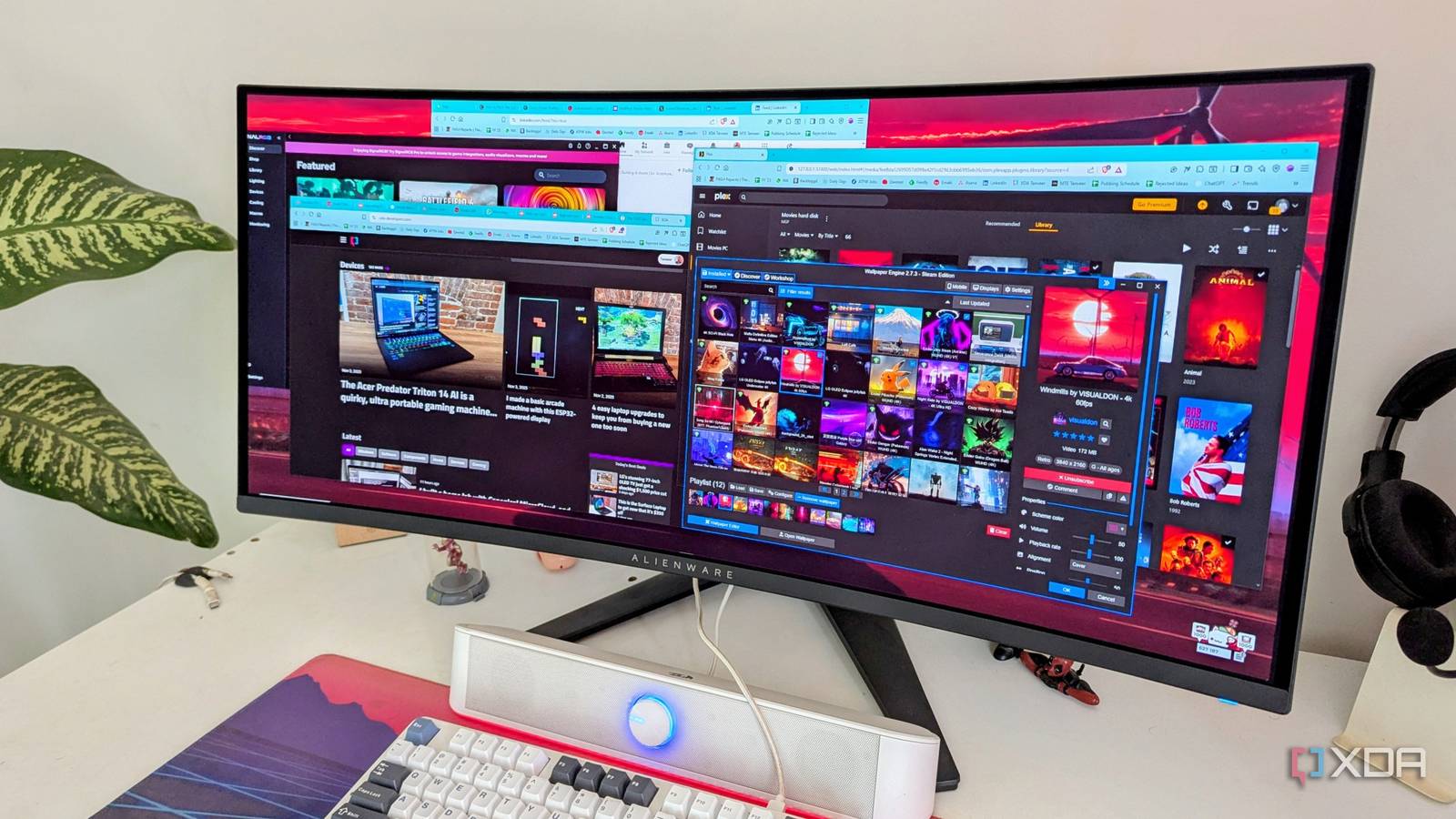
Published Nov 21, 2026, 9:30 AM EST After a 7-year corporate stint, Tanveer found his love for writing and tech too much to resist. An MBA in Marketing and the owner of a PC building business, he writes on PC hardware, technology, and Windows. When not scouring the web for ideas, he can be found building PCs, watching anime, or playing Smash Karts on his RTX 3080 (sigh). I usually don't care about high RAM usage on my PC, since 32GB is enough for gaming as well as multitasking. The other day, however, I noticed suspiciously high RAM usage in Task Manager: 85–90%. At first, I thought it might just be allocated RAM, and not the amount actually in use, but this percentage was still higher than ever. Plus, I had been experiencing occasional lags while typing and switching browser tabs. The numbers didn't make sense either — all my browser windows accounted for around 12GB of RAM, but what about the other 15GB? The background programs couldn't explain this insanely high figure. When nothing else helped, I decided to use the oldest trick in the book, and I realized I should have done that in the first place. Task Manager and RAMMap didn't offer any insights Even a detailed break-up led me nowhere Naturally, the first thing I did when I noticed almost 90% memory usage in Task Manager was add up the individual usage figures for the top processes in the list (sorted by memory usage). This gave me a rough total of only 13–14GB, but Task Manager was reporting around 27–28GB of memory in use. So, what was eating up the mysterious 14GB of RAM? Even the non-paged pool usage was under 1GB, according to Task Manager. That's when I decided to download RAMMap for a deeper analysis. RAMMap is one of the most useful SysInternals tools that should ideally be built into Windows. Launching RAMMap showed similar numbers for total memory usage, but I could see a detailed break-up, with heads like "Kernel Stack" now visible. If the memory used under Kernel Stack had been significantly high, it would have indicated driver memory leaks, wherein a device driver can keep reserving more and more RAM without releasing it as time goes on. However, this wasn't the case here; the Kernel Stack RAM usage was just around 200MB. Something else was hogging all the RAM on the PC. I grudgingly closed browser windows and background programs And updated all my drivers, just to be sure Brave and Zen Browser windows open on a desktop monitor With no other solution in sight, I decided I might have to let go of some browser windows that I always keep open on the PC. I like to use multiple windows of my browser to separate my work, online games, and Plex library. This way, everything I need is always at my fingertips, and I don't have to reopen my favorite tabs from bookmarks. To get rid of the 90% RAM usage, however, I had to close most of the browser windows, if only to see if the browser was somehow gobbling up more RAM than what was reported in Task Manager. Closing the browser windows I wasn't actively using reduced the RAM usage somewhat, but it was still around 70%. It was clear that the browser was using a significant amount of RAM, but only to the extent that was visible in Task Manager. Next, I set my sights on programs like SignalRGB and Wallpaper Engine. They're two of my favorite programs on Windows, but they're also some of the programs responsible for destroying PC performance on weaker systems. I never disabled them in the past, but desperate times called for desperate measures. Terminating both of them from Task Manager brought me some of the memory back, but it was just a drop in the ocean. I also updated all my device drivers to rule out memory leakage by faulty or outdated drivers. I already knew that driver memory leaks weren't the problem, but at this point, I was ready to try anything. The RAM usage in Task Manager was still around 65%, and the sluggish performance I was experiencing wasn't going anywhere. I even performed virus and malware scans Malware stealing system resources was a possibility I rely on Microsoft Defender on my PC, refusing to use any third-party antivirus software. This strategy has served me well over the years, but when faced with almost 90% RAM usage, I was ready to acknowledge the possibility of a malware infection. Maybe those malicious programs mining crypto in the background had finally found shelter on my PC as well. So, I ran a full scan using Defender that took a long time, but ultimately revealed nothing suspicious. Next, I considered using another utility to scan the system for malware, thinking Defender might have missed something (it can happen). I downloaded Malwarebytes and ran a quick scan, which did uncover 90 suspicious items, but most of them turned out to be false positives, which even the best antivirus programs are prone to. To be completely sure, I also downloaded the free trial of Kaspersky Plus and performed a deep scan of the system again. The program tried to upsell me on useless features while the scan ran in the background, but I ignored it and waited for the results. As expected, the scan didn't detect anything that Defender or Malwarebytes hadn't. I was back to square one. What finally helped was a simple restart It was right there all along I was so caught up in my bid to uncover some deep malfunction or hidden malware on my system that I forgot one of the simplest reasons that can lead to high memory usage over time. I'm used to putting my PC to sleep after every session, and haven't manually turned it off in years. This extended usage without a system restart can often lead to high memory usage due to background processes accumulating over time, and memory caching and leaks by long-running programs. Windows needs a proper shutdown once in a while so it can flush everything from memory and resolve any memory leaks and temporary issues. I had already concluded that driver memory leaks weren't the culprit, but restarting the PC and relaunching all the programs and browser windows that were running before brought down the RAM usage from 90% to around 40%. The system definitely needed a breather to recover from background processes reserving more and more memory over time. I kept an eye on the RAM usage for the next few days, and it never climbed higher than 55%, a far cry from the 90% usage that started this whole ordeal. I might come face-to-face with the same problem in a few weeks, but restarting the PC once a month is a quick and easy fix that I can pull out each time it happens. Sometimes, the most obvious solution is the right one Restarting my PC to free up my RAM sounds as basic as fixes come, which is probably why it didn't strike me at first. I tried RAMMap to get a detailed memory usage break-up, closed programs to release RAM, and even ran multiple virus scans to uncover some deep-seated program stealing my RAM. At the end, a simple restart fixed everything. What I've learned from this experience is that using my PC for months without properly turning it off can lead to some unintended consequences. This was my cue to start shutting it down once a month, at least.
My PC was eating 90% of my RAM — I couldn't believe what actually fixed it
Full Article
Original Source
Read the full article at Xda-developers →KhanList aggregates and links to publicly available news content. We do not host full articles from third-party sources. Always verify important information with original sources.