
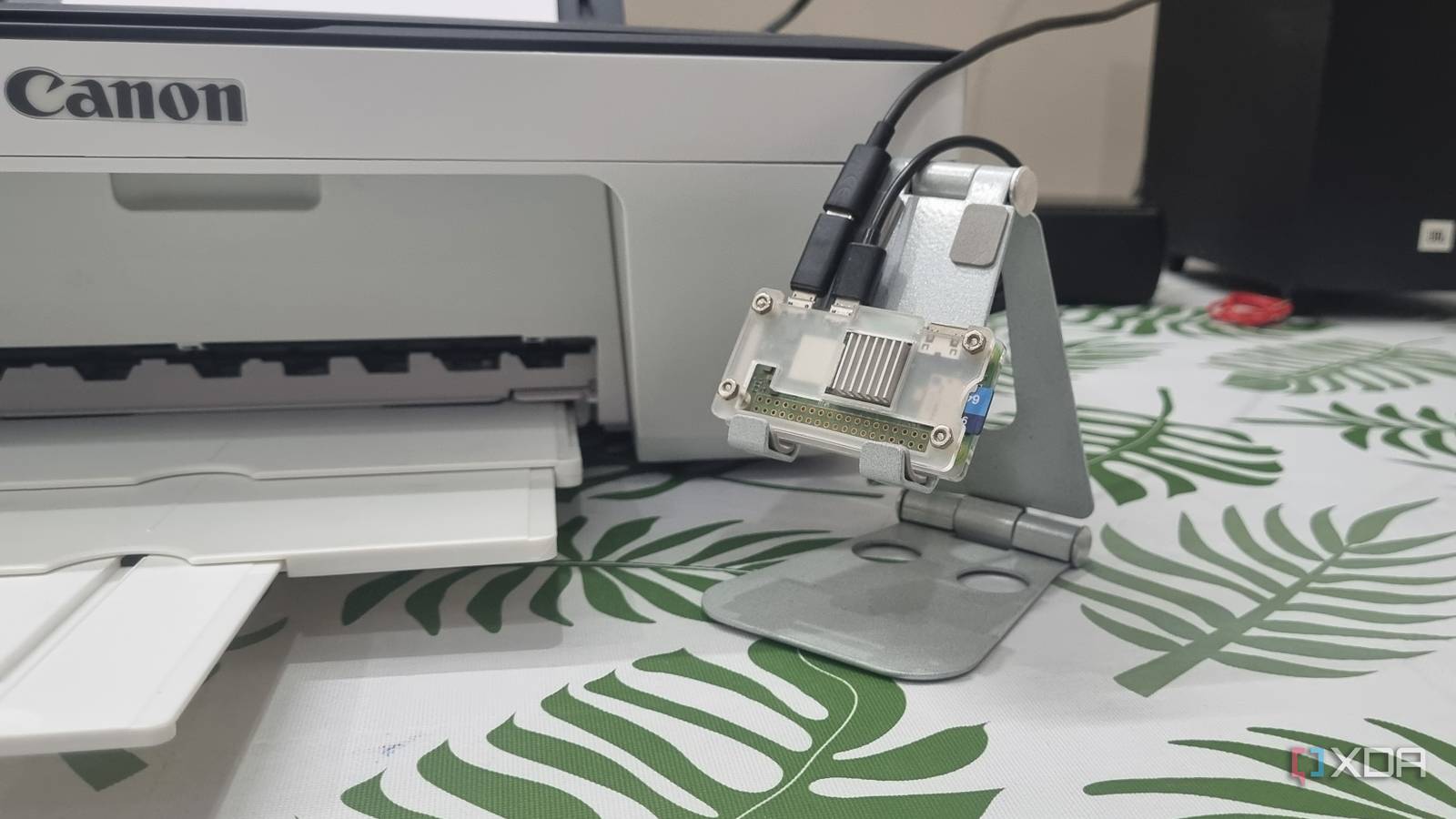
Published Nov 19, 2026, 11:00 AM EST Abhishek is an author at XDA who covers computing. He has loved computers since he got the Lenovo G570 in 2012. Abhishek holds a master's degree in computer applications and began his writing career in 2018. He loves writing how-to articles, listicles, and informational posts on popular operating systems and web services. He closely follows the Windows Insider program and tests new Insider builds to discover upcoming experimental features and upgrades. His past work includes long-term collaborations with reputed publications like Tom's Hardware, and Windows Latest. When not writing anything, he is busy watching new episodes of One Piece or searching for something binge-worthy. I didn't own a printer during my school days, so I either used the computer lab printer for urgent ones or paid a small computer repair shop/cybercafé guy to print them. The first time I really understood the need for a computer was in college. The work shifted from manually writing experiments and projects to printed sheets, and there was a lot. I bought a cheap Canon printer because most of my work needed black-and-white printouts, and I wasn't too concerned with stellar print quality. It is a USB printer and needs a dedicated computer to give it print commands and manage everything. The USB connection didn't feel like a shackle at that time, but now I regret not buying a wireless one. A Raspberry Pi can add missing wireless features to many old devices like a speaker, so I thought of doing the same with my printer as well. A printer that's anchored to my PC I want it to be available to everyone My whole work life is confined to a corner of my room, where I have a new desk and an old cabinet that acts as a second surface. It's already full of my current laptop, a monitor and dedicated stand, and additional peripherals. So, my printer keeps coming out of its box for occasional prints, and then has to go back after a few days. Lately, it has occupied a fixed position on the desk, due to which I had to relocate my old laptop server. Earlier, I only needed a few prints, mostly documentation. But my niece and one of my cousins, who's been back for a few months now, actively use it. I hate keeping the printer USB cable connected to my main setup (a laptop) because it has no spare ports. So everyone has to use my PC to manage print jobs, and it's not good for my productivity. I regret not buying a wireless one because it could have made the printing setup more convenient. Rather than investing in a new one or making hardware modifications, a Raspberry Pi Zero 2 W can help add network printing capabilities to a device. The SBC has onboard Wi-Fi and Bluetooth, and with the correct software, it can make my printer appear as a network device. Choosing a printer management system Nothing better than CUPS When I turned my old Hi-Fi speakers into Bluetooth ones with a Raspberry Pi Zero 2 W, I had to use Moode Audio OS for it. The SBC connected to my old speakers via a USB DAC that allowed an Aux cable connection. The OS allowed hardware identification, selection, Bluetooth connectivity, and wireless streaming. Similarly, CUPS can act as a print management system that creates and manages print jobs. It can work as software inside your current operating system and needs very few computing resources. You don't need any additional peripherals because the printer's USB cable can be attached to the Raspberry Pi Zero 2 W's micro-USB OTG port with an OTG adapter. CUPS can act as the main intermediary between incoming print requests and ensure they are handled correctly. I also installed Avahi because its mDNS features help make printer discovery simpler. The traditional way to add a network printer to your system is to use an IP address and username. Avahi advertises the shared printer on the local network with mDNS and DNS-SD. So, a user can connect to it without knowing the actual IP address of your printer server hosted on the Raspberry Pi Zero 2 W. But no hardware can work without drivers. A Raspberry Pi Zero 2 W can recognize the printer as a USB device, but you need to install a compatible driver for it. Gutenprint can locate and install the correct (or a similar, compatible) printer driver. Its repository offers drivers for hundreds of printer models. I found an experimental one for my printer, and it worked without any issues. The remaining part of the setup was to create a print queue and enable printer sharing on the network, both of which happen via CUPS commands. My USB printer is now a wireless one Accepting printer requests from multiple devices A Raspberry Pi Zero 2 W helped me ditch the physical USB connection and enable network printing for my Canon Pixma MG5277S. I don't need to install Canon’s software on my cousin's system, my brother's laptop, or my primary system. CUPS has taken over the software side of things on the backend, and all users just need to issue a print command. It just needs a one-time printer selection and setup, which is basically just scanning and selecting the correct printer device. I've moved the printer to a table in one of the spare rooms, and everyone on my local network can access it. I don't need to sacrifice an old laptop or desktop to control and manage the printer. The Raspberry Pi Zero 2 W is connected to my home Wi-Fi and doesn't crash during large print jobs. Even my mother uses the printer now because it's easy to find on her Android phone. Her usage is limited to crafts and designs, but she doesn't need to ask me to print them for her now. CUPS uses very little system resources and rarely sees memory usage increase beyond 50% of the total memory. Having an old Raspberry Pi Zero 2 W that you maybe spent $15 on (back when SBC prices were normal and SD cards were cheap) is a perk for such use cases. Making my printer useful again A cheap SBC like the Raspberry Pi Zero 2 W and CUPS simplify converting a USB printer into a network-capable one. I'm not into electronics tinkering at all, and figuring out a solution via software is much more appealing to me. My investment is almost negligible because I own an SBC, and even if I had to buy a new one, it would still be cheaper than a new printer. Raspberry Pi Zero 2 W The Raspberry Pi Zero 2 W is a small SBC with Wi-Fi and Bluetooth connectivity.
My old USB printer still works, and a Raspberry Pi made it useful to the whole house
Full Article
Original Source
Read the full article at Xda-developers →KhanList aggregates and links to publicly available news content. We do not host full articles from third-party sources. Always verify important information with original sources.