
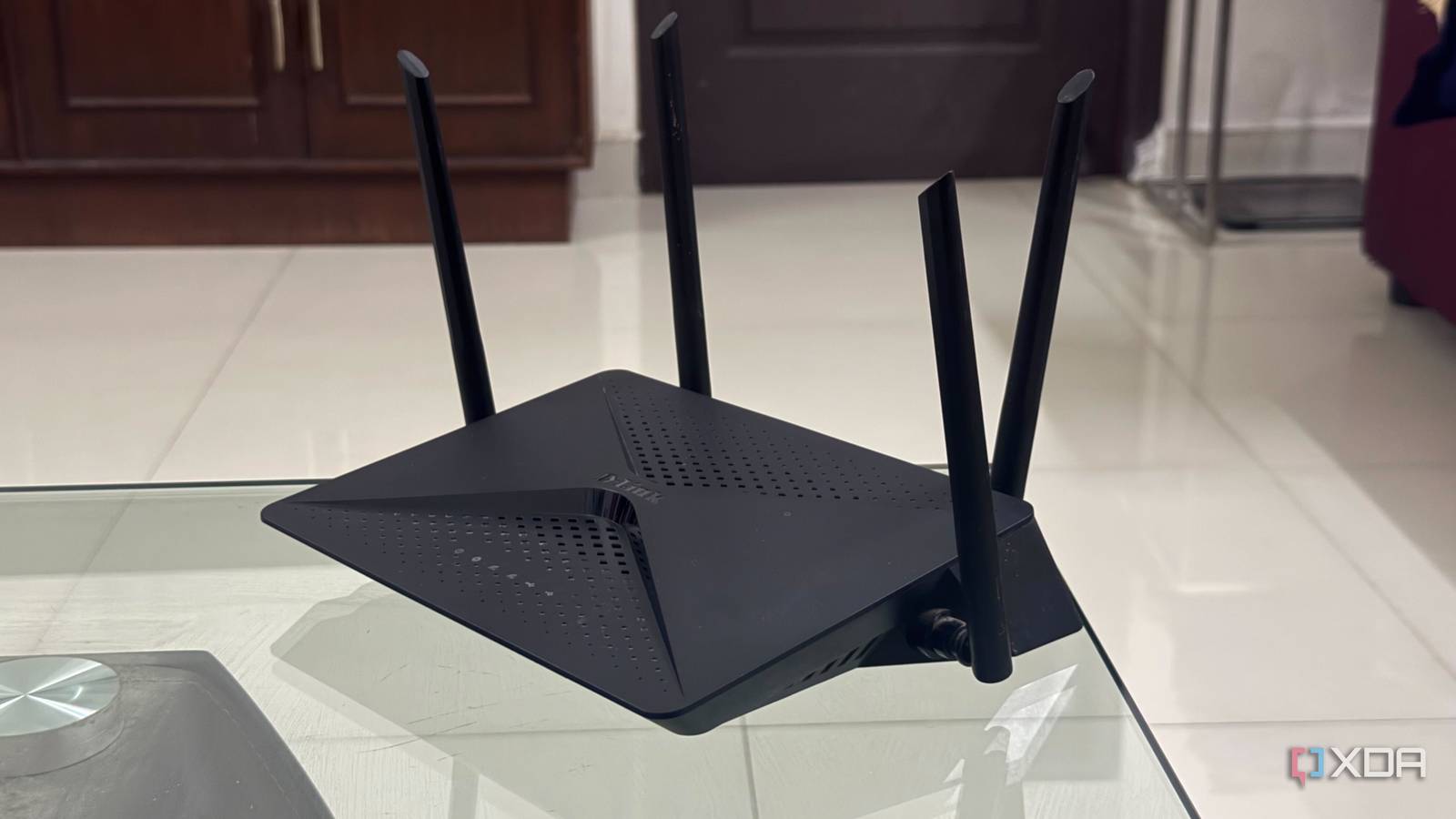
Published Sep 20, 2026, 8:00 AM EDT Hamlin has been in the tech field for over nine years. Since 2017, his work has appeared on MakeUseOf, Android Police, OSXDaily, Beebom, and more. He served as the Senior Editor at Valnet's MakeUseOf for over two years before joining XDA. He uses a high-end gaming rig for desktop use and a MacBook for traveling, but dislikes some of the quirks of macOS. You're more likely to catch him at the gym or on a flight than anywhere else. I've been using the D-Link DIR-882 for far longer than I probably should've, considering it was released in 2017. To be fair, I've never really had a good reason to replace it because my 500Mbps fiber connection doesn't exactly justify something better, especially when most of my devices don't even support Wi-Fi 7. My desktop PC is where I want the fastest, most consistent connection for competitive gaming, but it's connected over Ethernet anyway. That doesn't mean I've been completely happy with it, though. Over the last few years, I've had my fair share of inconsistent Wi-Fi speeds, latency spikes, and occasional dropouts, to the point where I was actually convinced it was time to upgrade. But before I decided to spend my hard-earned money, I wanted to see if changing a few settings could mitigate some of these issues. And sure enough, they made enough of a difference that I don't feel like I need a new router anymore. I disabled Smart Connect I'd rather decide which band my devices connect to Smart Connect sounds like exactly the sort of setting you'd want enabled. By default, my D-Link router uses a single SSID for both the 2.4GHz and 5GHz bands and automatically decides which one each device should connect to. From a convenience standpoint, that makes sense when you're moving around the house with your phone. The problem is that the router's choice isn't necessarily the one I'd make myself. For instance, if I'm in the same room as my router, I'd much rather keep my iPad on 5GHz and take advantage of the higher speeds instead of settling for 2.4GHz. Disabling Smart Connect gave me separate SSIDs for both bands, so I have full control over where my devices end up. Yes, I'm losing convenience now that I have to manually switch between networks if I need to, but my apartment is small enough that I rarely need to do that. I stopped leaving my Wi-Fi channel on Auto A Wi-Fi analyzer did a better job than blindly trusting the router Like most routers, my DIR-882 leaves Wi-Fi channel selection on Auto by default, and if you don't know what you're doing, that's where you'd want to leave it. This way, you don't have to think about how many other networks around you are using the same one. The problem is that Auto doesn't necessarily mean you're always getting the least congested channel, and I learned that the hard way when I used Wi-Fi Analyzer to check how crowded the channels around my apartment actually were. So if you live in an apartment, remember that your neighbors have routers too. And all that congestion can hurt Wi-Fi performance. On 2.4GHz, D-Link itself recommends trying channels 1, 6, or 11, so those are good places to start rather than randomly picking a number. Of course, the best option depends on what's happening around you, which is why you shouldn't blindly copy my settings. I'd say use Wi-Fi Analyzer to narrow down your options first, then see which channel works best for you. I forced 2.4GHz to use 20MHz More channel width can actually make a crowded network worse Another setting I noticed was that it was on Auto when I was messing with Wi-Fi channels: channel width. By default, my router had it set to 20/40MHz, which lets it use a wider channel depending on conditions. And to be fair, you do get higher throughput with 40MHz because you're essentially using twice as much spectrum as 20MHz. The problem is that 2.4GHz is already crowded enough as it is, especially if you live in an apartment or a city. That's why I decided to force my router to exclusively use 20MHz instead. I'm not chasing speed on 2.4GHz anyway, and for the devices that need it, I can just connect them to the 5GHz band. For 2.4GHz, what I need is range and consistency, so considering my apartment is packed with Wi-Fi networks, sacrificing some speed for a narrower channel that takes up less of the crowded spectrum around me makes a lot more sense. I finally configured QoS This helped with latency spikes while gaming This is arguably the most important setting on this list, and I wish I'd set it up sooner. I always knew what QoS was supposed to do, but with a 500Mbps connection, I never really thought I needed it. Except when multiple devices are downloading or streaming content simultaneously, even a Gigabit connection can run into problems. I've dealt with ping spikes when someone else is downloading on the PS5, for example, even though the game I'm playing on my PC barely uses any bandwidth. Enabling QoS addressed this issue. My router lets me assign different priorities to connected devices, so I now have my PC set to the highest priority. This ensures traffic from my PC gets priority when the connection is busy, instead of competing equally with a large file download on another device. If you have a newer, higher-end router, you may have something like Adaptive QoS or Dynamic QoS, which lets you prioritize different types of traffic, like latency-sensitive game packets. Just make sure you set the download and upload speeds to around 90% of what you're getting in a speed test so that QoS works properly. At this point, I'm keeping this router until it dies When you're using an old router, it's easy to think every network issue you run into is a sign that the hardware is finally showing its age. Sure, Wi-Fi 7 would be a massive upgrade for me right now, but since most of my devices can't take advantage of that standard, changing a few settings to address these issues makes more sense. For now, my router handles my connection just fine, so I don't see myself replacing it anytime soon. But even if I switch to a newer router, I'll probably change these settings instead of sticking with the defaults, especially now that I know how much of a difference they can make.
My old router was fine all along — these default settings were the real problem
Full Article
Original Source
Read the full article at Xda-developers →KhanList aggregates and links to publicly available news content. We do not host full articles from third-party sources. Always verify important information with original sources.