
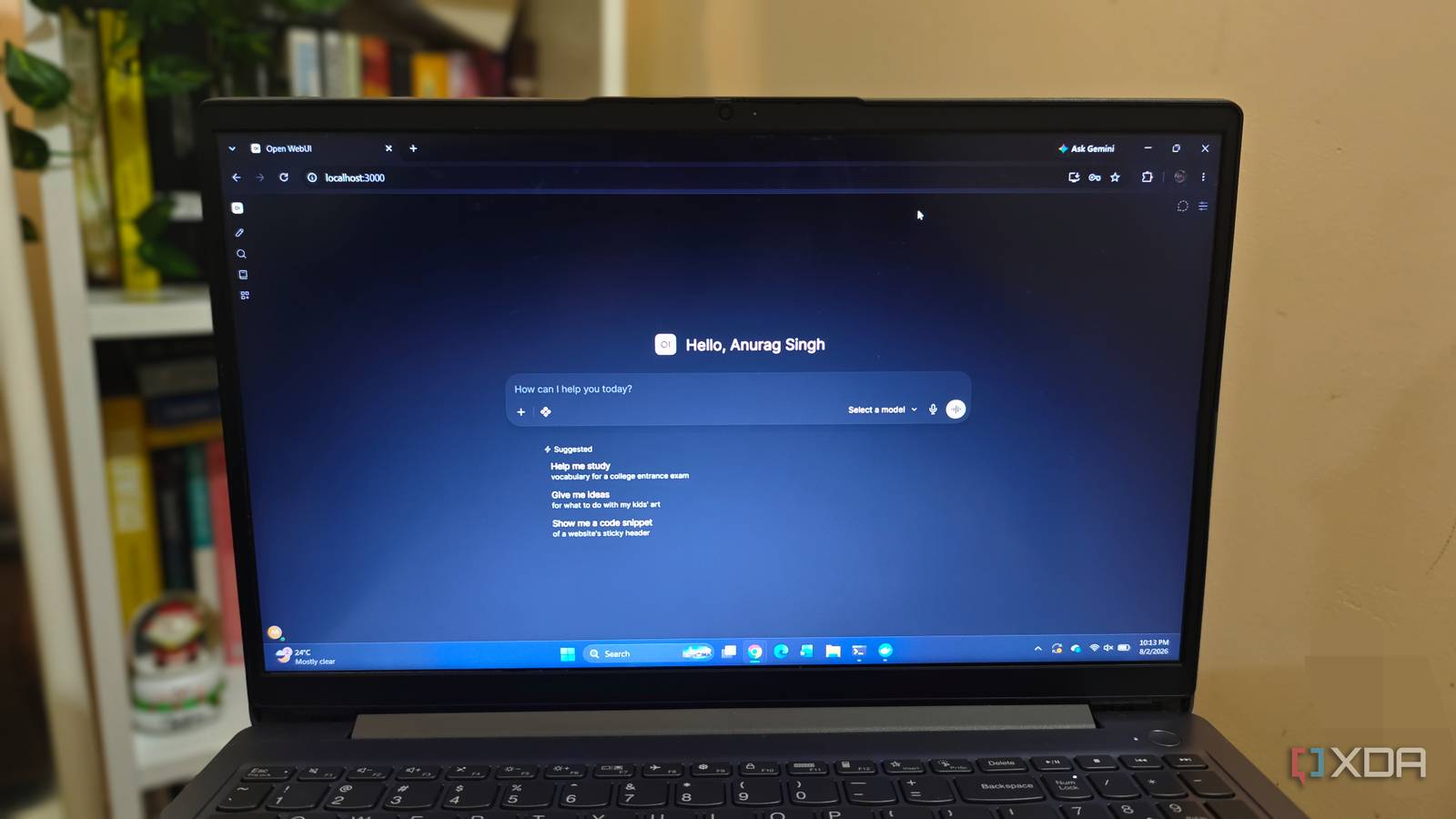
Published Aug 4, 2026, 8:00 AM EDT Anurag is an experienced journalist and author who’s been covering tech for the past 5 years, with a focus on Windows, Android, and Apple. He’s written for sites like Android Police, Neowin, Dexerto, and MakeTechEasier. Anurag’s always pumped about tech and loves getting his hands on the latest gadgets. When he's not procrastinating, you’ll probably find him catching the newest movies in theaters or scrolling through Twitter from his bed. I’ve been trying to repurpose every piece of old hardware I have at home. I recently turned an old phone into a Jellyfin server and later into a full-blown Raspberry Pi replacement. It worked better than I expected, so I moved on to an old Windows laptop that had been sitting unused. The laptop is a Lenovo with a Ryzen 5 processor and 8GB of RAM. That’s hardly impressive by current standards, but there’s still plenty of usable hardware inside it. It's also more capable than my NAS, which runs on a Rockchip processor and has only 4GB of RAM. I’m using the laptop to run a local LLM through Ollama, with Open WebUI providing an interface that everyone in the house can access. The result is a private AI assistant that handles basic everyday requests without sending our conversations to the cloud. I had to keep the model small Because my laptop barely has any RAM The Ryzen 5 5500U processor can run a local LLM, but the 8GB of RAM limits my options. Windows takes its share before Ollama loads the model, and longer conversations consume even more memory through the context window. I could technically squeeze a larger model onto the laptop, but loading a model and running it properly are two different things. Once Windows starts relying heavily on the page file, every response becomes painfully slow. I settled on Qwen3 4B through Ollama. The quantized model is around 2.5GB, leaving enough memory for Windows, Docker Desktop, and Open WebUI. Qwen3 8B is a little over 5GB and could technically load, although there would be very little RAM left for anything else. I would rather use a smaller model that responds at a reasonable speed than spend half a minute watching a larger one think about a grocery list. A 4B model also sets clear expectations for what this assistant can handle. I’m not using it for complicated research, difficult coding problems, or anything that requires the reasoning of a capable cloud model. It works well enough for rewriting text, summarizing documents, explaining basic concepts, generating recipes, and answering the random questions people ask throughout the day. More RAM would give me room to use a larger model, but buying new hardware would defeat the purpose of this experiment. I wanted to make use of a laptop I already owned, and Qwen3 4B offers a reasonable balance between speed and capability on this machine. The setup is surprisingly simple Ollama + Open WebUI is all you need I’m using Ollama to run the model and Open WebUI as the interface. Ollama already lets me chat with the model through a terminal, but I’m not going to ask everyone in the house to open PowerShell whenever they need help writing an email. Open WebUI provides them with a familiar chat interface featuring separate accounts, conversation history, and document uploads. I run both through Docker Desktop on Windows. Once Docker Desktop was installed and running, I opened PowerShell and used this command: docker run -d -p 3000:8080 -v ollama:/root/.ollama -v open-webui:/app/backend/data --name open-webui --restart always ghcr.io/open-webui/open-webui:ollama This downloads the Open WebUI image with Ollama included, exposes the interface on port 3000, and creates persistent volumes for the models and chat data. The --restart always option automatically restarts the container whenever the laptop reboots, so I don’t have to start everything manually. I then opened http://localhost:3000 on the laptop and created an account. The first account registered on an Open WebUI installation becomes the administrator, so I claimed it before someone else in the house accidentally ended up in charge of my server. After signing in, I downloaded Qwen3 4B via the Open WebUI and set it as the default model. From that point, the setup worked like any other chatbot. The whole house can access it Given everyone is on the same network The Open WebUI is accessible from other devices on the same network via the laptop’s local IP address. I found the IPv4 address by running ipconfig in PowerShell, then opened http://[IP address]:3000 on my phone. I can use the same address on any phone, tablet, or computer connected to my home network. I saved the page to my phone’s home screen, which makes the setup look less like a weekend self-hosting project. It opens in its own window and goes directly to Open WebUI, so using it isn’t much different from opening a regular AI app. Everyone can also create a separate account, which keeps conversations and uploaded documents from becoming one enormous shared chat history. Windows Firewall needs to allow connections to port 3000 on the private network. I keep that access disabled on public networks, and I haven’t forwarded the port through my router. The assistant is meant for people inside the house, so exposing it to the internet would add risk without giving me anything useful in return. The laptop also needs to stay awake. I changed the Windows power settings so closing the lid does nothing and the system doesn’t sleep while connected to power. The screen can still turn off normally. I also reserved the laptop’s IP address through my router, because finding its new address every few days would quickly turn the family AI assistant into my personal troubleshooting assistant. This setup can't replace cloud agents There are more powerful local AI setups, and Qwen3 4B won’t replace the cloud models I use for demanding work. That was never the goal. This laptop now gives everyone in the house access to a private assistant for basic tasks, using hardware that was otherwise gathering dust.
My old laptop became a private AI assistant for the whole house, and now I'm not paying for cloud subscriptions
Full Article
Original Source
Read the full article at Xda-developers →KhanList aggregates and links to publicly available news content. We do not host full articles from third-party sources. Always verify important information with original sources.