
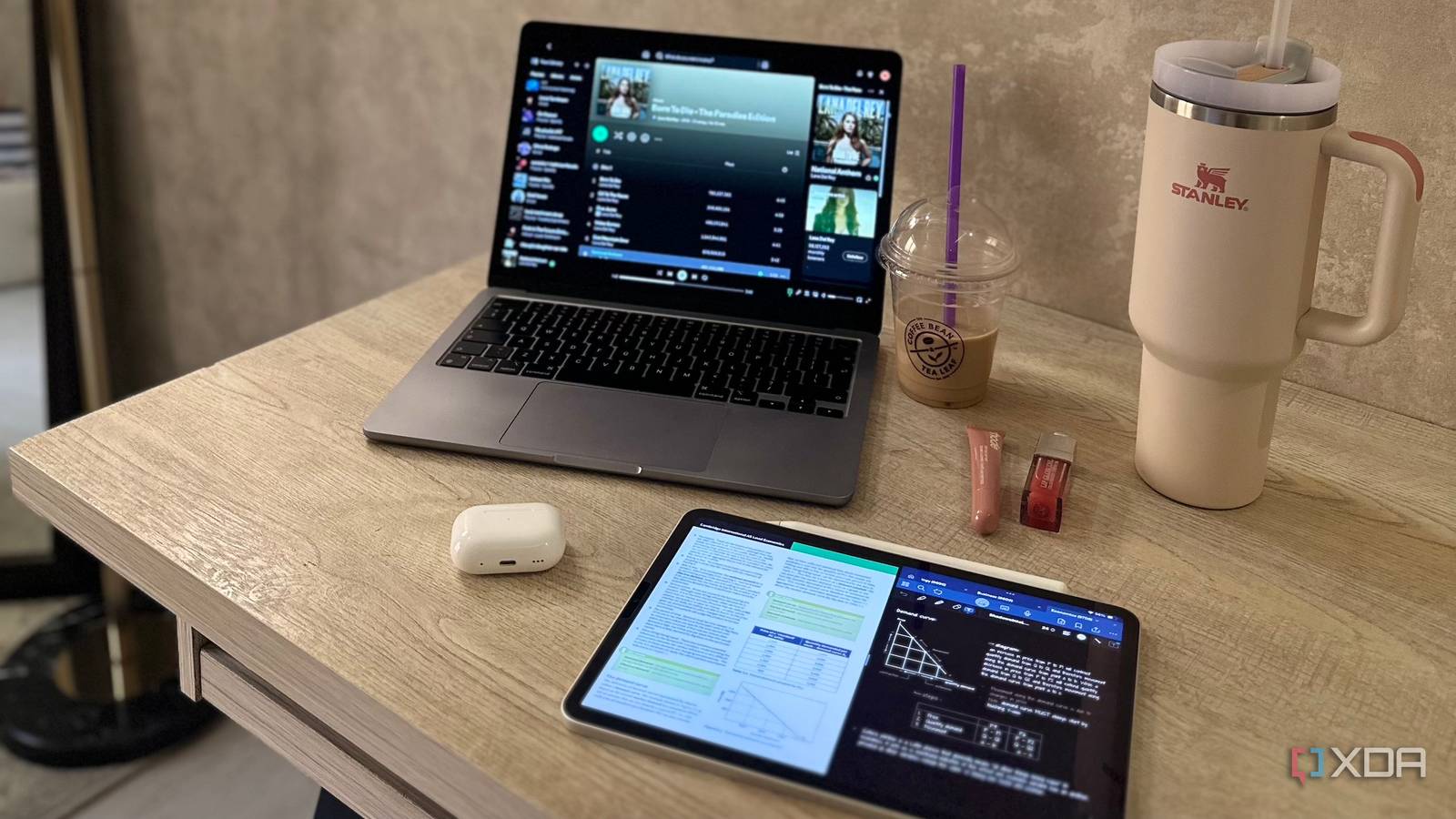
Published Aug 29, 2026, 2:00 PM EDT Mahnoor Faisal is a tech journalist covering AI and productivity tools with bylines at XDA, SlashGear, MakeUseOf, Laptop Mag, and Android Police. She's been writing professionally since she was sixteen, and has since penned hundreds of articles. This includes in-depth coverage of AI tools like NotebookLM to breaking news across the AI space. Her passion for technology started when she received her first iPod Touch (4th generation) on her 8th birthday, and she's been deep in the tech world ever since. Currently pursuing a degree in computer science, Mahnoor brings both a journalist's eye and a technical foundation to her coverage of how AI is reshaping the way we work and learn. My earliest memory of watching people work with multiple monitors comes from movies and TV shows. Practically every science fiction movie had some genius hacker sitting in front of a ridiculous wall of screens, with code flying across all of them at once. For a long time, that was what my impression of multi-monitor setups was. They always felt like something reserved for people doing far more serious work than I was. However, it didn't take long once I started spending most of my day working on a computer to understand why people swear by them. Having even a little extra screen estate makes a massive difference when you're jumping between windows and referencing one thing while working on another. While I ironically picked up my first proper monitor just today, I spent almost two years using something I already owned as my second screen: my old iPad. My iPad became the second monitor I could take anywhere All hail the Apple ecosystem Beyond the fact that I just didn't have the budget to get a second monitor (especially the kind of monitor I'd have wanted), my working habits also came into play. I rarely stayed glued to the same desk all day, and I alternated between working from college, random cafes, my desk, and my bed. I essentially took my setup with me when I traveled, but my 13" MacBook Air simply didn't give me enough screen real estate to work with. So, I was stuck in a dilemma where I absolutely needed a second monitor, but buying one would have solved only half the problem. I needed something I could take with me just as easily as my MacBook. That's when the idea of using my iPad for additional screen real estate popped into my head. Since my iPad was my primary note-taking device, I took it everywhere with me anyway. I was already carrying what was essentially another display in my bag every day, so it made sense to see if I could turn it into the second monitor I needed. As it turned out, I could — without spending a single cent or fiddling with random software. Sidecar makes the whole setup effortless All hail the Apple ecosystem Despite all the grudges I now hold against Apple, the one reason I'll probably always stick by the company's side is one you've likely heard countless times before: the ecosystem. MacBooks are known to be great for multi-monitor setups, but I didn't realize just how beautifully my iPad could slot into one until I actually tried it. Sidecar is a native Apple feature built into iPadOS and macOS that lets you use your iPad as a second monitor for your Mac. The feature doesn't bind you to a particular setup, and works both wirelessly and via a wired connection too. Much like a full-fledged monitor, you can choose whether you want to mirror your Mac's display or extend it, and you can arrange the iPad's position in Display Settings so moving your cursor between the two screens feels natural. While using Sidecar itself takes practically no effort, the only catch is that there's a limit to how old your "old iPad" can be. According to Apple's Support documentation, your iPad must be running iPadOS 13 or later and be an iPad Pro of any generation, a 6th-generation iPad or newer, a 5th-generation iPad mini or newer, or a 3rd-generation iPad Air or newer. Your Mac needs to meet a few requirements as well. Sidecar requires macOS Catalina 10.15 or later, and generally works with Macs introduced in 2016 or later, although the MacBook Air specifically needs to be a 2018 model or newer. In my case, I have an M2 MacBook Air and an M1 iPad Air. Setting it up takes less than a minute A few clicks and you’re done Once you have the peace of mind that your devices meet the feature's requirements, there's nothing really to worry about. Setting it up takes less than a minute, and after you've done it once, it becomes one of those things you barely have to think about. On my Mac, all I have to do is open Control Center, head into the Screen Mirroring section, and select my iPad under the Mirror or Extend to header. Within a few seconds, the iPad turns into an extension of my Mac's display. Alternatively, I can head to System Settings and do this there as well! If I want to change where it sits relative to my MacBook, I can quickly rearrange the displays in System Settings, so the cursor moves between them naturally. What I appreciate most about this setup personally is that I don't need a cable for it. As long as both devices are nearby (which, given that I'm using them as a dual-monitor setup, they always are), I can use Sidecar wirelessly! This is one of the best reasons to own both a MacBook and iPad Though I've only recently moved to the dark side and finally invested in a proper monitor, that doesn't mean I'm giving up on using my iPad as one. It'll still be the monitor I take along with me to college and whenever I feel like working from a cafe instead of a desk. In fact, it might just be the second monitor I end up using more often simply because it's the one I can take anywhere.
My old iPad became the best second monitor I own, and setting it up cost nothing
Full Article
Original Source
Read the full article at Xda-developers →KhanList aggregates and links to publicly available news content. We do not host full articles from third-party sources. Always verify important information with original sources.