
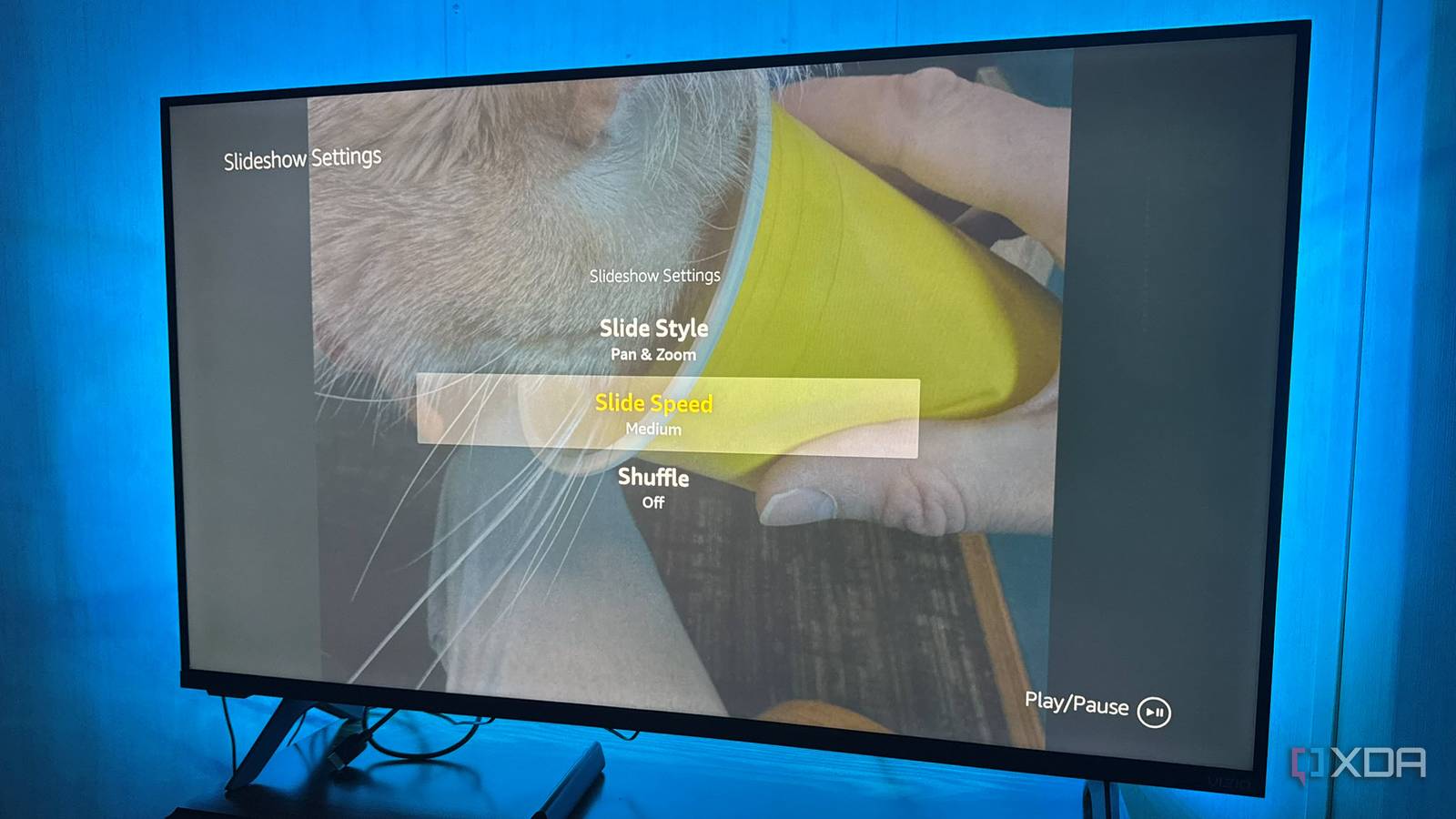
Published Sep 12, 2026, 3:00 PM EDT Based in rural Minnesota, Brian Burgess worked in IT for 10 years before finding his passion for writing about consumer technology. Brian earned his degree in computer and network technology in 2000. He held various IT positions, including help desk support, router installations for IBM, database administration, and other associate network administration roles. He's been a personal technology journalist for 18 years and has written thousands of articles about Microsoft products and services, Android, iOS, streaming, and more. He has written for notable tech sites including XDA, InformationWeek, How-To Geek, Byte, groovyPost, and others. When he is away from the keyboard, you will hear him playing guitar, working outdoors, and watching Star Trek. Before you toss your old Fire TV Stick because it's too old and slow, look for ways to repurpose it. One thing you can do is use it to turn your TV into a digital photo frame. As a Prime member, you get unlimited photo storage at no extra cost. It's an overlooked feature that gives an old Fire TV Stick a useful purpose. I uploaded my pictures to Amazon and now have an endlessly rotating carousel of images on the big screen. Creating a Fire TV Stick photo frame An old stick and HDMI port Reusing your out-of-date and sluggish Fire TV as a photo frame is a common repurposing scenario. You don't need to buy anything since you already bought the stick years ago. You don't need a new TV, just an extra HDMI port on the one in your living room or on a spare TV in another room. Free photo storage is included with an Amazon Prime account, which most people consider an essential annual bill anyway. Plug the old stick into a TV you want to display pictures on, upload pictures to Amazon Photos, and let the stick run the back end of your photo frame experience. Downloading the Photos app to my phone made it much easier to add photos to collections to display in a photo frame. I can choose to have it back up all my photos or just the ones I want displayed on the big screen. I can also choose the photos that display later by adding them. Setting up the photo frame Some housekeeping While the process is as basic as plugging in a stick, there are a few things to cover. The Fire TV Stick still needs the ability to connect to Wi-Fi and have a working power adapter. The Amazon Photos app needs to be installed on the stick, and photos need to be uploaded. I also recommend doing some light photo organization by sorting pictures into albums and favorites; otherwise, the entire library will display randomly. Choosing how the Fire TV Stick displays photos and tweaking settings is easy enough through the Photos app and screensaver or Ambient (depending on the stick's age) screen settings. You can tweak photo behavior through the Fire TV Stick's menu to choose transitions and shuffling, and quickly adjust other photo display settings. Amazon Photos Adjusting the Fire TV Stick photo frame Settings changes on the fly Getting the photos to look the way you like takes some fiddling with the stick's settings. The settings used will depend on the device. Older sticks have a Screensaver setting, which is a basic slideshow. Newer sticks have an Ambient Experience option. The latter layers photos with widgets, music, and more. For screensavers, I adjust the idle time before photos display, the slide transitions, and how quickly new photos appear. Ambient settings allow me to add optional weather or calendar widgets and include additional effects. On either device, the Fire TV home screen mess stays out of the way, and only the photos are displayed. Another thing to keep in mind is that the Fire TV Stick determines how the photos display on the screen and how long they stay up, based on the settings you choose. However, a stick usually won't override the TV set's power timers. So, to use it as an always-on frame, adjust the TV's power settings accordingly. That old Fire TV Stick still works as a frame Photo slideshows aren't demanding Even some of the oldest Fire TV Sticks can be used as a photo frame. A picture slideshow doesn't demand many system resources and is easier to display than 4K video. It isn't as processor-intensive as gaming or heavy multitasking. For example, I used a third-generation (2017 diamond-shaped dongle) Fire TV to create a photo frame, and it worked well as a slideshow with my photos from Amazon Photos. It had slower transitions between photos, and slide-style effects weren't as responsive as the new sticks I tried, but it did the job well. If someone comes over to the house, they don't know it's an ancient Fire TV running the photo frame in the background. They just like to admire the photos I display. I just don't have the extras of the Ambient Experience to jazz up the photo presentation. Free to set up, not to maintain Other cost considerations While setting up a Fire TV Stick as a photo frame is free, there are costs to consider once it's up and running. Your electricity bill is the most obvious one. To view the photos, the screen must be powered on, which consumes more power than a small e-ink photo frame. You can set it to put the display to sleep after a period, but depending on your HDMI-CEC setup, other devices could interfere. The Fire TV Stick will also need to stay powered on, which doesn't require much electricity, but is still more than something that wouldn't be used at all. Your Prime Membership will need to be actively maintained — something most forget about anyway. Also, consider what your time is worth and how much effort you want to put into managing your photo library. Getting more from a Fire TV Stick Turning my old Fire TV Stick into a photo frame was straightforward using the Amazon Photos app. It provides unlimited photo storage, so it costs nothing to turn my old stick and TV into a digital photo frame. I can load as many photos as I want and let them run in the background all day, or set a sleep timer on my TV to conserve energy while I'm away. It's simple to get going, and, like other photos, it becomes a talking point when people come over.
My old Fire TV Stick spends all day as a photo frame now, and it cost me nothing to set up
Full Article
Original Source
Read the full article at Xda-developers →KhanList aggregates and links to publicly available news content. We do not host full articles from third-party sources. Always verify important information with original sources.