
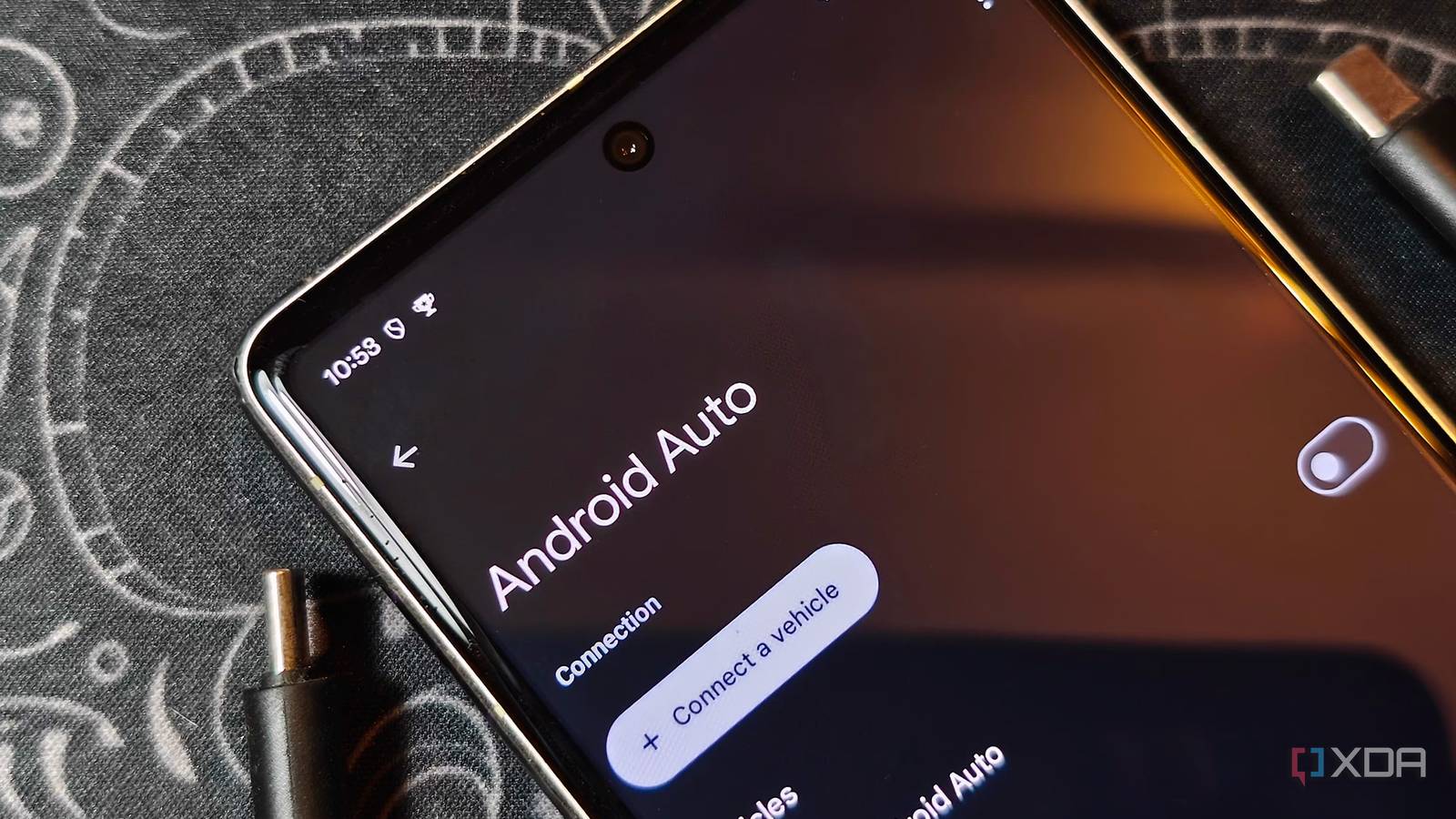
Published Oct 18, 2026, 11:30 AM EDT A seasoned mechanical design engineer turned tech reporter and reviewer, Chandraveer brings more than four years of consumer tech journalism experience to the table, with bylines at Android Police and iPhoneHacks. He's written about everything from UI and UX changes across various apps to emerging software and AI trends. At XDA, he showcases his versatility in the tech reporting space with articles rooted in personal experiences and frustrations. Chandraveer's passion for consumer tech spills over into hobbies such as mechanical keyboards, photography, and 3D printing. With an academic background in design and manufacturing, his insatiable curiosity spans beyond the digital domain. Chandraveer's downtime is an eclectic mix of reading fiction, practicing calligraphy, conceptualizing new products, and enjoying an expansive FLAC audio library. Pushing Android Auto beyond its defaults can be tempting when you want a sharper dashboard interface. When I forced my phone to send a 4K video feed to my 2022 car, built for wired Android Auto only, I trusted the vehicle's systems to downscale the extra pixels and noticeably boost the dated interface's clarity. That crispness carried a brutal performance tax: choppy animations in Google Maps and sudden connection blackouts, sometimes right as I approached busy roundabouts. Stepping one hidden resolution setting back down inside Android Auto's Developer Settings eliminated the stuttering immediately and restored rock-solid reliability to my cabin. This little experiment showed that tinkering with the defaults can hurt stability, but it might also be user error. My daily setup bridges three pieces of hardware that engineers never built to juggle ultra-high-definition video streams together. The car has a stock 7-inch Harman touchscreen infotainment system, and I use a Carlinkit 5.0 (2air) adapter to add wireless Android Auto without touching a cable. My Nothing Phone (3) stays in my pocket, running route navigation while streaming lossless tracks through Apple Music. For weeks, I blamed wireless interference for the lag spikes on my dash, until I realized my own resolution tweak had created the bottleneck. Are the sharper visuals worthwhile? 4K downscaling on the fly backfired royally Anyone who drives with an older infotainment unit knows that low pixel density makes map labels and album art look soft. While exploring Android Auto's Developer Settings on my Nothing Phone (3), I overrode the default display resolution handshake and selected Allow up to 2160x3840 or 3840x2160. Because my car's head unit accepted the 4K feed and downscaled the image to fit its compact panel, the tweak acted like real-time supersampling. Street names gained cleaner edges, app icons lost their fuzzy borders, and album covers in Apple Music looked sharper than the stock 7-inch screen ever managed on its own. That visual upgrade masked an issue that only boiled over when the video frame buffer filled up. Whenever I played a lossless track in Apple Music and entered a destination in Google Maps, the interface lost its fluidity and dropped frames everywhere. Tapping the Start button to begin route guidance triggered a zoom animation that sometimes stuttered across the screen, unless it outright disconnected Android Auto and restarted. Worse still, the disconnections were sometimes random and happened at unfortunate times, right when I needed turn-by-turn navigation in an unfamiliar area or lane guidance to position myself for the next turn. The Carlinkit dongle's wired-to-wireless conversion was the prime suspect, since the car was only meant to run wired Android Auto. Forcing the highest resolution video may overwhelm legacy head units Fixing the fight for decoder headroom is easy Understanding why a resolution toggle causes full dropouts requires looking at how Google's projection protocol operates. Unlike native automotive software, Android Auto never runs apps on the car's internal processor. Instead, the phone renders the interface and encodes a live video stream. When I forced "Allow up to 2160x3840 or 3840x2160," I instructed my Nothing Phone (3) to render and compress millions of unnecessary pixels for every frame. Although the phone's chipset handled the encoding step, every downstream component in my car had to swallow that inflated data packet and react to user input in real time. Adding fragile intermediaries like wireless bridging and bandwidth-intensive tasks like lossless audio streams turns that overhead into a guaranteed traffic jam. My phone had to beam that oversized video stream alongside uncompressed Apple Music lossless audio over Wi-Fi to the Carlinkit 5.0 (2air), which then relayed the packets over USB to the car. Static screens survive because the video compression shrinks unchanging pixels, but fast motion spikes the bitrate immediately. Hitting Start on a Google Maps route makes every map pixel rotate and redraw at once, overflowing the adapter's buffer and crashing the head unit's decoder. Fixing this is fairly straightforward and requires no new cables or firmware updates because the culprit lives inside your phone's settings menu. You can unlock Android Auto's hidden Developer Settings by opening the Settings app on your phone, selecting Connected devices, tapping Connection preferences, and opening the Android Auto page. Scroll to the bottom of that screen until you find the Version number. Tap it 10 times quickly, then tap OK in the dialog prompt warning you about enabling these settings. With developer settings unlocked, scroll back to the top of the Android Auto settings page and tap the three-dot overflow icon in the upper-right corner. Select Developer settings from that menu, then scroll down to the Video resolution entry. Tapping Video resolution reveals the output caps, ranging from standard negotiation and 800 x 480 or 1280 x 720 streams up to the 2160 x 3840 option I had forced. Switching that setting to Allow Car and Phone to Negotiate. The fix applies automatically as soon as you reconnect to the vehicle. Frame rates matter more than pixel density behind the wheel The first drive after stepping the resolution back down felt like an immediate hardware upgrade for my dashboard. Tapping Start in Google Maps now triggers a smooth camera glide onto my route without a single dropped frame, even while Apple Music streams lossless audio through the cabin speakers. My Carlinkit 5.0 (2air) and the car's Harman unit no longer choke on sudden, intensive video bursts. Sitting an arm's length away from a 7-inch dashboard panel makes chasing 4K supersampling an exercise in diminishing returns after a point. At normal driving distances, your eyes would barely notice the tiny reduction in text sharpness, whereas a frozen map or disconnected Android Auto at a busy intersection is a far bigger inconvenience. If you're running an older aftermarket head unit or a car with a low-res screen and some hack-smithy for wireless convenience, you might be better off sticking to the connection defaults.
My old car's Android Auto stopped freezing after I lowered one hidden resolution setting
Full Article
Original Source
Read the full article at Xda-developers →KhanList aggregates and links to publicly available news content. We do not host full articles from third-party sources. Always verify important information with original sources.