
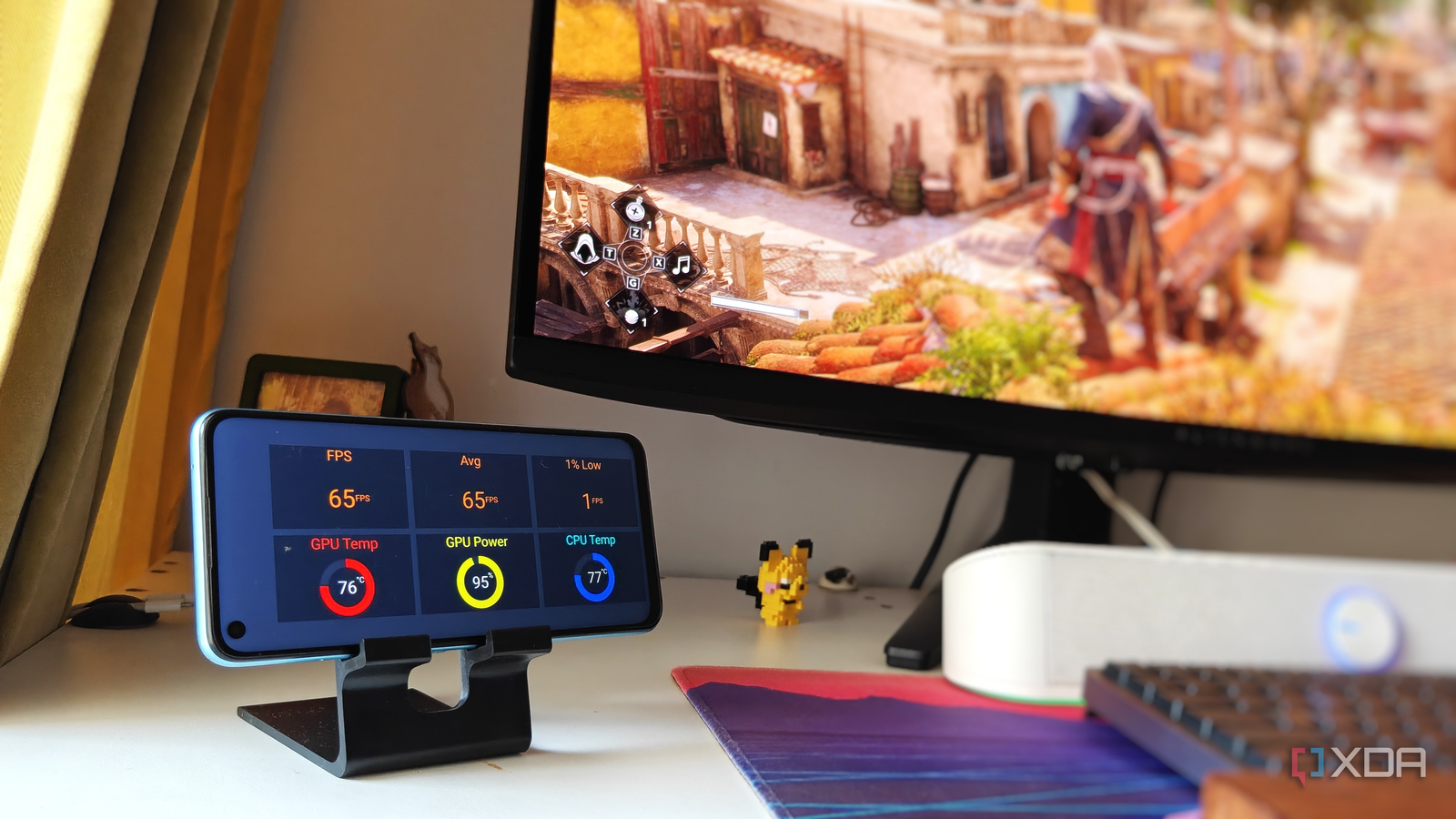
Published Nov 28, 2026, 9:00 AM EST After a 7-year corporate stint, Tanveer found his love for writing and tech too much to resist. An MBA in Marketing and the owner of a PC building business, he writes on PC hardware, technology, and Windows. When not scouring the web for ideas, he can be found building PCs, watching anime, or playing Smash Karts on his RTX 3080 (sigh). Using a performance overlay while gaming is optional, but I often need one when I'm frequently changing in-game settings. Whether I'm using mods like MFG Unlocker to bring DLSS frame generation to my RTX 3080 or doing some quick tests for a gaming article, I need an OSD on the screen. The problem is that I don't like a long wall of text on the monitor when I'm trying to get immersed in a game. Buying a secondary screen or small dashboard just to see my performance stats didn't make sense, but I realized I could make one myself. My old Android was lying unused, and its AMOLED screen could make for a perfect dashboard. All I needed was a free app on the phone and a companion app on the PC, and my Afterburner and RTSS stats would appear on my phone. I could even design my own layout with my preferred stats. Finalizing Pitikapp was straightforward It was free and had everything I needed The first order of business was to decide which app to use to create a remote dashboard on my old phone. Based on a Google search, I found three options: Remote System Monitor, Pitikapp, and PhoneBox. On the surface, each of them looked great, but I found that Remote System Monitor required a fee to unlock features like a visual dashboard and custom layouts. PhoneBox was fully free, but it still needed more setup than Pitikapp to pull data from RTSS. Pitikapp wasn't the most fancy-looking of the bunch, but it suited my present use case. The UI on the Android app was slightly off, but I just needed something that would work after an initial setup. And Pitikapp was exactly that. When I launched Pitikapp Remote Dashboard on my PC, a helpful tutorial showed exactly how to configure various widgets to show stats like framerates, temperatures, power, and more on a phone. Pitikapp supports MSI Afterburner, HWiNFO, GPU-Z, Fraps, and Spotify, among others, so you have plenty of information to bring to your secondary display. Once you install the PC and phone apps, the latter detects the former on the same network and connects automatically. Customizing the dashboard takes some time But it's a fun exercise Even if I wanted just six widgets on my phone screen, it took me some time to dial in the proper configuration. There was no pre-defined template to choose from, so I had to create my own layout. Selecting the appropriate sensor from the MSI Afterburner list was simple, but I also had to tune in the size, position, color, and background of each of the sensors. It didn't take me more than 30 minutes, though, so I can't be too harsh. I picked GPU temperature, CPU temperature, Power, Framerate, Framerate Avg, and Framerate 1% Low from the MSI Afterburner options (you'll find most of them in Sensor Selection). I started adding them to the layout by clicking the "plus" button on the top left, selecting them one at a time, and clicking the "tick" button on the right once I was done with my preferences (shape, width, color, position). The best part is that I could keep adding widgets to my layout and see the changes I made reflected on the phone app instantly, making the process quite smooth. I could resize and drag the widgets on the phone to create the final look of the layout. I liked the simplistic tweaking on the phone app, which removed any friction from the process. Pitikapp allows you to show gauges and choose between absolute and percentage values. It also gives you the option to add threshold values to change a widget's appearance dynamically, based on the values. For instance, you could make your CPU temperature widget change color from yellow to red once the temperature crosses, say, 80℃. I no longer need to stare at performance numbers on my main screen Pitikapp has made my old phone useful again With Pitikapp configured for my preferred layout and both apps running, I just need to configure my Android phone to stay awake to ensure my dashboard stays alive. I no longer have to see my RTSS stats on my gaming monitor, where they used to occupy a significant portion of the screen. They are now safely tucked away on my phone screen, where I can look at them when I want. My old phone doesn't have a lot of battery backup these days, so keeping it plugged in permanently isn't a huge concern anyway. The Pitikapp phone can connect wirelessly to the PC, so I can move the phone around on the desk as I please, making the setup convenient. I can even add Spotify, Steam, and Discord widgets to the layout, making the dashboard double up as a makeshift stream deck. Pitikapp is surprisingly deep and versatile, and I've just scratched the surface. Depending on what you need it to be, you can have way more fun with the app than I had. My discarded phone lives again as a PC accessory The best part about this project is that my old Android phone isn't just an emergency/backup phone anymore. Instead of rotting in a drawer somewhere, it's now a functional part of my PC setup. And it saved me the cost of buying a separate screen to monitor my PC's performance stats. Recycling old tech this way is both fun and responsible, and I highly recommend this project to PC gamers. Pitikapp Remote Dashboard
My old Android phone solved my biggest PC gaming annoyance, and it cost me nothing
Full Article
Original Source
Read the full article at Xda-developers →KhanList aggregates and links to publicly available news content. We do not host full articles from third-party sources. Always verify important information with original sources.