
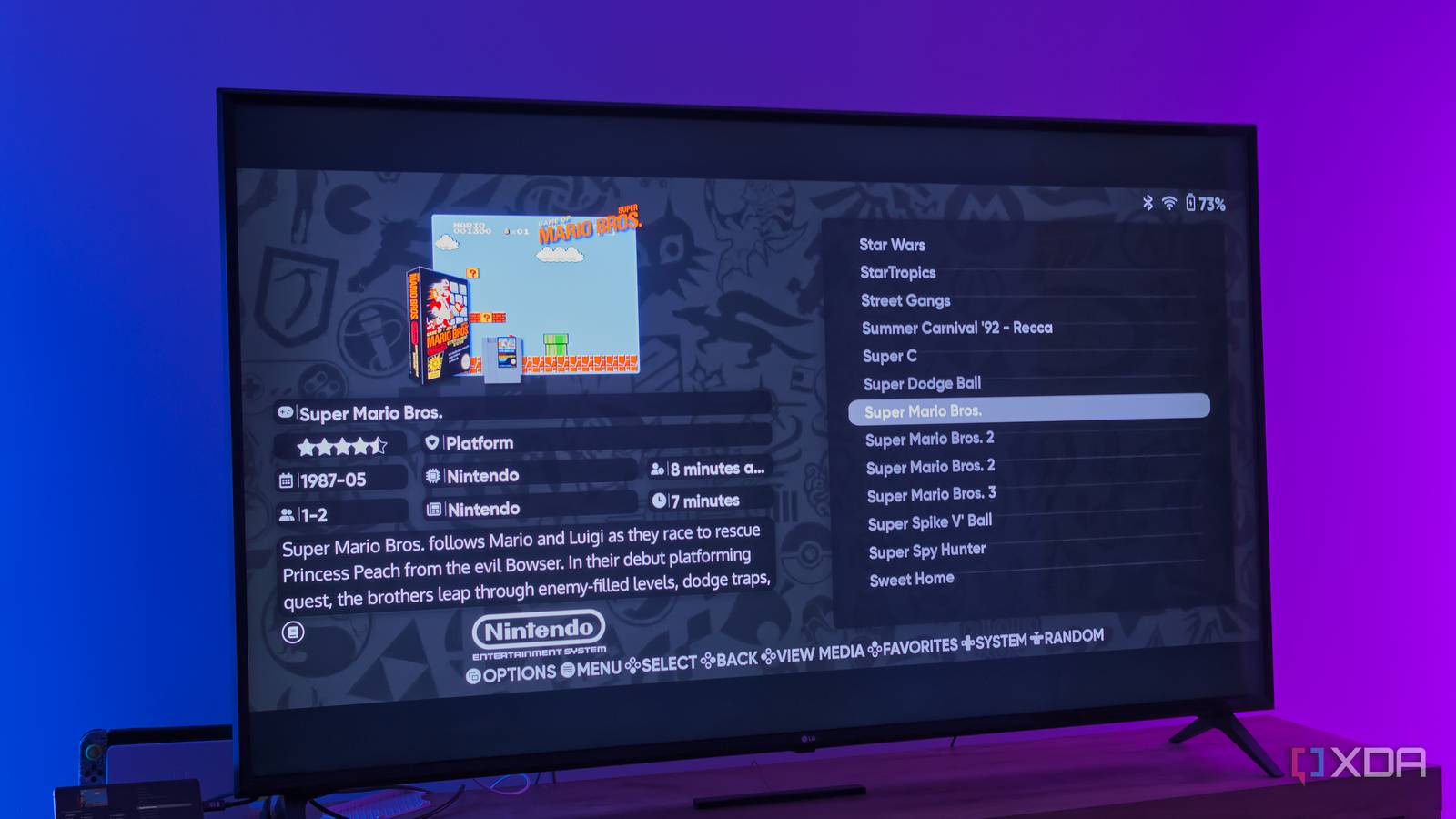
These days, retro gaming has become incredibly easy. You don't need a powerful PC to emulate some of the most iconic consoles of all time, so even an old laptop, mini PC, Raspberry Pi, or even a phone can be used to play your favorite games. Of course, you may not always have the optimal device for your preferred playing experience, but in reality, the ideal setup may be lying dormant in your house. To prove it, I decided to take my old Android phone and turn it into a retro gaming console that lives on my TV. All it takes is RetroArch, ES-DE, and a couple of accessories to make it all work. What I needed A couple of accessories and apps Of course, if you're going to turn your phone into the centerpiece for your living room gaming setup, you need a couple of things. First off, a Bluetooth controller. I had my Xbox Wireless Controller lying around already, and it's a great option, but you can also find much cheaper models on Amazon depending on your needs. A great maker of Bluetooth controllers is 8BitDo, so I recommend looking through that catalog to see if something suits your preferences. To connect my phone to a TV, I also needed a USB hub or dock. You could find a USB-C to HDMI adapter, but you also need to keep your phone charged if you want it to stay plugged into the TV, so one of these hubs gives you the option to connect a charger as well as an HDMI port. You can find USB-C hubs from companies like Anker and Ugreen in the $20 range that include both USB-C power delivery and HDMI ports, so it's not a huge investment. I'm using a much more expensive model, but only because it's the only one I currently have at home. Otherwise, you'll want to make your phone more friendly to use said controller, and emulation frontends are the best way to go about it. RetroArch is a solid enough option on its own, but ES-DE is one of the best frontends out there, and it also exists for Android. However, the Android version of ES-DE does require you to pay up, and it's not on the Play Store. You can get it directly from the team's Patreon, or buy on the Samsung Galaxy Store or Huawei AppGallery (if you're in a market where Huawei sells its phones). If you're not willing to pay up, you can always stick with RetroArch to handle it all. It's still a solid experience overall. Though, keep in mind, the Play Store version of RetroArch is noticeably out of date and not maintained anymore. You'll need to get it from the official website. One thing to note is that some phones may not support display output over USB-C. That shouldn't be a problem for most devices, but if you can, give it a shot before investing too much time and money into the project. Setting up is easy Frontends save you a lot of time With everything installed, you then have to set things up to make it relatively seamless. I had already configured RetroArch for a previous project, and I recommend starting with it to save yourself headaches later. RetroArch lets you download various emulators as "cores" so it's easy to manage them all in one place. You just have to go into the app and download the cores for the platforms you plan to emulate. In my case, that includes Game Boy, Game Boy Color, NES, SNES, Nintendo 64, and even GameCube, though which platforms are viable will depend on how powerful your old phone is. For some phones, something like the GameCube may be pushing it. This is a phone with a Snapdragon 865 chipset, so it's on the higher end of the spectrum. You can choose the emulators you prefer for each platform. You may also want to tweak the controls for RetroArch, specifically the button configuration to open the quick menu in games. This is crucial if you want to exit a game back into ES-DE later, and it's something that always gives me headaches when I forget to configure it. Setting up ES-DE is much easier. Simply launch the app and it will guide you through selecting where to store its own app data, as well as selecting your ROM folder. It may be easier to move ROMs over to your phone beforehand and pointing ES-DE to it, but you can do it the other way around if you prefer. Then, it's just a couple of taps until you're in ES-DE proper. By default, the UI shows on-screen controls, but since I'm using a controller, I disabled this in the app's settings. Otherwise, this just works. ES-DE loads a beautiful, simplistic UI (you can always install extra themes if you want to change it up), showing me all my consoles and I can then choose games from there. I can also use scraping services to fetch metadata for my games and make the presentation even better. It's a great retro console But GameCube is a bit much With all of this set up, I was able to start using my phone as a gaming console, and it has some notable perks over something like a mini PC. Phones are low-power devices and the Arm architecture is very efficient, so this setup can run just fine without a single fan causing unwanted noise. Despite that, performance is pretty solid. All of the platforms I mentioned run well, except GameCube games don't perform at the best of their abilities. I tried playing The Legend of Zelda: Twilight Princess and Super Mario Sunshine, and it definitely felt a bit stuttery in some cases, especially when water was involved, but it was playable. Otherwise, everything runs great here, all the way up to Nintendo 64 titles. I played games like Super Mario Bros. on the NES, Super Metroid on the SNES, Toki Tori on the Game Boy Color, and Banjo-Kazooie and Goldneye 007 on the NIntendo 64. Awkward controls aside, everything ran alright. Nintendo 64 performance could probably be a bit better, admittedly, but it's definitely playable. There are some caveats, though It's not all perfect I set things up the best I could so that the experience was as console-like as possible. I disabled the PIN on my phone, so I can wake it up and unlock it using the controller. I also tried to set ES-DE as my default home app, but this is where I ran into the first major problem with this setup. When ES-DE is set as the home screen app on this phone, it starts loading in a vertical orientation, and it's simply not something I can fix. It always works this way, and even using the "rotate screen" feature in ES-DE itself doesn't work. The UI rotates on my phone's screen, but my TV still receives a vertical signal, so it just doesn't work. Instead, I ended up keeping Niagara Launcher as my home screen app. Surprisingly, it works great with a controller, and while the vertical layout doesn't make sense for a TV, it means that I can launch ES-DE and have it rotate properly so it works way better. Even then, things aren't perfect. This phone doesn't let me use an external screen on its own, so it just mirrors the built-in display. This uses more power and wears down the OLED panel, but I minimized the damage by setting the phone's screen to the absolute minimum brightness. That didn't do much to fix the aspect ratio, though. TVs are 16:9, but phones like this have taller aspect ratios, so even with the proper orientation, there's some letterboxing on my TV screen. It's not a huge problem, but certainly not ideal. Otherwise, I have to say I actually hate Bluetooth, and getting my Xbox controller to reliably pair with this phone meant painstakingly unpairing it from every other device in the house, and even disabling Bluetooth on my main device. Eventually, I did get it to work, but if you have the money to invest, I'd also consider looking for a controller that uses a proprietary wireless dongle. Since you're using a USB hub, you may have the extra USB port anyway, and the connection could be way more reliable. A great use for an old phone Even with all my complaints at the end there, make no mistake, I think this was a fun and worthwhile project. It's a great way to repurpose an old phone and a great way to enjoy retro games without adding a loud fan to the living or skyrocketing your electricity bill. And because it's a small device, it's also easy to fit next to your TV without taking up too much space.
My old Android phone now runs my whole retro gaming library on the TV, and it works great with a controller
Full Article
Original Source
Read the full article at Xda-developers →KhanList aggregates and links to publicly available news content. We do not host full articles from third-party sources. Always verify important information with original sources.