Published Aug 17, 2026, 6:00 AM EDT I cover Android with a focus on productivity, automation, and Google’s ecosystem, including Gemini and everyday apps. With a background in engineering and software development, I tend to go beyond surface-level tips and focus on how features fit into real workflows. Before joining AP, I wrote for tech publications such as Gizbot in 2023 and iJunkie (formerly known as iPhoneHacks) from 2021 to 2022. I started thinking Gmail was losing my emails. I'd remember seeing a message, look for it later, and somehow couldn't find it anywhere. At first, I blamed Gmail. But after digging around, I realized my emails weren't disappearing. I was overlooking a few things that made them surprisingly easy to miss. After I found the real culprits, tracking down those missing emails became much easier. Gmail's conversation view was hiding it in plain sight The email was buried in an old thread At times, the email wasn't missing at all. It was inside an existing conversation, and Gmail's conversation view made it easy to overlook. Gmail groups replies with the original message into a single conversation, rather than showing every email as a separate item in the inbox. That keeps things tidy, but it can also make an older message easy to miss when I'm looking for one specific email. Now, if I know I've had an exchange with someone but can't find the particular message I'm looking for, I open the conversation and check the earlier messages. I expand individual messages in the thread, so I can see the parts of the conversation that aren't immediately visible. You can also turn conversation view off under Settings > See all settings > General > Conversation view > Conversation view off if you prefer every message to appear separately. Archived emails can feel like deleted messages I learned the difference between archive and delete This one fooled me more than once. I'd clear an email from my inbox, forget that I had archived it, and later wonder where it had gone. It's worth noting that archiving doesn't delete a message. Gmail removes it from the inbox while keeping it in All Mail, so the email is still there and can also show up in search. The confusing part is that if I archive an email and then return to my inbox days later, it can feel like I've accidentally deleted it. Now, when I can't find an email I know I've kept, I check All Mail or search for it instead of assuming it's gone. If I find it, I can move it back to the inbox by clicking Move to Inbox at the top of the email. Filters were moving emails before I saw them Gmail was moving emails before I noticed This was another culprit I hadn't considered. Gmail filters can automatically archive, delete, label, mark as read, or forward incoming messages based on criteria such as the sender or words in the email. That meant an email could arrive in my account without ever appearing in my inbox. A filter I'd created months ago could be sending certain messages straight to the archive, where I wasn't looking. If I suspect that's happening, I check Settings > See all settings > Filters and Blocked Addresses. Gmail displays all the filters I've created, allowing me to find any that might be catching the emails I'm missing. The Skip the Inbox (Archive it) option is easy to overlook. A filter using it removes matching messages from the inbox, but the emails aren't deleted. They can still be found in All Mail or through search. The email wasn't missing; it was in another tab Gmail had sorted it out of sight One of the first things I learned was that not every email Gmail receives ends up in the Primary tab. Gmail can automatically sort messages into categories such as Promotions, Social, Updates, and Forums, so an email I was expecting could be somewhere else without me realizing it. This was easy to miss when I was waiting for an email from a company or service I hadn't heard from before. I'd check Primary, see nothing, and assume the message hadn't arrived. Now, if an email seems to have disappeared, I check the other tabs at the top of my inbox. I can also search for the sender or a keyword from the message, which is often faster than opening each category one by one. The spam folder wasn't just full of spam I stopped ignoring Gmail's Spam folder Credit: Lucas Gouveia / Android Police | Mooping Indy / Shutterstock Gmail's Spam folder used to be a place I never checked, and that turned out to be a mistake. Gmail can occasionally send legitimate messages to Spam, but you can click Not spam at the top of the email when that happens. After I found an important email there, I started checking the folder whenever something I was expecting didn't show up in my inbox. It's worth doing this sooner rather than later, too. Gmail automatically deletes messages in Spam after 30 days, so an email that lands there won't sit around indefinitely waiting for me to find it. After removing a message from Spam, future messages from that sender won't be sent there automatically. I finally know where my missing emails went Now, when I can't find an email, I don't immediately assume it's gone. I know there are a few other places I need to check first. I search All Mail and Spam, check the other tabs, and take a quick look at my filters. More often than not, the email is right there.
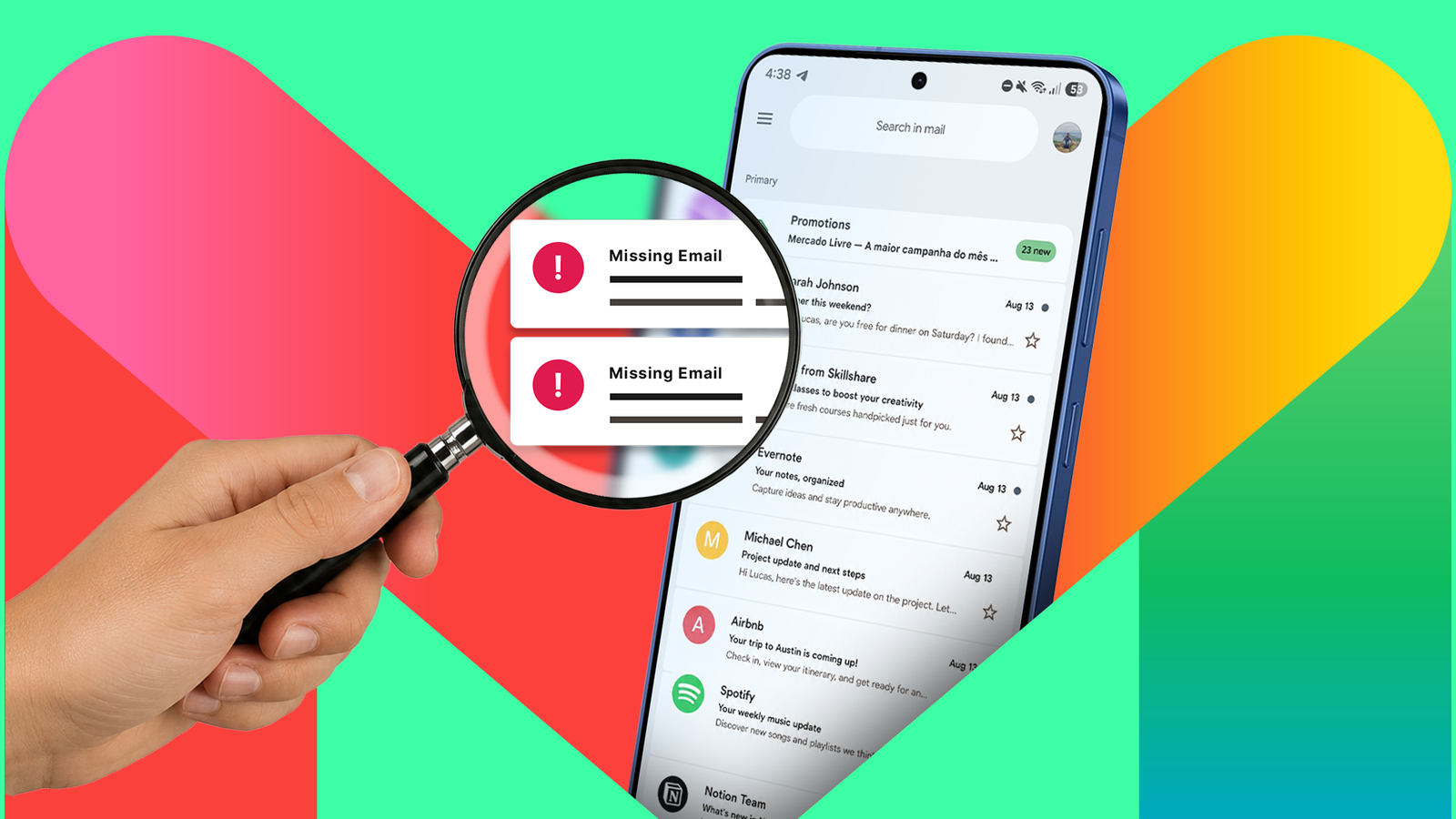
My 'missing' Gmail emails were hiding in these places I never thought to check
Full Article
Original Source
Read the full article at Androidpolice →KhanList aggregates and links to publicly available news content. We do not host full articles from third-party sources. Always verify important information with original sources.