
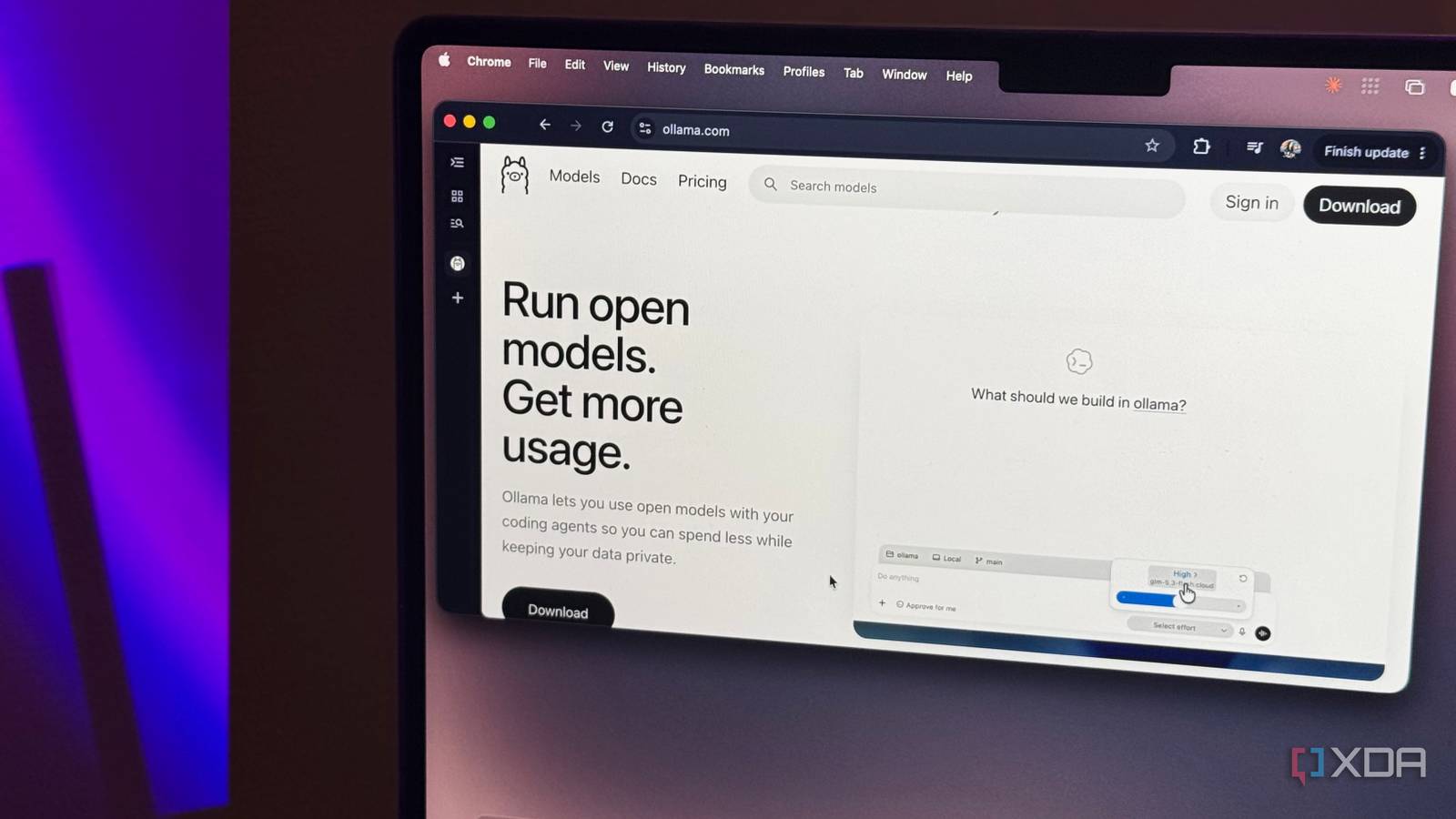
Published Sep 20, 2026, 6:00 AM EDT Mahnoor Faisal is a tech journalist covering AI and productivity tools with bylines at XDA, SlashGear, MakeUseOf, Laptop Mag, and Android Police. She's been writing professionally since she was sixteen, and has since penned hundreds of articles. This includes in-depth coverage of AI tools like NotebookLM to breaking news across the AI space. Her passion for technology started when she received her first iPod Touch (4th generation) on her 8th birthday, and she's been deep in the tech world ever since. Currently pursuing a degree in computer science, Mahnoor brings both a journalist's eye and a technical foundation to her coverage of how AI is reshaping the way we work and learn. I spend a ridiculous amount of time per day renaming screenshots. I'm not exaggerating, I promise. In fact, going through this article alone should be enough for you to see why! Every screenshot I take for an article needs to be renamed with a descriptive filename before I upload it, which usually means stopping what I'm doing, figuring out what the screenshot actually shows, and typing out a name that I'll still understand later. A few days ago, I came across a Reel on Instagram where someone A few days ago, I came across a Reel on Instagram where someone had set up a macOS shortcut that let them use Apple Intelligence to automatically rename their screenshots based on what was actually in them. That immediately caught my attention, but I wanted to see if I could replicate the same setup using a local LLM. So, that's exactly what I spent some time doing! Vision models make this whole setup possible Giving my local LLM a pair of eyes While LLMs could only once spit out text, modern multimodal models can now understand everything from images and screenshots to audio and video. In the context of the task I'm trying to achieve here, this means that there are models that can look at a screenshot, read the text inside it, pick out what matters, and then figure out what the image is actually showing. A few months ago, I realized how much time I spend manually renaming screenshots and decided to figure out a way to automate this workflow using AI. I first began by uploading screenshots to AI tools like ChatGPT and Claude, and they'd spit out a description based on the instructions I provided. I'd then manually rename the screenshot using that description, which worked, but still left me doing half the job myself. I then vibe coded a web-based tool with Claude Code that used Anthropic's Haiku model to look at each screenshot, figure out what was in it, and generate a descriptive filename automatically. The tool would then create a new copy of the screenshot with that filename and download it for me, which meant I no longer had to rename each file manually. However, one nuance that still remained was that I'd essentially end up with duplicate files. The original screenshot would still be sitting in my folder with its useless default name, while the newly downloaded copy would have the descriptive filename I actually wanted. I then ended up creating a Claude skill that did the exact same thing, but since Claude Code can access files on your machine directly, it could take the original screenshot, generate a descriptive filename, and rename the file in place instead of creating another copy. There was still a tiny bit of friction here, though. I needed to head to Claude Code, navigate to the specific directory where I'd saved the screenshot, and then run the skill on the files I wanted renamed. It was still much faster than doing everything manually, but it wasn't quite the hands-off workflow I was looking for. So, I created a script that does it all for me I finally took myself out of the loop To get rid of that last bit of friction, I decided to make the entire process automatic. I began by installing Ollama and pulling Qwen2.5-VL 3B, a relatively small vision model that could actually look at my screenshots and understand what was inside them. I went with the 3B model mostly because I wanted something lightweight enough to run locally on my Mac without turning every screenshot into a five-minute ordeal. From there, I created a dedicated Screenshots folder and changed macOS' screenshot settings so that every new screenshot would land there. I then set up a small Python project and installed three packages: Ollama, Watchdog, and Pydantic. Ollama handles the local model, Watchdog keeps an eye on the folder for new screenshots, and Pydantic makes sure the model returns its response in a predictable format. The actual script is fairly simple. Whenever a new image appears in the folder, it waits a moment for macOS to finish saving it and then sends the screenshot to Qwen2.5-VL. I instructed the model to come up with a short, descriptive title based on what it could see, choose a category such as Work, University, Research, Messages, or Personal, and give itself a confidence score. Once the model responds, the script cleans up the generated title, adds the date, renames the screenshot, and moves it into the relevant subfolder automatically. So, instead of ending up with something like Screenshot 2026-09-19 at 4.03.31 AM.png, one of my test screenshots became 2026-09-19_ollama-app-installation.png and was moved into the Personal folder without me touching the file at all. I also added a small safeguard for screenshots the model isn't confident about. Anything below a certain confidence threshold gets sent to a "Needs Review" folder instead of being confidently filed away somewhere completely wrong. This script now runs completely in the background The best part is that I don’t have to think about it Initially, I still needed to open Terminal and run the script myself whenever I wanted the automation running. That obviously defeated the point a little, so I took things one step further and created a macOS LaunchAgent for it. Now, the script starts automatically in the background when I log in and continuously watches my Screenshots folder. The end result is exactly what I wanted from the beginning: I take a screenshot, continue whatever I was doing, and a little while later, the original file has already been renamed and organized for me. One drawback this script has is that it isn't as quick as the cloud-based alternatives I was using before. Since Qwen2.5-VL is running entirely on my poor Mac, it can take a little while to process a screenshot, understand what's in it, and decide where it belongs! My Claude skill is a lot quicker, but this setup is completely hands-off and doesn't require me to open Claude Code, navigate to the right folder, or manually run anything. This script in particular goes a step further and actually organizes the screenshots for me too. Instead of simply renaming a file and leaving it in the same folder, it figures out what category it belongs to and moves it into the appropriate subfolder automatically. Ultimately, while this workflow did take a bit to set up and isn't quite as fast as the cloud-based alternatives I was using before, it's the first version I've tried that actually feels completely hands-off. I can take a screenshot, forget about it, and trust that it'll eventually be renamed and filed away without me having to do anything else!
My local LLM now names and sorts every screenshot I take, and I'll never manually organize them again
Full Article
Original Source
Read the full article at Xda-developers →KhanList aggregates and links to publicly available news content. We do not host full articles from third-party sources. Always verify important information with original sources.