
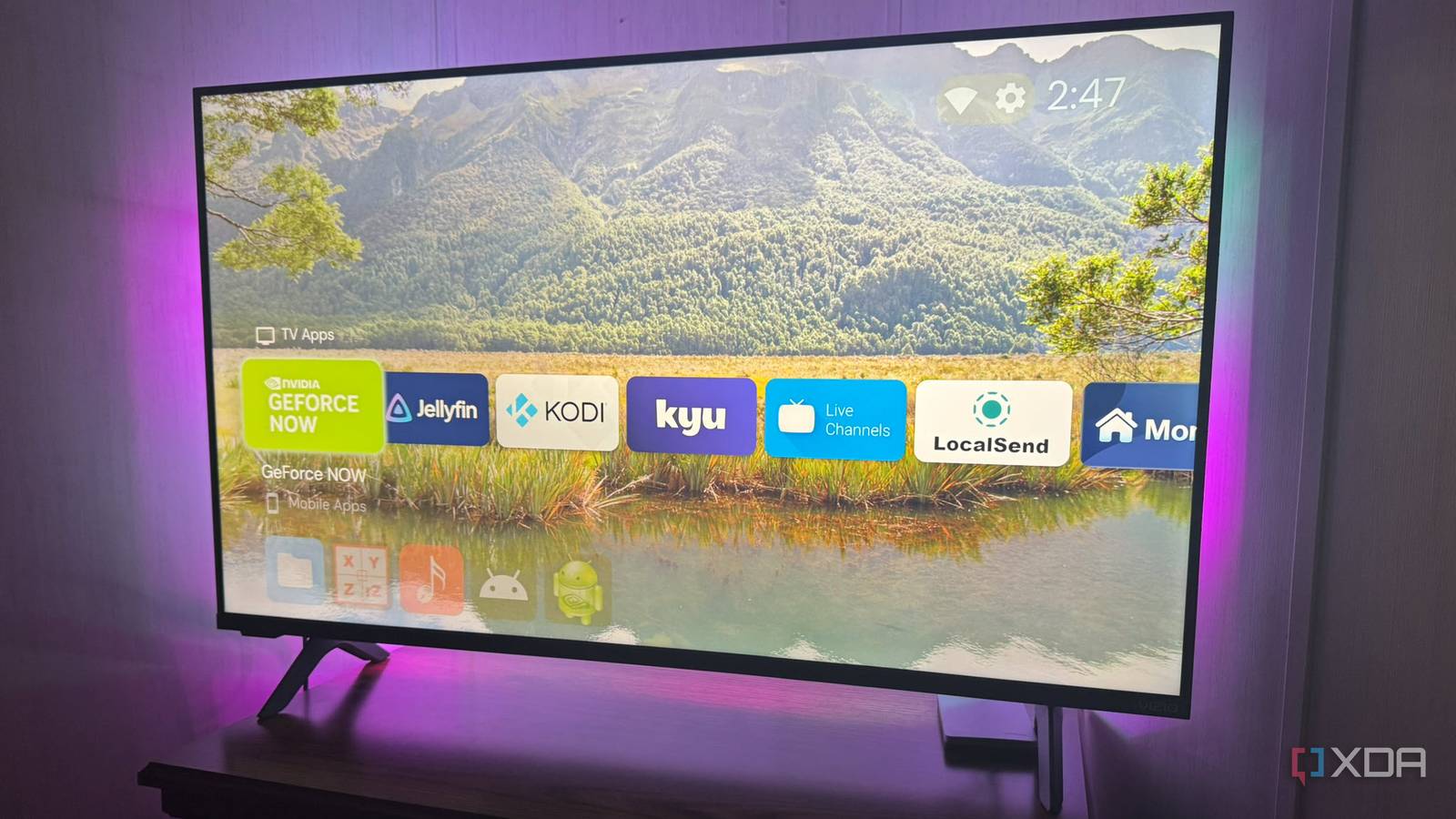
Published Sep 19, 2026, 8:30 AM EDT Based in rural Minnesota, Brian Burgess worked in IT for 10 years before finding his passion for writing about consumer technology. Brian earned his degree in computer and network technology in 2000. He held various IT positions, including help desk support, router installations for IBM, database administration, and other associate network administration roles. He's been a personal technology journalist for 18 years and has written thousands of articles about Microsoft products and services, Android, iOS, streaming, and more. He has written for notable tech sites including XDA, InformationWeek, How-To Geek, Byte, groovyPost, and others. When he is away from the keyboard, you will hear him playing guitar, working outdoors, and watching Star Trek. If you own an Android/Google TV device, you want to get the most out of it. Unfortunately, the default Google TV home screen is slow and cluttered. Luckily, among the current streaming operating systems, Google TV, powered by Android TV OS, is the most customizable. Amazon and Roku lock down their TV OSes, so you can't make many aesthetic or performance-enhancing adjustments. One thing I can change easily is the home screen, and I can set the one I like most as the default so Google TV boots directly into the alternative home screen environment instead of Google TV's clunky UI. Once I did that, the experience seemed much more responsive. Find an alternative launcher There are many to choose from in and out of the Play Store To make the home screen more responsive, I usually install an alternative launcher. Several launchers are available for your Google TV. You can find some, like Projectivy (my favorite), in the Play Store, while others are on GitHub or F-Droid. You can try as many alternative launchers as you want since they install like apps. Once installed, select the launcher's icon to launch it and see how it transforms the Google TV home screen experience. Some provide a basic, light Apple TV-like feel, such as Arc Launcher, while others have more features and functionality, like Projectivy. While the latter is my favorite, I enjoy trying new launchers all the time to see if there is a better one for my Google TV situation. For instance, I've been considering a newer one called Monet Launcher as my default home screen launcher because it is simple and visually appealing. The point is to try as many as you can before deciding. You might like FLauncher for simplicity or ATV Launcher Pro for extra visual customization and widgets. Some of the launchers are free, while others cost a few dollars. With Projectivy, you get the core home-screen features for free, but extra customizations and features like parental controls require a one-time fee. Also, keep in mind that some launchers slow down or complicate the home screen. That's why I test launchers to make sure they're responsive. Make the launcher the default home screen Instead of booting directly into the Google TV interface to find it Once I settle on an alternative launcher I like best, I want to make it the default home screen. Otherwise, Google TV boots into its default interface, and I have to open the launcher like an app each time. Some launchers like Projectivy and AT4K use Android TV's Accessibility features and include an internal option to set the launcher as the default. I have to enable its default home screen option in Projectivy's settings and also turn it on in Android TV OS (which Google TV runs on top of) Accessibility settings. That lets me press the Home button on the remote without worrying about it exiting to the main Google TV home screen and booting to it when I restart my Google TV device. However, if I ever need Android TV settings to configure my device, Projectivy and most other launchers have a button I can select to take me there. Each alternative launcher varies, so check the documentation for how to set it as the default launcher. Some launchers may need LaunchAPP or tvQuickActions, which are available in the Play Store. Using both is straightforward — just pick the launcher you want to start during boot. The tvQuickActions app also lets me configure button mapping on my remote, which is helpful if you accidentally hit the Netflix or YouTube button all the time. For older Google TV devices, it's worth trying the ITVLab Launch-on-Boot app. You can sideload it or download it from the F-Droid store if you have it on your Google TV device. Once it's installed, pick the launcher you want to run when the device wakes up. I say older Google TVs because newer Google TV-powered boxes restrict background apps that can be launched during the boot process. Projectivy Launcher Forget Google TV's home screen A fresh, clean launcher makes a big difference Once I can boot into Projectivy, or other alternative launchers, my Google TV feels faster. Especially with light and basic launchers like Kyu Launcher and Arc Launcher. Apps and settings are laid out better, the screen is more visually appealing, and navigation speed increases. The launchers don't make Google TV more powerful, but it helps to have an alternative that isn't content-heavy and doesn't feel sluggish. Projectivy is lighter than Google TV's default home screen, but it isn't the fastest. Lighter options like Kyu, Monet, or Arc are more basic, but if all I need is a few rows of apps and light customization to make the screen look nice, they do the job well. My best advice is to keep trying as many launchers as you can until you find the right fit. No matter which one you choose, they speed up navigation and make Google TV feel faster. Plus, they all have a fallback option to reach the default screen if needed. Kyu Launcher Alternative launchers make Google TV's default home screen feel outdated The standard Google TV home screen is content-ridden, poorly laid out, and slow. Luckily, installing alternative launchers improves the experience. I fly through Google TV navigation now that I have stopped letting it show me that messy default home screen. Since I realized the power of alternative launchers, I can select apps quickly and find what I need much more easily.
My Google TV got noticeably faster once I stopped letting it show me its own home screen
Full Article
Original Source
Read the full article at Xda-developers →KhanList aggregates and links to publicly available news content. We do not host full articles from third-party sources. Always verify important information with original sources.