
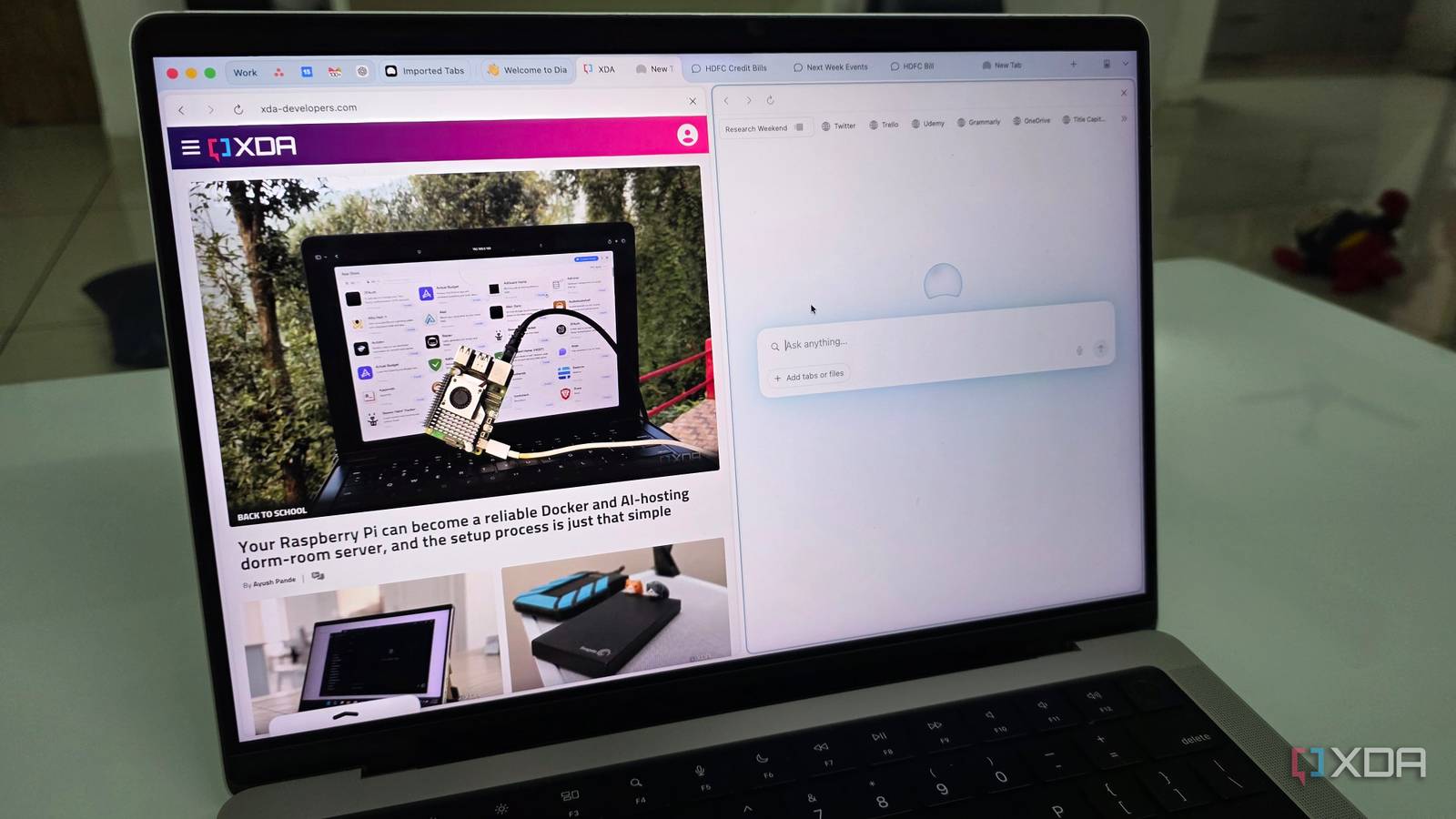
Published Aug 20, 2026, 5:31 PM EDT Parth, a seasoned tech writer, wields the keyboard (or pen) with finesse to unravel the intricacies of both Windows and Mac operating systems. He has covered evergreen content on mobile devices and computers for multiple publications over the last six years. You can find his work on AndroidPolice, GuidingTech and TechWiser. Whether it’s demystifying system updates, deciphering error codes, or exploring hidden features, Parth’s prose guides readers through the binary maze. When not immersed in tech jargon, you’ll find him sipping chai, pondering the next software review, and occasionally indulging in a friendly debate about mechanical keyboards. Whenever I get tired of Chrome, the obvious alternatives are usually Microsoft Edge or Firefox. I have tried both, but neither really changed the way I use a browser. Dia did. Instead of feeling like Chrome with a different coat of paint, Dia feels built around how I actually work online, with AI integrated directly into browsing rather than stuck in another sidebar. Chrome started feeling old-fashioned Microsoft Edge and Firefox weren’t the answers Chrome has been my default browser for so long that I rarely questioned. It is fast, reliable, syncs nicely across my devices, and supports basically every extension I need. But the more I started relying on AI for research and everyday work, the more Chrome began to feel old-fashioned. Naturally, I looked at Microsoft Edge and Firefox first. Edge has plenty of productivity features and AI integrations, but it still feels like Chrome with Microsoft’s ecosystem layered on top. Firefox gives me more independence from Chromium and has strong privacy credentials, but it doesn’t fundamentally change how I work. Both are excellent browsers, but neither solved the problem I was trying to fix. Dia immediately felt different. Instead of treating AI as something I need to open alongside my browser, it makes AI part of the browsing experience itself. Dia covers the basics And carries a beautiful interface Before getting into Dia’s AI features, let’s go over the basics first. That mattered to me because I didn’t want to completely rebuild my setup just to try something new. Dia supports profiles, so I can keep different browsing experiments separate, and tab groups make it easy to organize related pages when I am researching or juggling multiple projects. The Chromium base also made the switch far easier than I expected. All the extensions I already depend on work here, so I didn’t have to find replacements or change how I work. That alone removed one of the biggest barriers I usually have when experimenting with a new browser. I also liked how polished Dia feels. The interface is clean, animations are smooth, and moving between tabs, groups, and different parts of the browser feels fluid. That smooth transition is important because Dia doesn’t force me to sacrifice the fundamentals just to access its more ambitious features. Dia’s AI works with all my favorite apps I’m asking questions instead of searching This is where Dia starts feeling like a productivity hub. I can connect it with services I already use, including Gmail, Outlook, Notion, Slack, and Asana, and then pull information from those apps directly through Dia’s AI. Instead of opening every service, navigating to the right section, and searching manually, I can simply tell Dia where to look and ask for what I need. For example, I can mention Gmail and ask for the latest information about my credit card, use Asana to see what tasks are coming up next week, or check Outlook for my editor’s comment on a recent post. These are exactly the little searches that normally interrupt my workflow. It gets even better with tabs I already have open. Dia can use supported apps and my current browser tabs as context, so I don’t need to revisit a page. I can simply type @, mention the relevant tab, and ask a question about it. If I have several research sources open, for example, I can point Dia toward a specific one and pull out the detail I need almost immediately. Exploring Dia Skills Another useful addition Once I got comfortable with Dia’s built-in AI, I started exploring Skills, and this is where the browser became much more interesting to me. Skills are essentially reusable AI shortcuts for tasks I perform repeatedly. The best part is that I am not limited to what Dia provides. I can create my own custom skills as well. Custom skill creation is part of Dia’s feature set, which means I can turn my own repeatable prompts and workflows into shortcuts. I could create a Skill that summarizes the current page into five key talking points, another that analyzes an article and highlights a missing angle, or one that turns a long piece of research into a short outline. Dia isn’t automatically better at everything There are still some gaps Dia still has some frustrating gaps. The biggest limitation for me is platform support. Dia isn’t available on Windows or mobile platforms, which immediately makes it harder to use as my only browser. I can enjoy the full experience on my Mac, but once I move to my Windows PC or pick up my phone, I have to use another browser. I also miss a proper Reader View. Dia’s AI can summarize a page or answer questions about it, but sometimes I don’t want a summary. I simply want to read the original article in a clean, distraction-free layout. This is Chrome on steroids What keeps me coming back to Dia is that it feels like more than just another place to open websites. It turns the browser into an active part of my workflow, especially when I am researching, comparing sources, and just getting things done. Edge and Firefox are still safer choices if you want something familiar, but Dia is far more interesting if productivity matters to you. If you are like me and spend a large part of your day inside a browser, I would recommend giving Dia a proper try. Dia Dia is a chromium-based browser that rivals Chrome and Firefox.
My favorite alternative to Chrome isn't Microsoft Edge or Firefox, it's something way more powerful and productive
Full Article
Original Source
Read the full article at Xda-developers →KhanList aggregates and links to publicly available news content. We do not host full articles from third-party sources. Always verify important information with original sources.