
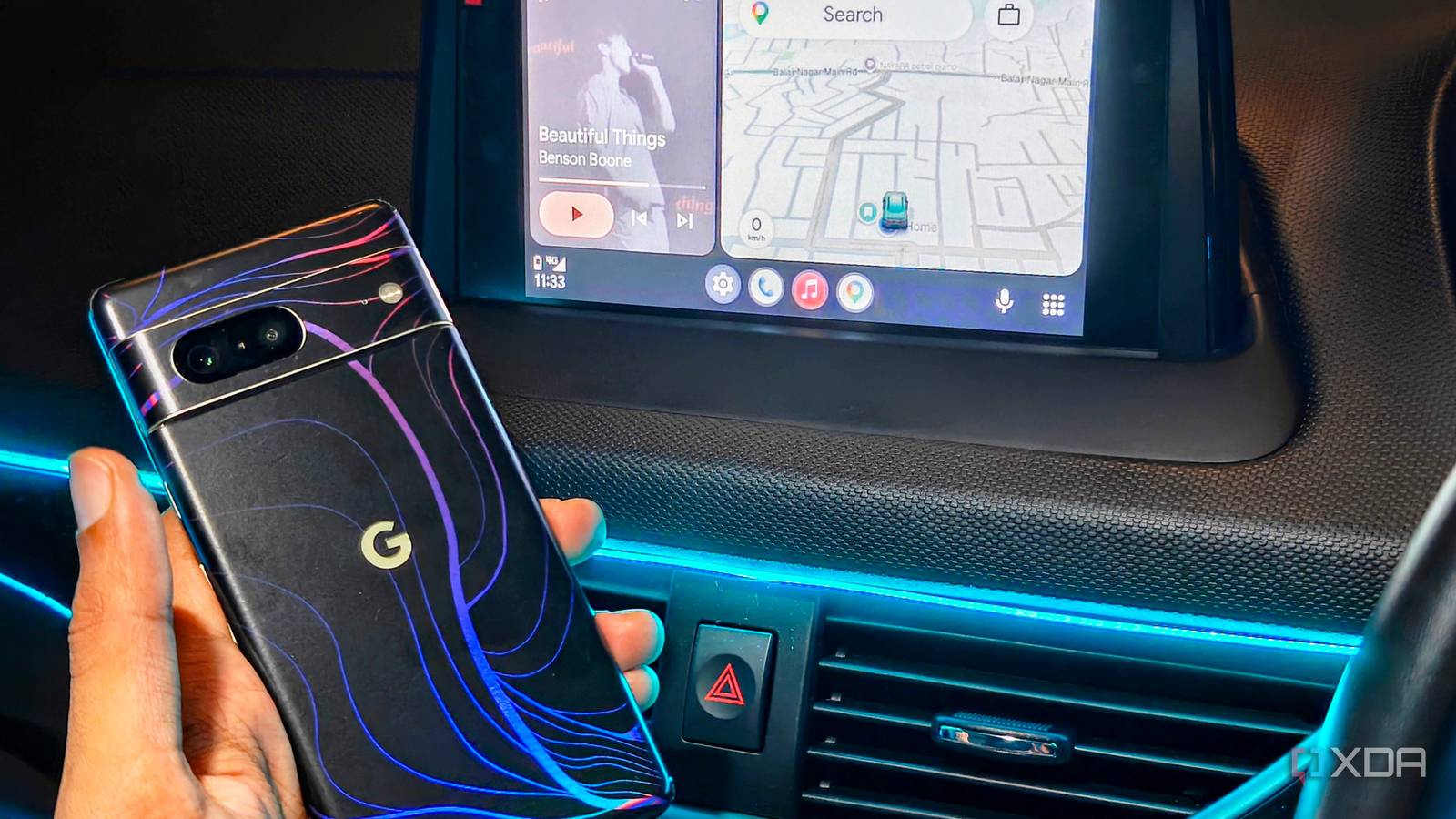
Published Oct 29, 2026, 8:31 AM EDT A seasoned mechanical design engineer turned tech reporter and reviewer, Chandraveer brings more than four years of consumer tech journalism experience to the table, with bylines at Android Police and iPhoneHacks. He's written about everything from UI and UX changes across various apps to emerging software and AI trends. At XDA, he showcases his versatility in the tech reporting space with articles rooted in personal experiences and frustrations. Chandraveer's passion for consumer tech spills over into hobbies such as mechanical keyboards, photography, and 3D printing. With an academic background in design and manufacturing, his insatiable curiosity spans beyond the digital domain. Chandraveer's downtime is an eclectic mix of reading fiction, practicing calligraphy, conceptualizing new products, and enjoying an expansive FLAC audio library. Driving typically isn't a chore as long as everything goes to plan — the route you take, the traffic you encounter, and your vehicle performing as expected. Most of my drives were like this, but I tinker with Android Auto a fair bit, so things are bound to go wrong at some point. This week, dark storm clouds gathered, and my car's infotainment started acting up. The screen went dark because its brightness automatically dims whenever the headlights come on. The car's ambient light sensor triggers it, and the screen just obeys. During the monsoon, this happens often enough to make a fix worth the bother. My car's overly sensitive ambient light sensor used to ruin my daytime drives, forcing a dim, unreadable dark theme whenever a cloud passed overhead or my headlights came on. By unlocking Android Auto's hidden Developer Settings and pairing its Day/Night authority override with the standard Maps theme toggle on my phone, I finally stripped theme control away from my vehicle's erratic relays. Taking manual command of when my dashboard renders in high-contrast light mode versus night mode eliminated sudden screen blackouts in highway tunnels and restored crisp legibility no matter the weather. Letting your car decide for you ruins daytime Maps visibility A dim display that's uncalled for could be a dangerous distraction Relying on a car's built-in sensors to manage, Android Auto's visual theme sounds convenient until viewing the screen becomes challenging when conditions change. Say, you're driving in variable weather, with automatic headlights turned on during an afternoon alternating between stretches of heavy rain and bright sun. My vehicle automatically turned on its headlights to comply with wiper-linked safety logic. Because Android Auto theming was linked to this behavior, it switched to night mode and stayed too dim to read against the bright cabin glare. Street labels, upcoming highway exits, and multi-lane turn guidance faded, making me squint at the center console a few seconds longer than I thought was safe. Highway tunnels and concrete underpasses made it even worse before I intervened. Every time I dipped beneath a wide overpass in midday traffic, my car's photo sensor registered a brief shadow and triggered an abrupt theme switch that made the display flash and cut out right as I needed to check for lane guidance. When I emerged back into direct sunlight, the system lagged for several seconds, leaving Google Maps stuck in a washed-out dark palette. When you are navigating unfamiliar interchanges at highway speeds, eliminating that split-second visual friction is the difference between a relaxed commute and a missed turn. My car would helpfully keep lights on for a few seconds after I'd left the tunnels or underpasses, blissfully oblivious to how those excruciating seconds passed by when I needed navigation directions off the screen. The search for a fix Understanding what works and why it does Hunting for a hardware fix inside the cabin only proved how deeply Android Auto ties itself to the vehicle. Reddit advice suggested adjusting the vehicle's display brightness setting to one notch down from its maximum detent to ensure the headunit doesn't lock into a single brightness state. My car does not even have a physical dimmer dial on the dash. It only offers a buried software slider for the digital gauge cluster brightness behind the steering wheel, and adjusting that slider has zero effect on how Android Auto renders Google Maps on the center infotainment screen. So whatever I had to do would be on the phone. Pulling the vehicle's ambient light sensor out of the equation was not an option because I genuinely found automatic headlamps and rain-sensing wipers made a big difference to my driving experience. Switching them off because I needed to see my navigation would add extra load: manually flipping lights and wipers on as needed, while the need to glance at Maps wasn't really going away. Android Auto settings to the rescue You might need Developer Mode for this Eventually, I fixed my issue with a combination of two settings. The first one is tucked under Settings > Connected Devices > Connection Preferences > Android Auto. On this page, I used the option called Day/Night mode for Maps, which lets you pick between Automatic, Day, and Night. By default, this option is set to Automatic, wherein the dash switches to dark mode with reduced brightness the instant my car's lights come on. Forcing Day or Night locks the Android Auto display to that color scheme and brightness no matter what the headlights are doing. People familiar with the Android ecosystem would know that for a long time, Google tucked this option away under Developer Settings. If you're running an older version of Android Auto, you might find it there. To unhide this settings menu for the first time, scroll to the bottom of the main Android Auto settings page on your phone and tap the Version section ten times in a row until a pop-up asks you to allow this change. Then, follow on-screen prompts and acknowledge safety warnings to proceed. To open this menu, tap the three-dot menu icon in the top-right corner of the screen, then tap Developer Settings. In this menu, you'll find the option to ensure your car follows the phone's instructions. This setting used to have four options: Car-controlled, Phone-controlled, Day, and Night. The current implementation for Automatic mode seems to use what was called Car-controlled in the developer options. Now, the setting is much simpler to access and implement. That's probably for the better, because digging through Reddit threads shows that ever since Google separated Android Auto's dark theme from the phone's system-wide OS dark mode, the phone-controlled setting has consistently failed to switch themes on schedule. Even worse, the Phone-controlled toggle often keeps reacting to the car's illumination trigger or silently resets to Car-controlled the next time you open the menu. You're certainly smarter than your car Android Auto should be a set-and-forget sunrise-to-sunset solution for digitized navigation and device emulation on your vehicle's infotainment screens. Manually forcing Day or Night mode keeps the phone and your car from fighting over the right brightness and color scheme for your all-important navigation display. If the issue persists, you could try pairing the Day/Night mode override with auto-headlights switched off, since sensor integration may vary by vehicle model. Android Auto still has a long way to go, but we cannot ignore its quirks until every carmaker gets Android Automotive instead — Google's OS baked into the vehicle's firmware with deep system integration.
My car's sensor kept dimming Android Auto, so I took control of the screen
Full Article
Original Source
Read the full article at Xda-developers →KhanList aggregates and links to publicly available news content. We do not host full articles from third-party sources. Always verify important information with original sources.