
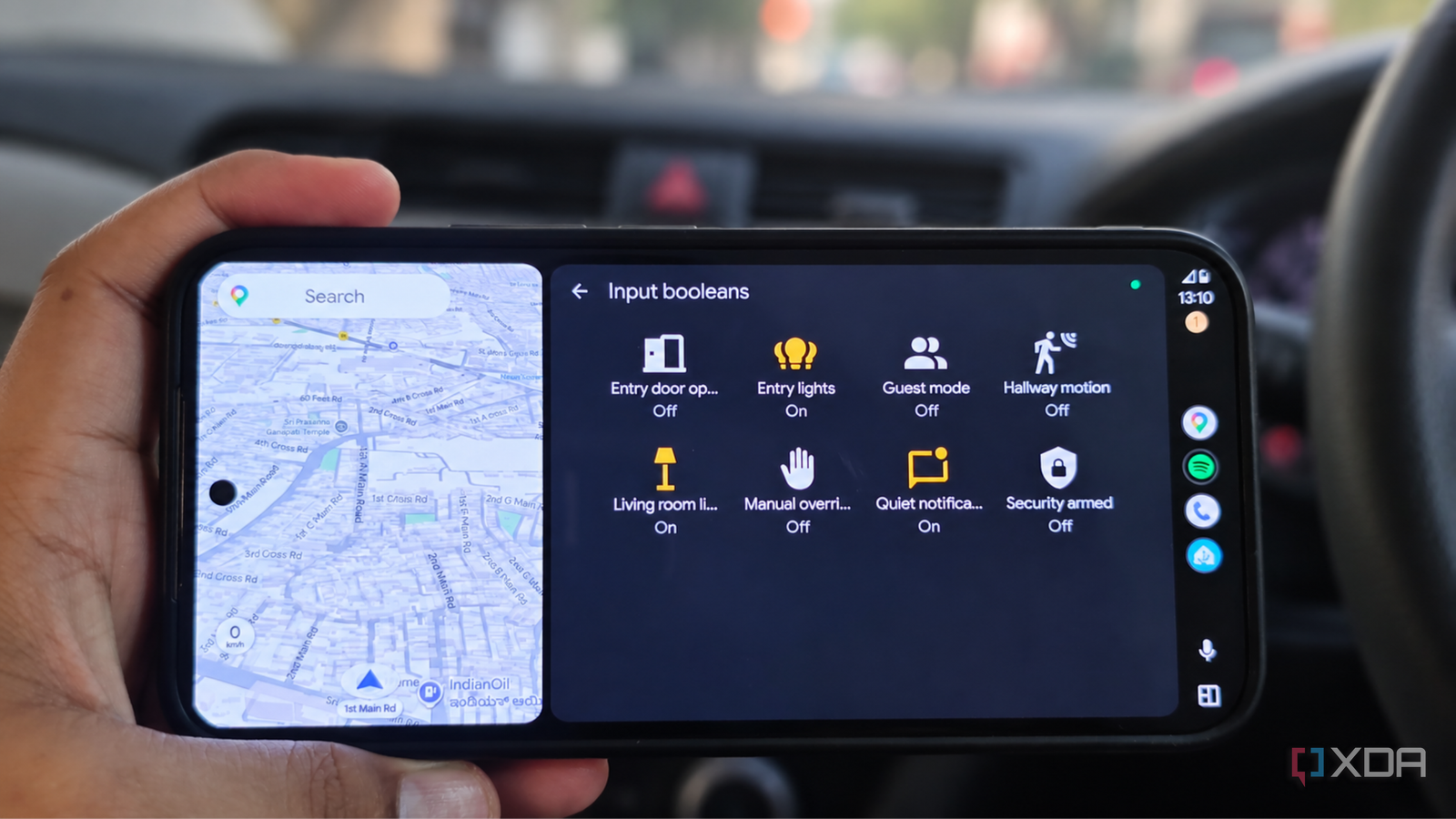
Published Nov 2, 2026, 8:31 AM EST Anurag is an experienced journalist and author who’s been covering tech for the past 5 years, with a focus on Windows, Android, and Apple. He’s written for sites like Android Police, Neowin, Dexerto, and MakeTechEasier. Anurag’s always pumped about tech and loves getting his hands on the latest gadgets. When he's not procrastinating, you’ll probably find him catching the newest movies in theaters or scrolling through Twitter from his bed. I’ve been getting more use out of Android Auto since turning an old phone into a dedicated display for my car. Google Maps and music cover most of what I need during a drive, though I keep looking for other useful things to do with the setup. Having a screen sitting right there makes you curious about what else it can handle. One thing I wanted was a way to get the house ready before I walked through the door. I already have smart lights and automations at home, so I started looking into how the drive back could fit into that setup. Home Assistant’s Android Auto support gives me a useful place to start. Getting Home Assistant onto Android Auto My existing setup does the work Credit: Home Assistant’s Android Auto interface is built into its Android Companion app, so you don’t need a separate car app. You need a working Home Assistant server and the Companion app signed into it on the phone supplying Android Auto. In my setup, the old phone acts as the display, so the Home Assistant connection lives on my main phone. Your server continues running at home. The phone communicates with it, and Android Auto puts a simplified set of controls on the car’s screen. You don’t need to move your Home Assistant installation or connect your car to the server as a separate smart device. Once you sign in to the Companion app, you can open Home Assistant from the Android Auto launcher. You'll need to sort out remote access before using this away from your driveway. A connection that only works on home Wi-Fi won’t help when you’re driving back over mobile data. Home Assistant Cloud provides remote access, or you can use an existing VPN connection to your home network. Open the Companion app with Wi-Fi off to confirm you can reach the server before moving on. The car interface also has its own favorites, which you select on the phone under Settings > Companion app > Android Auto favorites, sometimes labeled Driving favorites. These determine which entities appear when you open the app in the car. You can keep the selection small without changing your regular Home Assistant dashboard, which suits a screen where you want to find a control quickly. My home controls are on the screen I’m already using Individual devices are a tap away Home Assistant can already handle my arrival automations through the mobile app. My phone’s location can trigger the driveway lights or prepare the living room before I reach the house, and none of that requires Android Auto. However, I want direct access to individual devices on the car's screen when I need to make a decision myself. The arrival routine follows the conditions I’ve given it, but I don’t always want the same things switched on. Sometimes I only need the entrance light. Other times, I want to turn off a light I’ve left on without running a script that changes several other devices. Having those controls alongside the navigation and music apps I’m already using saves me from picking up my phone and opening another interface. You can select favorites in the Companion app to make this work. You can put individual lights, switches, and fans within reach instead of browsing through every entity in your house. I’d rather have a short list of devices relevant to leaving or arriving than fill the screen with controls I’ll never use from the car. You can also add sensor states to that list. For example, you can use a contact sensor to check whether a monitored door is open without operating anything. The house can send updates to the car Some alerts deserve the bigger screen Home Assistant also handles notifications from the devices around my house. Those updates usually reach my phone, which isn’t where I want to check them while driving. Android Auto gives me another place to receive the important ones, including alerts about something at home that needs attention before I get back. You need to explicitly enable this for the notifications you want to see. You’ll need to add car_ui: true to a notification’s data to make it eligible to appear on both your phone and the Android Auto screen. Opening it from the car takes you into Home Assistant’s driving interface. Keep Home Assistant enabled in the Android Auto launcher, since removing it can prevent these alerts from appearing. I’d reserve this for events such as water being detected under the kitchen sink or a door remaining open after everyone leaves. Home Assistant can check the relevant conditions before sending anything. For example, a door-open alert could require the door to remain open for several minutes and the house to be unoccupied, giving the notification enough context to be useful. More apps deserve a car interface Home Assistant makes me wish more of the apps I use offered an Android Auto interface. There’s value in making a few useful features accessible from the screen you already have in front of you. Home Assistant OS Windows, macOS, Linux, Android, iOS, web iOS compatible Yes Android compatible Yes
My car's Android Auto runs Home Assistant now, and it talks to my house when I arrive home
Full Article
Original Source
Read the full article at Xda-developers →KhanList aggregates and links to publicly available news content. We do not host full articles from third-party sources. Always verify important information with original sources.